'/%3e%3c/g%3e%3c/svg%3e)

Add an IMAP Account to Dove
Connect any IMAP-compatible mailbox — Fastmail, iCloud, Yahoo, or a custom domain — to Dove in a few steps.
Open Dove.
Steps to Add Account:
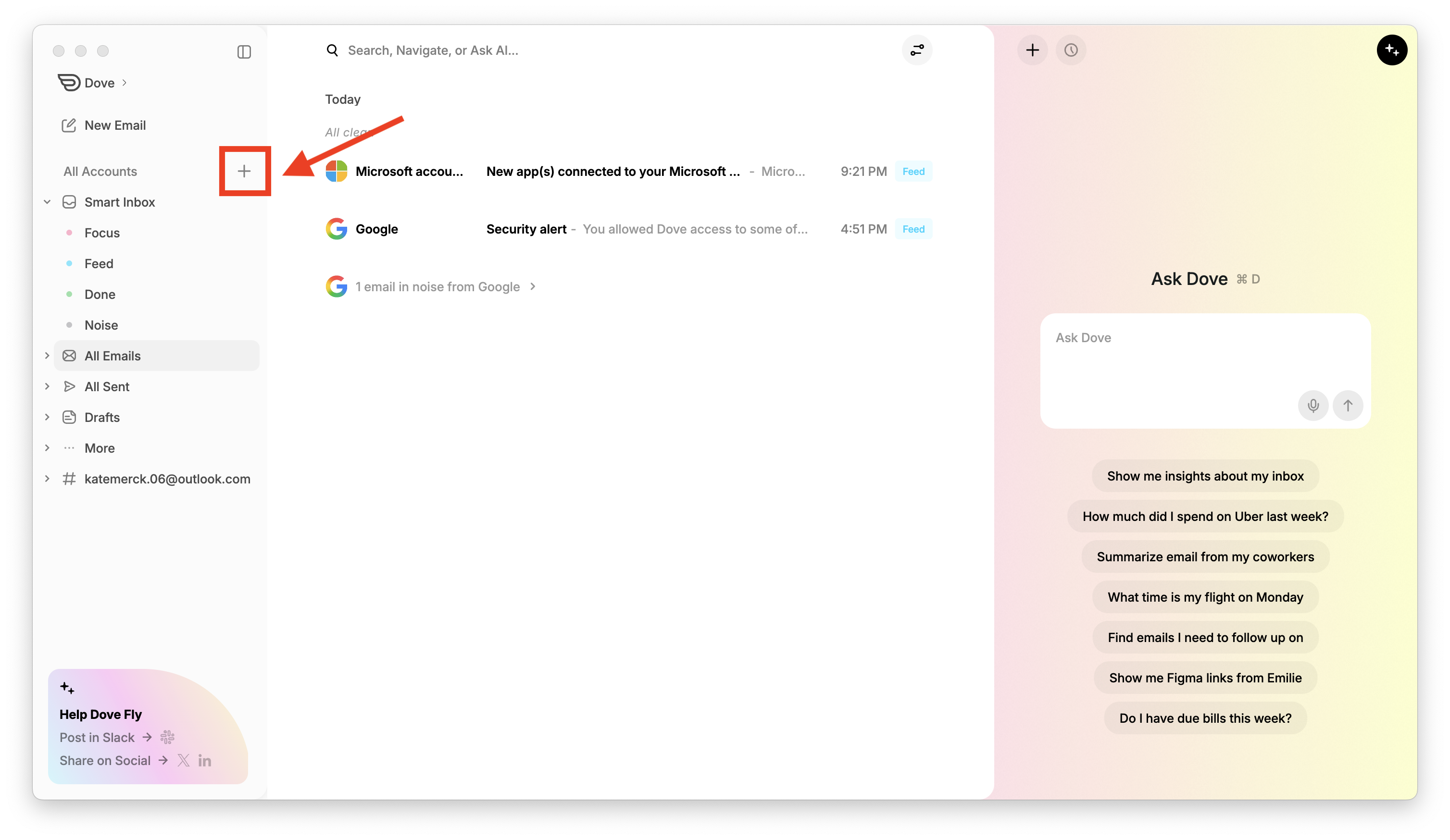
You can quickly add an account from the sidebar by clicking the “+” icon next to All Accounts, as shown below:
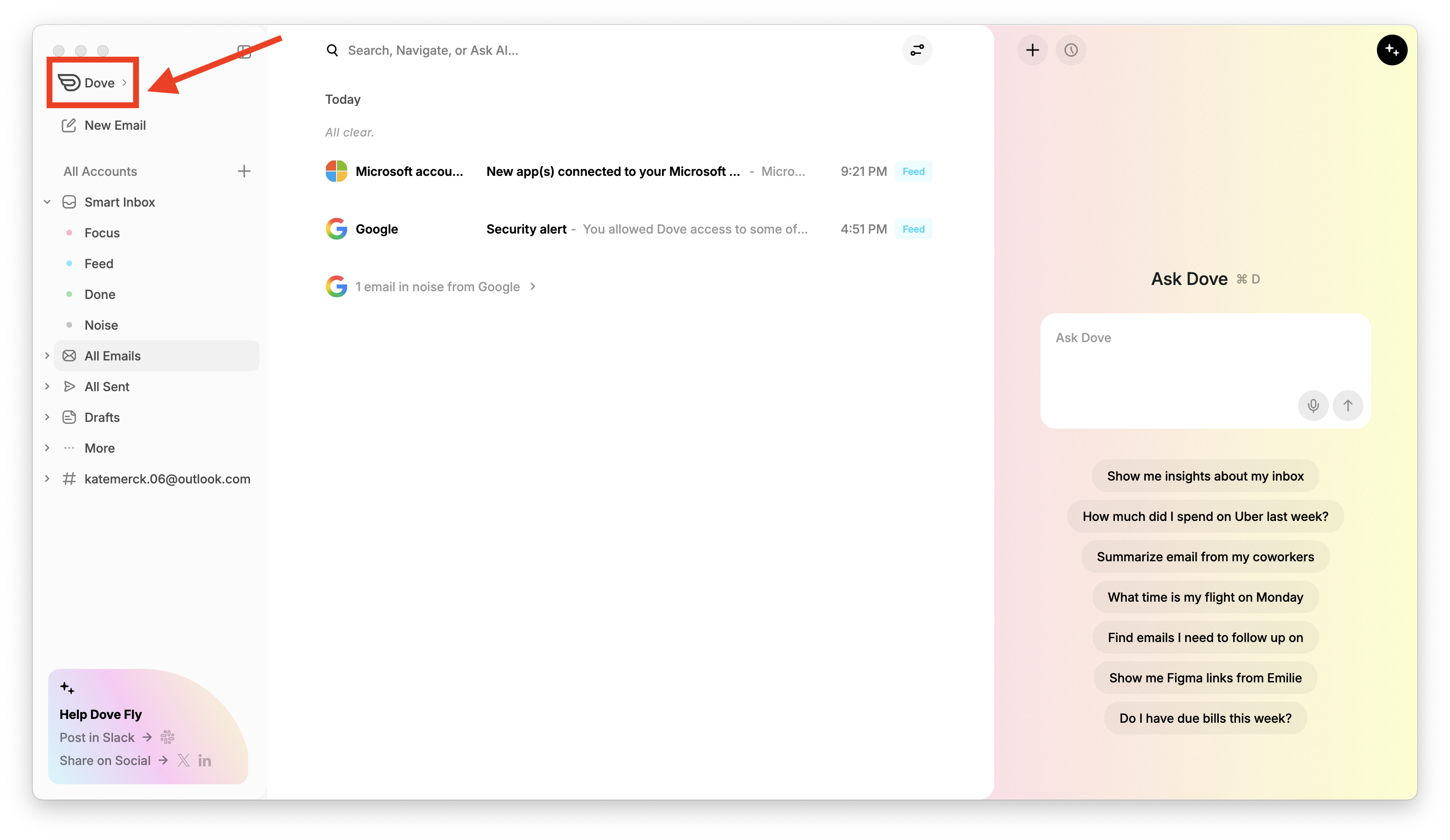
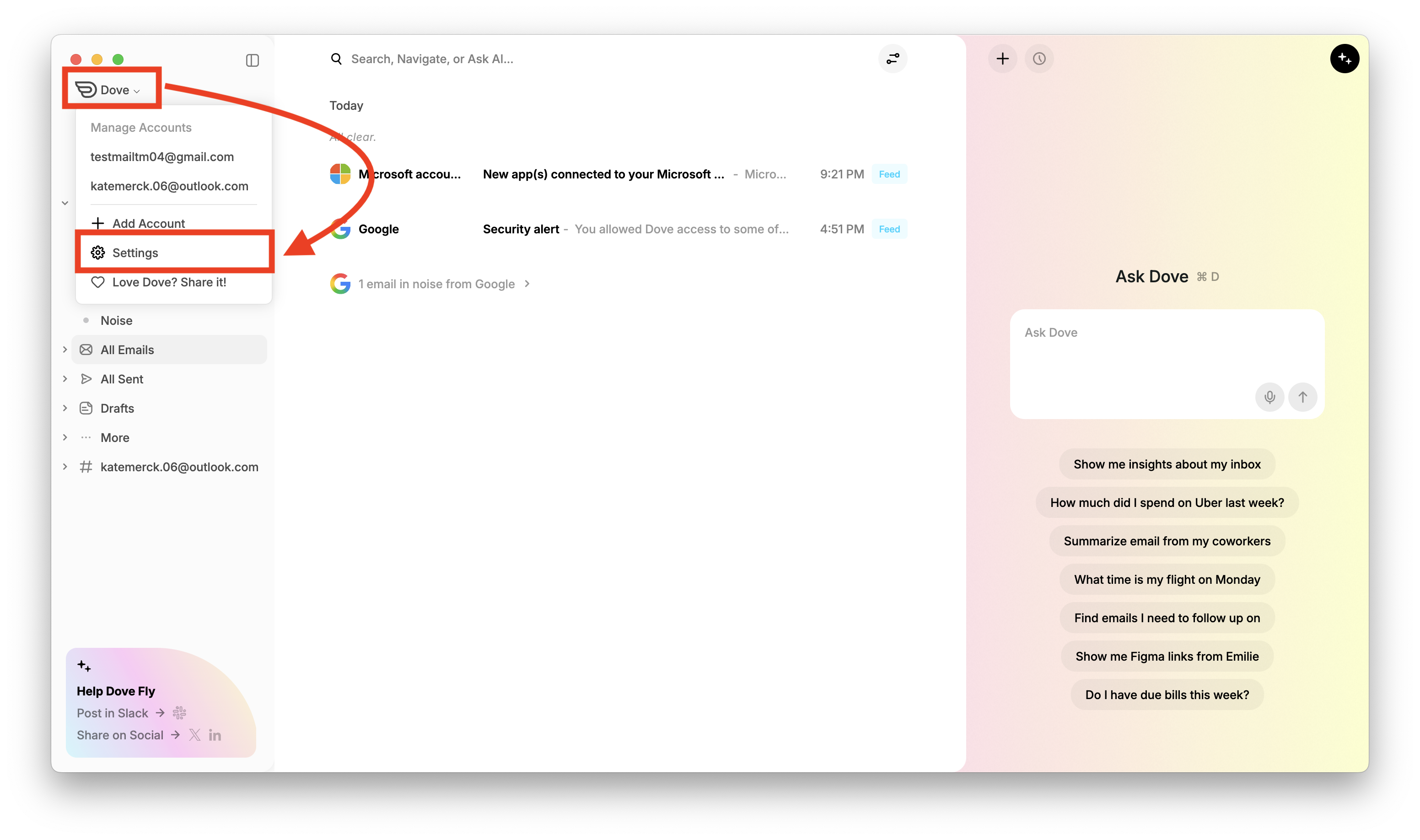
Or, click Dove at the top-left corner and select Add Account from the dropdown menu.
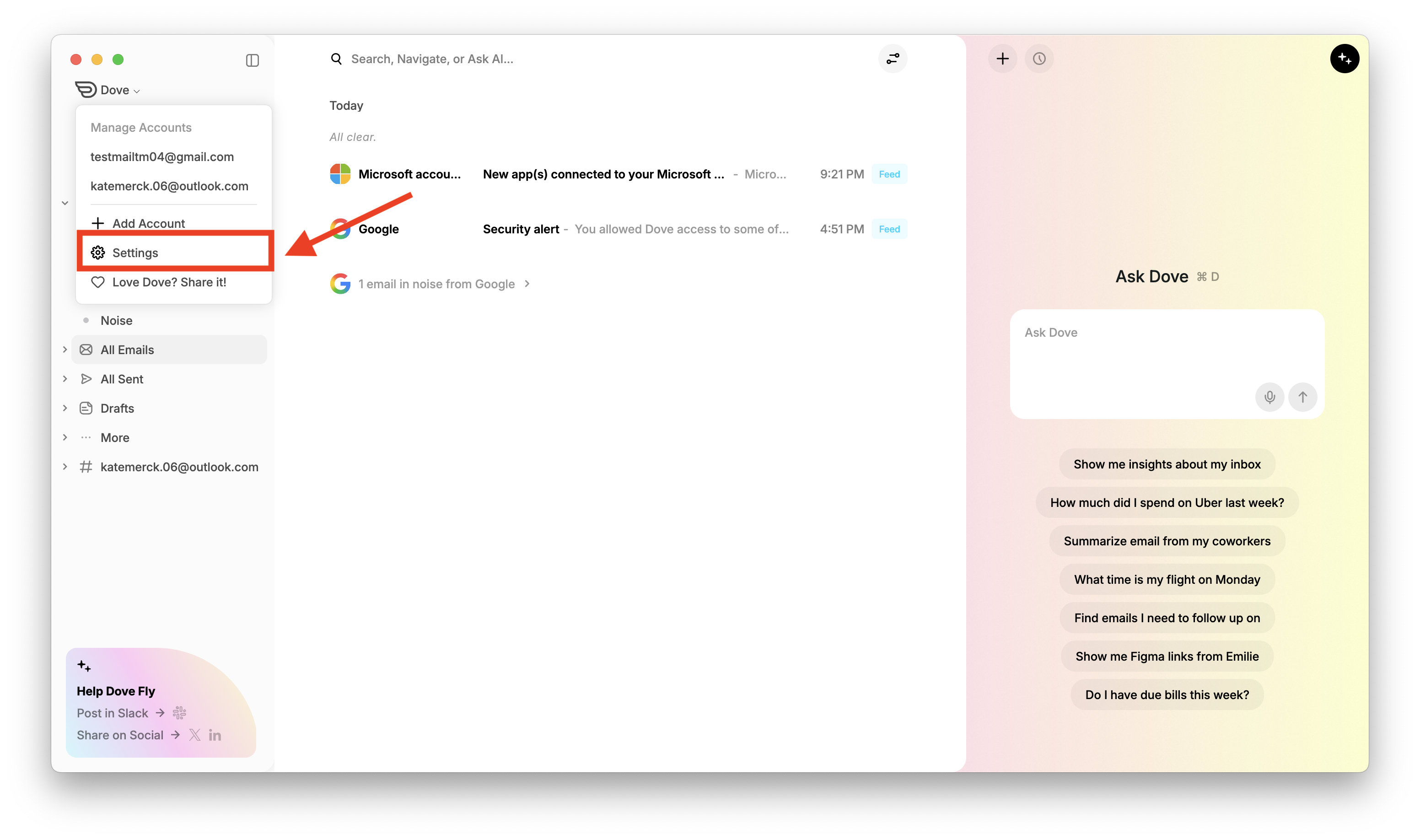
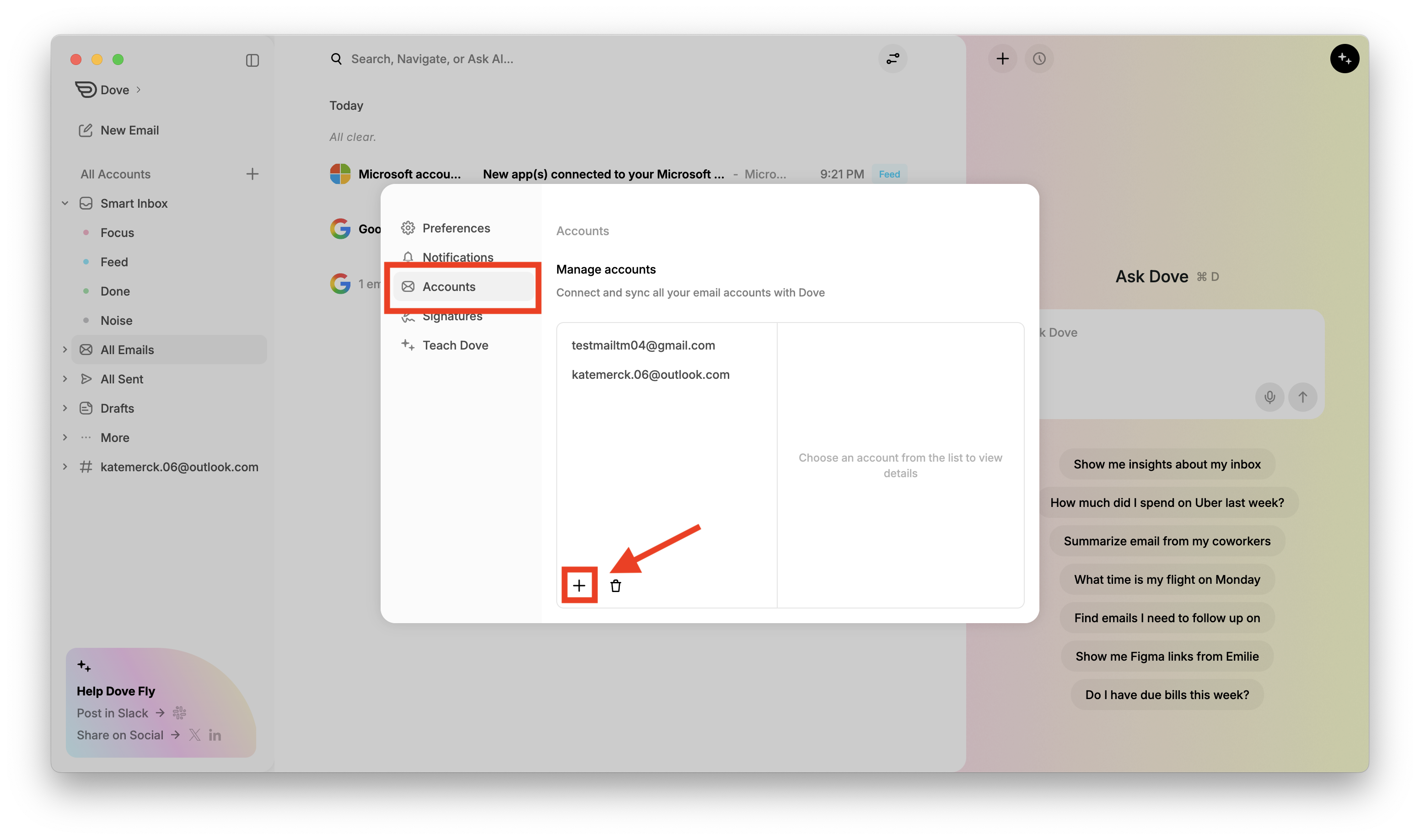
Or, go to Settings → Accounts and click the “+” button at the bottom of the accounts list.
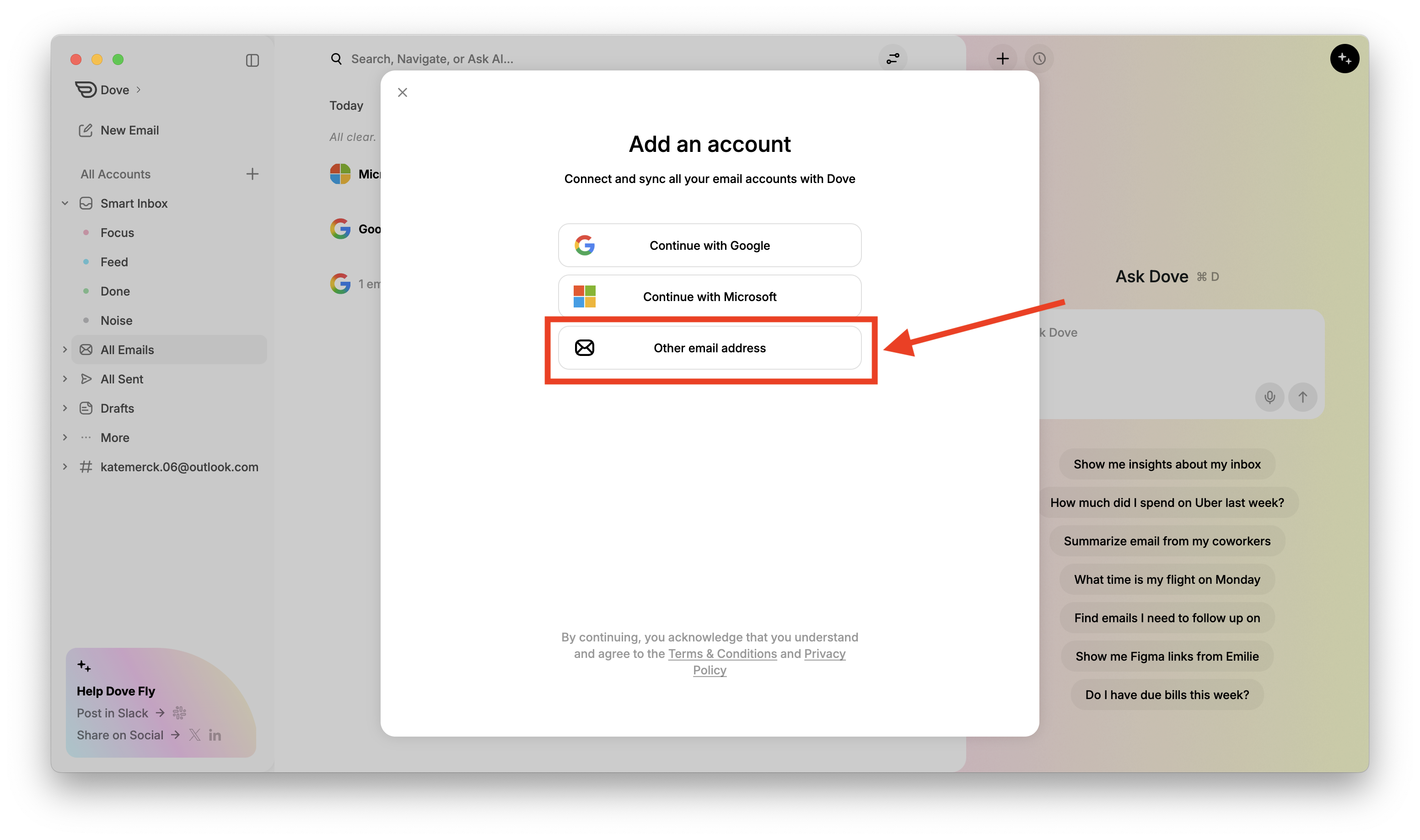
An Add an account dialog box will appear. Click Other email addresses. This will open the IMAP login screen.
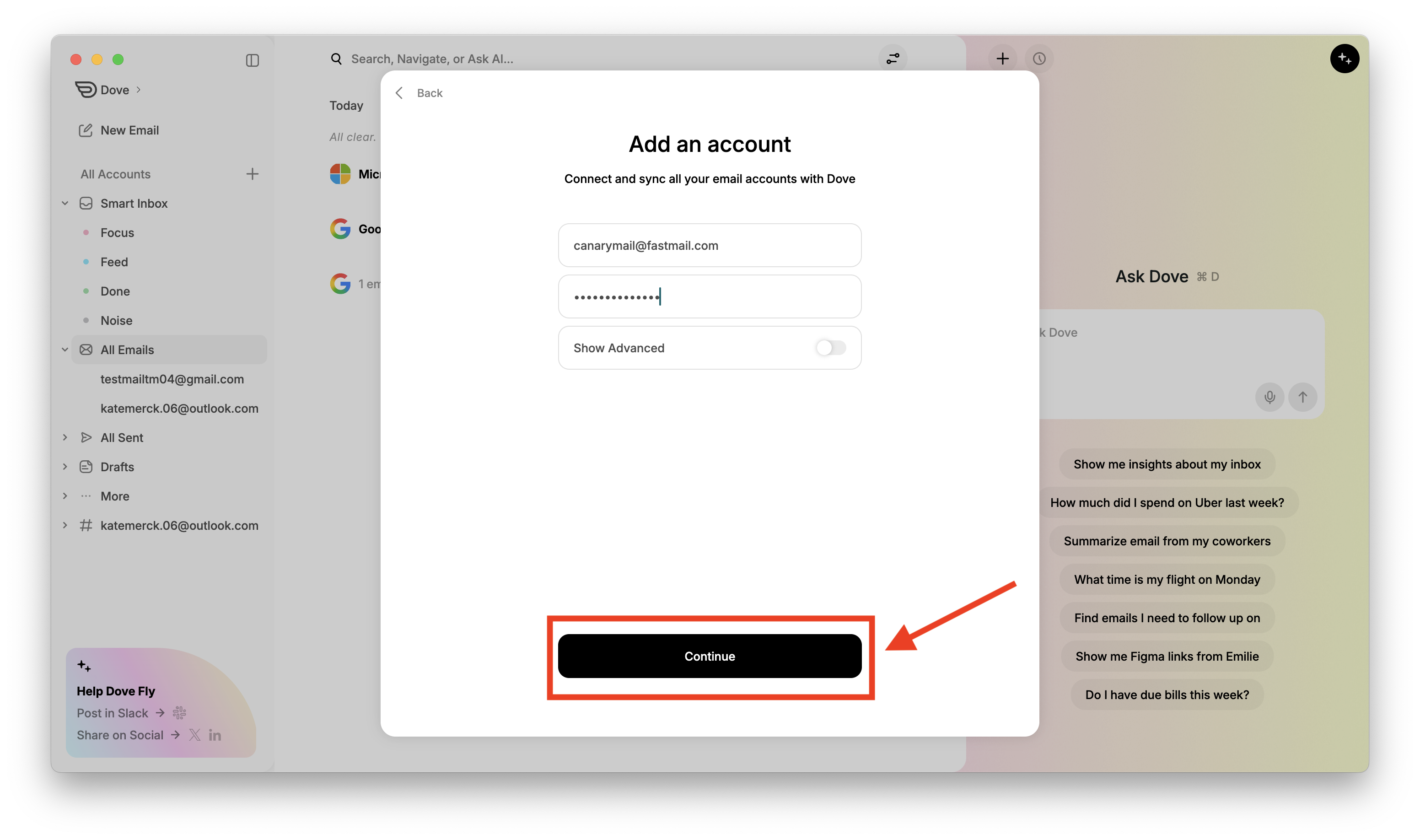
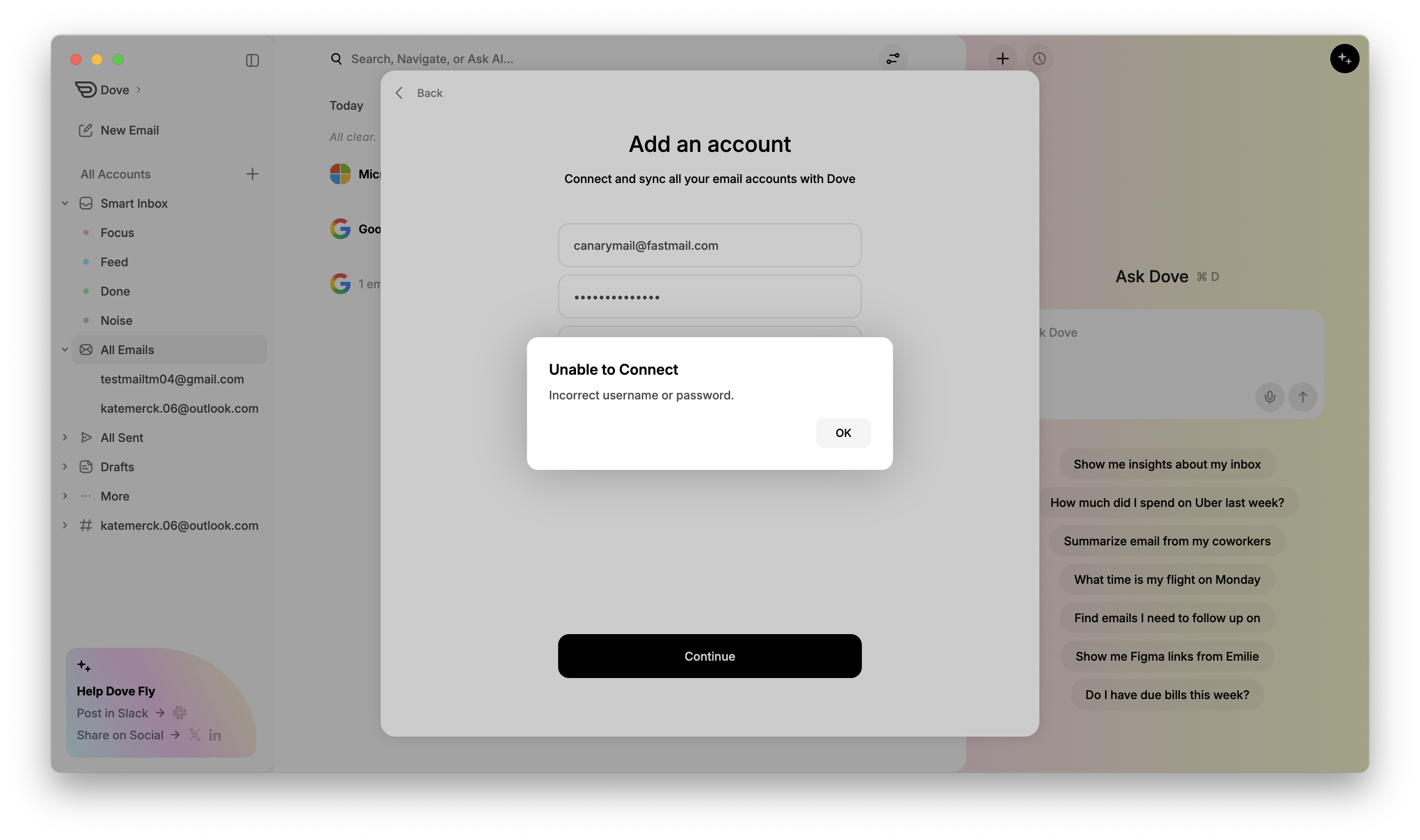
On the IMAP login screen, enter your Email Address and Password, then click Continue.
If the connection does not succeed, toggle Show Advanced Options to expand additional fields.
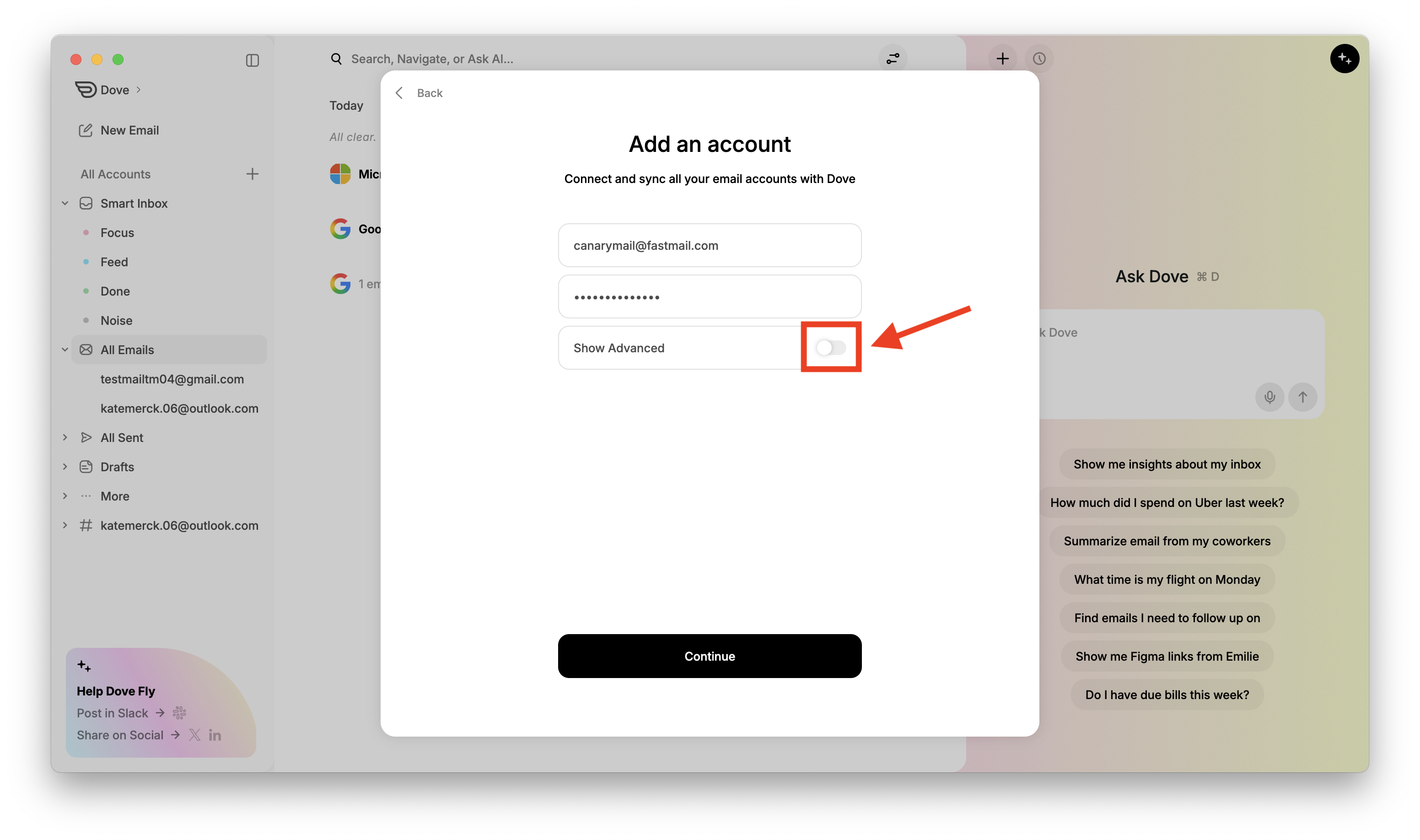
You can then manually enter the following server settings:Incoming Mail Server (IMAP) – Hostname, Port, and Security settings
Outgoing Mail Server (SMTP) – Hostname, Port, and Security settings
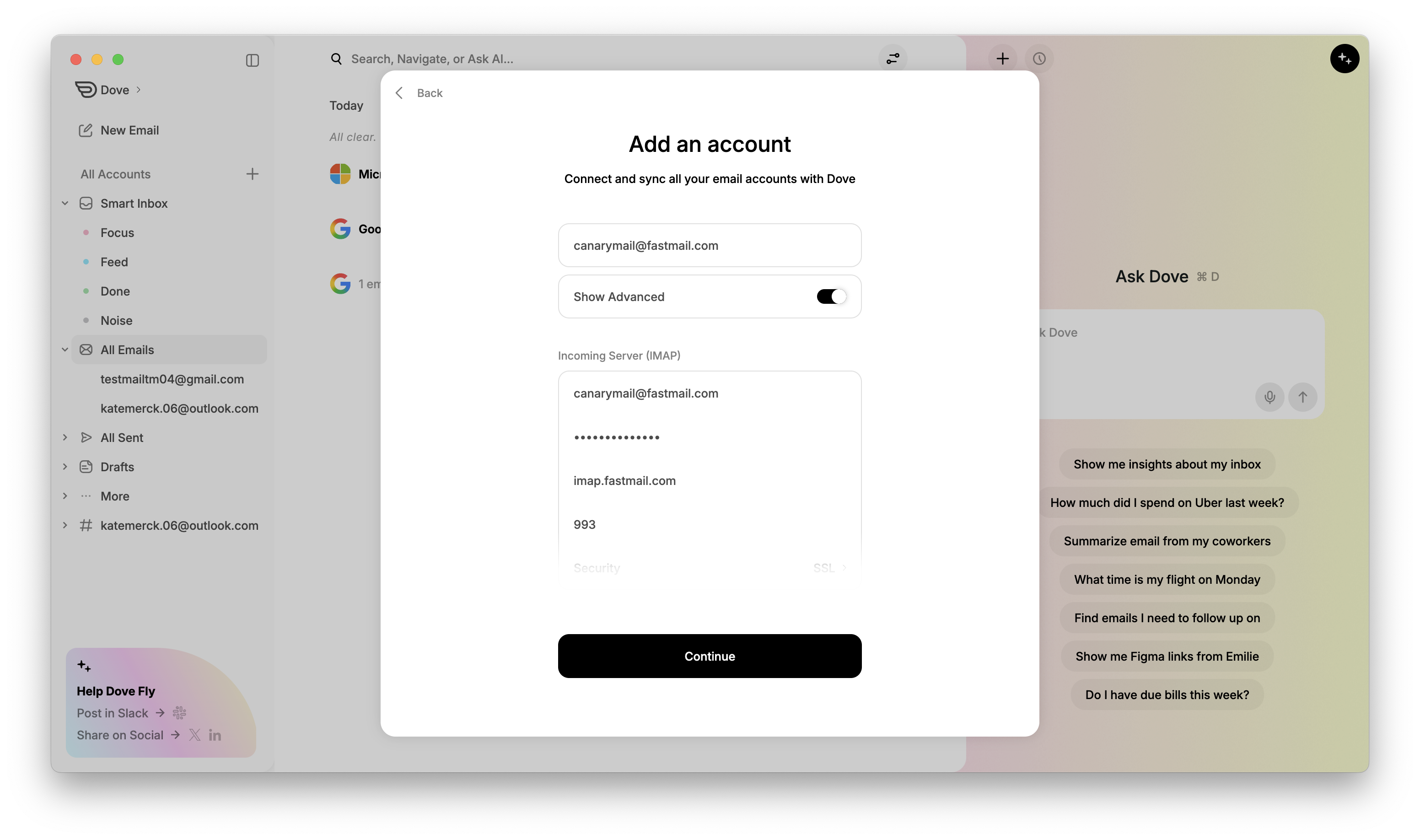
Any other credentials or settings required by your email provider
Then click Continue
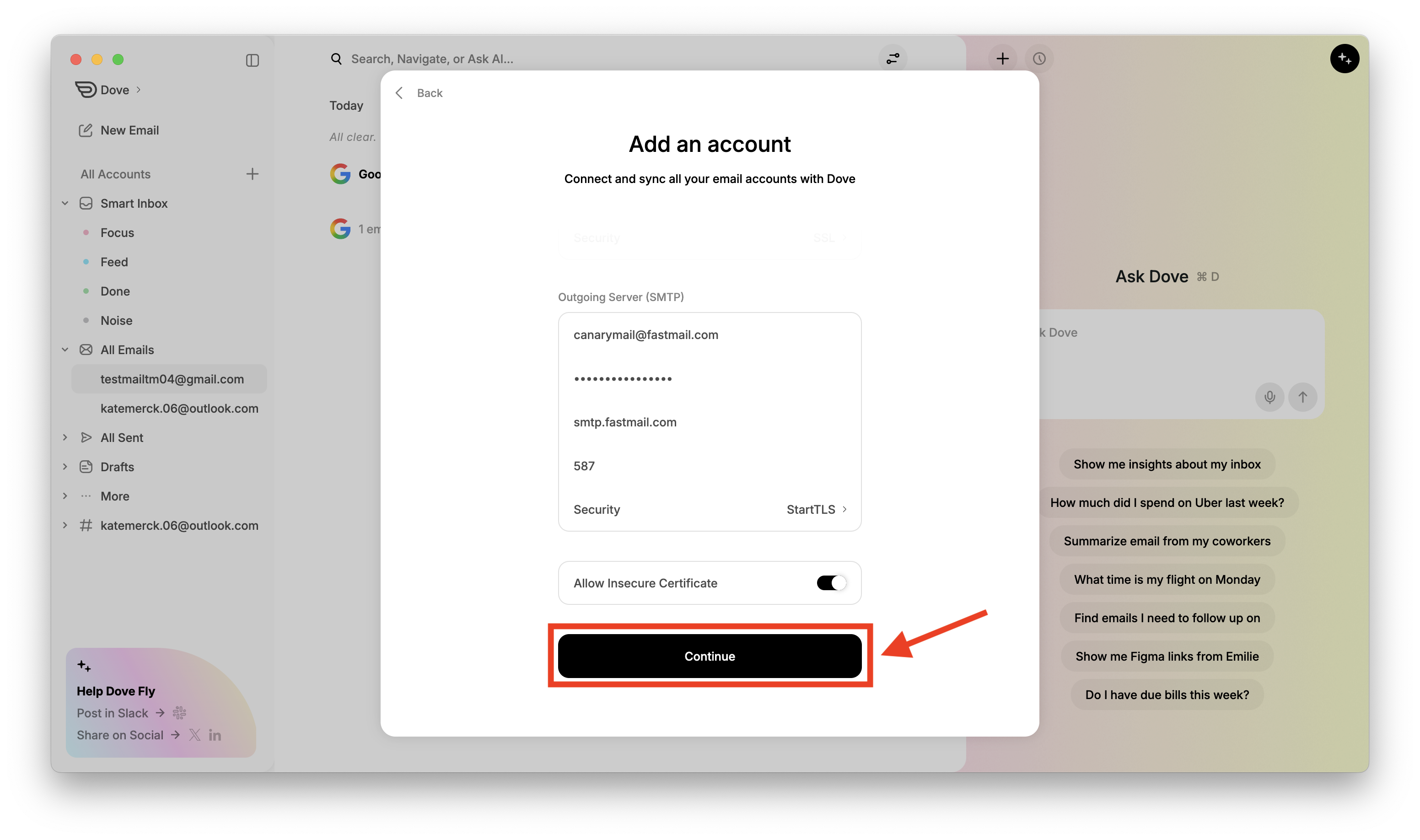
Once the authentication is done, your account will now appear in the dropdown when clicking Dove in the top-left corner, and also under All Emails in the sidebar.
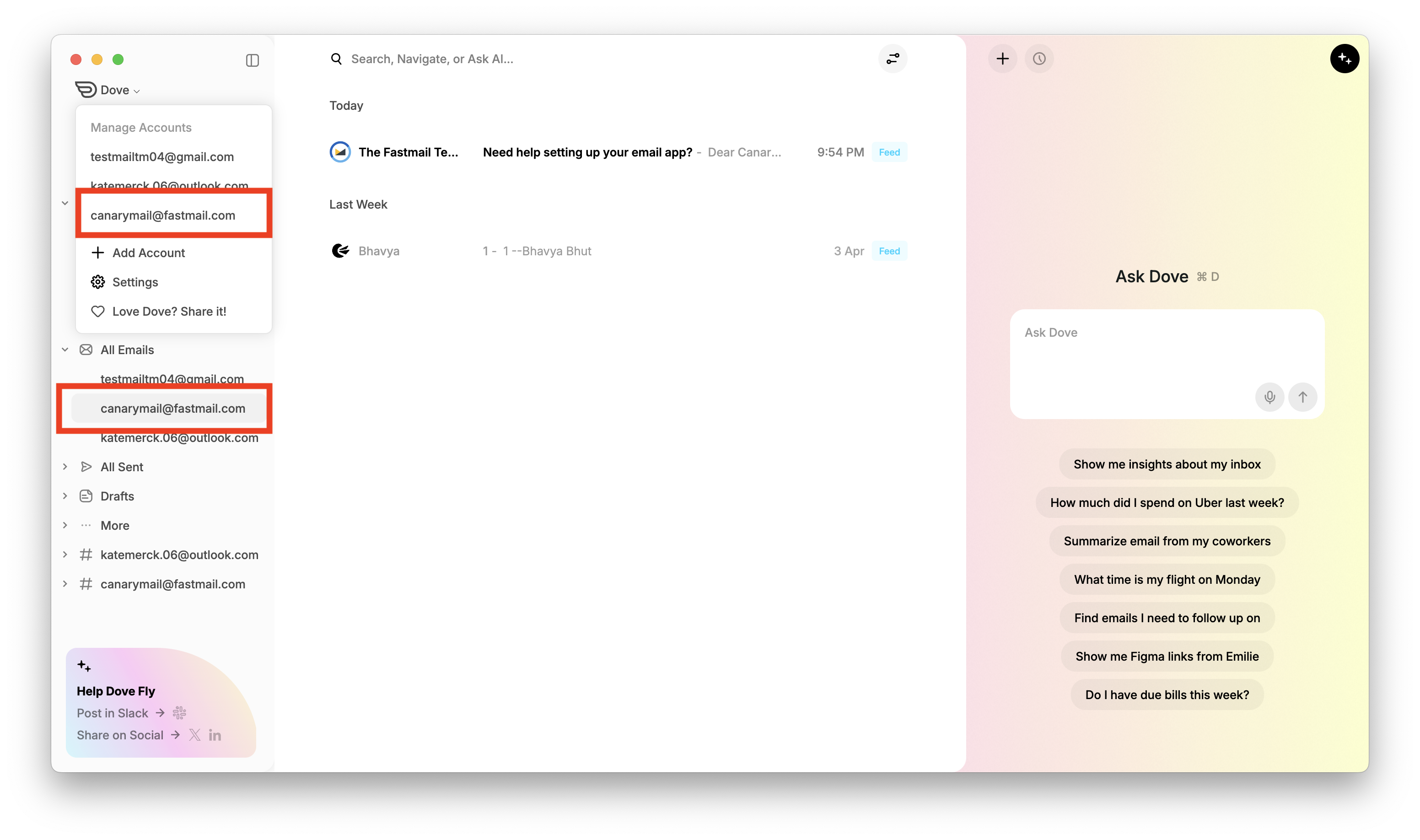
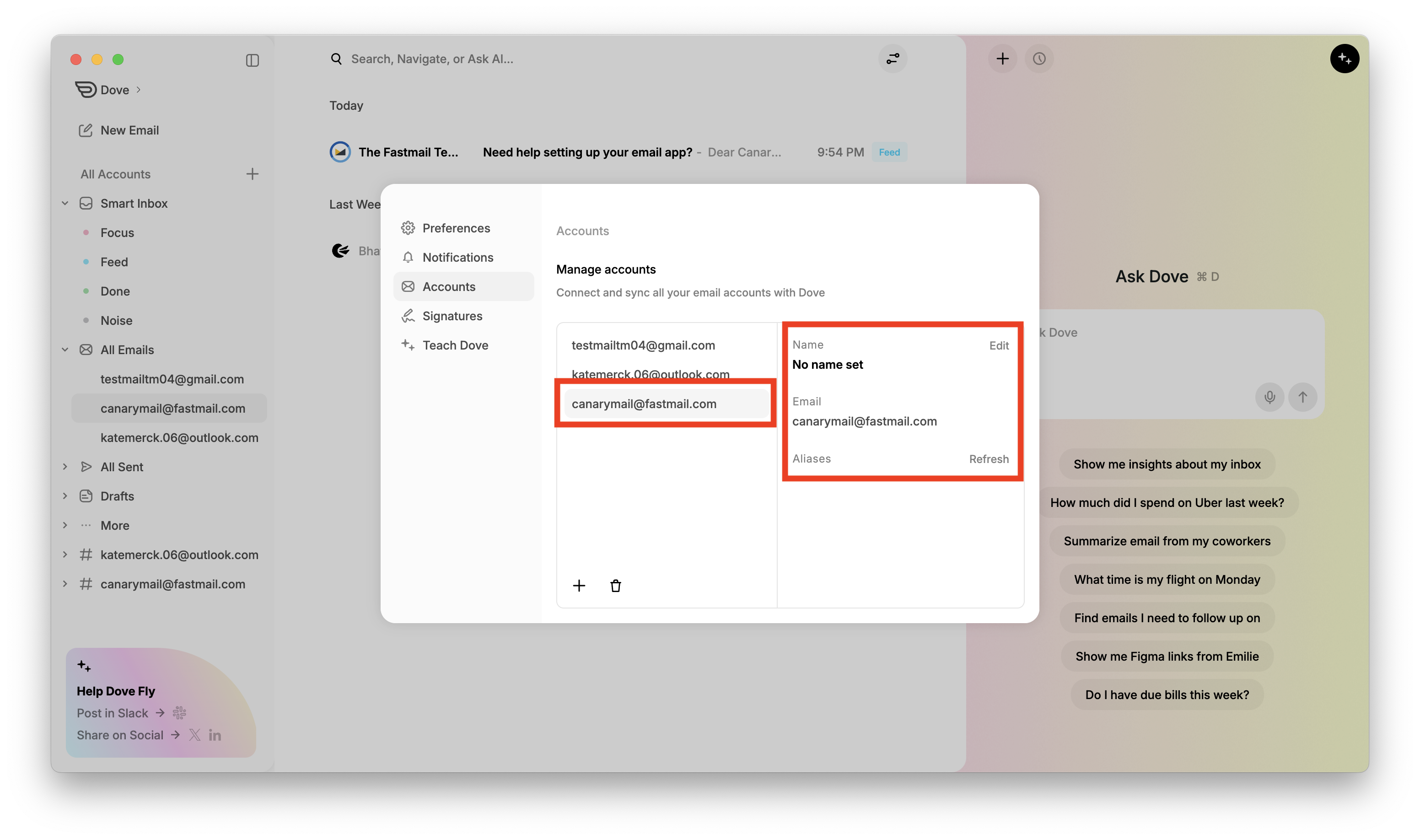
Your IMAP account will also appear in the Accounts list in Settings, identified by your name by default.
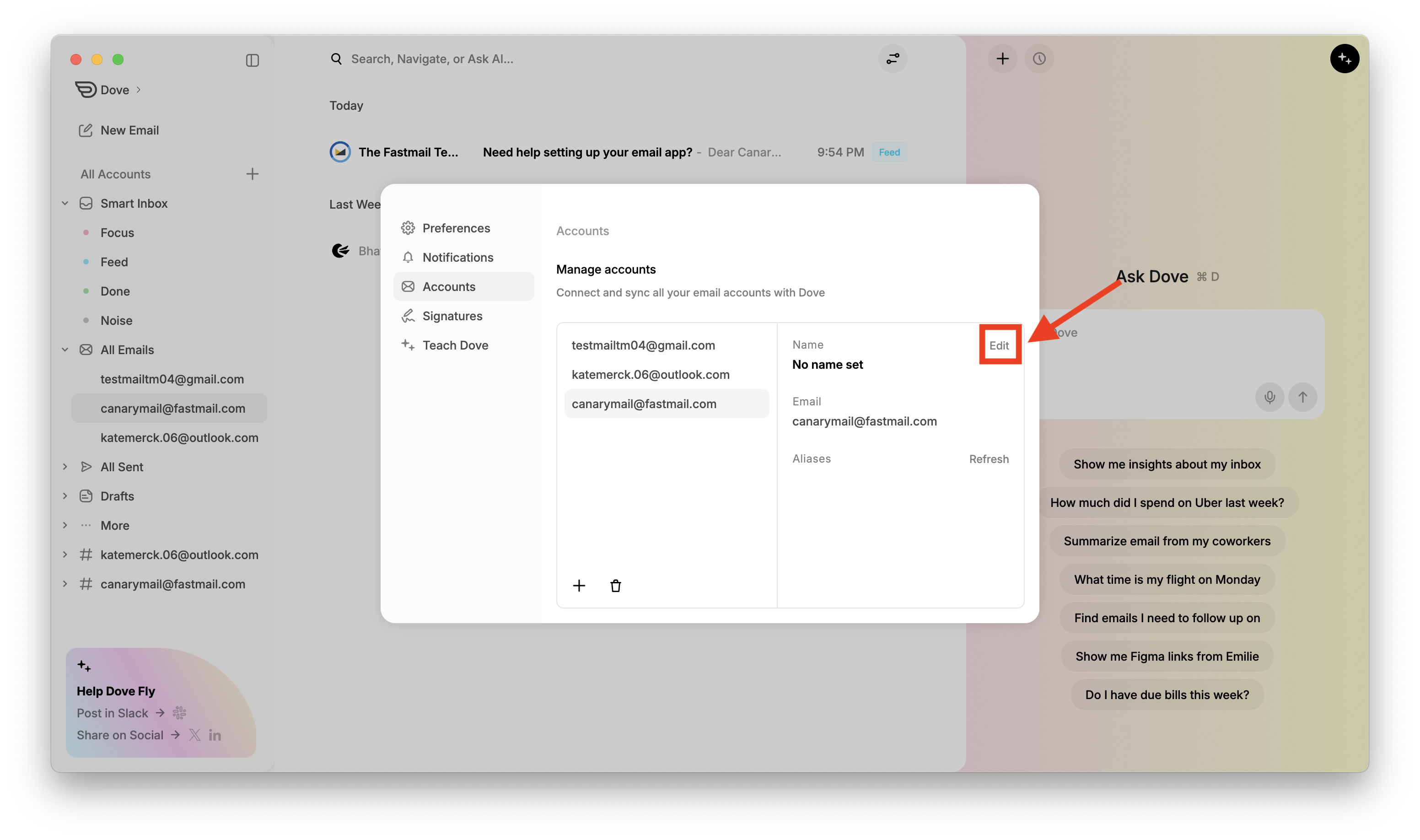
To rename the account, click Edit next to the name, type your preferred account name, and click Save.
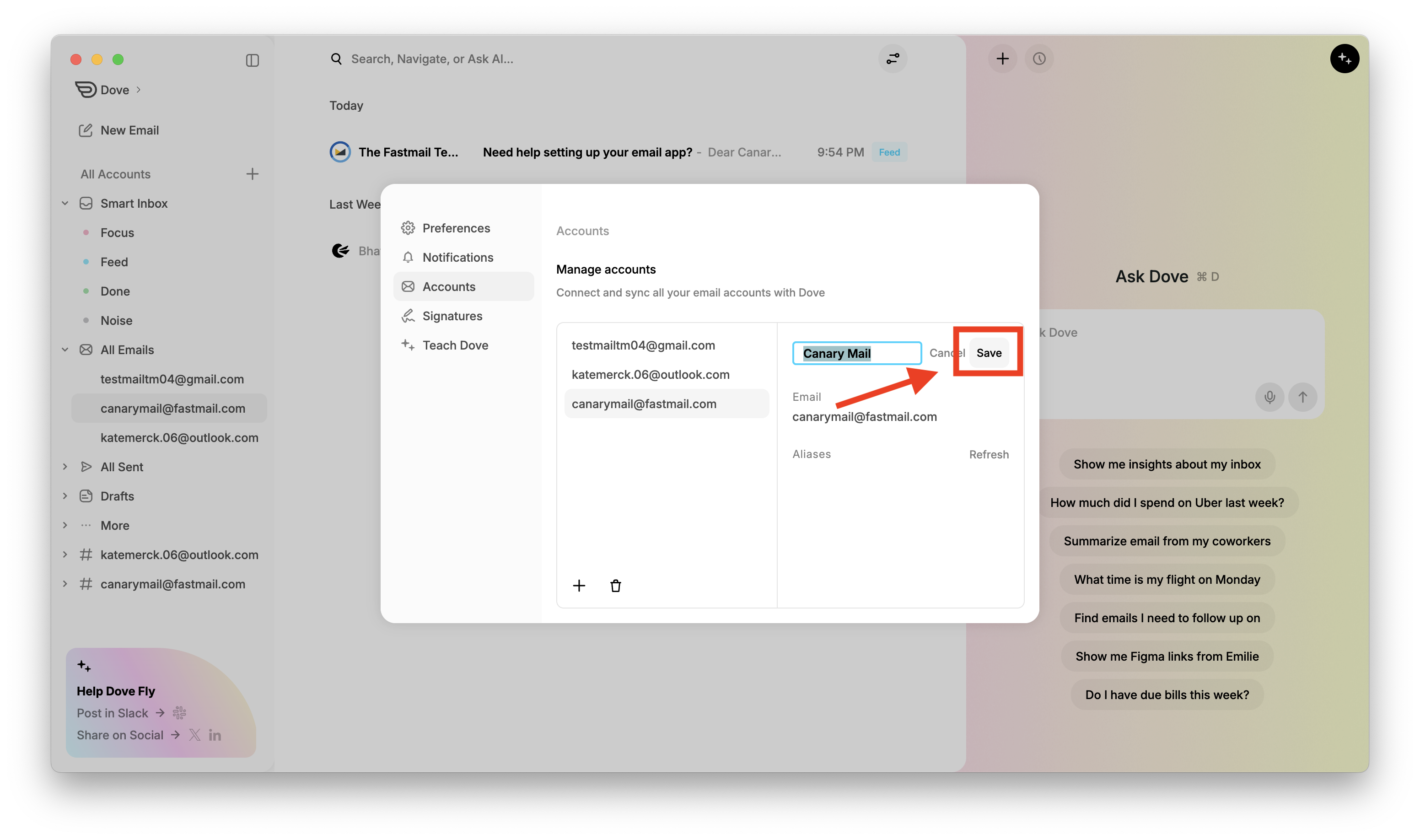
Your IMAP account is now connected to Dove, and your emails will begin syncing.
More from Dove
Related articles
August 11, 2026
Keyboard Shortcuts in Dove
Every keyboard shortcut in the Dove desktop app for macOS and Windows - navigation, triage, compose, search, and Ask Dove - plus how to view and rebind them.
April 21, 2026
Tasks in Dove
Dove helps you stay productive by automatically creating a task list from your emails. These tasks appear in the Dove Assistant panel on the right side when you are in Smart Inbox.

April 21, 2026
Manage Notifications in Dove
Dove allows you to customize notifications so you only get alerted for important emails. By enabling Smart Notifications, Dove will notify you only for emails classified as Focus and Feed, while avoiding notifications for Noise emails.