'/%3e%3c/g%3e%3c/svg%3e)

Tasks in Dove
Dove helps you stay productive by automatically creating a task list from your emails. These tasks appear in the Dove Assistant panel on the right side when you are in Smart Inbox.
Using Tasks in Dove
Open Dove.
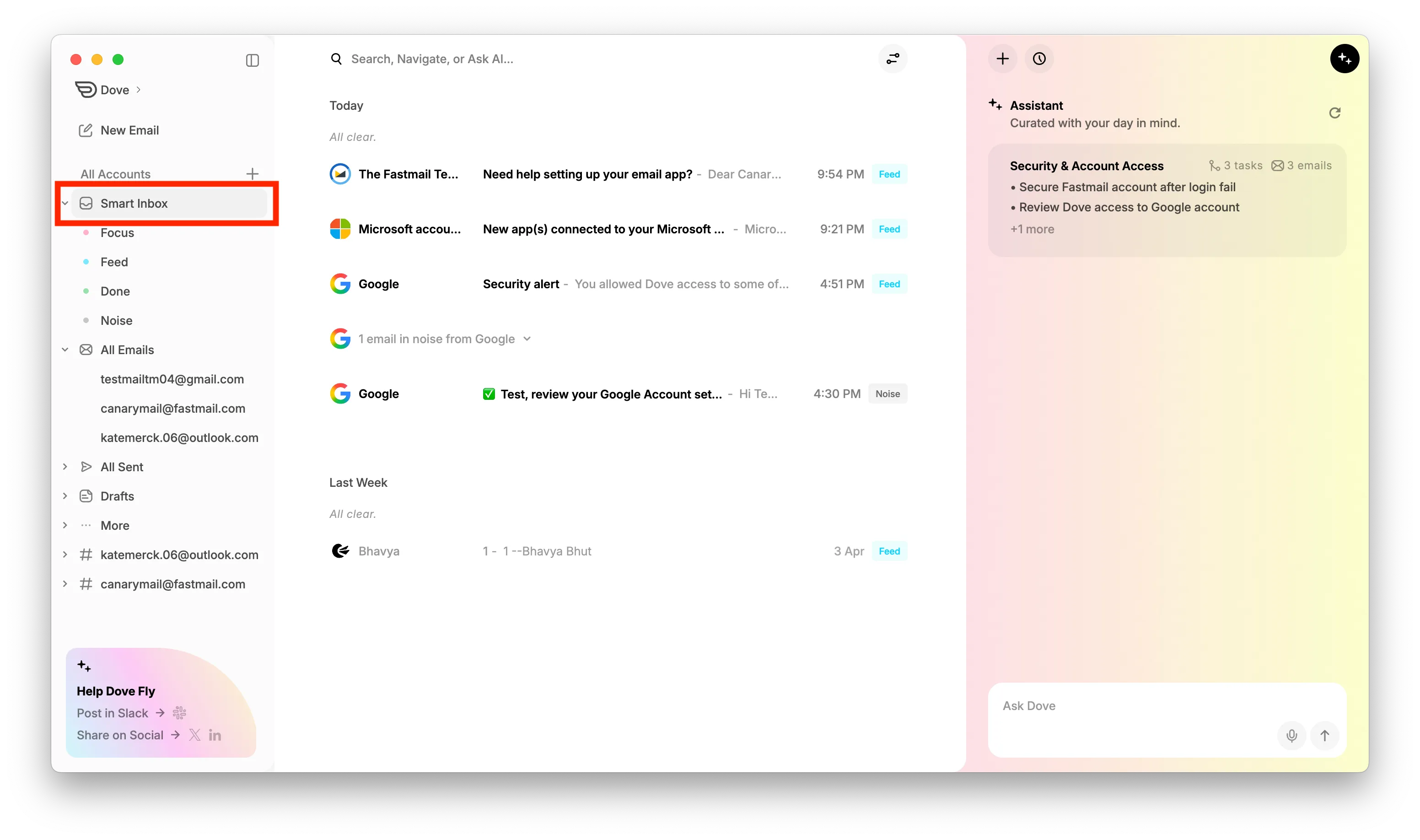
Go to Smart Inbox.
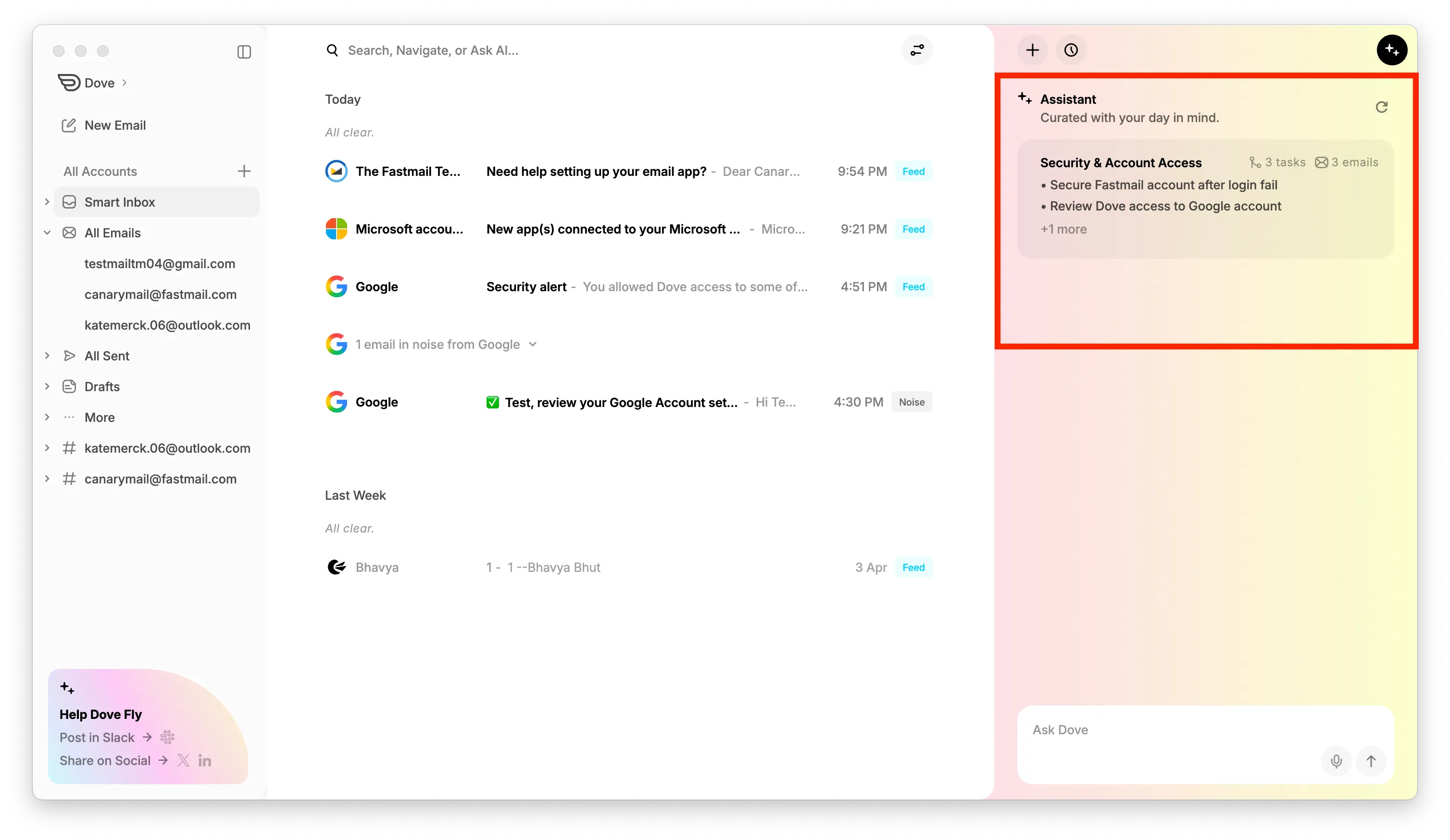
On the right side, the Dove Assistant panel will appear with your task list.
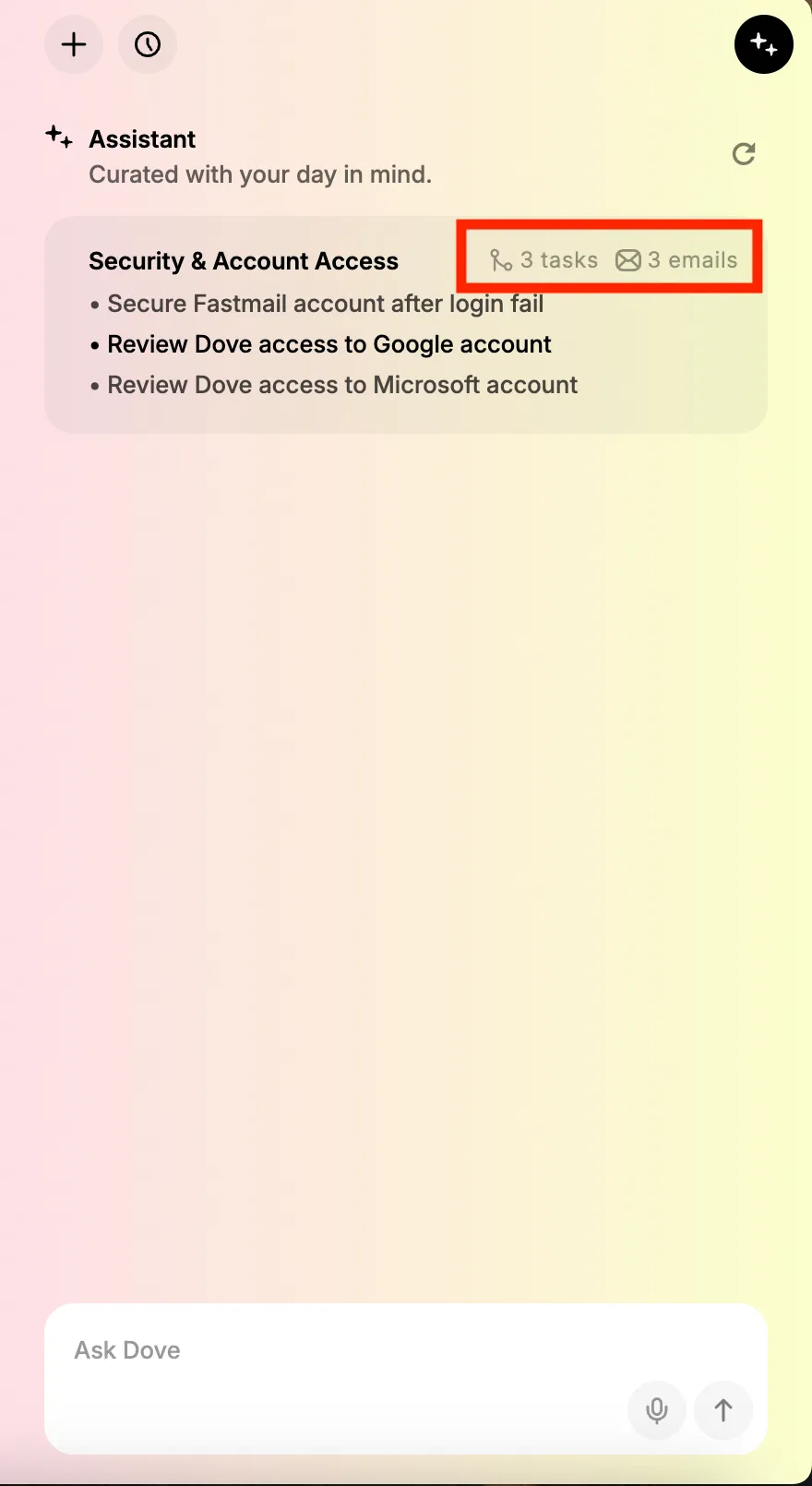
Each task is automatically grouped based on your emails and may include multiple subtasks from one or more emails.
On the right side of each task, you will see:
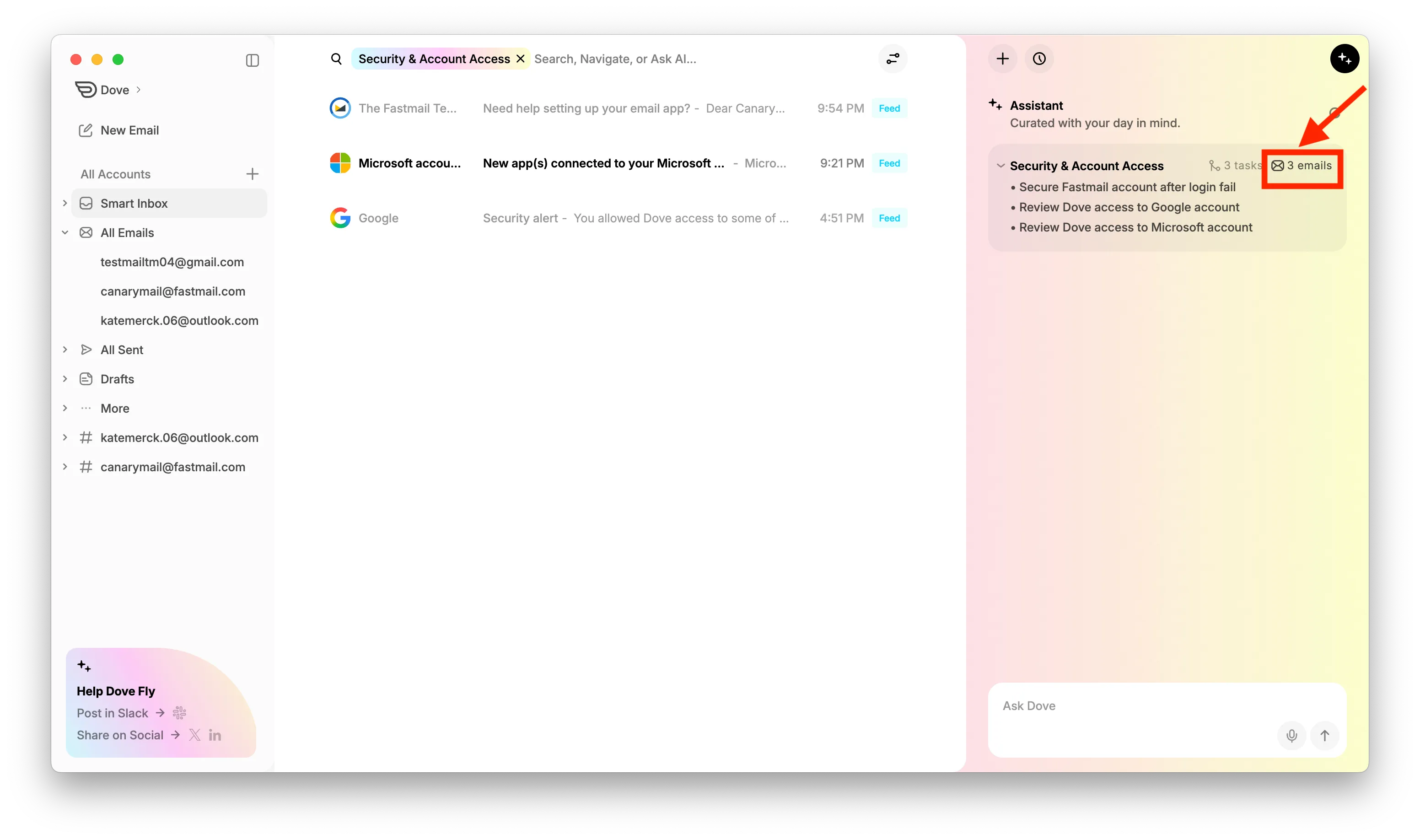
The number of emails associated with that task
The number of subtasks under it
To view related emails:
Click on a subtask to open its specific email
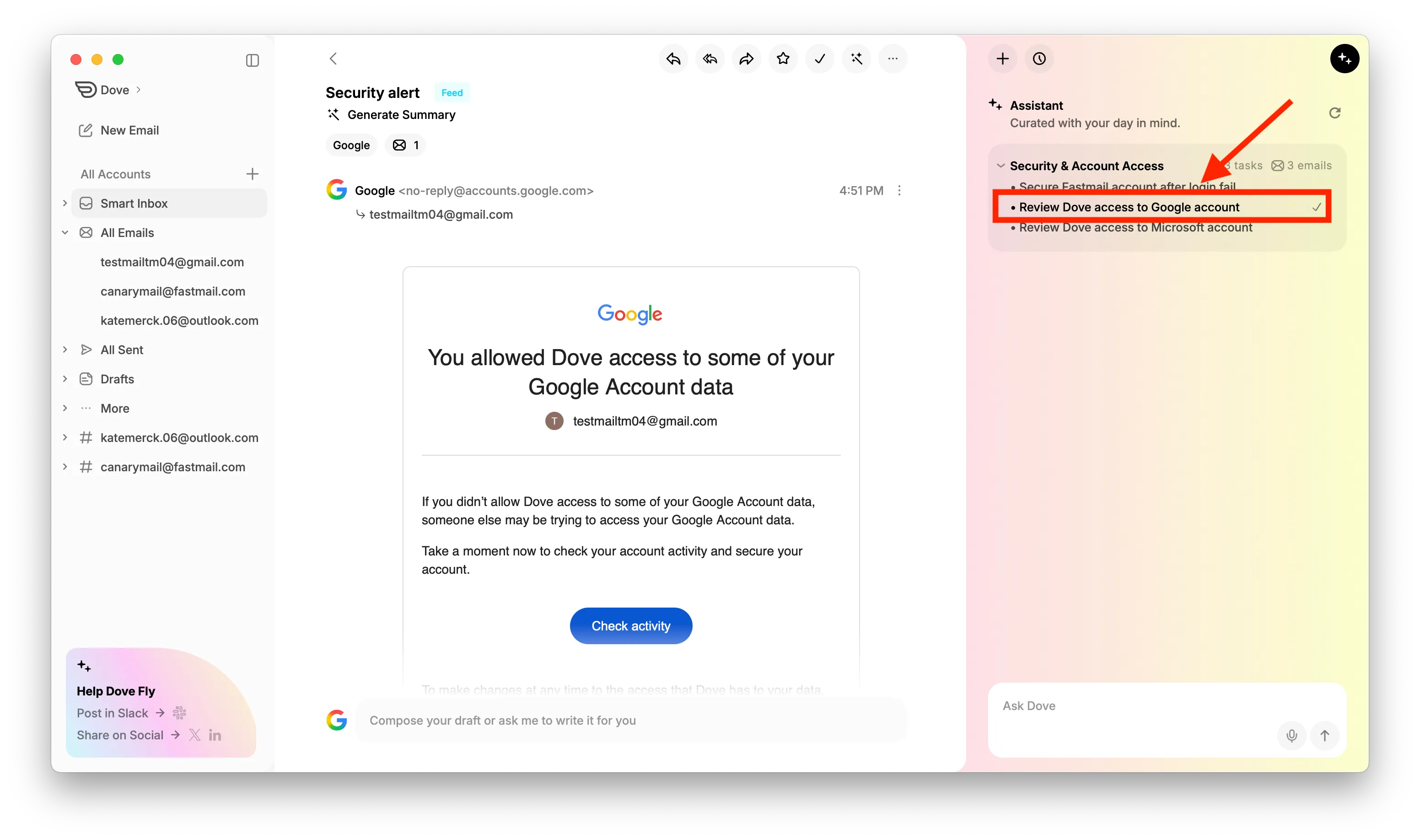
Click on the email count to filter and view all related emails
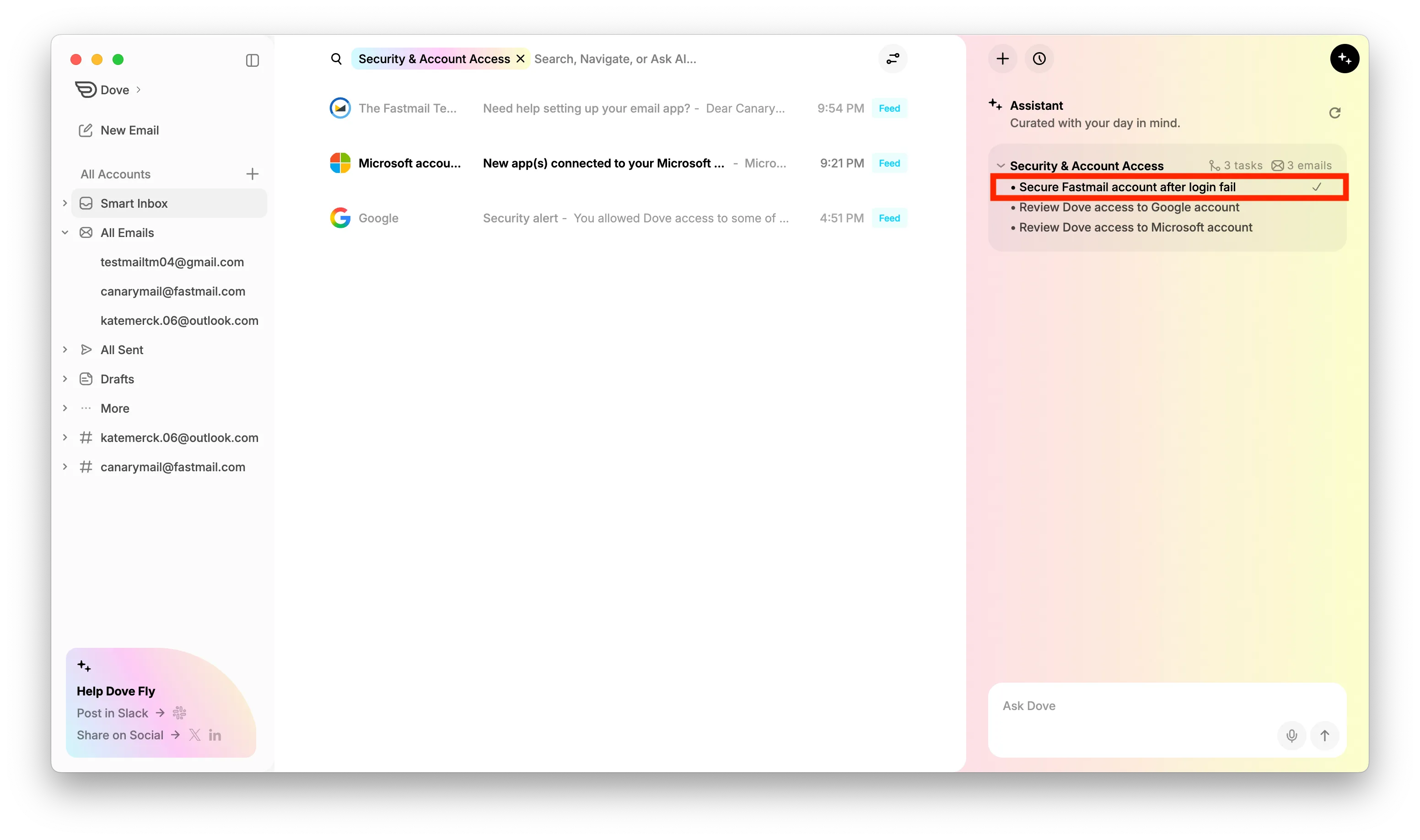
To mark a task as completed:
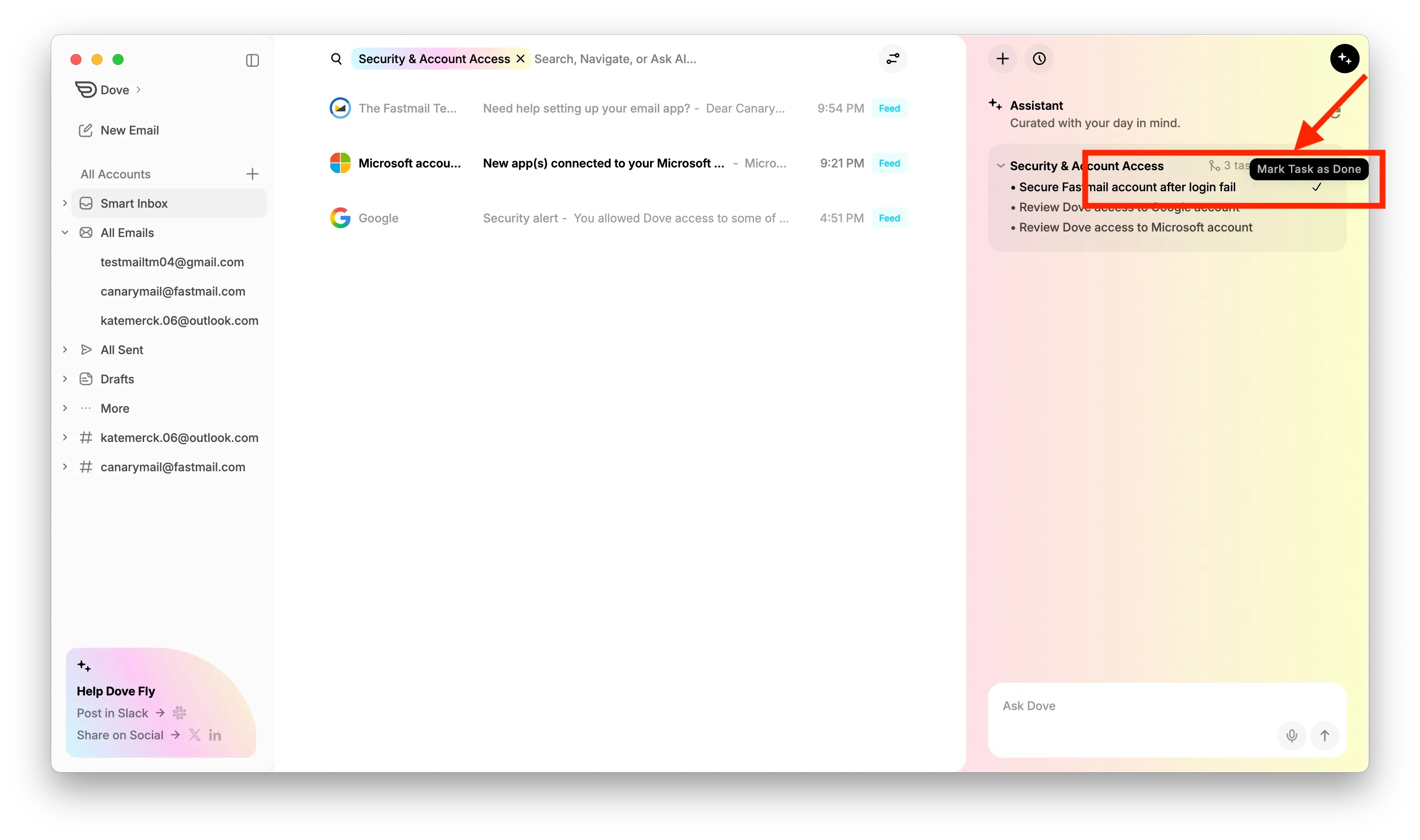
Hover over the task to see a checkmark (✓) icon
Click the checkmark (tooltip: “Mark Task as done”) to mark task as Done.
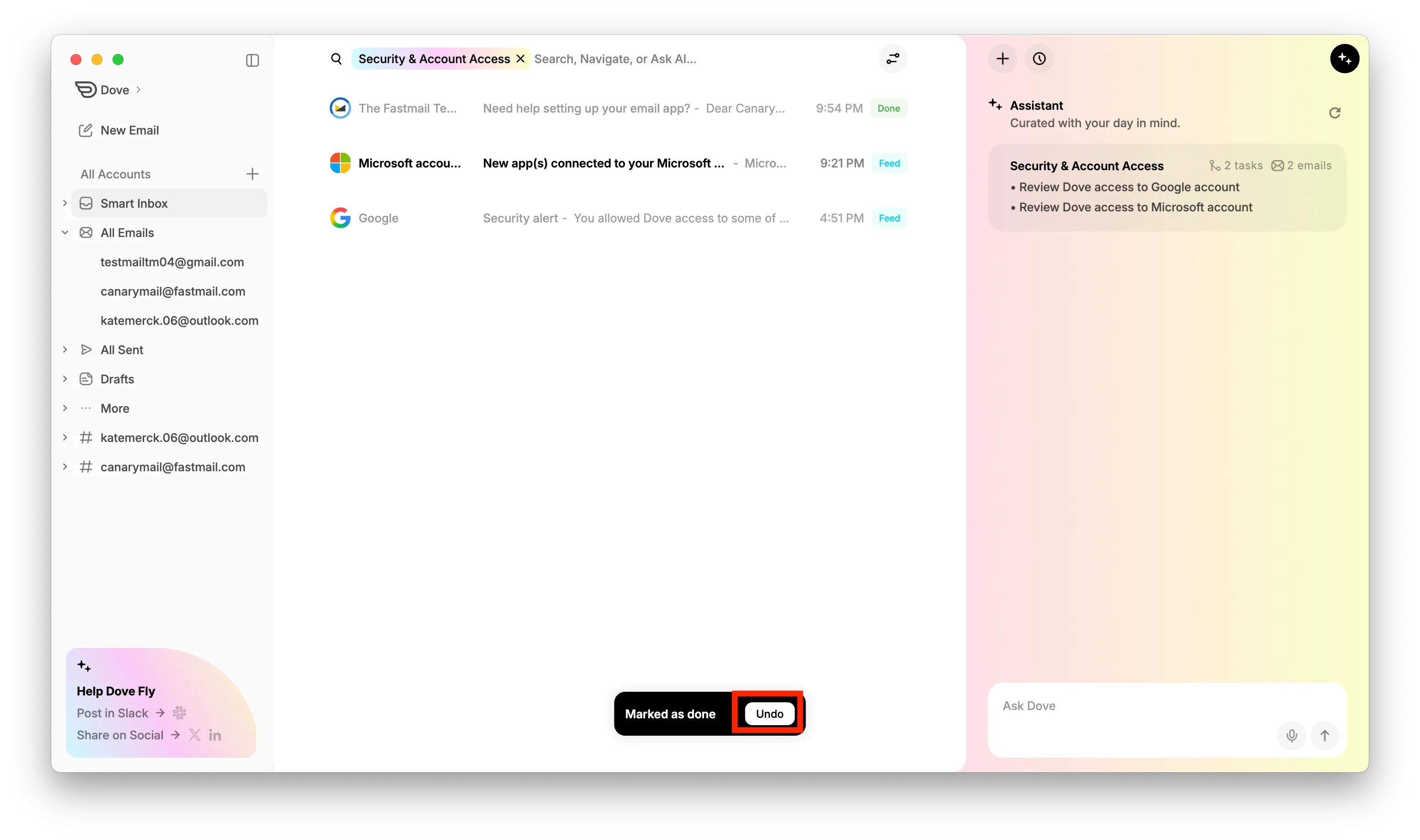
Once all tasks associated with an email are marked as done, the email will automatically be marked as done, and a confirmation toast will appear: “Email done” with an Undo option.
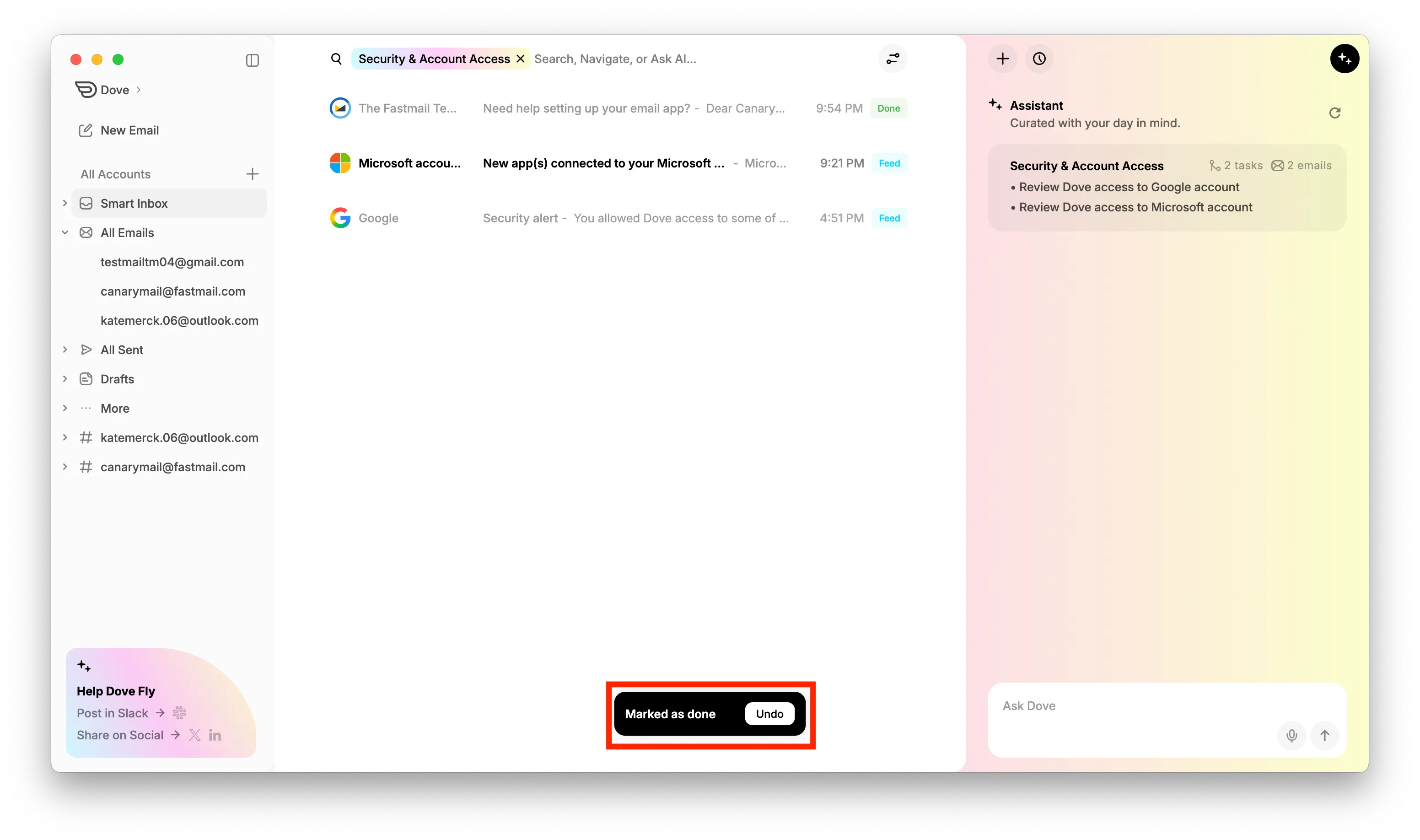
Click Undo if you do not want to mark the email as done.
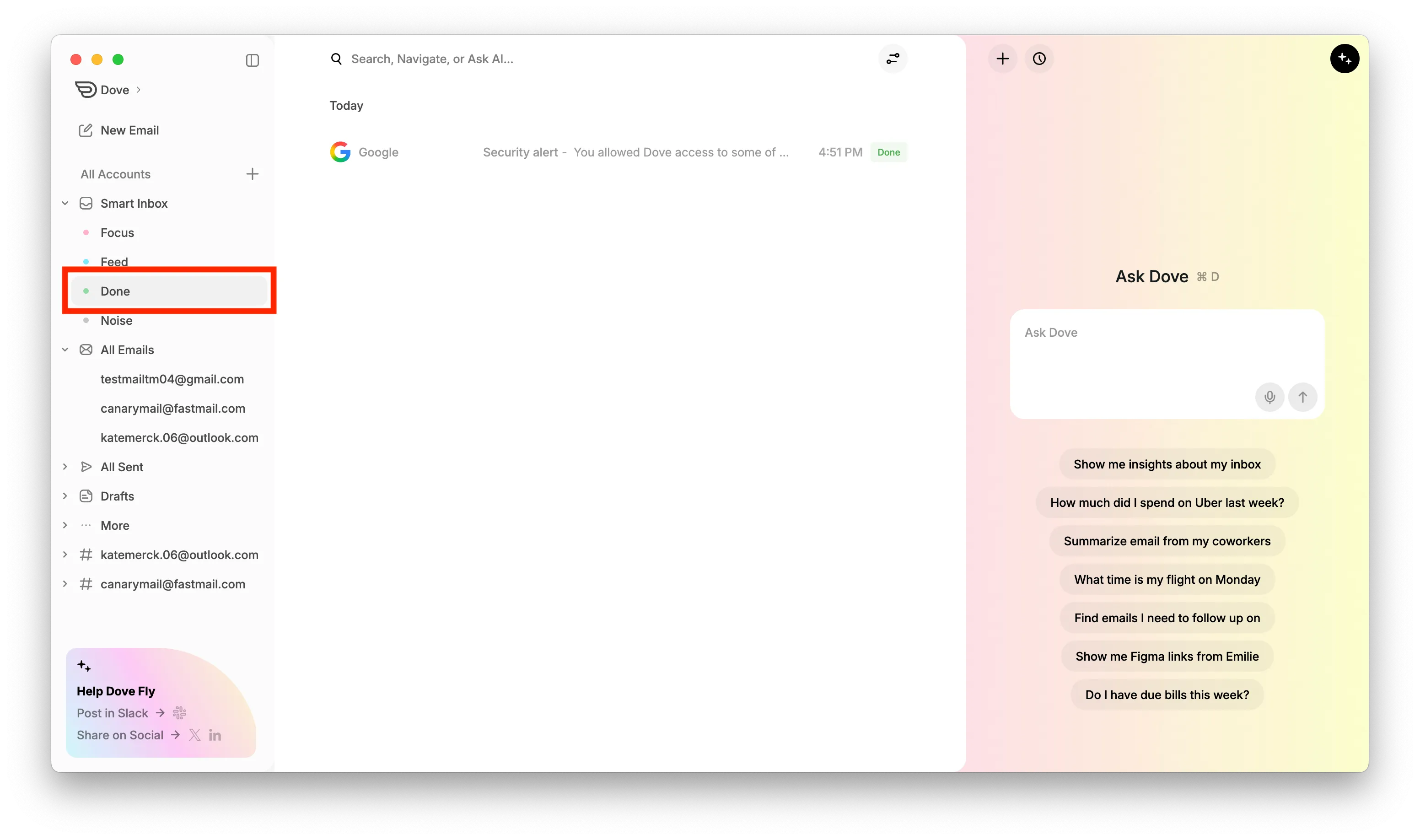
Once the email is marked Done, it can be viewed in the Done Label from the sidebar
Tasks in Dove help you track actionable emails and complete them efficiently without missing important follow-ups.
More from Dove
Related articles
August 11, 2026
Keyboard Shortcuts in Dove
Every keyboard shortcut in the Dove desktop app for macOS and Windows - navigation, triage, compose, search, and Ask Dove - plus how to view and rebind them.

April 21, 2026
Manage Notifications in Dove
Dove allows you to customize notifications so you only get alerted for important emails. By enabling Smart Notifications, Dove will notify you only for emails classified as Focus and Feed, while avoiding notifications for Noise emails.
April 21, 2026
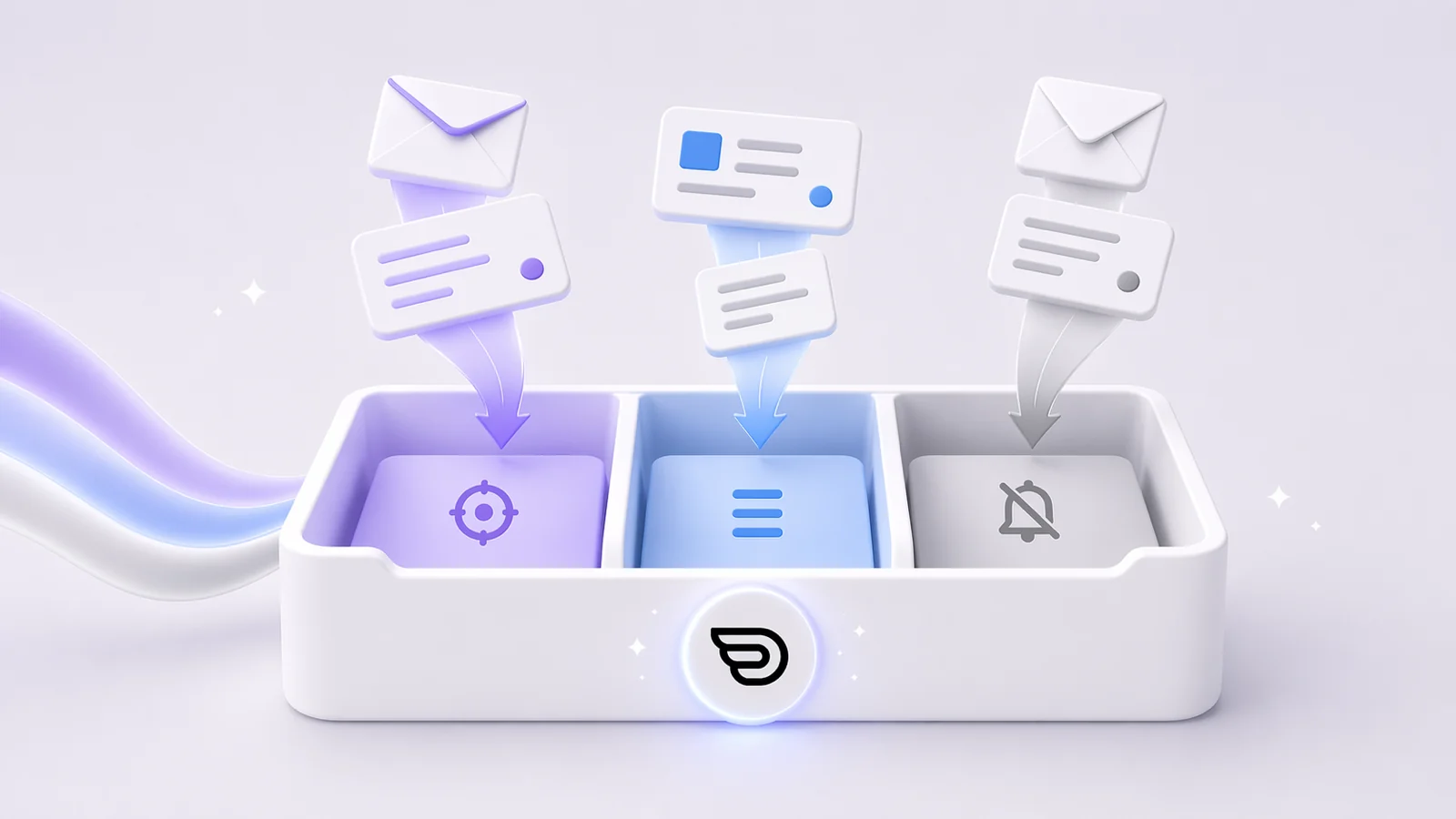
Smart Inbox in Dove
Dove helps you stay organized by automatically classifying your emails into three categories: Focus : Important and personal emails that need your attention Feed : Newsletters, upd