'/%3e%3c/g%3e%3c/svg%3e)

Keyboard Shortcuts in Dove
Every keyboard shortcut in the Dove desktop app for macOS and Windows - navigation, triage, compose, search, and Ask Dove - plus how to view and rebind them.
Use keyboard shortcuts to navigate Dove, manage your inbox, and compose email without touching your mouse. This article lists every shortcut available in the Dove desktop app for macOS and Windows.
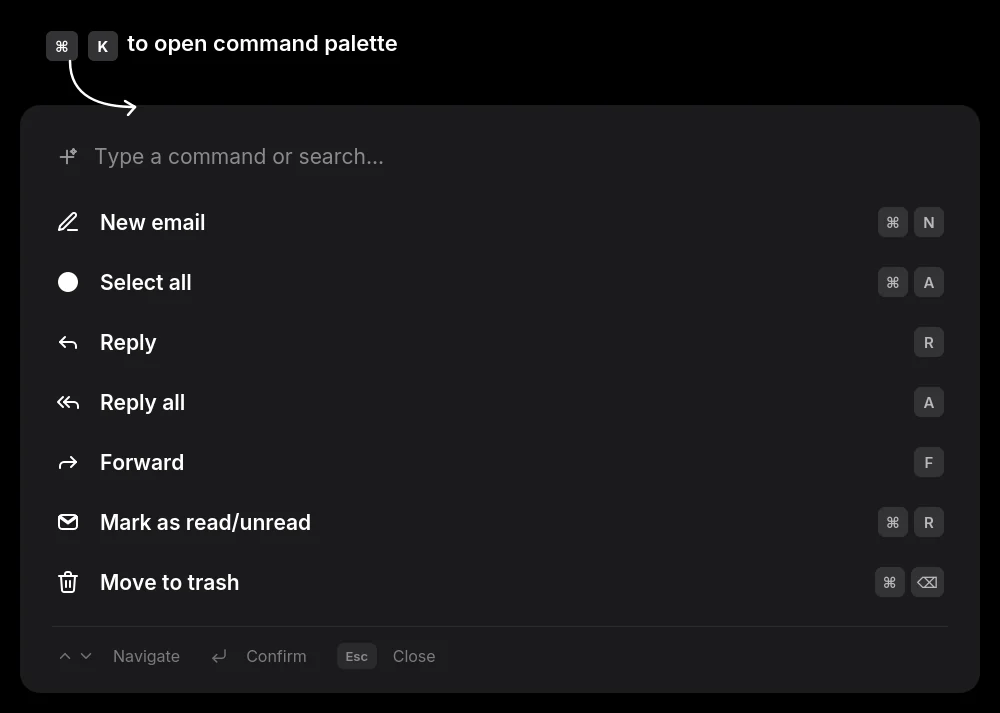
Note: Shortcuts are user-remappable. Press Cmd+K (macOS) or Ctrl+K (Windows) to open the Shortcuts help screen and change any binding.
Global Shortcuts
macOS | Windows | Action |
|---|---|---|
Cmd+K | Ctrl+K | Open Shortcuts help / search |
Cmd+, | Ctrl+, | Open Preferences |
Cmd+W | Ctrl+W | Close window |
Cmd+Q | Ctrl+Q | Quit Dove |
Cmd+Z | Ctrl+Z | Undo last action |
Cmd+Shift+D | Ctrl+Shift+D | Reindex (Advanced) |
Cmd+Shift+T | Ctrl+Shift+T | Open Task window |
- | Ctrl+Shift+Q | Open Purge dialog (Windows only) |
Esc | Esc | Close the frontmost modal or overlay |
Navigation Shortcuts
macOS | Windows | Action |
|---|---|---|
Cmd+Shift+G | Ctrl+Shift+G | Go to Folder |
Cmd+Shift+S | Ctrl+Shift+S | Go to Smart Inbox |
Option+F | Alt+F | Smart Inbox: Focus tab |
Option+Shift+F | Alt+Shift+F | Smart Inbox: Feed tab |
Option+D | Alt+D | Smart Inbox: Done tab |
Up / Down | Up / Down | Move focus in the email list |
Left / Right | Left / Right | Open the AI summary / classification popover |
Enter | Enter | Open the focused thread |
Inside an open thread:
macOS | Windows | Action |
|---|---|---|
Left / Right | Left / Right | Go to the previous or next thread |
Up / Down | Up / Down | Scroll the email body |
Esc | Esc | Close the viewer |
List and Selection Actions
These work when a thread is selected or keyboard-focused in the email list.
macOS | Windows | Action |
|---|---|---|
R | R | Reply |
A | A | Reply All |
F | F | Forward |
Cmd+R | Ctrl+R | Mark read / unread |
Cmd+Delete | Ctrl+Backspace (or Delete) | Move to Trash |
Cmd+E | Ctrl+E | Move to Archive |
Shift+D | Shift+D | Toggle Mark as Done |
Cmd+A | Ctrl+A | Select all |
Compose Shortcuts
macOS | Windows | Action |
|---|---|---|
Cmd+N | Ctrl+N | New email |
Cmd+Enter | Ctrl+Enter | Send |
Cmd+Shift+A | Ctrl+Shift+A | Add attachment |
Cmd+Shift+C | Ctrl+Shift+C | Show / focus Cc |
Cmd+Shift+B | Ctrl+Shift+B | Show / focus Bcc |
Tab / Shift+Tab | Tab / Shift+Tab | Move between To, Cc, Bcc, Subject, and Body |
Esc | Esc | Dismiss or minimize compose |
Option+L | Alt+L | Collapse / expand all thread messages |
Search Shortcuts
macOS | Windows | Action |
|---|---|---|
Cmd+F | Ctrl+F | Focus search |
Esc | Esc | Clear / exit search |
Enter | Enter | Submit search |
Up / Down | Up / Down | Move through suggestions |
Left / Right | Left / Right | Move the cursor within the search query |
Ask Dove Shortcuts
macOS | Windows | Action |
|---|---|---|
Cmd+D | Ctrl+D | Open Ask Dove |
Up / Down | Up / Down | Navigate the suggestion overlay |
Esc | Esc | Close the overlay / popover |
Enter | Enter | Send a message or submit an edit |
Cmd+C | Ctrl+C | Copy an AI message |
Preferences
macOS | Windows | Action |
|---|---|---|
Esc | Esc | Close the Preferences modal |
Viewing and Rebinding Shortcuts
Press Cmd+K (macOS) or Ctrl+K (Windows) to open the Shortcuts help screen. From here you can look up shortcut or change it to something else.
Key | Action |
|---|---|
Up / Down | Move selection in the shortcut or folder list |
Enter | Run the selected shortcut, click on shortcut to apply a new binding, confirm a dialog |
Esc | Close the modal, cancel editing, dismiss a confirmation, or exit “Go to Folder” |
Backspace (while capturing) | Clear the field |
Any other key combo (while capturing) | Captures it as the new binding, with a warning if it conflicts with an existing shortcut |
Notes
Cmd+K / Ctrl+K opens the shortcut menu based on your current context in Dove.
Ctrl+Shift+Q (Open Purge dialog) is Windows only.
With these shortcuts, you can navigate Smart Inbox, manage your tasks, and send email without leaving your keyboard.
More from Dove
Related articles
April 21, 2026
Tasks in Dove
Dove helps you stay productive by automatically creating a task list from your emails. These tasks appear in the Dove Assistant panel on the right side when you are in Smart Inbox.

April 21, 2026
Manage Notifications in Dove
Dove allows you to customize notifications so you only get alerted for important emails. By enabling Smart Notifications, Dove will notify you only for emails classified as Focus and Feed, while avoiding notifications for Noise emails.

April 21, 2026
Smart Inbox in Dove
Dove helps you stay organized by automatically classifying your emails into three categories: Focus : Important and personal emails that need your attention Feed : Newsletters, upd