'/%3e%3c/g%3e%3c/svg%3e)

Compose an Email in Dove
Start a new message in Dove. Compose lets you draft, format, attach files, and send from any connected account in a single focused window.

Open Dove.
Click New Email from the left sidebar.
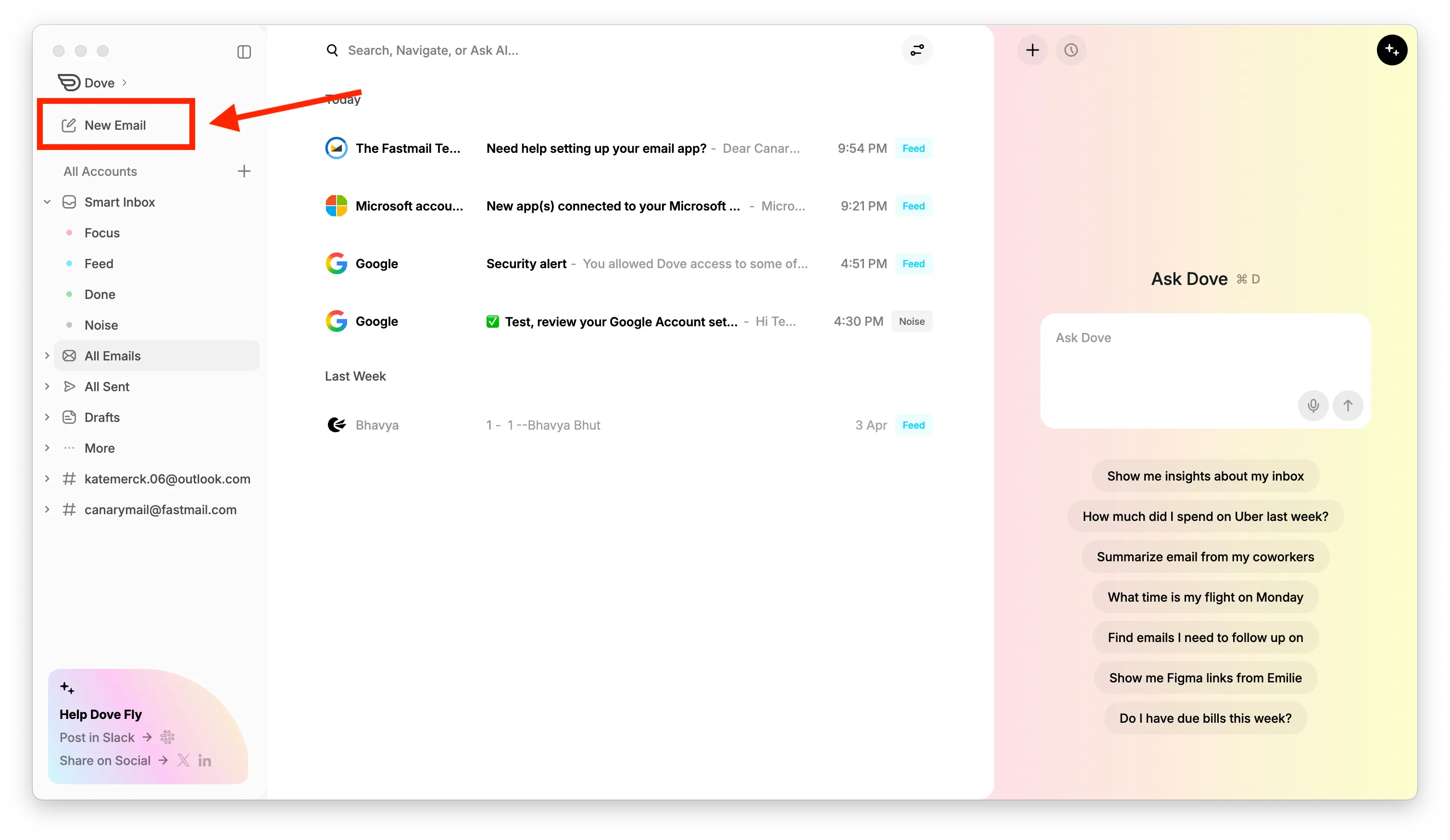
The compose window will appear:
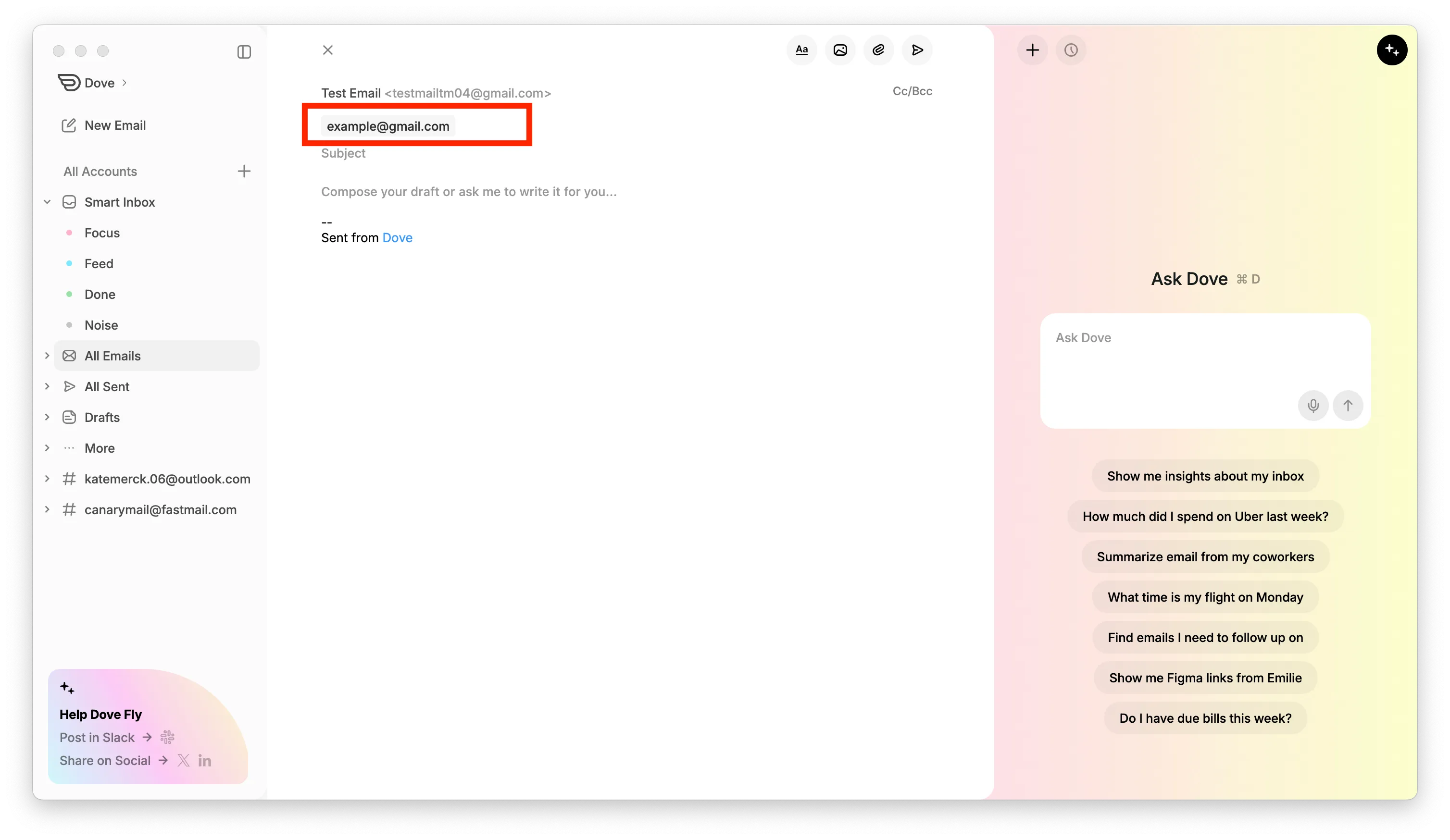
Enter the recipient’s email address in the To field
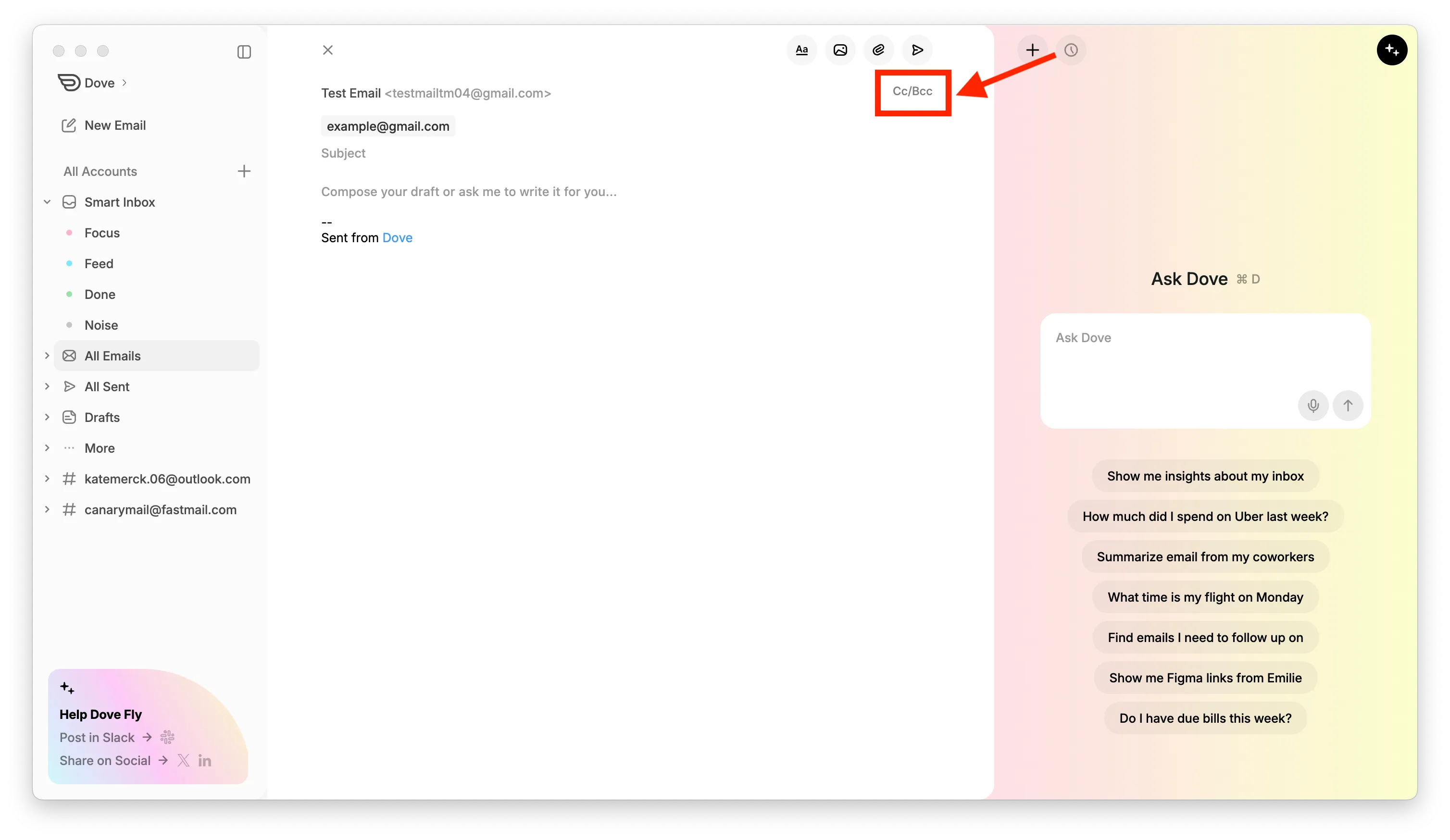
Add Cc or Bcc recipients if needed
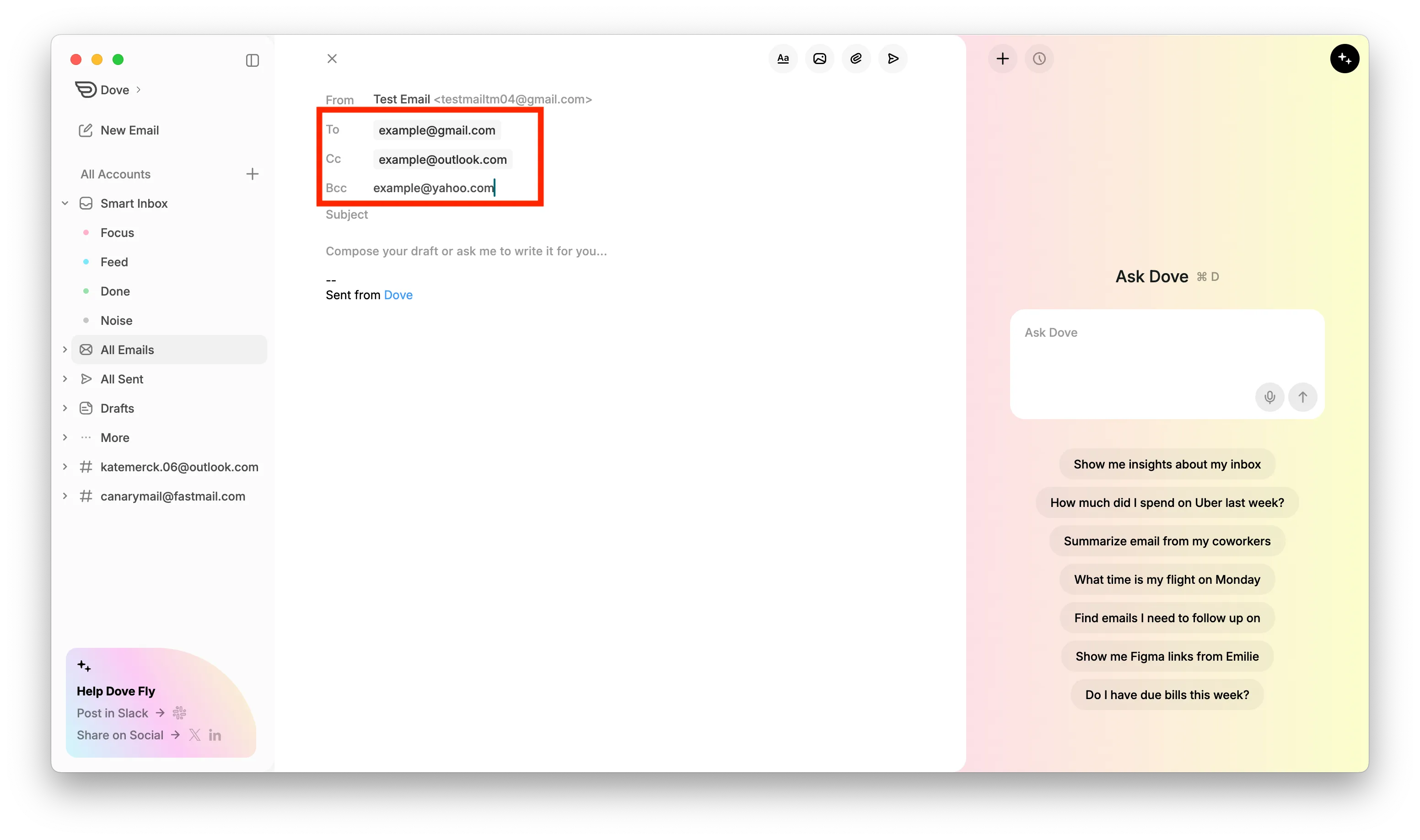
If you have multiple accounts, select the desired account from the From dropdown
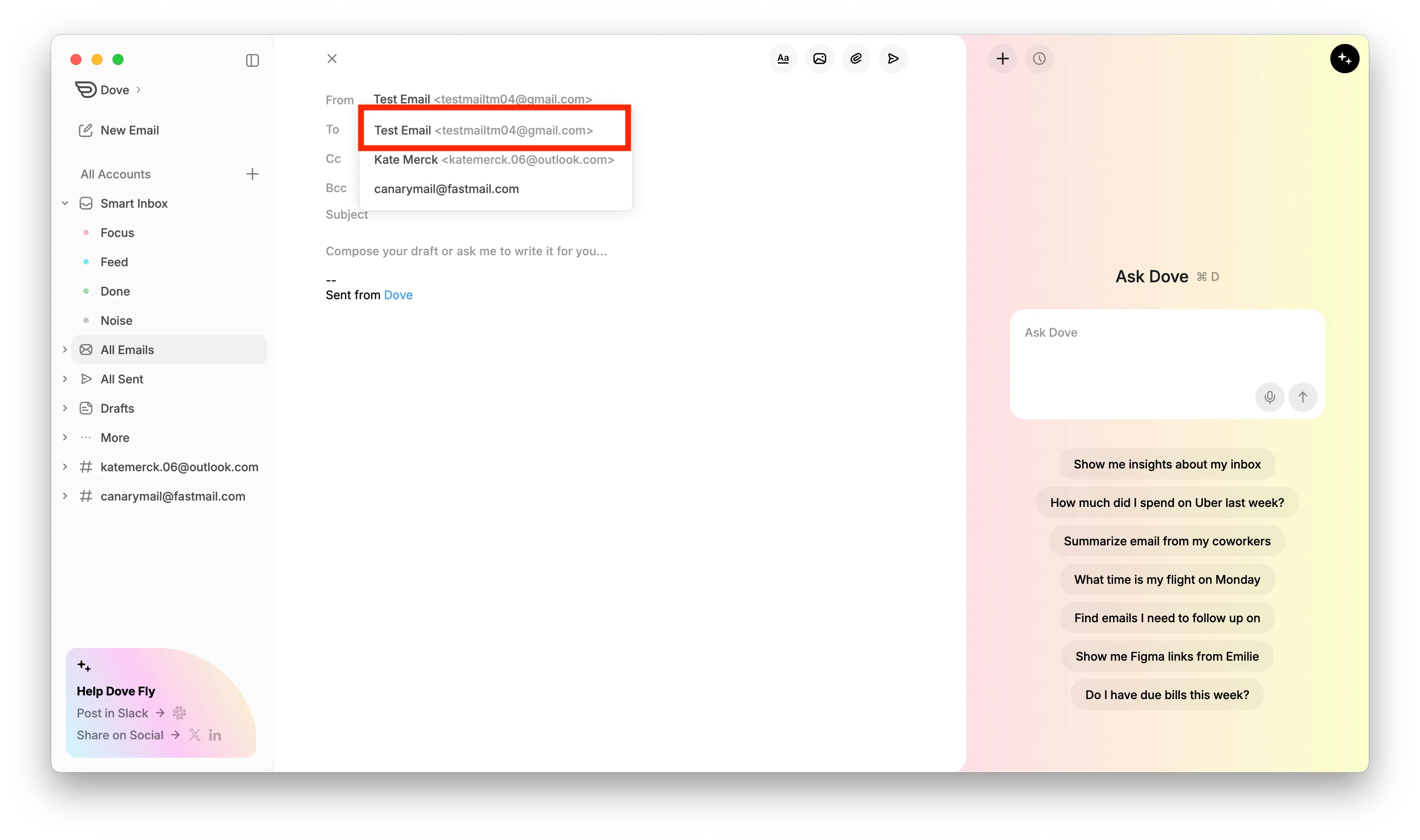
Enter the subject and write your email content
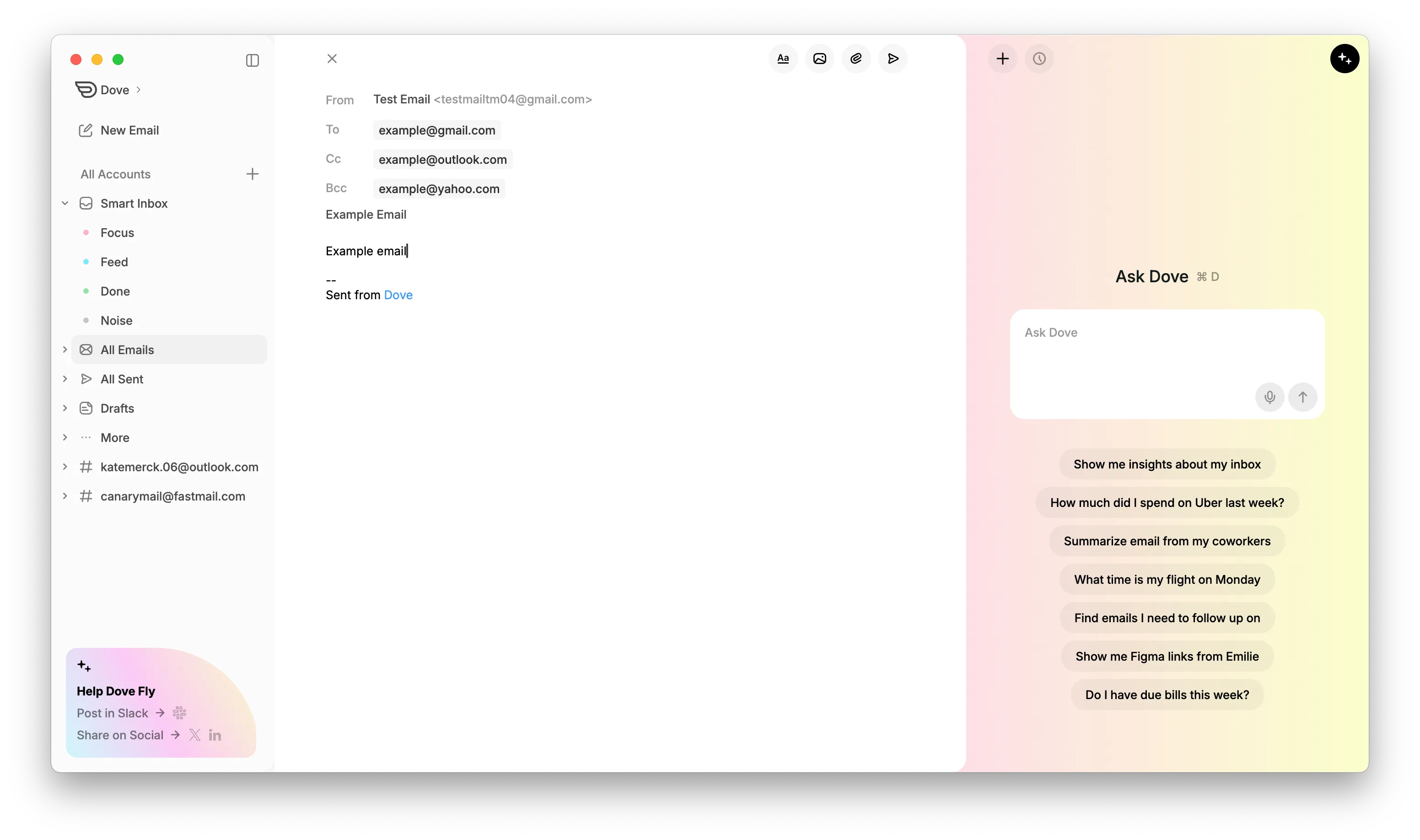
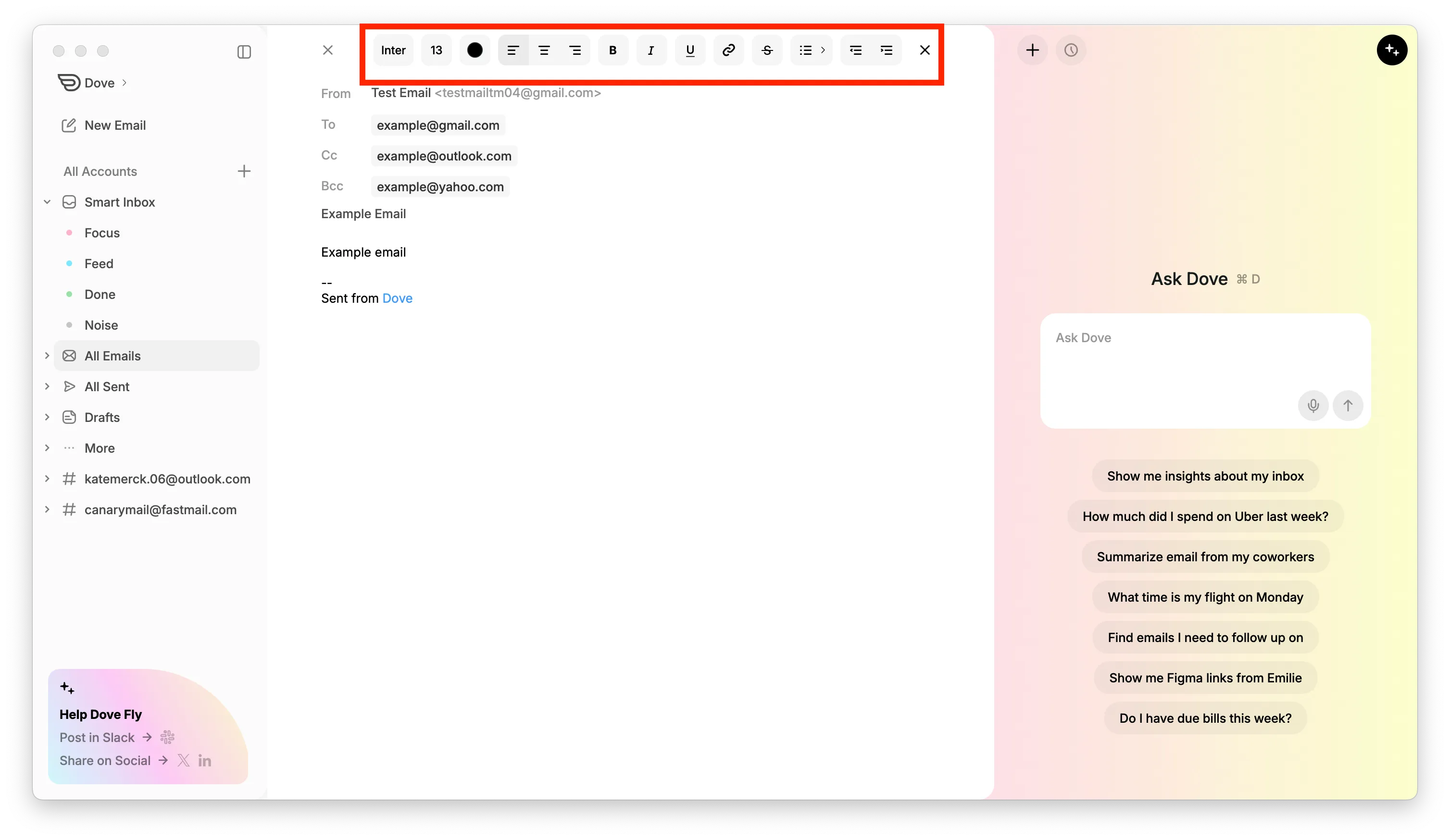
To format your email, open the formatting toolbar from the top overflow menu.
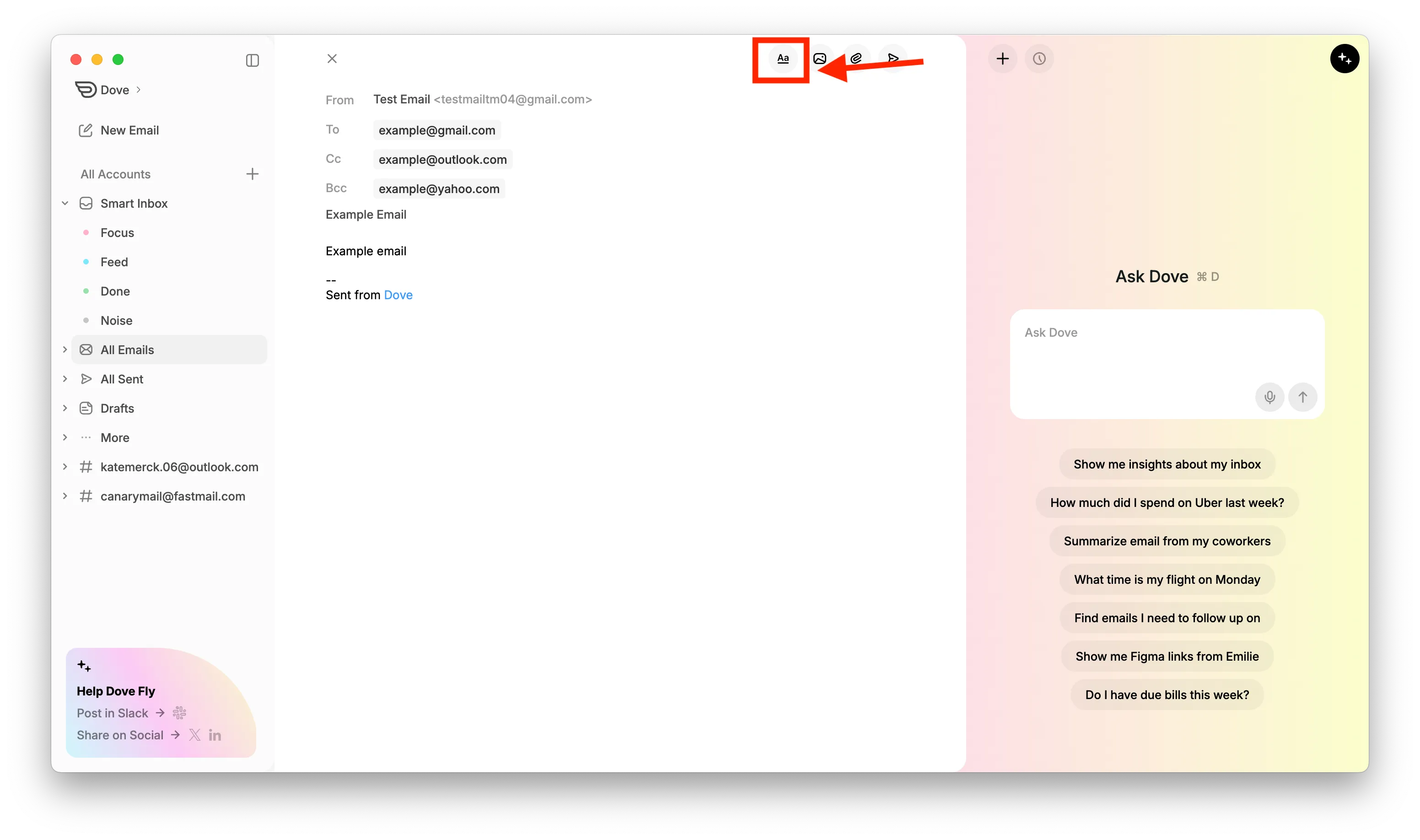
To add attachments, click the attachment icon from the top overflow menu and select your file.
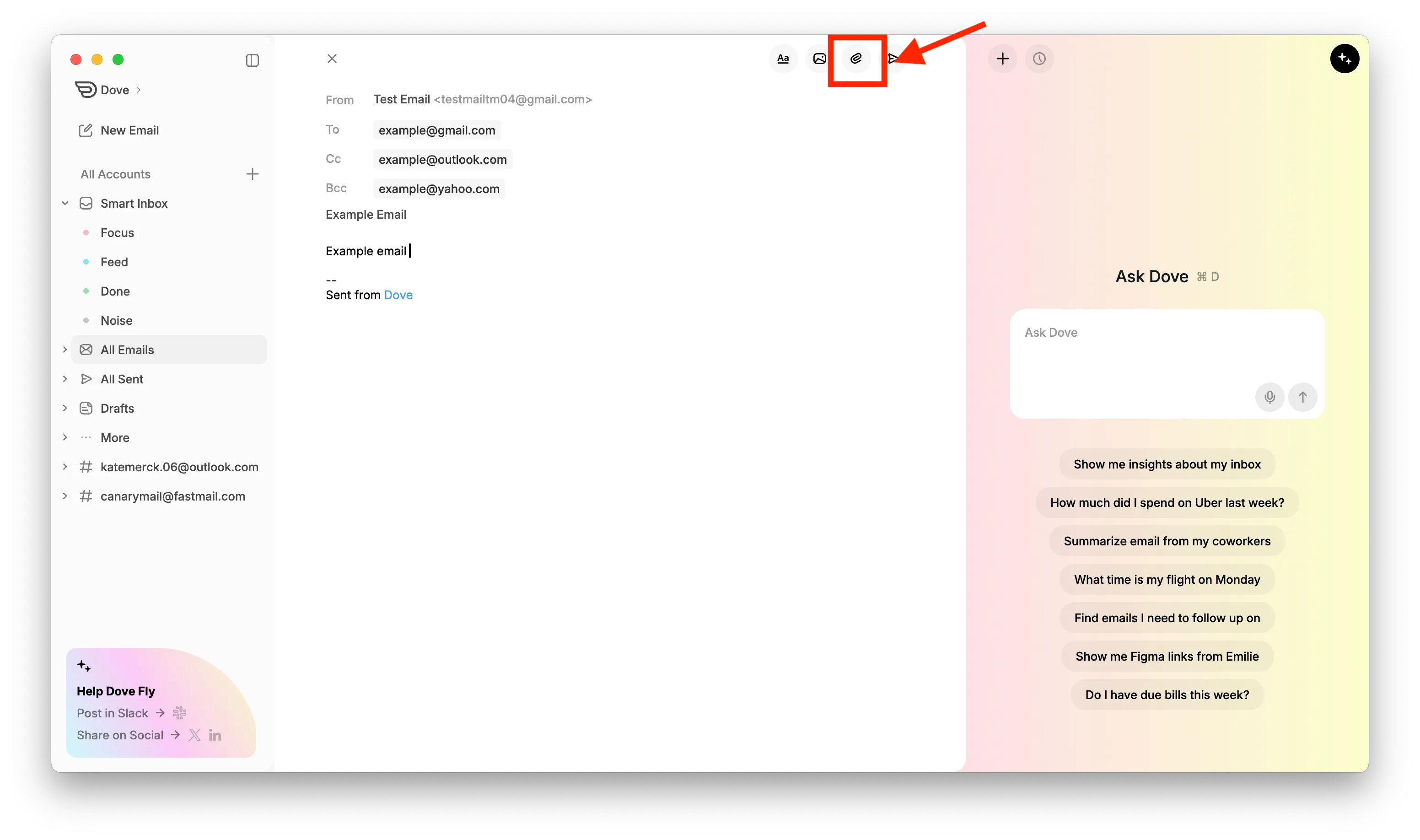
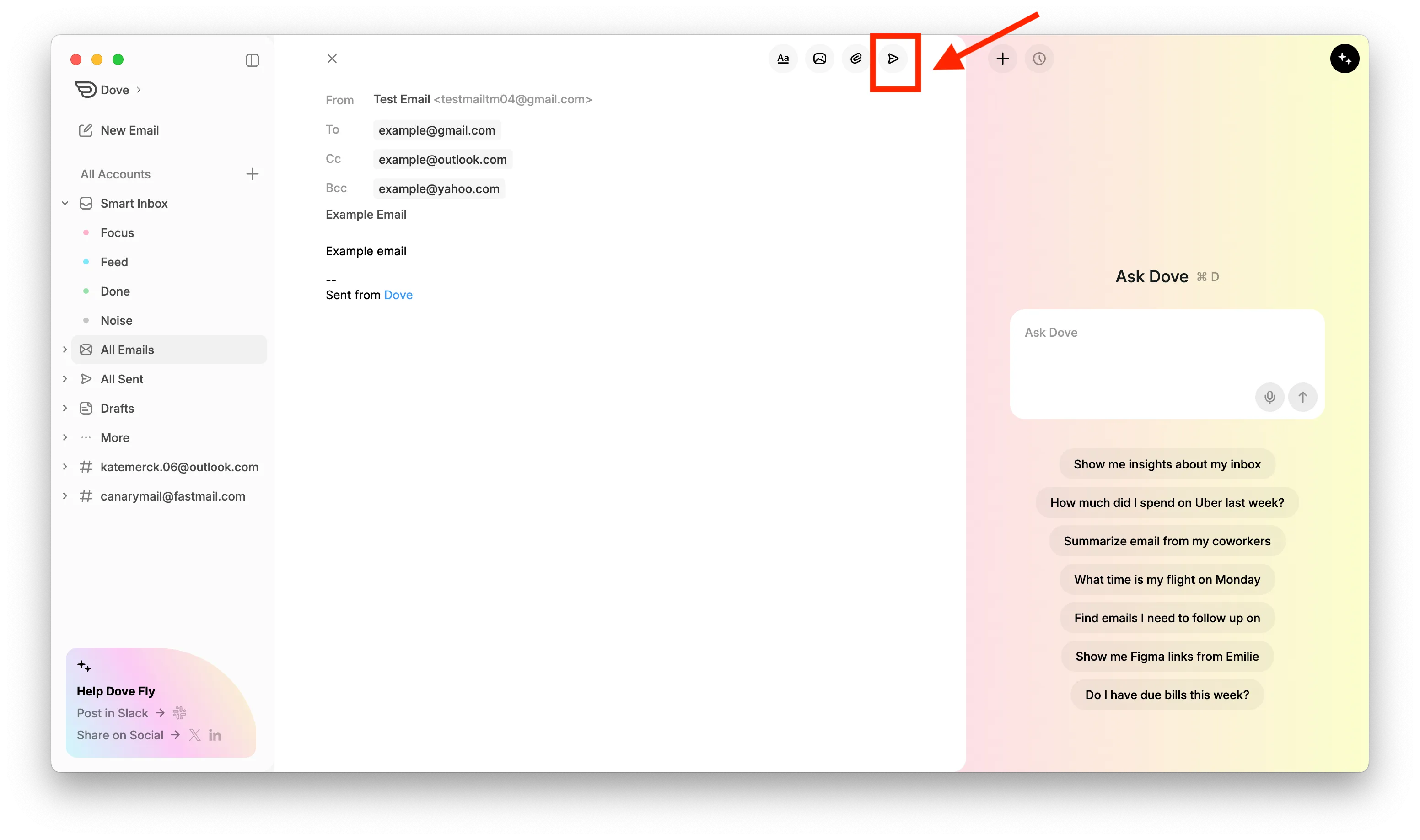
Once your email is ready, click the Send button in the top-right corner.
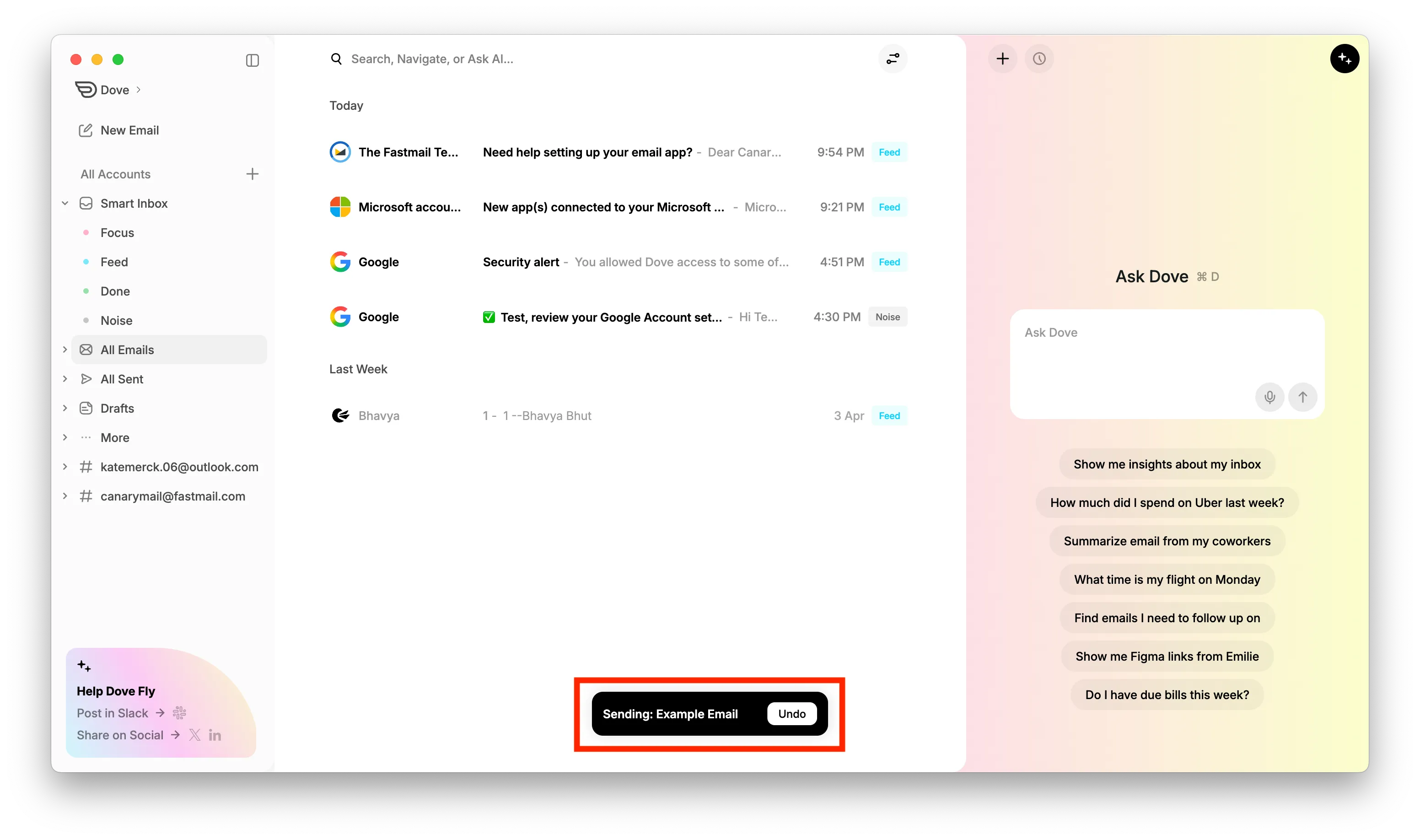
A confirmation toast will appear at the bottom indicating that your email is being sent, along with an Undo option.
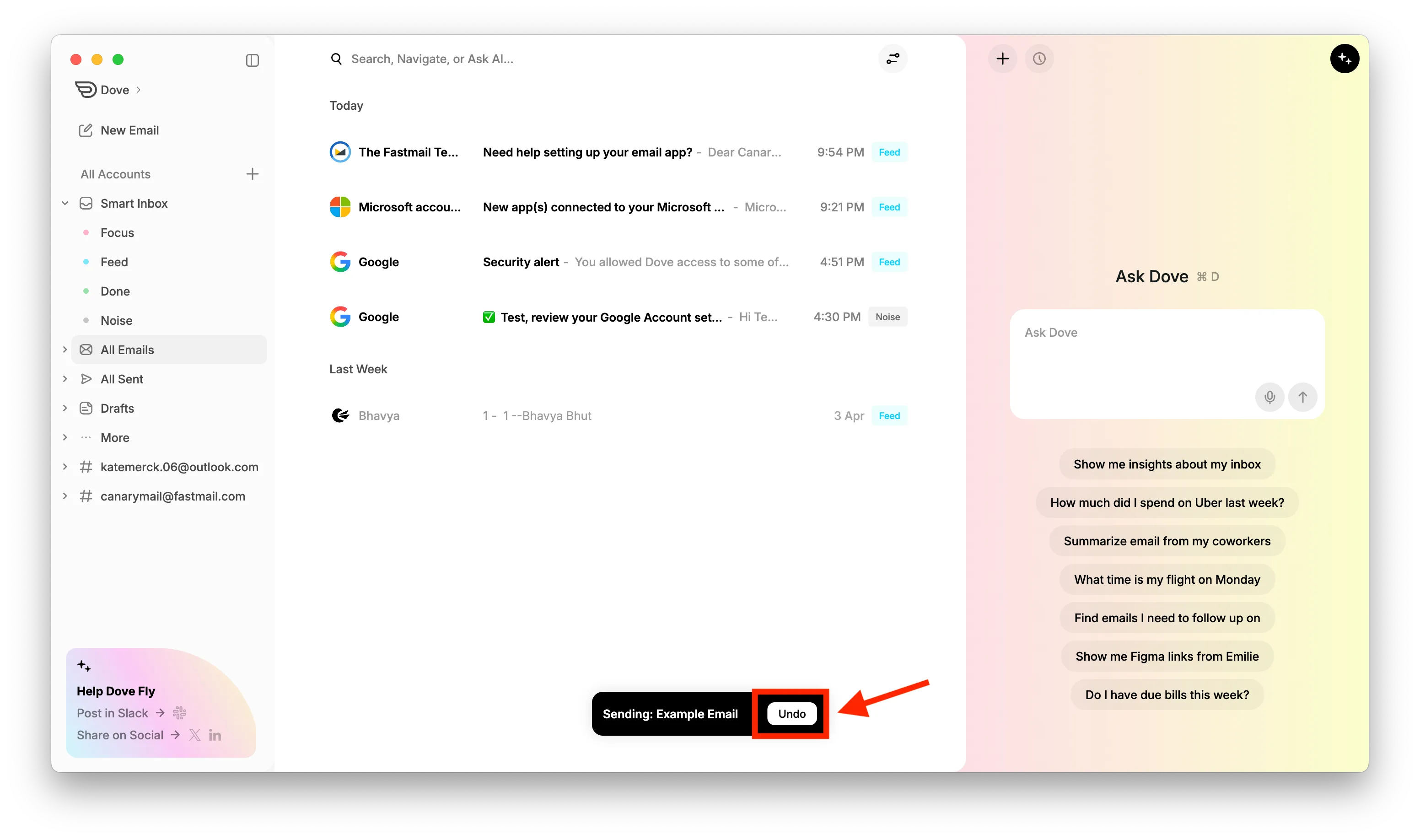
Click Undo if you want to cancel sending the email.
A final confirmation toast will appear once the email has been successfully sent.
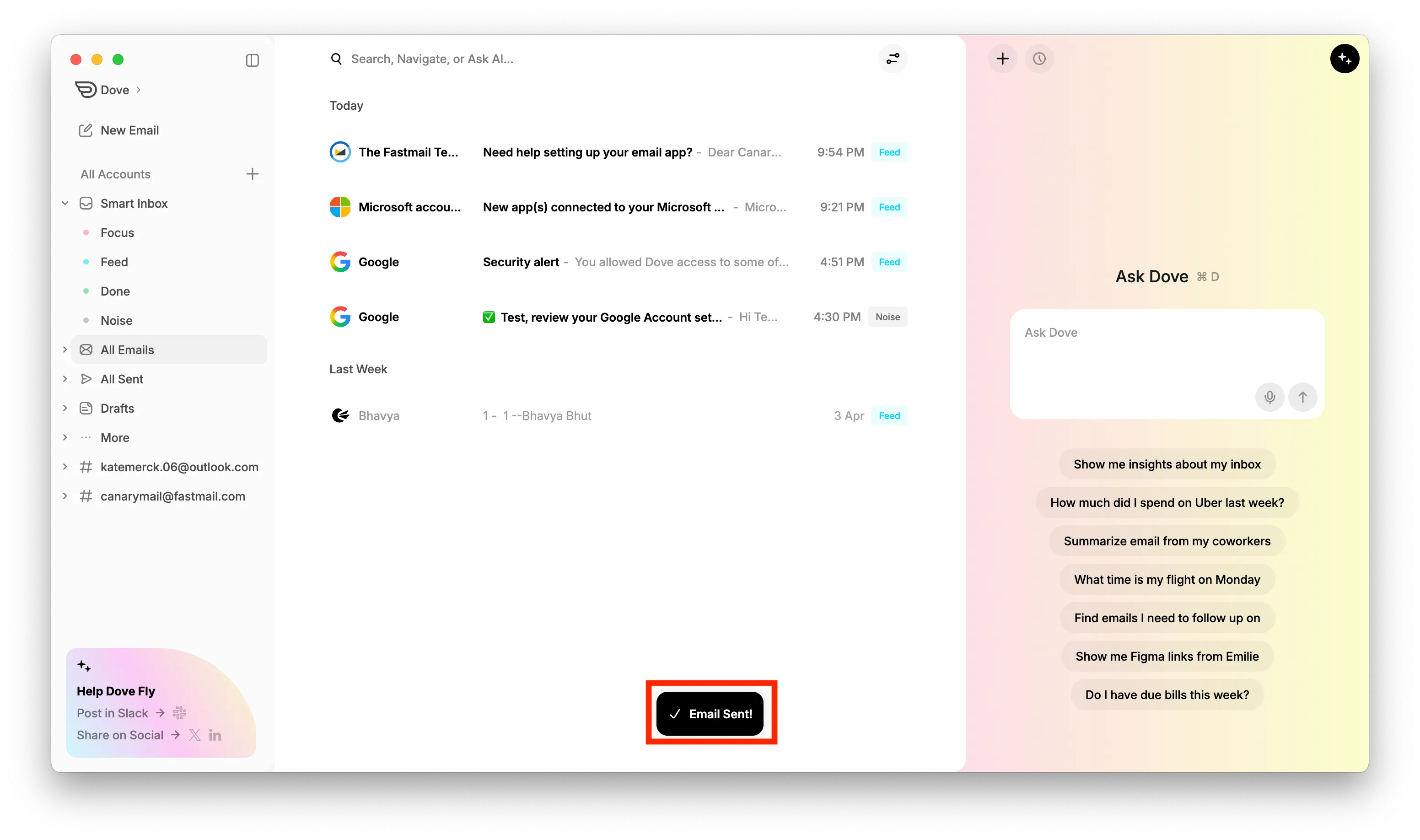
Your email has now been sent successfully from Dove.
More from Dove
Related articles
August 11, 2026
Keyboard Shortcuts in Dove
Every keyboard shortcut in the Dove desktop app for macOS and Windows - navigation, triage, compose, search, and Ask Dove - plus how to view and rebind them.
April 21, 2026
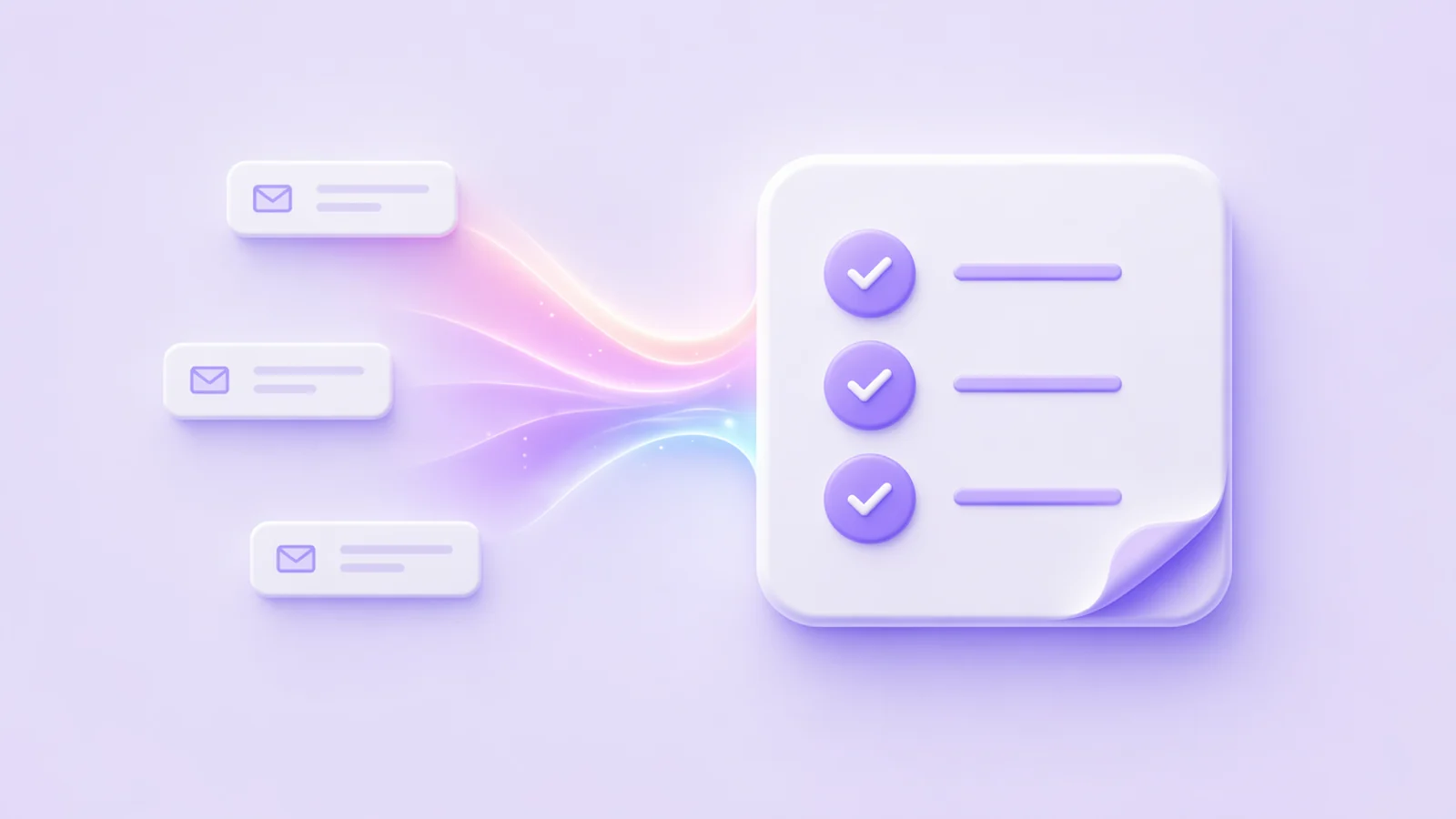
Tasks in Dove
Dove helps you stay productive by automatically creating a task list from your emails. These tasks appear in the Dove Assistant panel on the right side when you are in Smart Inbox.

April 21, 2026
Manage Notifications in Dove
Dove allows you to customize notifications so you only get alerted for important emails. By enabling Smart Notifications, Dove will notify you only for emails classified as Focus and Feed, while avoiding notifications for Noise emails.