'/%3e%3c/g%3e%3c/svg%3e)

How to Manage Too Many Emails
Drowning in email? Learn actionable strategies to manage email overload — from AI triage to smart filters — and finally reclaim your inbox.
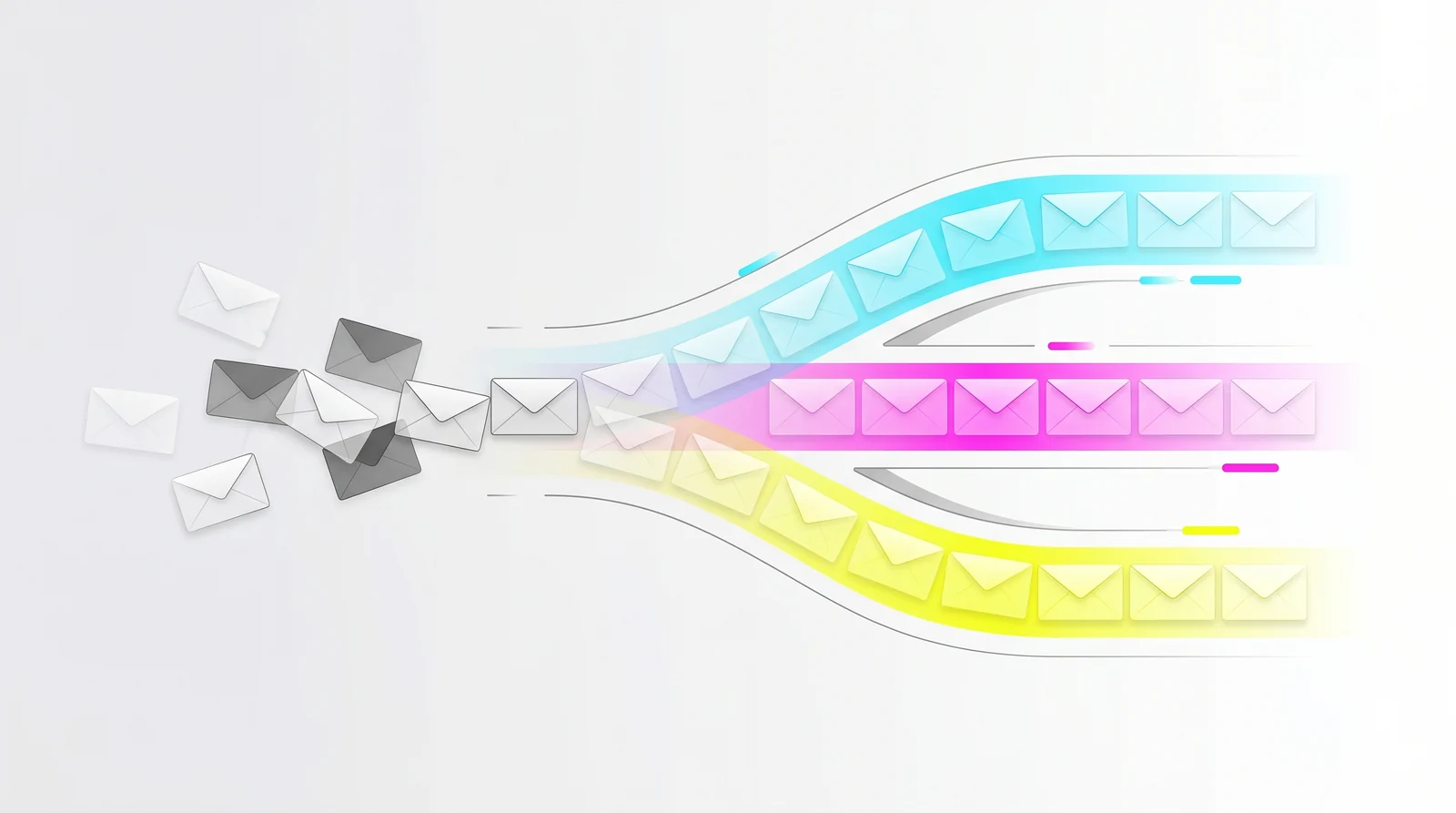
The average professional receives around 120 emails per day. That number keeps climbing. And most of those messages have nothing to do with your actual work — they’re newsletters you forgot you signed up for, CC threads that went sideways, and automated notifications from tools you barely use.
If your inbox makes you anxious every time you open it, you’re not alone. But the problem isn’t really email itself. It’s the absence of a system for handling it.
This guide walks through practical strategies and tools that work in 2026, whether you’re buried under hundreds of unread messages or just tired of spending your mornings sorting through noise.
Why Your Inbox Feels Overwhelming
Email overload isn’t just about volume. It’s about the mental cost of deciding what to do with each message. Every email that lands in your inbox asks a question: is this important? Do I need to respond? Can it wait?
When you have 200 unread messages, that’s 200 micro-decisions waiting for you. Psychologists call this decision fatigue — the more choices you face, the worse you get at making them. By the time you reach the email that actually matters, you’ve already burned through your sharpest attention on junk.
Three things make modern inboxes especially draining:
Everything looks the same. A message from your manager sits next to a shipping notification. There’s no visual hierarchy telling you what matters.
The default is interruption. Most email clients treat every incoming message as equally urgent, pushing notifications for newsletters the same way they do for client deadlines.
Cleanup is manual. Deleting, archiving, and unsubscribing takes real time — time most people don’t have, so the pile just grows.
The fix isn’t checking email more often. It’s building a system that does the sorting for you, so you only see what actually needs your attention.
5 Strategies to Take Control of Your Inbox
1. Let AI Handle the Triage
The biggest shift in email management over the past two years is AI-powered triage — tools that automatically sort incoming mail into categories based on what actually needs your attention.
Dove takes this approach to its logical conclusion. Instead of dumping everything into one stream, Dove’s AI sorts every message into three buckets:
Focus — messages that need your attention or a reply
Noise — newsletters, promotions, and automated notifications
Done — messages that have been handled or need no action
You open your inbox and see only what matters. The noise is still there if you want it, but it’s not competing for your attention. This is fundamentally different from filters you set up yourself, because the AI learns from your behavior — who you reply to, what you archive, what you read — and adjusts over time.
Learn how Dove’s triage system works →
2. Unsubscribe Ruthlessly
Most people are subscribed to far more newsletters and notification lists than they realize. A study by Return Path found that the average email address receives messages from over 300 senders.
Spend 20 minutes going through your inbox and unsubscribe from anything you haven’t read in the past month. Don’t save it “for later.” If you haven’t read it in 30 days, you won’t.
Tools like Unroll.me (free) can show you every subscription tied to your address and let you unsubscribe in bulk. Clean Email ($10/month) goes further, grouping messages by sender so you can clean up years of accumulated noise in one session.
For anything you do want to keep but don’t need to see daily, use digest mode — most newsletter platforms support it — or route them to a separate folder automatically.
3. Batch Your Email Time
Constantly checking email fragments your attention. Research from the University of British Columbia found that people who checked email only three times per day reported significantly lower stress than those who checked continuously.
Pick two or three windows per day — maybe 9 AM, 1 PM, and 4 PM — and process email only during those blocks. Outside those windows, close the tab. Turn off notifications. Your response time might go from five minutes to two hours, and almost nobody will notice.
During each batch session, follow a strict process:
Scan for urgent items first. Anything genuinely time-sensitive gets handled immediately.
Reply to quick messages. If it takes less than two minutes, do it now.
Flag or schedule everything else. Longer replies and action items get a specific time slot.
Archive or delete the rest. If you don’t need it, get it out of your inbox.
4. Use Filters and Rules (But Don’t Over-Engineer Them)
Every major email client supports rules that automatically sort incoming mail — Gmail has filters, Outlook has rules, Apple Mail has similar features. The problem is that most people either don’t use them at all or create so many that the system becomes unmaintainable.
Start with three to five rules that cover your highest-volume, lowest-value streams:
Route all automated notifications (GitHub, Jira, Slack digests) to a dedicated folder
Auto-archive shipping confirmations and receipts
Flag messages from your direct reports or key clients
That’s enough to meaningfully reduce noise without creating a Rube Goldberg machine of filter logic. If you find yourself writing dozens of rules, that’s a sign you need a smarter tool — not more rules.
5. Separate Your Email Identities
If you use one email address for everything — work, personal, shopping, signups — you’re guaranteeing inbox chaos.
The simplest fix is using a dedicated address for online purchases and account signups. Gmail’s + alias feature (like yourname+shopping@gmail.com) works for this, though some sites reject the format. A better option is creating a separate free email account specifically for low-priority signups.
For freelancers and founders who get both client email and marketing outreach, consider using different addresses for client communication versus public-facing contact forms. The goal is to keep your primary inbox reserved for messages from real people who expect a real reply.
Tools That Help Manage Email Overload
No strategy works without the right tools. Here’s what’s worth considering in 2026, with actual pricing:
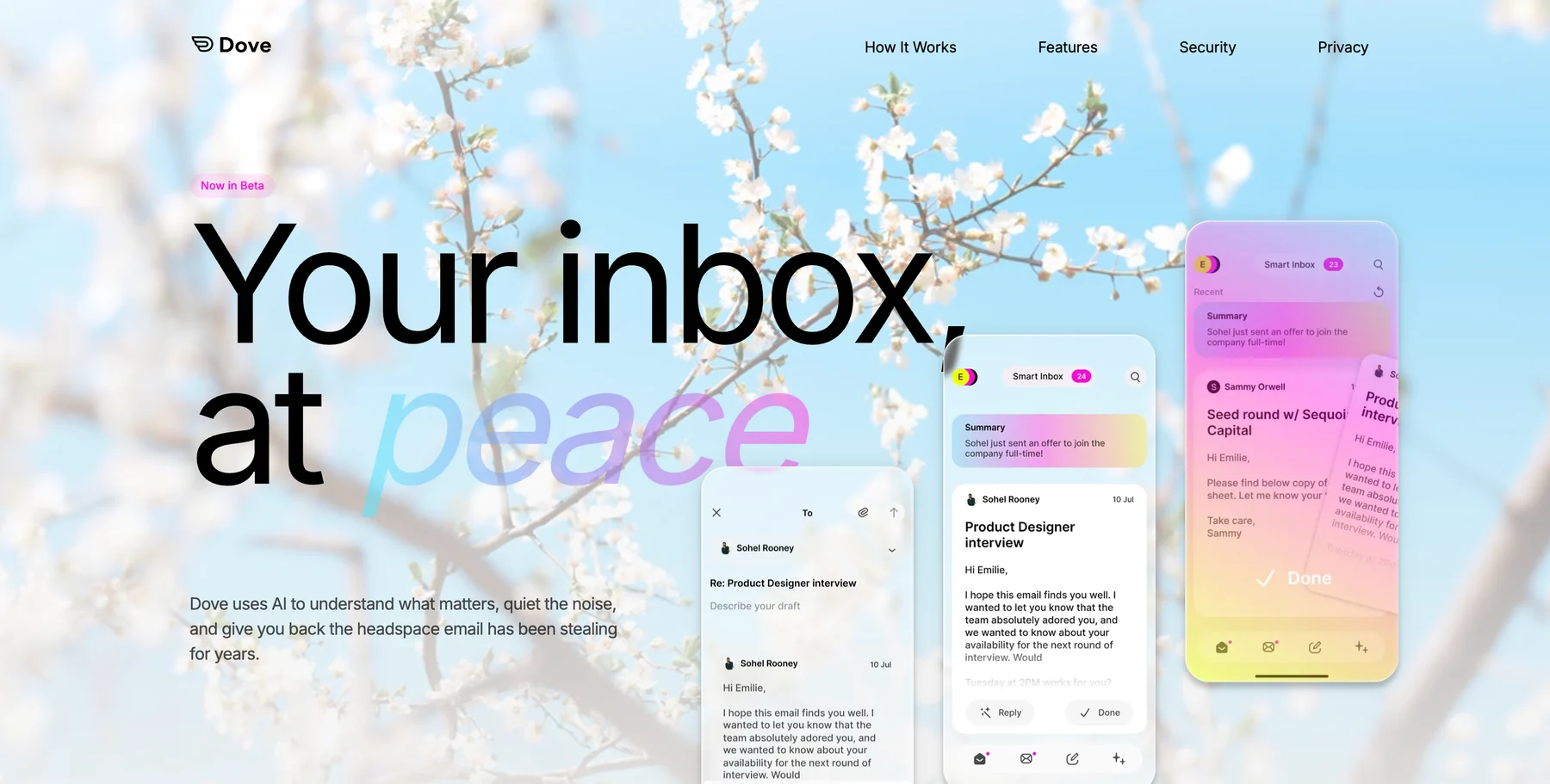
Dove — AI-native inbox that sorts mail into Focus, Noise, and Done automatically. Dove’s Wingman feature provides thread-level summaries and suggested replies. Currently in early access with a free waitlist. Available on iOS, Android, Mac, and web.
Canary Mail — Privacy-first email client with end-to-end encryption (PGP), HIPAA compliance options, and optional AI features. Free tier available; Pro plan around $20/year. Supports iOS, Android, Mac, and Windows.
SaneBox — Works alongside your existing email client (Gmail, Outlook, or any IMAP provider) to sort low-priority mail into a separate SaneLater folder. Starts at $7/month (Snack plan) up to $36/month (Lunch plan). Web-based — no app to install.
Clean Email — Bulk inbox cleanup tool that groups messages by sender, size, or age. Good for one-time deep cleans and ongoing maintenance rules. $10/month or $30/year. Available on web, iOS, and Android.
Unroll.me — Free tool that shows all your subscriptions and lets you unsubscribe or roll them into a daily digest. Note: Unroll.me collects anonymized data from your inbox, which is how the free model works. Web and mobile.
Gmail / Outlook (built-in) — Both free tiers include basic filtering, tabs (Gmail’s Promotions/Social/Updates), and focused inbox (Outlook). These work for light email users but break down at higher volumes because the categorization is rigid, not adaptive. Available everywhere.
Building a Daily Email Routine
The best inbox management system is one you actually follow. Here’s a routine that takes about 30 minutes total per day:
Morning (10 minutes): Open your inbox during your first email window. If you’re using Dove, check Focus first — these are the messages that need your attention. Reply to anything quick. Flag longer items for your afternoon block. Glance at Noise only if you’re expecting something specific.
Midday (10 minutes): Second email pass. Handle replies you flagged in the morning. Check for any new urgent items. If nothing’s pressing, close email and move on.
End of day (10 minutes): Final sweep. Reply to anything still pending. Archive everything you’ve handled. If your inbox isn’t at zero, that’s fine — the goal is that everything remaining has a clear next step attached to it.
The key insight: your email routine should be boring. If you’re spending creative energy deciding how to handle each message, the system isn’t working.
Frequently Asked Questions
How many emails per day is too many?
There’s no universal threshold, but research suggests that most professionals start feeling overwhelmed around 50 to 80 emails per day — especially when those messages are unsorted and mixed together. The issue is less about the raw count and more about how many of those emails require a decision or response from you. If you’re getting 200 emails but 150 are automatically sorted into a noise folder, the actual cognitive load is much lower.
What is the best way to organize a cluttered inbox?
Start by doing a one-time bulk cleanup: unsubscribe from anything you don’t read, archive everything older than 30 days, and set up three to five basic filters for your highest-volume senders. Then adopt a triage tool like Dove or SaneBox that sorts incoming mail automatically so the clutter doesn’t rebuild. The worst thing you can do is reorganize manually every few months — that’s a symptom fix, not a system.
Can AI actually help manage email?
Yes, and it’s the area where AI has arguably made the most practical progress for everyday users. AI-powered email tools like Dove learn your patterns — who you reply to, what you ignore, what gets archived immediately — and sort incoming mail accordingly. This goes well beyond keyword-based filters. Dove’s AI features include thread summarization, suggested replies, and adaptive triage that improves over time. The result is an inbox where the important stuff floats to the top without you lifting a finger.
How often should I check email?
Two to three times per day is the sweet spot for most people. Research consistently shows that frequent email checking (every few minutes) increases stress without meaningfully improving response times. Set specific windows — such as 9 AM, 1 PM, and 4 PM — and process your inbox in focused batches during those times. Outside those windows, close your email client entirely and turn off notifications.
What is email triage and how does it work?
Email triage is the process of quickly sorting incoming messages by urgency and importance — similar to how an emergency room triages patients. In practice, it means scanning your inbox and immediately categorizing each message: respond now, respond later, delegate, or archive. Tools like Dove automate this with AI, sorting mail into Focus (needs your attention), Noise (low-priority), and Done (already handled). The goal is to spend your time on replies and action, not on sorting and deciding.
More from Dove
Recent posts
August 17, 2026
Best Email App for Multiple Accounts in 2026
Juggling more than one inbox? Here is the best email app for multiple accounts in 2026, plus two other ways to fix inbox overwhelm for good.

July 1, 2026
Best Airmail Alternatives in 2026
The best Airmail alternatives in 2026 compared. See platform support, pricing, strengths, and weaknesses for Dove, Canary Mail, Spark Mail, Mimestream, Edison Mail, Shortwave, Outlook, and Apple Mail.
June 30, 2026
Best Spike Alternatives in 2026
The best Spike alternatives in 2026 compared. See platforms, pricing, strengths, and weaknesses for Dove, Shortwave, Spark, Missive, and Superhuman.