'/%3e%3c/g%3e%3c/svg%3e)

How to Protect Yourself from Phishing Emails in 2026
Phishing emails in 2026 are AI-generated and harder to spot than ever. Learn six habits that catch attacks, how AI phishing detection works, and which apps protect you automatically.
Phishing emails in 2026 don’t look like phishing emails anymore. They’re personalized, visually convincing, and generated at scale by the same AI tools the rest of the industry runs on.
Last spring, a freelance consultant got an email that looked identical to a DocuSign request from her biggest client. The branding was perfect. The sender domain looked right at a glance. She almost signed. Only when she noticed the domain was docusign-secure.co instead of docusign.com did she catch it. Two weeks later, the same attack caught one of her colleagues. The colleague clicked. The damage took months to unwind.
The gap between “almost caught it” and “caught it every time” is where most people live. Here’s how to close it.
Key Takeaways
Phishing emails in 2026 are AI-generated, personalized, and visually indistinguishable from legitimate messages – gut instinct alone is not enough
Domain spoofing is the most common attack vector: check the full sender domain, not just the display name
Dangerous links hide in legitimate-looking URLs – hover before you click, and never click from email directly to a login page
Email apps with built-in security scoring (like Dove) catch threats automatically before you ever see them
Multi-factor authentication limits damage even when credentials are compromised
Why phishing emails are harder to spot in 2026
Modern phishing emails are:
Personalized: Attackers scrape LinkedIn, company websites, and data breaches to address you by name, reference your employer, your role, even recent projects
AI-generated: Large language models write convincing, contextually accurate copy at scale – thousands of personalized emails per hour
Visually cloned: HTML email lets attackers copy the exact layout, fonts, logos, and color palette of any brand
Domain-spoofed: Registered lookalike domains (
paypa1.com,amazon-security.net,docusign-secure.co) pass a casual visual inspection
Most people don’t have that kind of attention to spare on every message they receive. That’s why automated security built into your email client matters more than it used to.
The anatomy of a modern phishing attack
Step 1: Reconnaissance
Before sending a single email, attackers gather data. Public LinkedIn profiles reveal job titles, managers’ names, and team structures. Company websites list executive names and email formats. Data breaches – billions of credentials are circulating on dark web markets – fill in passwords, phone numbers, and account details.
With all of that, an attacker can write an email that references your actual manager, mentions a real project, and lands at exactly the right moment to feel plausible.
Step 2: Infrastructure setup
Attackers register lookalike domains days or weeks before launching a campaign: microsofft.com, amazonsupport-account.com, paypal-securityalerts.net. Many of these pass basic email authentication checks because the attackers configure DMARC and DKIM records correctly. Domain authentication succeeds; the domain itself is still fraudulent. Everything looks legitimate except the part you’d have to read carefully.
Step 3: The lure
The email creates urgency – your account will be suspended, a payment failed, a document needs your signature. It contains one link that looks correct but resolves to a cloned login page where credentials are captured in real time.
Step 4: Exploitation
Once credentials are captured, attackers move fast – often within minutes. Password reuse means one compromised account quickly becomes several.
Six habits that protect you from phishing emails
1. Check the domain, not the display name
Email clients show a friendly name (“PayPal Support”) in the From field. That name is completely fabricated – anyone can set it to anything. What matters is the actual sending domain.
Click the sender name to expand the full address. Then read the domain carefully:
support@paypal.com– legitimatesupport@paypal-secure.com– not PayPalsupport@paypa1.com– not PayPal (that’s a numeral 1, not a lowercase L)
Lookalike domains often insert hyphens, add words like “secure” or “alert,” swap similar-looking characters, or use a different top-level domain. Train your eye to read the full domain every time, not just the part that looks familiar.
2. Never click email links directly to login pages
If an email tells you to log in, go to the site yourself. Open a new browser tab, type the URL, or use a saved bookmark. Don’t follow the link in the email.
Legitimate services – banks, payment platforms, HR systems – rarely need you to click an email link to handle something urgent. When they do, navigating there directly still gets you where you need to go.
This one habit cuts out the credential-harvesting step entirely.
3. Hover over links before clicking
When you do need to follow a link, hover over it first. The actual destination URL appears in the bottom bar of your browser. Read it the same way you’d read a sender domain – look for mismatches, added words, or unfamiliar top-level domains.
A link labeled “Verify your account” that points to amazon-account-verify.ru is not going to Amazon. Most suspicious links give themselves away here, before any damage is done.
4. Treat urgency as a red flag
Phishing emails manufacture pressure. “Your account will be closed in 24 hours.” “Action required: suspicious login detected.” “Final notice: payment failed.”
Real companies send reminders over several days and give you time to respond through normal channels. When an email pushes you to act immediately or risk losing access, that pressure is the attack working as intended.
Take a breath. Open a new tab. Go directly to the account in question. If there’s a real problem, you’ll see it there.
5. Verify unexpected requests through a separate channel
A CFO at a 40-person company received an email from the CEO asking for an urgent wire transfer to close a vendor deal. The email address looked right. The tone matched. The reasoning was plausible. He almost sent it.
He texted the CEO first. The CEO had no idea what he was talking about.
Business email compromise – impersonating executives or vendors to authorize fraudulent transfers – is one of the costliest phishing variants. The fix is simple: any unexpected financial request, password reset, or sensitive action gets verified through a channel completely separate from email. Text, call, Slack – anything other than a reply to the suspicious message itself.
6. Enable multi-factor authentication everywhere
MFA doesn’t prevent phishing. But it limits the damage when an attack succeeds.
If an attacker captures your username and password, MFA buys you time. They can’t log in without the second factor. You get a notification, you change your password, and the window for exploitation closes.
Enable MFA on every account that supports it. Use an authenticator app (Google Authenticator, Authy) rather than SMS where possible – SMS codes can be intercepted through SIM-swapping attacks.
Why individual vigilance is not enough
You check email at 6 a.m. before coffee. You scan your inbox between meetings. You’re expecting a DocuSign from a client and one arrives. Attackers exploit exactly these conditions, and you can’t always control them.
The most durable protection layer is automated. Email clients that use machine learning to score incoming messages for security signals before they reach you – analyzing sender authenticity, domain registration patterns, link destinations, and impersonation signals – do the work that human attention can’t sustain.
Dove does this on every incoming email. Each message gets a risk score: Safe, Suspicious, or Dangerous. Phishing attempts, impersonation attacks, and malware-bearing messages are flagged and routed to Noise – Dove’s category for email that doesn’t need your attention – before you ever see them. Dangerous emails never reach your Focus, Noise, and Done inbox triage.
You don’t have to remember to check. The protection runs automatically, on every message.
See how Dove’s security features work
How to read an email risk score
AI phishing detection scores each email against a range of signals: domain authentication records, sender reputation, link destination analysis, and content patterns tied to known impersonation attacks. Here’s what the tiers mean in practice.
Safe: Sender domain verified, authentication checks passed, no suspicious links or content signals. Proceed normally.
Suspicious: One or more signals triggered – a recently registered domain, mismatched sender information, or links that don’t resolve where the text suggests. Read carefully. Verify any requested action through a separate channel before you do anything.
Dangerous: High-confidence phishing or malware indicators. Don’t click anything. Don’t reply. Report and delete.
In Dove, Dangerous emails are automatically quarantined to Noise. You can review them if you want to, but they never surface in Focus where you’re making decisions under normal pressure.
What to do if you clicked a phishing link
It happens. Here’s what to do.
If you entered credentials: Change your password on the affected service immediately. Use a different device if you can – your current session may be compromised. Enable MFA if it isn’t already on. Check for account activity you didn’t initiate and report it.
If you downloaded an attachment: Disconnect from your network (Wi-Fi off, ethernet unplugged). Contact your IT team if it’s a work device. Run a malware scan. Don’t reconnect until the device is cleared.
If you only clicked but didn’t enter anything: You’re likely fine, but run a scan. Change passwords for any accounts you were logged into in that browser session.
Always: Report the phishing email to your email provider and, if it impersonated a company, to that company directly. Most brands have a dedicated security address (security@[company].com is common). Your report helps catch the same campaign before it hits someone else.
The best email apps for phishing protection in 2026
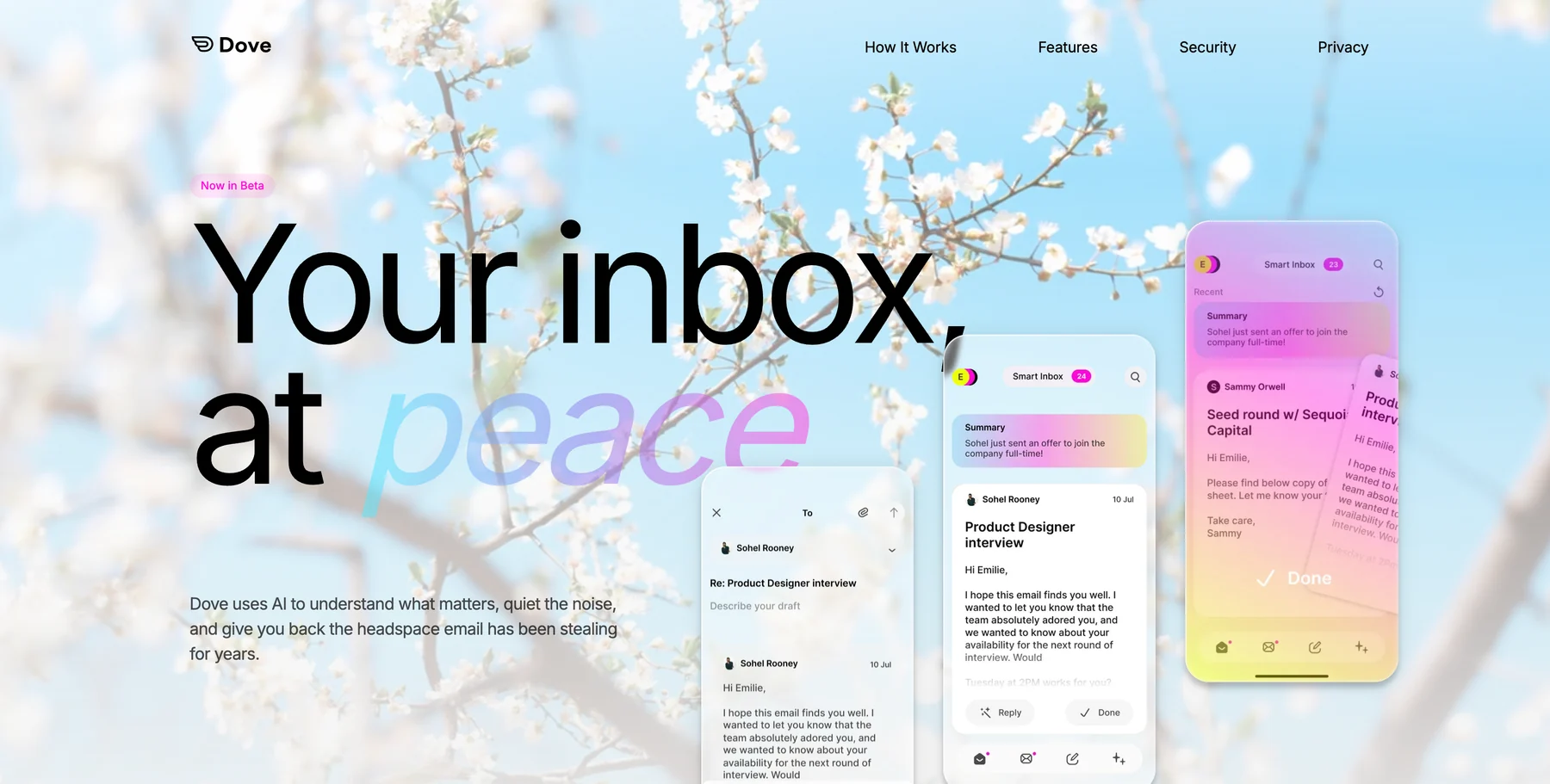
Dove is built with security as a core feature, not something bolted on later. Every email gets an automated risk score. Phishing and impersonation attempts are flagged before you see them. Dangerous emails go straight to Noise. If you want protection that runs without requiring you to think about it, Dove is the most complete option in this category.
Canary Mail comes from the same team (Cartasec Pte. Ltd.) but serves a different need. It’s a privacy-first email client with deep security features: PGP encryption, on-device processing, and HIPAA-compliant SecureSend. Where Dove is AI-native and triage-first, Canary Mail is built for users who want manual control over encryption and data handling. You can review Dove’s privacy policy to see exactly how email data is handled before connecting an account.
Gmail and Outlook have improved their phishing filters considerably. They catch a meaningful share of attacks. But neither provides per-email risk scoring or automatic quarantine with visible context. Some messages get a warning banner; others pass through without any signal.
Superhuman and HEY focus on speed and prioritization. Phishing risk scoring isn’t a core part of either product.
The email client you use is part of your security posture.
Protecting yourself from phishing emails: a quick-reference checklist
Keep this somewhere accessible. Run through it when something feels off.
[ ] Check the full sender domain (not just the display name)
[ ] Does the domain match the company exactly? No hyphens, added words, or letter swaps?
[ ] Is there urgency or pressure to act immediately?
[ ] Hover over links – does the destination match what the link text says?
[ ] Is this a request you were expecting?
[ ] For financial or sensitive requests: verified through a separate channel?
[ ] MFA enabled on the account in question?
If anything here makes you pause, trust that. Thirty extra seconds to verify costs nothing compared to what a successful attack costs.
Stay ahead of phishing emails in 2026
Strong habits – domain verification, no direct link clicks, MFA everywhere – backed by automated security that operates before you ever see the message. You can’t sustain perfect attention across every email you receive. Your email client can.
Dove risk-scores every incoming email, flags impersonation attempts, and routes dangerous messages out of your inbox automatically.
Your inbox isn’t going to secure itself.
FAQ
How can I tell if an email is phishing?
Check the sender’s full domain (not just the display name), look for urgency or pressure to act, hover over links to see the actual destination, and verify any unexpected requests through a separate channel. Modern phishing emails look legitimate – process matters more than gut feel.
What email app has the best security against phishing?
Dove provides automatic per-email risk scoring (Safe, Suspicious, Dangerous) and routes phishing and impersonation attempts to Noise before you see them. Canary Mail from the same team offers PGP encryption and on-device processing for users who prioritize privacy and manual control. Both are stronger options than Gmail or Outlook if security is a priority.
Can AI detect phishing emails?
Yes. Email security tools that use AI can analyze sender domain patterns, authentication signals, link destinations, and content to score emails for phishing risk in real time. Dove applies this to every incoming email automatically.
What should I do if I clicked a phishing link?
If you entered credentials: change your password immediately and enable MFA. If you downloaded an attachment: disconnect from your network and run a malware scan. If you only clicked: run a scan and change passwords for active browser sessions. Report the email to your provider and to the impersonated company.
How do I report a phishing email?
Most email providers have a “Report phishing” option in the message menu. You can also forward phishing emails to reportphishing@apwg.org (the Anti-Phishing Working Group) or to the impersonated company’s security team. In the US, the FTC accepts phishing reports at ReportFraud.ftc.gov.
Are AI email apps safe to use?
Yes – with the right provider. AI email tools analyze your emails to provide features like triage and security scoring. What matters is how that data is handled. Look for clear privacy policies that specify how email content is processed and stored. Check the policy before you connect an account.
More from Dove
Recent posts
August 17, 2026
Best Email App for Multiple Accounts in 2026
Juggling more than one inbox? Here is the best email app for multiple accounts in 2026, plus two other ways to fix inbox overwhelm for good.
July 1, 2026
Best Airmail Alternatives in 2026
The best Airmail alternatives in 2026 compared. See platform support, pricing, strengths, and weaknesses for Dove, Canary Mail, Spark Mail, Mimestream, Edison Mail, Shortwave, Outlook, and Apple Mail.
June 30, 2026
Best Spike Alternatives in 2026
The best Spike alternatives in 2026 compared. See platforms, pricing, strengths, and weaknesses for Dove, Shortwave, Spark, Missive, and Superhuman.