

iPhone Mail App Not Working or Not Updating? How to Fix It
If the Mail app on your iPhone isn't working, first sign in to your email on the web (gmail.com, outlook.com or icloud.com/mail). If new mail is there, the problem is on your phone. Go to Settings > Apps > Mail > Mail Accounts > Fetch New Data and check how often Mail looks for new mail, turn off Low Power Mode, and re-enter your password if Mail asks for it. If new mail isn't on the web either, the problem is with your email provider, and nothing on your phone will fix it.
Most Mail problems have one of a handful of causes. Find your symptom below and start there. Steps in quotes come from Apple's, Google's and Microsoft's support pages, and we checked the settings paths against Apple's pages on November 23, 2026, when the current version was iOS 27.2.1.
If you're thinking of switching apps instead, see our guide to the best iPhone email app.
First, check one thing: is the mail arriving at all?
Open your email in a web browser, on your phone or a computer, and look for a message you expect.
It's there on the web, but not in Mail: the problem is your iPhone's settings or your account on the phone. Keep reading.
It's not there on the web either: the sender hasn't sent it, it's in spam, or your provider has an outage. Apple's own advice is to "check with your email service provider to find out if there's a service outage." For iCloud Mail, look at Apple's System Status page.
Find your symptom
What you see | Most likely cause | See the section |
|---|---|---|
New mail only appears when you open Mail | Fetch settings, Low Power Mode, or a Gmail account | Mail isn't updating |
No banner or sound for new mail | Notification settings | No notifications |
"Cannot Get Mail", "Account not authenticated" or a password prompt | The phone has an old password or sign-in | "Cannot Get Mail" and password prompts |
Mail opens to a blank or white screen, or crashes | An app glitch | Mail is blank, white or keeps crashing |
Mail stuck in the Outbox | Sending problem | Mail won't send |
The Mail icon is gone | Mail was deleted or hidden | The Mail app is missing from your iPhone |
Mail isn't updating: new email only shows up when you open the app
This is the most common complaint, and it's usually a setting, not a fault.
1. Check Fetch New Data. Go to Settings > Apps > Mail > Mail Accounts > Fetch New Data. Each account uses Push, Fetch or Manual:
Push: your provider sends new mail to the phone as it arrives. iCloud, and Outlook or Exchange accounts, usually offer it.
Fetch: Mail checks on a schedule you pick, such as every 15 minutes.
Manual: Mail only checks when you open it. If an account is set to Manual, that's your answer.
There's a trap in the Automatically setting, which iPhones use by default: "Your device will fetch new data in the background only when your device is charging and connected to Wi-Fi." If you want new mail during the day without opening Mail, choose a schedule instead, like Every 15 Minutes.
2. Turn off Low Power Mode. Apple lists "Turns off email fetch" among the things Low Power Mode does. If your battery icon is yellow, Mail has stopped checking for new mail in the background. Turn it off in Settings > Battery > Power Mode (on iPhone 15 and later) or Settings > Battery (iPhone 14 and earlier). It also turns itself off once you charge past 80%.
3. Know the Gmail limit. Users have reported for years that Mail doesn't offer Push for Gmail accounts. Apple's page says that "if Push isn't available as a setting, your account will default to Fetch." So in practice a Gmail account in Mail checks on a schedule, every 15 minutes at the shortest. If you need Gmail to arrive the moment it's sent, use the Gmail app for iPhone or another app that gets notifications from its own server (more on that below).
4. Pull down to refresh. In your inbox, drag the list down and let go. If new mail appears, the account works and the issue is the fetch timing.
No notifications for new email
If mail arrives but you don't hear about it:
Go to Settings > Notifications > Mail and make sure Allow Notifications is on, with the Alerts, Sounds and Badges you want.
If you have more than one account, tap Customize Notifications in the same place and check each account. Each one has its own settings.
Check that a Focus, such as Do Not Disturb or Sleep, isn't silencing Mail.
Remember that a notification can only come once Mail knows the email has arrived. With Fetch, that's up to 15 minutes later, and with Manual, never. Fix Fetch New Data first (see above).
"Cannot Get Mail", "Account not authenticated" and password prompts
These mean the phone's copy of your sign-in no longer works. That happens after you change your password, turn on two-step verification, or when your provider changes how apps sign in.
Sign in on your provider's website to check that your email address and password work. Apple suggests this first.
If Mail asks for a password, enter the current one.
If the error keeps coming back, remove the account and add it again (steps below).
What to do for each provider:
Gmail: Google says Gmail "no longer supports third-party apps or devices which require you to share your Google username and password." Remove the account, then add it again by tapping Google in the account list and signing in on Google's own page. Google also notes that IMAP is now always on, and that app passwords "are unnecessary in most cases." Its help page lists the errors this fixes, such as "Username and password not accepted" and "Invalid credentials."
Outlook.com and Hotmail: Microsoft has a support page for exactly these messages: "Account not authenticated" and "Cannot Get Mail – The connection to the server failed." Its fix is to re-enter your password in the account's settings. Microsoft's steps use an older menu path; on iOS 27 it's Settings > Apps > Mail > Mail Accounts.
iCloud: Go to Settings > [your name] > iCloud > Mail and make sure Use on this iPhone is on. Apple's iCloud Mail help covers the rest.
Work or school email: Your IT team may need to approve your phone, or require their own app. Apple's page says you "might need a special password or may need to request authorization."
Remove your email account and add it again
This clears out a stuck account. Apple's steps, from its page on not receiving email:
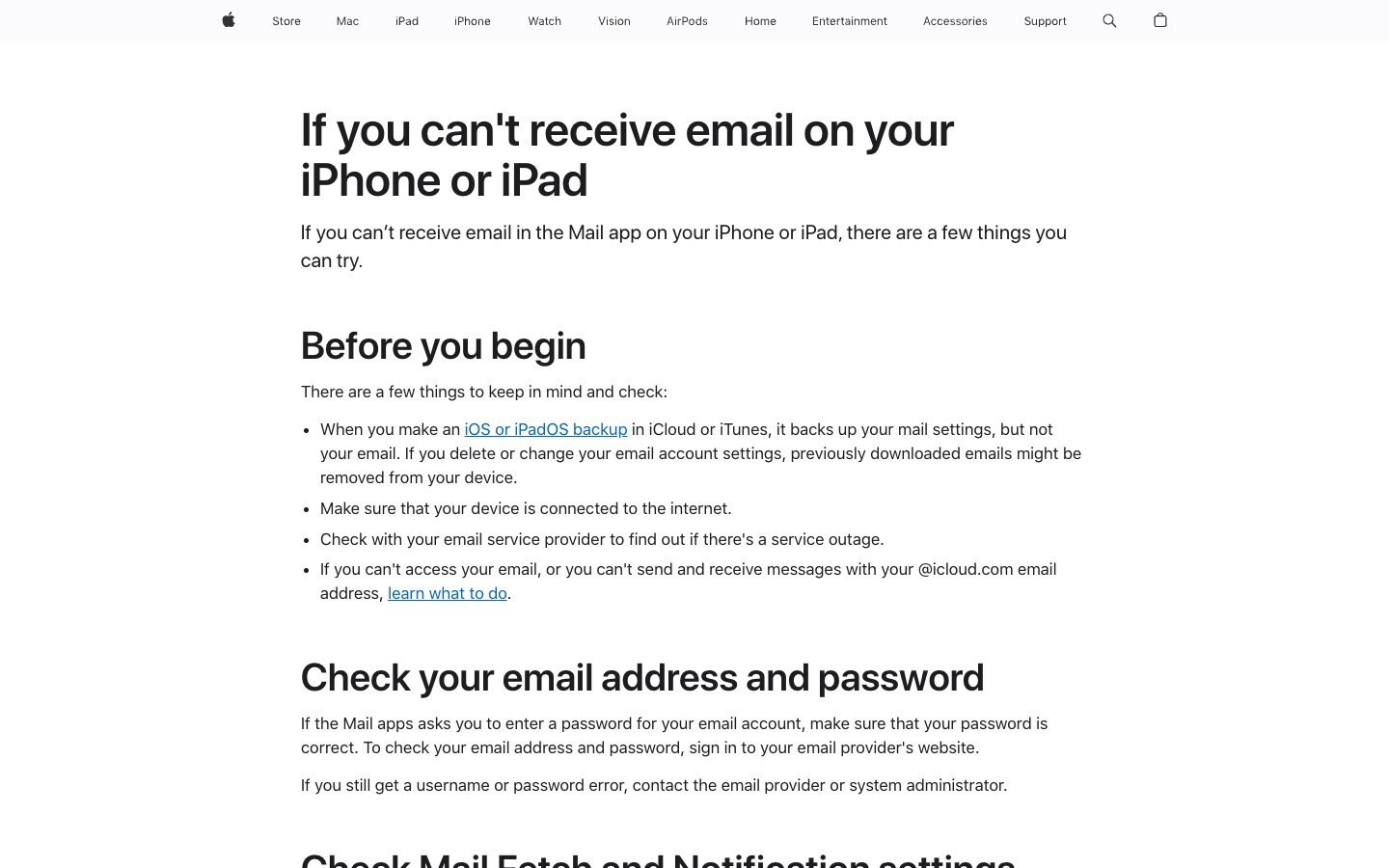
On a computer, sign in to your provider's website and make sure your email is there. Apple warns that "if you delete or change your email account settings, previously downloaded emails might be removed from your device." Mail kept on the server, as with Gmail, Outlook and iCloud, comes back. Mail that only lives on the phone, such as some older POP accounts, doesn't.
On your iPhone, go to Settings > Apps > Mail > Mail Accounts.
Tap the account, then Delete Account.
Go back and tap Add Account, pick your provider and sign in. Apple has full steps for adding an account, including manual server settings if your provider isn't listed.
Mail is blank, white or keeps crashing
Try these in order, and stop when it works:
Close Mail and reopen it. Swipe up from the bottom of the screen and pause, then swipe Mail away.
Restart your iPhone.
Update iOS in Settings > General > Software Update. On November 23, 2026 the current version was iOS 27.2.1.
Turn off a VPN if you use one, and try again.
Delete Mail and get it back from the App Store (steps in the next section). This doesn't delete the email in your accounts, which stays with your provider.
Many threads you'll find about a blank white Mail screen are from June 2025, when iOS 18.5 had this bug (9to5Mac covered it). Fixes from those threads, like turning off auto-correction, were workarounds for that one bug. On November 23, 2026 we found no report from Apple or a major Apple news site of a widespread Mail problem on iOS 27.
Mail won't send
Open Mail, go back to your mailbox list and tap Outbox. Apple's page on not sending email says to tap the stuck email and try Send again. If it still won't go, check your password and your provider's status, as above. An Outbox only appears when something is waiting in it.
The Mail app is missing from your iPhone
Mail is one of the built-in apps you can delete. To get it back, open the App Store, search for Mail, tap the Redownload button, then open it from your Home Screen. Before you do, swipe left past your last Home Screen page to the App Library and search there. The app may just be hidden from your Home Screen. On a work phone, your IT team can also hide or block apps.
Still not working?
Contact your email provider. If mail isn't arriving on the web either, they're the only ones who can fix it.
Ask Apple. Apple Support can help if the problem is only in Mail.
Try another email app. If Mail keeps letting you down with one account, a different app can be the quickest fix. Gmail users often switch to the Gmail app, and Outlook users to Outlook for iPhone. Our guide to the best iPhone email app compares ten options.
Using another email app instead
Dove is our email app, made by the team behind Canary Mail, so take this with that in mind. Dove works with Gmail, Outlook, iCloud, Yahoo and other IMAP accounts. Its servers watch your accounts and send a notification when new mail arrives (skipping mail sorted into Noise), so a Gmail account isn't waiting on Mail's next fetch. It also sorts mail into Focus, Feed and Noise, so the mail that needs you is at the top. You can set it as your default email app in Settings > Apps > Default Apps > Email.
Dove isn't a fix for a provider outage or a wrong password; nothing on your phone is. The sorting and AI features are part of Dove Pro, which costs $20 a month or $200 a year after a 7-day trial that asks for a card. The free plan includes 10 AI actions a day (Dove's pricing).
FAQ
Why is my email all of a sudden not working on my iPhone?
Usually something changed: you changed your password, your provider changed how apps sign in, Low Power Mode came on, or your provider has an outage. Check your email on the web first. If it's there, re-enter your password in Settings > Apps > Mail > Mail Accounts, or remove and re-add the account.
Why isn't my Mail app refreshing on my iPhone?
Check Fetch New Data in Settings > Apps > Mail > Mail Accounts. Manual only checks when you open Mail, and Automatically only checks in the background while your iPhone is charging and on Wi-Fi. Low Power Mode also turns off email fetch. And users report that Gmail accounts can't use Push in Mail, so they check on a schedule.
What is going on with the Mail app on iPhone?
On November 23, 2026 we found no widespread Mail outage or bug reported by Apple or the main Apple news sites for iOS 27. The blank-screen bug many people remember was in iOS 18.5, in June 2025. If Mail misbehaves, update to the latest iOS and restart your iPhone.
Why is the Mail app not on my iPhone?
It was probably deleted or moved off your Home Screen. Search for it in the App Library. If it isn't there, open the App Store, search for Mail and tap Redownload.
Why am I not getting emails after updating my iPhone?
Restart your iPhone, then check that Fetch New Data wasn't changed. If Mail asks for a password or shows "Cannot Get Mail", re-enter your password or remove the account and add it back.
Does deleting my email account from my iPhone delete my emails?
Not for accounts that keep mail on the server, like Gmail, Outlook, Yahoo and iCloud. Your email comes back when you add the account again. Apple warns that emails downloaded to the phone might be removed, so check your provider's website first, especially with an older POP account.
More from Dove
Recent posts
November 23, 2026
Gmail App for iPhone: How to Get It, Set It Up and Fix It (2026)
Google's Gmail app is free in the App Store and needs iOS 18. Here's how to spot the real one, set it up, make it your default email app, fix notifications and sync, and decide whether Apple Mail or another app suits you better. Checked on November 23, 2026.
November 23, 2026
How to Change the Default Mail App on Mac (Outlook, Gmail and More)
Your Mac's default email app is set inside Apple Mail, not System Settings, and the menu is greyed out until Mail has an account. Here's how to change it, every way around that, and the exact steps for Outlook, Gmail and other apps. Checked on November 23, 2026.
November 20, 2026
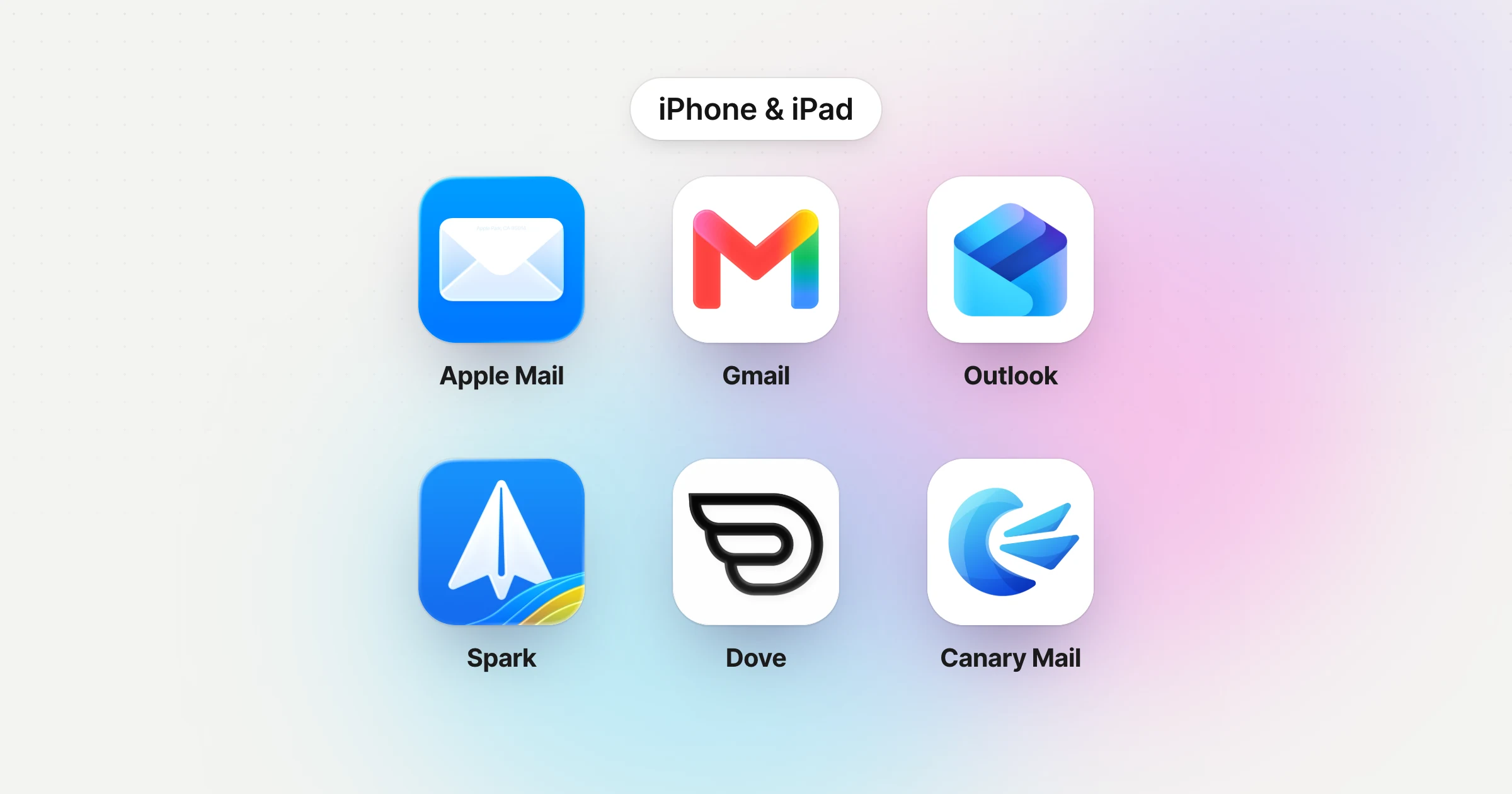
Best Email App for iPhone and iPad in 2026: 10 Picks With Checked Prices
For most people, Apple Mail is the best email app on iPhone and iPad. Here's when it isn't, and the nine apps worth switching to. Prices were checked again in November 2026, and there's a section on iPad.