

Gmail App for iPhone: How to Get It, Set It Up and Fix It (2026)
Yes, there's an official Gmail app for iPhone. It's called Gmail - Email by Google, it's free in the App Store, and the seller is Google LLC. It needs iOS 18 or later. Install it, open it and sign in with your Google account; to make it the app that opens when you tap an email address, go to Settings > Apps > Default Apps > Email and choose Gmail. If you'd rather not install anything, you can also add Gmail to the iPhone's built-in Mail app.
Disclosure: Dove is made by the team behind Canary Mail, and Dove is one of the other apps mentioned near the end. The steps and figures below come from Google's and Apple's own pages and the US App Store, checked on November 23, 2026.
This page is part of our guide to the best email client for Gmail. On a Mac, see the Gmail app for Mac. For iPhone email apps in general, see the best iPhone email app.
Gmail for iPhone at a glance
Gmail app for iPhone | |
|---|---|
Official name | Gmail - Email by Google |
Seller | Google LLC |
Price | Free, with optional Google storage and AI plans |
Needs | iOS 18.0 or later (iPadOS 18 on iPad) |
Size | 764 MB |
App Store rating | 4.7 from about 2.5 million ratings |
Latest version | 6.0.261109, released November 16, 2026 |
Other accounts | Outlook, iCloud, Yahoo and other IMAP accounts |
Source: the Gmail App Store listing, US store, November 23, 2026.
How to download the Gmail app (and avoid lookalikes)
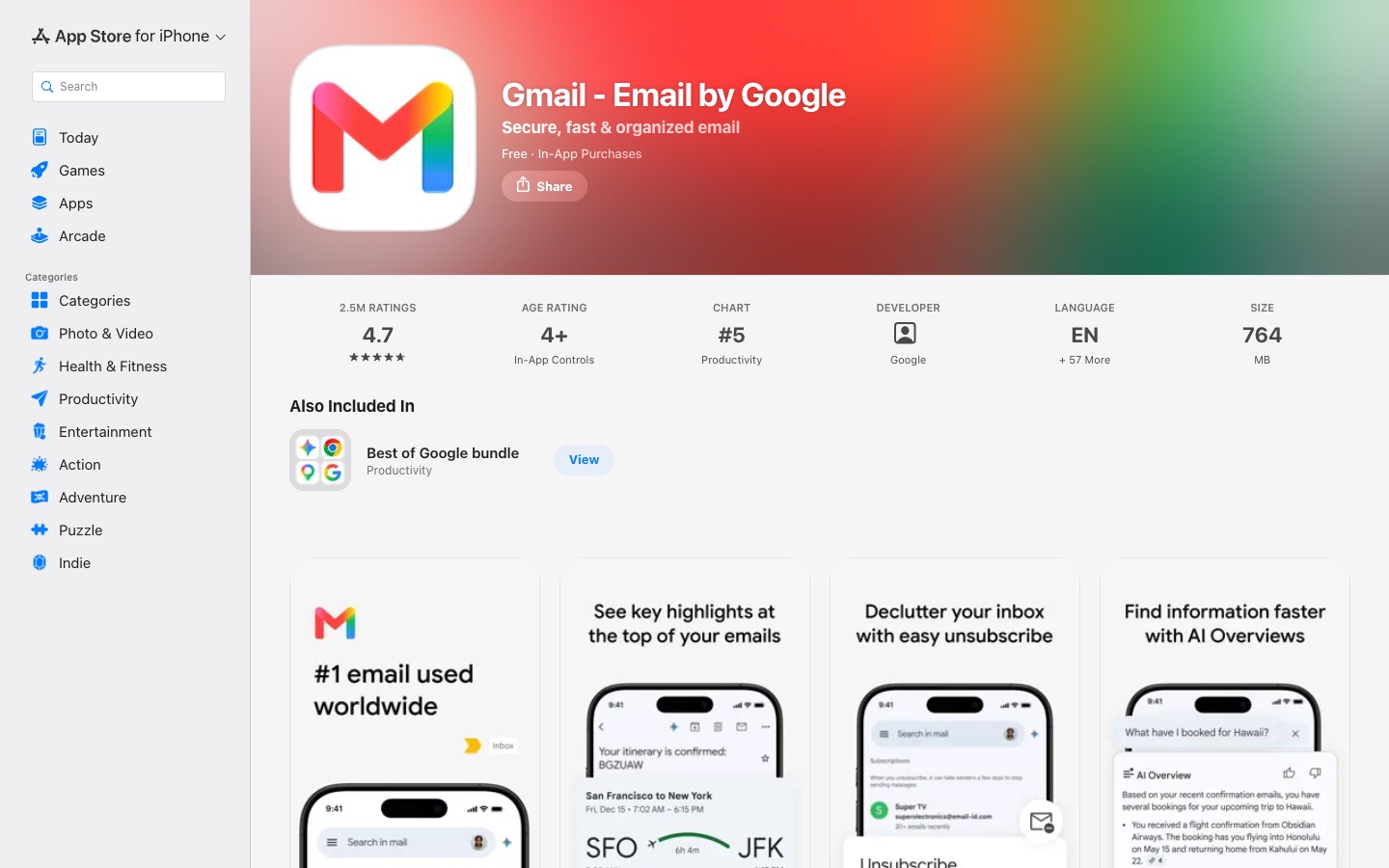
Open the App Store and search for Gmail.
Tap Gmail - Email by Google. Under the name, the developer should say Google.
Tap Get, then open the app.
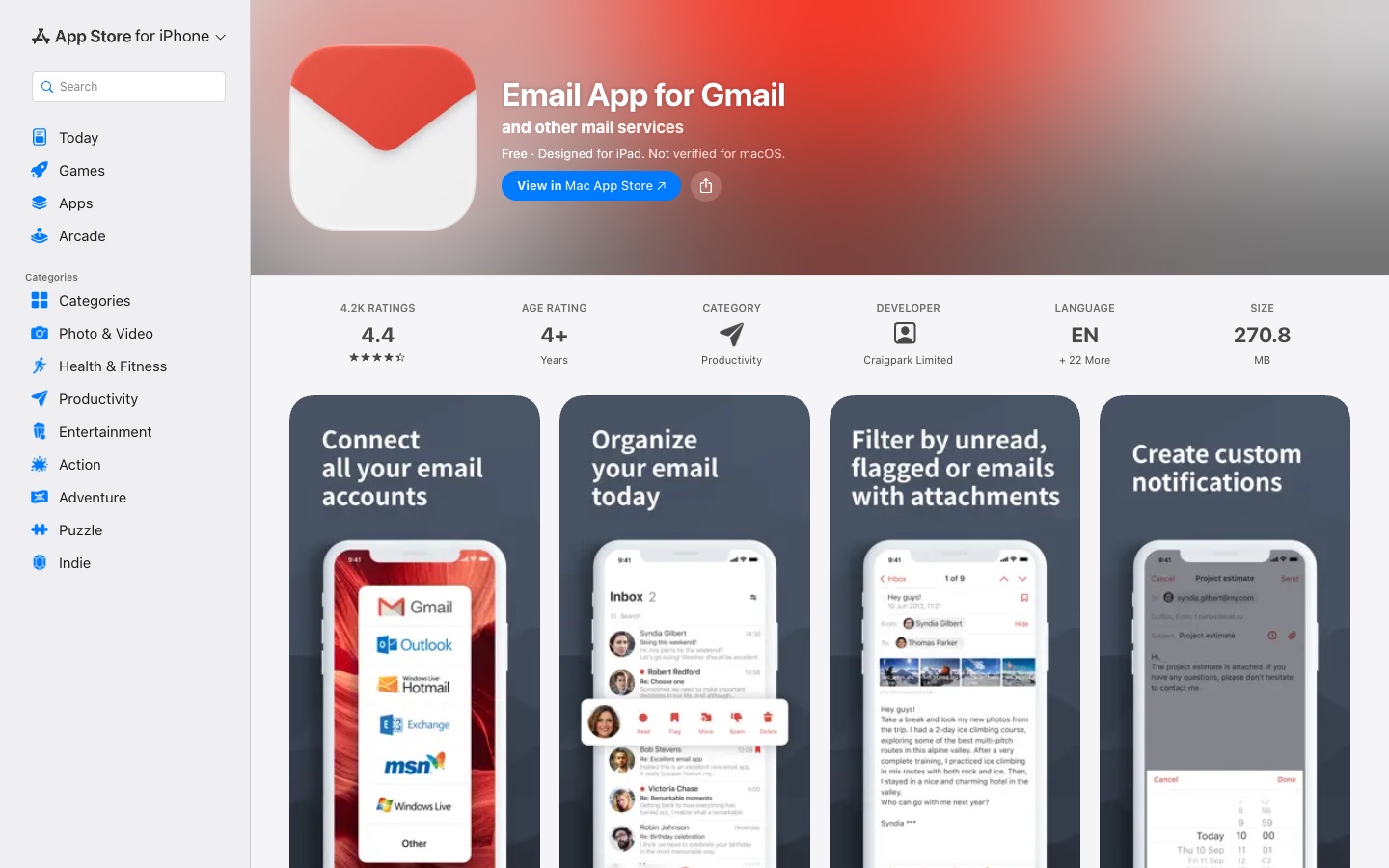
Check the developer before you tap Get. When we searched the US App Store's listings through Apple's search service on November 23, 2026, the first result for "email app for Gmail" wasn't Google's app. It was Email App for Gmail from Craigpark Limited, last updated in October 2024. Its App Store privacy label says identifiers and usage data may be used to track you across other companies' apps and websites, and lists user content, contacts and search history among the data linked to you. It's one of several apps with Gmail in the name. Google's account security help gives the same advice: before you download a Google app, confirm that Google made it.
Ignore websites that offer a "Gmail for iPhone download". iPhone apps install from the App Store, so those pages can't give you anything the App Store can't.
If the App Store says your iPhone is too old: the current Gmail app needs iOS 18. On an iPhone that can't update to iOS 18, use Gmail in Safari at gmail.com, or add your Gmail account to the Mail app (see below).
How to sign in and add more accounts
Google's steps, from its sign-in help:
Open the Gmail app.
At the top right, in the search bar, tap your Profile picture.
Tap Add another account, then Google.
Follow the steps on screen. If you use 2-Step Verification, you may be asked to approve the sign-in from another device.
The Gmail app also works with other email. Google says you can add "a non-Gmail address, like Outlook, iCloud Mail, or Yahoo". Use the same steps and pick your provider, or Other (IMAP) to enter server settings yourself. To see every account together, open the menu and tap All inboxes. To take an account off the phone, tap your Profile picture, then Manage accounts on this device.
How to make Gmail your default email app
When Gmail is your default, tapping an email address in Safari, Contacts or another app opens a new message in Gmail instead of Mail.
Update your iPhone to the latest iOS.
Open Settings, tap Apps, then Default Apps at the top.
Tap Email and choose Gmail.
These are Apple's steps for changing default apps. Older guides show Settings > Gmail > Default Mail App, which was the path before iOS 18.
How to set up Gmail notifications
By default, the Gmail app notifies you about email in your Primary inbox. To change it, from Google's notification help:
In the Gmail app, tap Menu at the top left, then Settings.
Choose the account. Each account has its own setting.
Under Notifications, tap Email notifications and pick a level. High priority only notifies you about the emails Gmail marks as important.
Tap Notification sounds in the same place to change the sound or turn it off.
If nothing comes through at all, check the iPhone side too: Settings > Notifications > Gmail must have notifications allowed.
Gmail settings worth changing on iPhone
Swipe actions. Menu > Settings > Inbox customizations > Mail swipe actions. Set the left and right swipes to Archive, Trash, Mark as read/unread, Snooze, Move to, or None (Google's settings help).
Undo send. Right after you send, tap Undo in the "Sent" message at the bottom of the screen. The App Store listing says you get "up to 30 seconds."
Manage subscriptions. Menu > Manage subscriptions, then Unsubscribe next to a sender. Google says it's still rolling out, so you may not see it yet. Our guide to unsubscribing from emails in Gmail covers it in full.
Gemini. What you get depends on your plan, per Google's Gemini in Gmail page. Summaries of long email threads work with free personal accounts. Help me write and Suggested Replies are free for personal accounts in the US. AI Inbox and Gmail Live, which answers questions about your mail by voice, need a paid Google AI Plus, Pro or Ultra plan (AI Inbox also comes with eligible Workspace plans).
If years of newsletters and promotions are clogging the app, Manage subscriptions won't clear the backlog. Our guide to email cleaner apps compares tools that unsubscribe and bulk-delete for you.
Gmail app or Apple's Mail app?
You can use Gmail in either app. Here's how they compare, from the two App Store listings and Google's and Apple's help pages:
Gmail app | Apple Mail | |
|---|---|---|
Price | Free | Free, built in |
New Gmail arrives | With a notification as it arrives | On a schedule (users report Gmail accounts can't use Push) |
Labels | Labels, tabs and Gmail search | Labels show as folders |
Other accounts | Outlook, iCloud, Yahoo, IMAP | iCloud, Outlook, Exchange, Yahoo, IMAP |
AI | Gemini (some features need a paid plan) | Apple Intelligence on supported iPhones |
Data the app links to you (App Store privacy label) | 10 categories, including location, contacts, search history and usage data | Contact info and identifiers only |
Choose the Gmail app if Gmail is your main account and you want new mail to arrive the moment it's sent, with Gmail's tabs, labels and search.
Choose Apple Mail if you have several kinds of accounts and want them in one inbox in an app that's already there. The catch for Gmail users is timing. Users have reported for years that Mail doesn't offer Push for Gmail accounts, so it checks on a schedule. Apple notes that the default Automatically setting only fetches in the background "when your device is charging and connected to Wi-Fi."
To add Gmail to Apple Mail, go to Settings > Apps > Mail > Mail Accounts > Add Account, tap Google and sign in (Apple's steps).
Gmail app not working or not syncing on iPhone?
Google's sync troubleshooting page gives this order. Stop when it works:
Refresh. Swipe down in your inbox.
Update the app in the App Store. Google notes that an older version "may ask you to update before you can use it."
Restart your iPhone.
Check your connection. Try a website in Safari.
Turn on Background App Refresh for Gmail: Settings > General > Background App Refresh > Gmail.
Check how much mail syncs. In Gmail, tap Menu > Settings, then under General tap Data usage > Sync settings and set the number of days.
Check your Google storage. Google says that when it's full, "You can't send or receive messages" and messages sent to you go back to the sender.
If it's Apple's Mail app that has stopped updating, not the Gmail app, see our guide to fixing the iPhone Mail app when it's not working.
Other email apps for Gmail on iPhone
If you want something different from both Gmail and Apple Mail:
Outlook for iPhone: free, and its App Store listing says it works with Gmail, Yahoo and iCloud as well as Microsoft accounts. A good pick if you also have a work Microsoft 365 account.
Spark: free, with a smart inbox that groups newsletters apart from people. Plus costs $10 a month or $99 a year (Spark's pricing).
Superhuman: built for speed in a busy Gmail or Outlook inbox. Starter is $25 a month billed yearly, with no free plan (Superhuman's plans).
Dove (ours): sorts new mail into Focus, Feed and Noise, and shows what needs you in a Today view, across Gmail and other accounts on iPhone, Mac, Windows, Android and the web. It connects to Gmail through Google's Gmail API, so labels stay labels. The free plan includes 10 AI actions a day; Pro is $20 a month or $200 a year after a 7-day trial that asks for a card (Dove's pricing). The downside: Dove is new, with fewer than 30 App Store ratings so far.
Our best email client for Gmail guide compares these in detail.
Using Gmail on a PC too? Google makes no Windows app, but you can install Gmail as one from Chrome or Edge. Here's how, in our guide to the Gmail app for Windows.
FAQ
Is the Gmail app free on iPhone?
Yes. The app is free. The in-app purchases are Google storage and AI plans, such as 100 GB for $1.99 a month, which you don't need to use Gmail.
Why can't I find the Gmail app on my iPhone?
Swipe down on the Home Screen and search for Gmail, or look in the App Library. If it has a small cloud next to its name, iOS offloaded it to save space; tap it to download it again. If it isn't there at all, install it from the App Store and check the developer is Google. If the App Store says it needs a newer iOS, update your iPhone or use Gmail in Safari.
How do I get my Gmail account onto my iPhone?
Two ways. Install the Gmail app and sign in. Or add Gmail to the built-in Mail app: Settings > Apps > Mail > Mail Accounts > Add Account > Google.
How do I get back into my Gmail account on my iPhone?
In the Gmail app, tap your Profile picture, then Add another account > Google, and sign in. If you forgot your password, use Google's account recovery at g.co/recover.
Why am I no longer getting Gmail on my iPhone?
Check four things. Is Gmail allowed to send notifications in Settings > Notifications > Gmail? Did you change the account's notification level in the app (Menu > Settings > Email notifications)? Is the app up to date? And is your Google storage full? Full storage stops new mail. If you use Apple Mail instead, it checks Gmail on a schedule, not as mail arrives.
Can I make Gmail the default email app on my iPhone?
Yes. Go to Settings > Apps > Default Apps > Email and choose Gmail.
Can I add Outlook or Yahoo to the Gmail app?
Yes. Tap your Profile picture, then Add another account, and choose your provider or Other (IMAP).
More from Dove
Recent posts
November 23, 2026
How to Change the Default Mail App on Mac (Outlook, Gmail and More)
Your Mac's default email app is set inside Apple Mail, not System Settings, and the menu is greyed out until Mail has an account. Here's how to change it, every way around that, and the exact steps for Outlook, Gmail and other apps. Checked on November 23, 2026.
November 23, 2026
iPhone Mail App Not Working or Not Updating? How to Fix It
Most Mail problems on an iPhone come down to a fetch setting, a password the phone no longer has, or Low Power Mode. Find your symptom below and fix it in a few minutes, with every step checked against Apple's support pages on November 23, 2026.
November 20, 2026
Best Email App for iPhone and iPad in 2026: 10 Picks With Checked Prices
For most people, Apple Mail is the best email app on iPhone and iPad. Here's when it isn't, and the nine apps worth switching to. Prices were checked again in November 2026, and there's a section on iPad.