

Gmail App for Windows: Google Doesn't Make One, So Here's What to Use (2026)
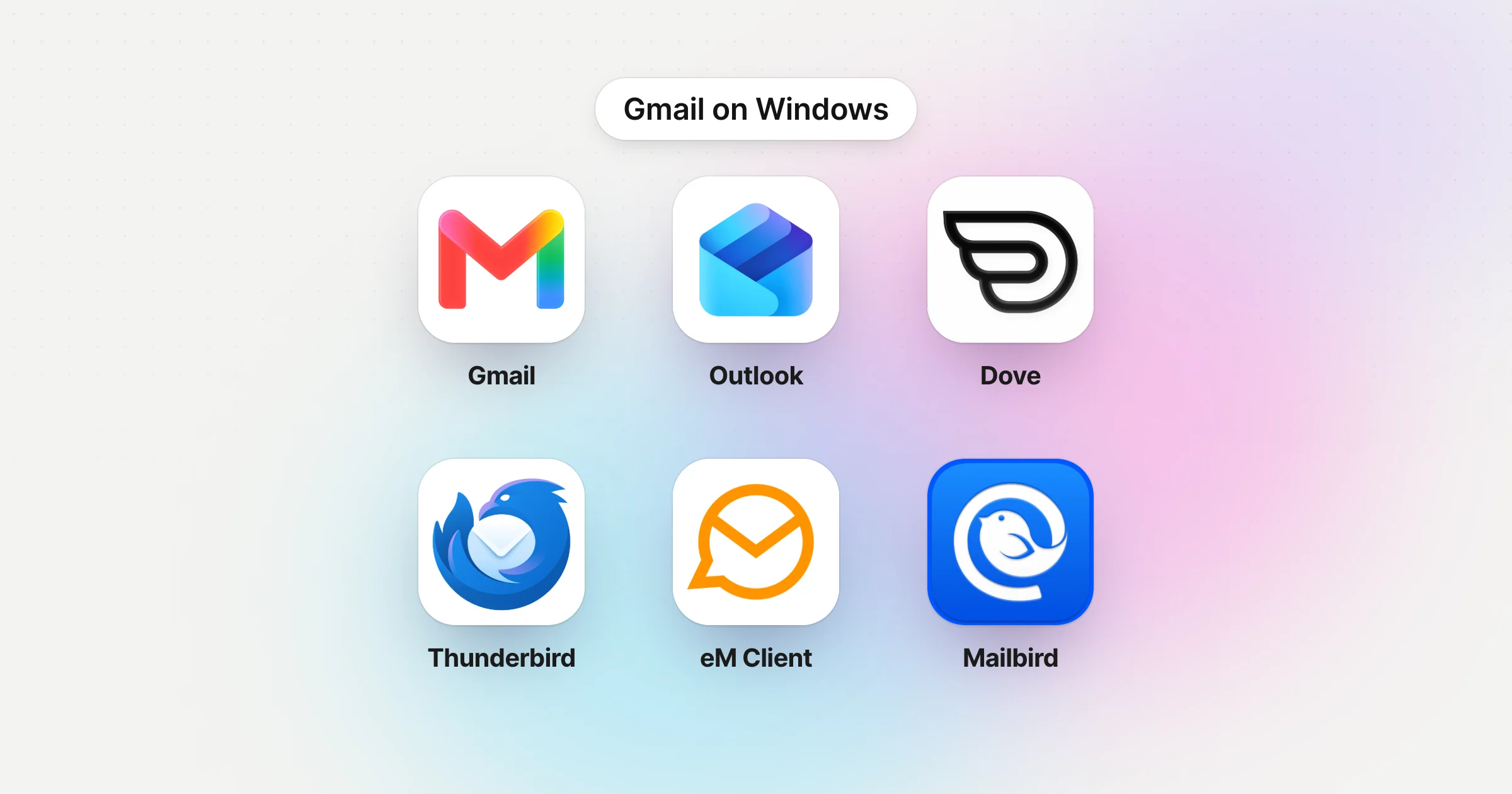
There is no Gmail app for Windows. Google makes Gmail apps for Android, iPhone and iPad, but on a Windows PC its own guide says you "use a web browser instead of a desktop app." The quickest fix is free. Open Gmail in Chrome or Edge and install it as an app, and a minute later it has its own window and a taskbar icon. If you also have Outlook, Yahoo or iCloud accounts, or want your mail stored on your PC, use a desktop email app that supports Gmail.
Disclosure: Dove is made by the team behind Canary Mail, and Dove is one of the apps below. It gets the same fields as every other app, including one real downside. Every price comes from the vendor's own site.
This page is part of our guide to the best email client for Windows, which in turn is part of our guide to the best email apps on every platform.
Is there an official Gmail app for Windows 10 or 11?
No. Google's Workspace setup guide says it plainly: "To access your Google Workspace services like email and calendar, you'll use a web browser instead of a desktop app." Gmail's own sign-in help offers the same two routes for personal accounts: sign in from a computer, or use the Gmail app on your phone or tablet. There's no Gmail installer for Windows 10 or Windows 11, and Google has no Gmail listing in the Microsoft Store.
So any "Gmail app for Windows" you find is one of four things:
Gmail installed from your browser. Chrome and Edge can turn any website into an app with its own window. This is still Google's Gmail, just without the tabs.
The new Outlook for Windows, which comes with Windows 11 and can add a Gmail account.
A desktop email app that connects to your Gmail account, like Thunderbird, eM Client or Dove.
A wrapper made by another company. Some are honest products. Some are look-alikes in the Microsoft Store and Chrome Web Store that you should skip (more on those below).
You can't run the Android Gmail app on Windows any more either. Microsoft removed Windows Subsystem for Android and the Amazon Appstore from the Microsoft Store on March 5, 2025.
Every option at a glance
US prices from each vendor's own site, checked on November 11, 2026. "Labels" is how your Gmail labels show up. "Gmail search" means Gmail's own search box and search operators, which you only get when the app shows the real Gmail website.
Option | Price | Gmail labels | Gmail search | Several Gmail accounts | Other providers too |
|---|---|---|---|---|---|
Gmail installed from Chrome or Edge | Free | Exactly as in Gmail | Yes | Switch accounts inside Gmail | No |
New Outlook for Windows | Free with ads; $19.99/yr removes them | Not documented by Microsoft | No, Outlook's search | Yes | Yes |
Dove (ours) | Free plan; $20/mo or $200/yr | Synced from Gmail | No, Dove's search and AI | Unlimited, every plan | Yes |
Thunderbird | Free | Shown as folders | No, its own search | Unlimited | Yes |
eM Client | Free for 2 accounts; $49.95/yr or $74.95 once | Shown as tags | No, its own search | 2 free, unlimited paid | Yes |
Mailbird | Free for 1 account; $69/yr list | Shown as folders | No, its own search | 1 free, unlimited paid | Yes |
Spark | Free; Plus $10/mo or $99/yr | Synced from Gmail | No, its own search | Unlimited, even free | Yes |
Mailspring | Free; Pro $8/mo | Synced from Gmail | No, its own search | Yes | Yes |
Kiwi for Gmail | From $4.99/mo, or $4/mo yearly | Exactly as in Gmail | Yes | 1, 3 or 9 by plan | No |
Shift | Free; Advanced $199.99/yr | Exactly as in Gmail | Yes | Yes | As web apps |
Wavebox | Free; Pro $8.33/mo yearly | Exactly as in Gmail | Yes | 2 free, unlimited Pro | As web apps |
Option 1: Install Gmail as an app from Chrome or Edge
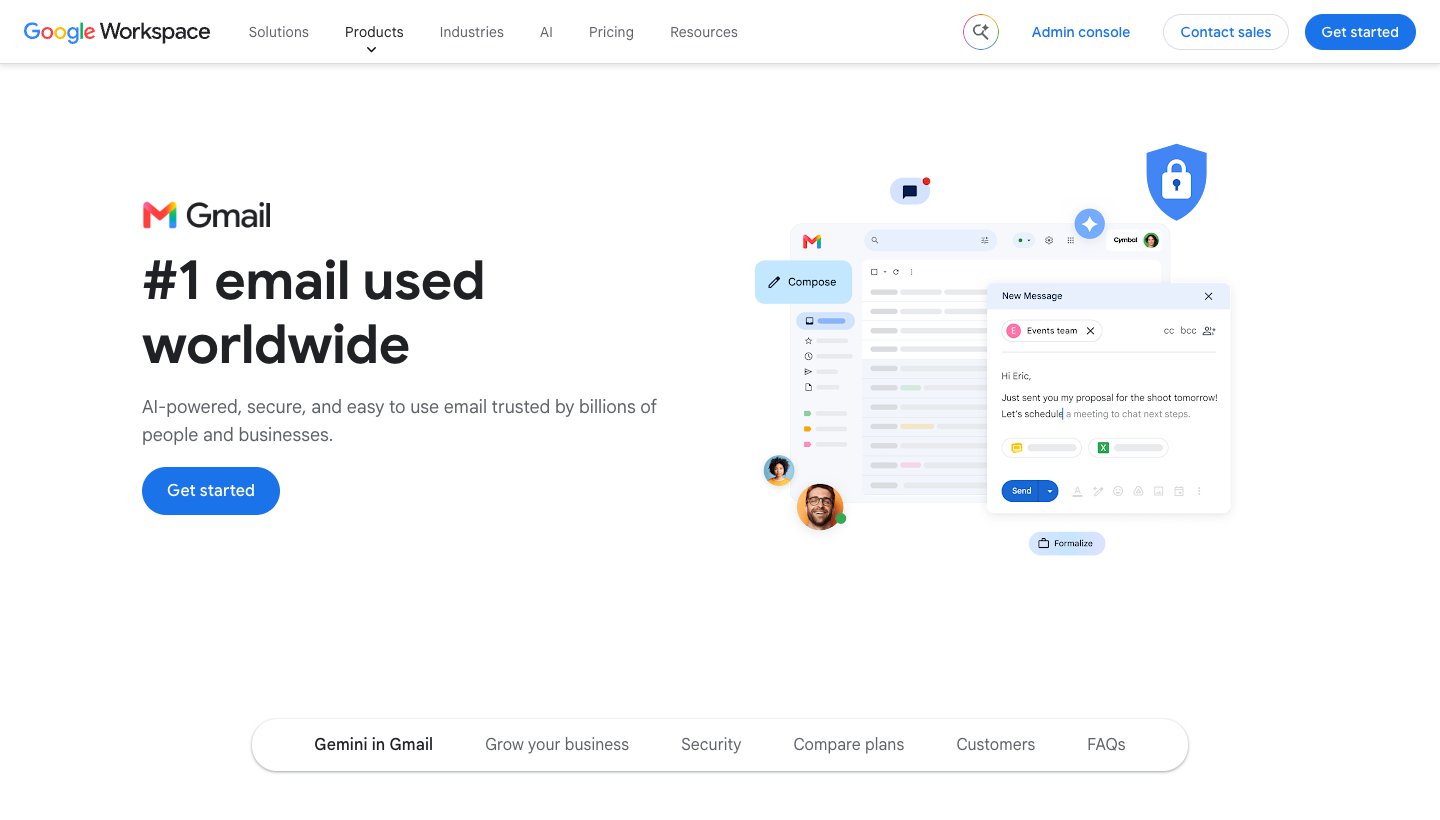
This is the closest thing to an official Gmail app for Windows, and it's free. Chrome and Edge both call these "web apps". You get Gmail in its own window, with its own icon on the taskbar and in the Start menu. Inside, it's the same Gmail you already use, with your labels, categories, search, filters and keyboard shortcuts.
How to install Gmail from Chrome
These steps come from Google's Chrome help page on web apps.
Open Chrome, go to mail.google.com and sign in.
Click the three-dot menu at the top right.
Choose Cast, save, and share, then Install page as app…
Name it "Gmail" and click Install.
Gmail opens in its own window. Right-click its taskbar icon and choose Pin to taskbar to keep it there. To make it open when you start Windows, go to `chrome://apps`, right-click Gmail and choose Launch at startup. To remove it, open the Gmail window, click the three-dot menu and choose Uninstall.
How to install Gmail from Edge
These steps come from Microsoft's Edge help page on apps.
Open Edge, go to mail.google.com and sign in.
Click the three-dot menu (Settings and more) at the top right.
Go to Apps and choose Install this site as an app. Microsoft's help page puts Apps under More tools, so look there if you don't see it at the top level.
Name it and click Install.
To pin it, go to `edge://apps`, click Details on the Gmail card, and choose Pin to taskbar, Pin to Start or Create Desktop shortcut. The same page has an Auto-start on device login switch.
What you get, and what you don't
Notifications: turn them on in Gmail under Settings > See all settings > Desktop notifications. Google's help page says they arrive once you've signed in and opened Gmail, and that on Windows they show up outside the browser. So keep the Gmail window open, and make sure Windows allows notifications from Chrome or Edge.
Offline mail works in Chrome only. Turn it on in Gmail's offline settings ("Enable offline mail"). Google's offline help page says it works only in Chrome, not in Incognito, only for the account you set it up with, and it only syncs while Chrome is open. You can't preview attachments offline.
Several Gmail accounts: you can switch accounts from your profile picture, as in a browser tab. Each account is its own inbox. There's no combined inbox.
No other providers: Gmail on the web can no longer add Outlook, Yahoo or other accounts (see the January 2027 changes below). If you need those in the same window, you need a desktop app.
Who it's for: anyone who likes Gmail as it is and just wants it out of a browser tab. Price: free. One real downside: it's still a browser window underneath, so you get Gmail and nothing else: no unified inbox, and no offline mode unless you use Chrome.
Option 2: The new Outlook for Windows
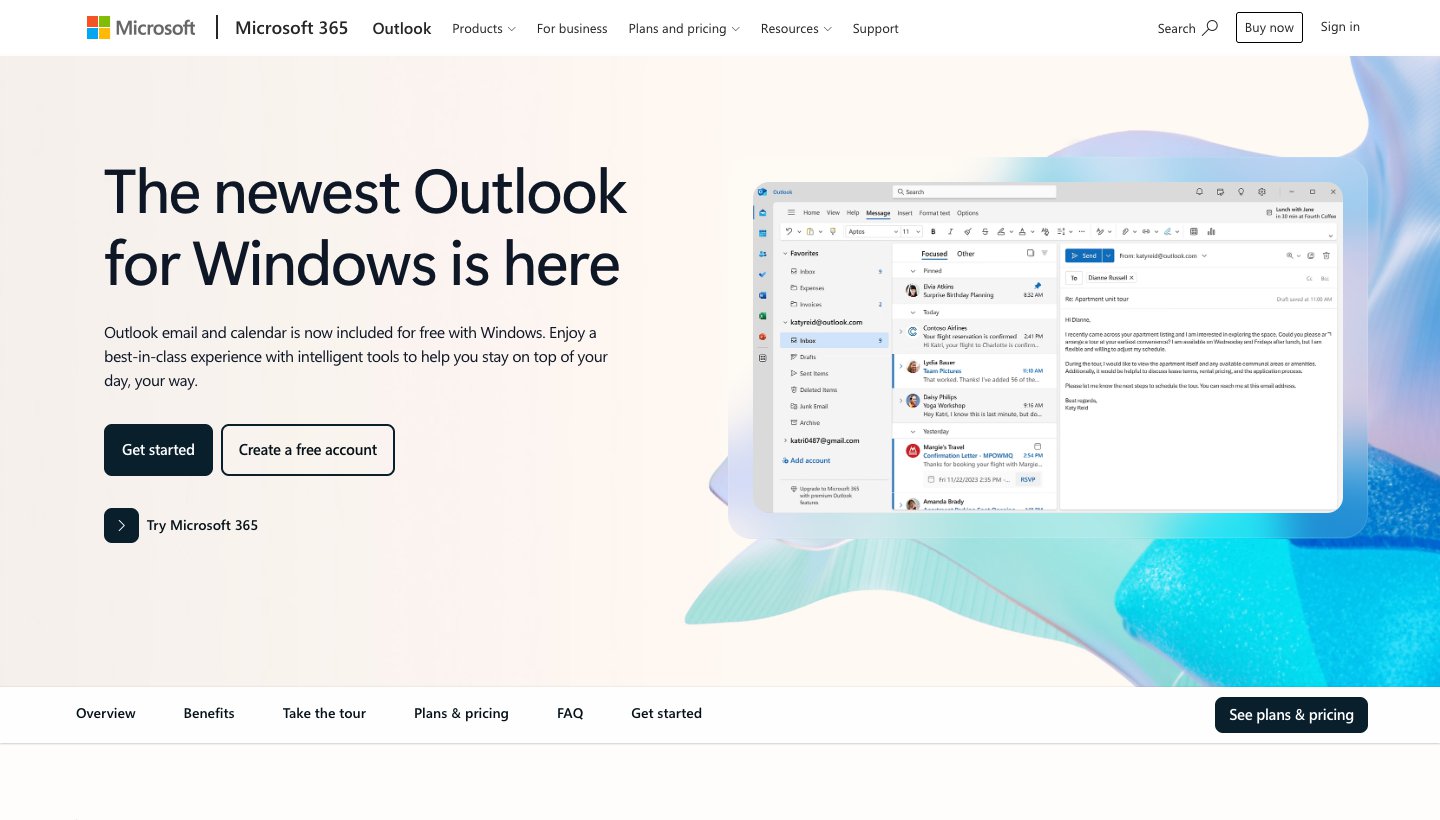
If you're on Windows 11, you already have it. Microsoft says "Windows 11 devices are now shipped with the new Outlook as the default mailbox application." The old Windows Mail app is gone: "Support for Windows Mail, Calendar, and People ended December 31, 2024," and it can no longer send or receive mail.
Who it's for: people who want one free app for Gmail plus an Outlook.com, work or school account, with a calendar.
Price: free with ads. Its Microsoft Store listing says: "If you use a free email service such as Outlook.com, Hotmail, or Gmail without a Microsoft 365 subscription, you'll see ads in the new Outlook for Windows." Microsoft 365 Basic, at $1.99 a month or $19.99 a year, is the cheapest plan that removes them.
Gmail support: adds a Gmail account and shows its mail, calendar and contacts next to your other accounts. Microsoft doesn't document how Gmail labels map in new Outlook, and you search with Outlook's search, not Gmail's.
Standout: one app for mail and calendar across Gmail and Microsoft accounts, free, and already installed.
One real downside: your Gmail goes through Microsoft's cloud. Microsoft's help page says syncing a Gmail account this way "means that a copy of your email, calendar, and contacts will be synchronized between your email provider and Microsoft data centers." If you'd rather your mail went straight from Google to your PC, pick Thunderbird or eM Client.
If you're weighing up leaving Outlook altogether, see our Outlook alternatives.
Option 3: A desktop email app that handles Gmail well
A real email app connects to your Gmail account and replaces Gmail's look with its own. You lose Gmail's exact interface. You gain a unified inbox across providers, and with most of these, mail stored on your PC.
One thing to know before you switch: most desktop apps reach Gmail over IMAP, and Gmail's labels then show up as folders. Mozilla's Thunderbird and Gmail guide explains the effect: a message with two labels appears in two folders, and if you delete any copy, "all labels are removed." That's normal, but it catches people out. If a label is missing, check that "Show in IMAP" is on for it in Gmail's label settings.
Dove: best if Gmail is one of several busy inboxes (ours)
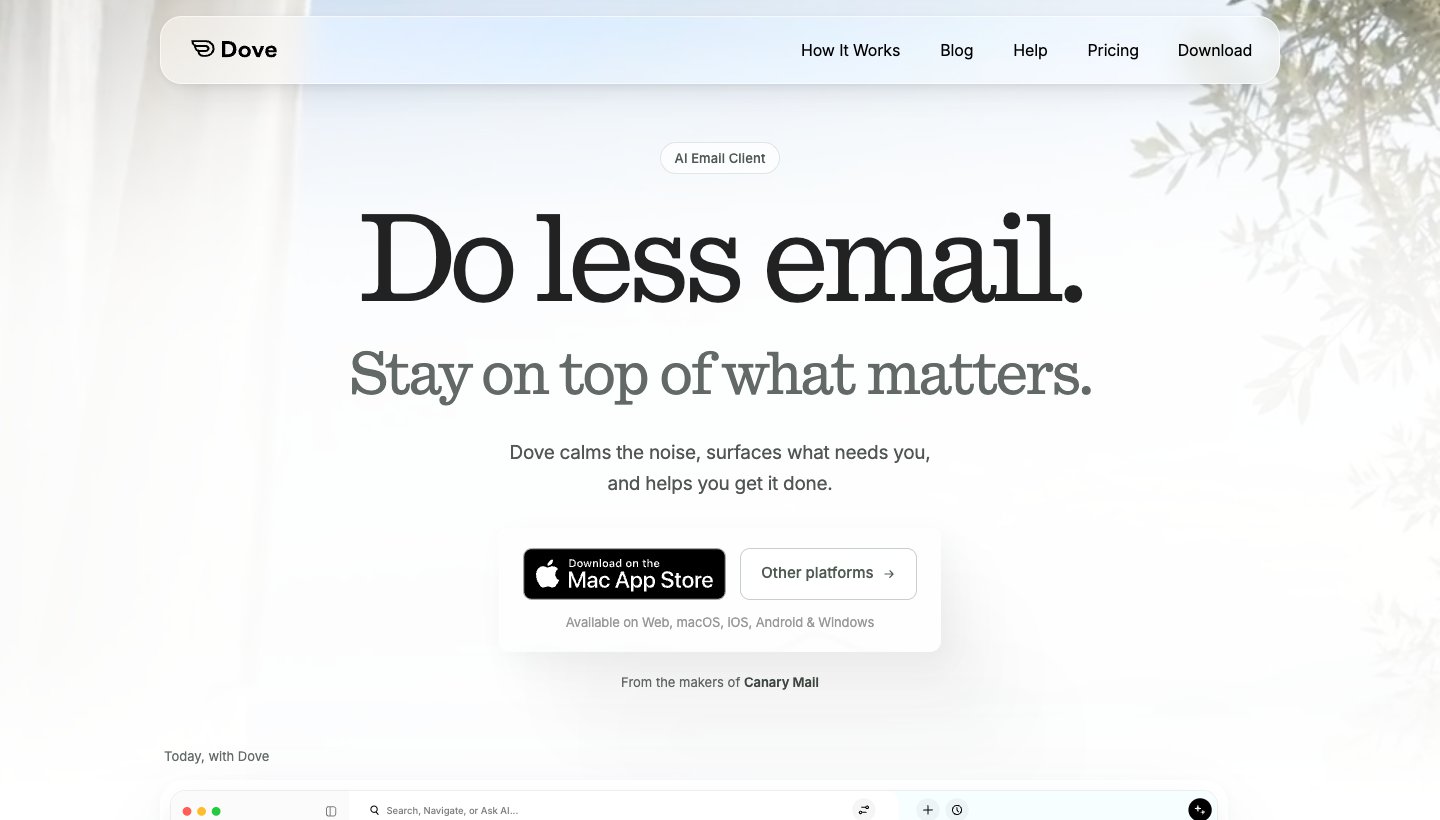
Dove is our app. It's built for people who get more mail than they can read, across more than one account. It sorts your mail by what needs you, then helps you answer it.
Who it's for: someone with a heavy Gmail inbox, often alongside Outlook, iCloud or a work account, who wants the sorting done for them on Windows and their phone.
Price: $20 a month or $200 a year. The free plan includes 10 AI actions a day. The 7-day trial asks for a card. See Dove's pricing.
Platforms: Windows (in the Microsoft Store), Mac, iPhone, iPad, Android and the web. No Linux.
Gmail support: connects through Google's Gmail API rather than IMAP, so your Gmail labels sync as labels. Also works with Google Workspace, Outlook.com, Microsoft 365, iCloud, Yahoo and any IMAP account, with unlimited accounts on every plan. The calendar works with Gmail and Microsoft 365 accounts.
Standout: mail is sorted into Focus, Feed and Noise, and Today shows what needs you, your schedule and what you're waiting on. AI drafts replies and summarizes long threads. Sorting and Today are on the paid plan.
One real downside: Dove is new. Its Microsoft Store listing has 24 ratings (4.6 average), so the track record is short, and the trial needs a card. Mail is encrypted in transit and at rest, but there's no PGP or end-to-end encryption.
Thunderbird: best free desktop app for Gmail
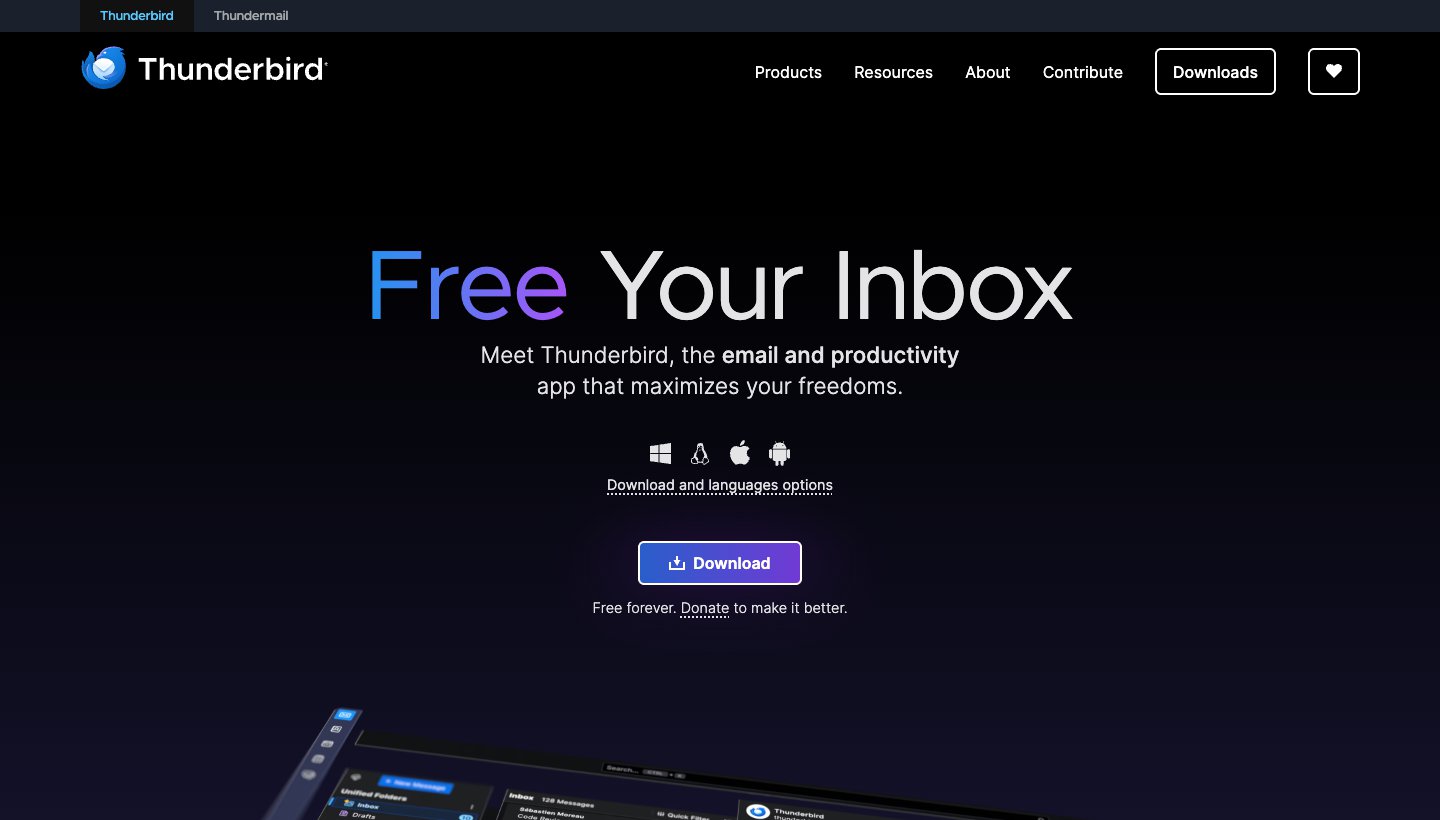
Thunderbird is free, open source and funded by donations. It sets up Gmail through Google's own sign-in screen, which opens in your browser.
Who it's for: anyone who wants a full desktop email app with no ads, no subscription and mail stored on their own PC.
Price: free. Donations are optional.
Platforms: Windows, Mac, Linux and Android.
Gmail support: labels become folders (see the note above). You can choose which label folders to show. Unlimited Gmail accounts and other providers, with a unified inbox. Offline access is built in.
Standout: free with no catch, and every message is on your PC, so you can search years of mail without a connection.
One real downside: it doesn't feel like Gmail. Labels as folders and Gmail's All Mail folder take some setting up, and there's no iPhone app yet.
eM Client: best for an Outlook-style app without Microsoft
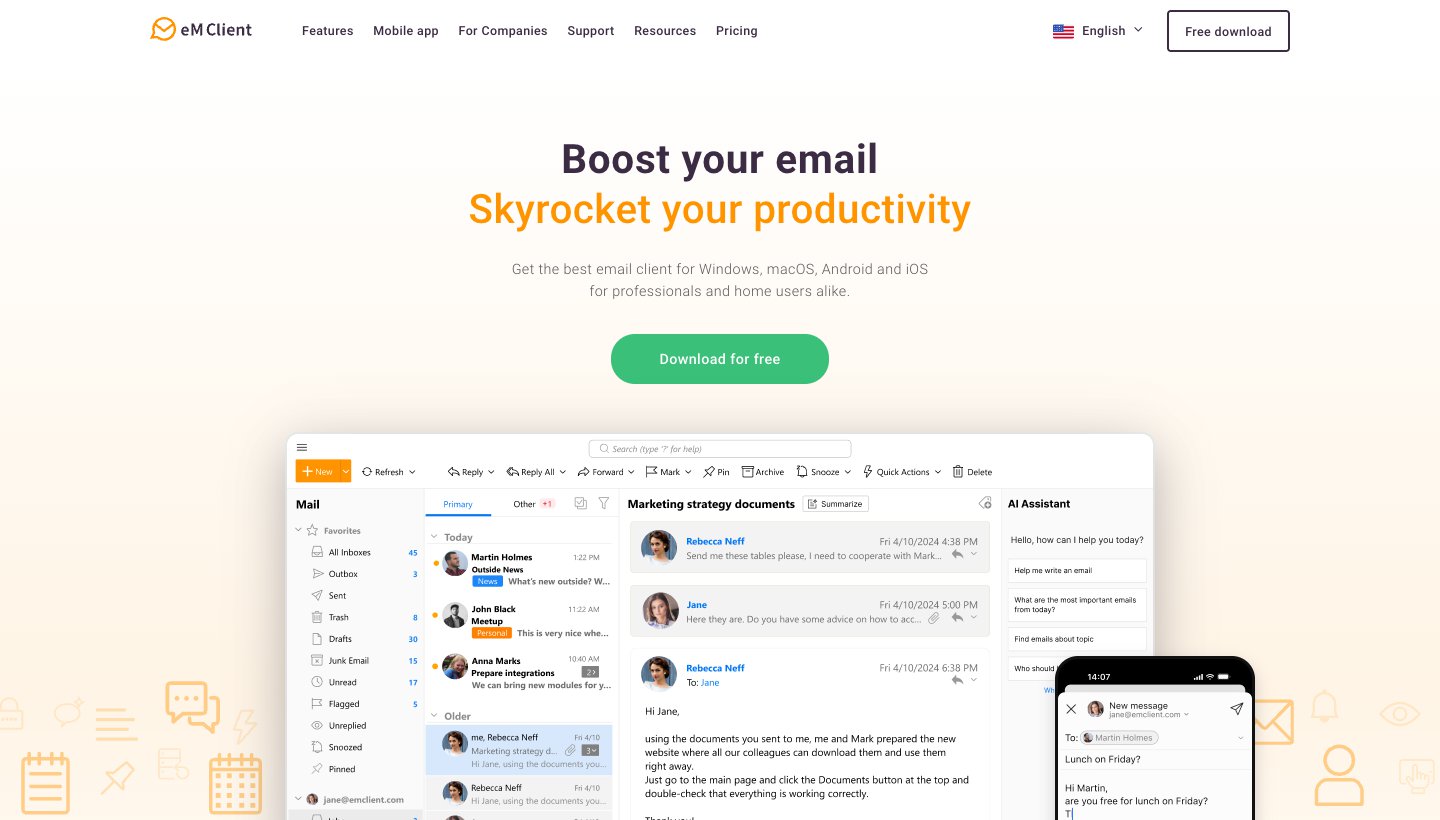
eM Client puts mail, calendar, contacts and tasks in one window.
Who it's for: people who want a polished, Outlook-style desktop app for Gmail, and anyone who'd rather pay once.
Price: free for home use on 1 device with 2 accounts. Personal is $49.95 a year or $74.95 once for up to 3 devices, with unlimited accounts. See eM Client's pricing. The phone apps are free.
Platforms: Windows and Mac, plus free iPhone and Android apps.
Gmail support: eM Client's FAQ says "Gmail labels are treated as Tags." Unlimited accounts on the paid plans.
Standout: mail, calendar, contacts and tasks in one app, with PGP and S/MIME encryption.
One real downside: the free plan is home use only and caps you at 2 accounts. The one-time licence covers the current major version only; future major versions cost extra.
Mailbird: best Windows-first unified inbox
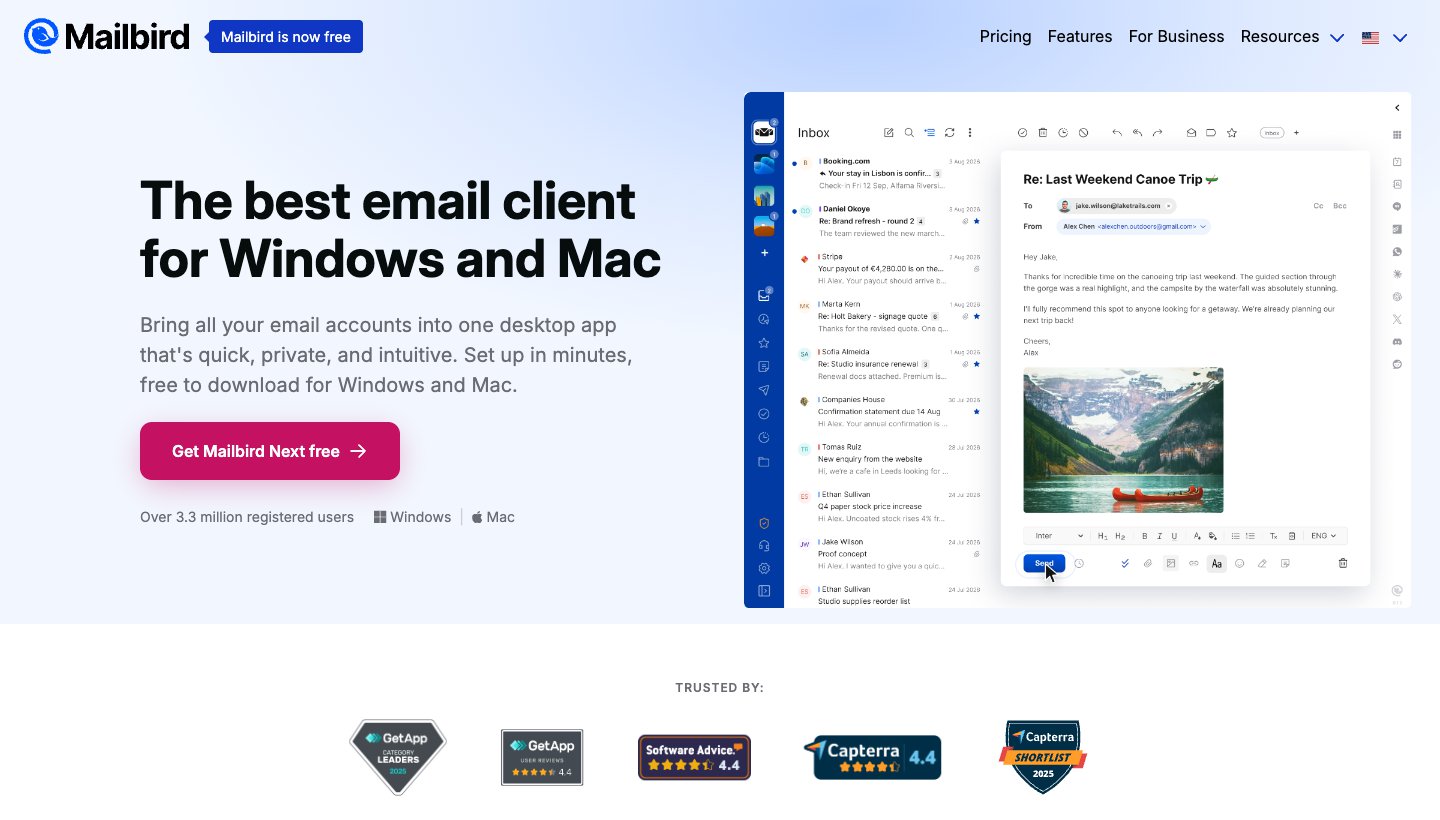
Mailbird started on Windows and is built around one inbox for all your accounts.
Who it's for: Windows users who want Gmail and other accounts in one clean inbox, with mail kept on their PC.
Price: free for 1 account. In the US, Premium lists at $5.75 a month billed yearly ($69 a year) and Pay Once at $399. When we checked, the site was showing them at $4.03 a month and $99.75 with discount offers. See Mailbird's pricing.
Platforms: Windows and Mac. The phone apps are in public beta.
Gmail support: labels show as folders over IMAP. Unlimited accounts on Premium.
Standout: a tidy unified inbox, with Mailbird saying your mail stays on your computer, not its servers.
One real downside: the free plan covers just 1 account, which isn't much for an app built to combine inboxes. If you're thinking of leaving it, see our Mailbird alternatives.
Spark: best free app that's also on your phone
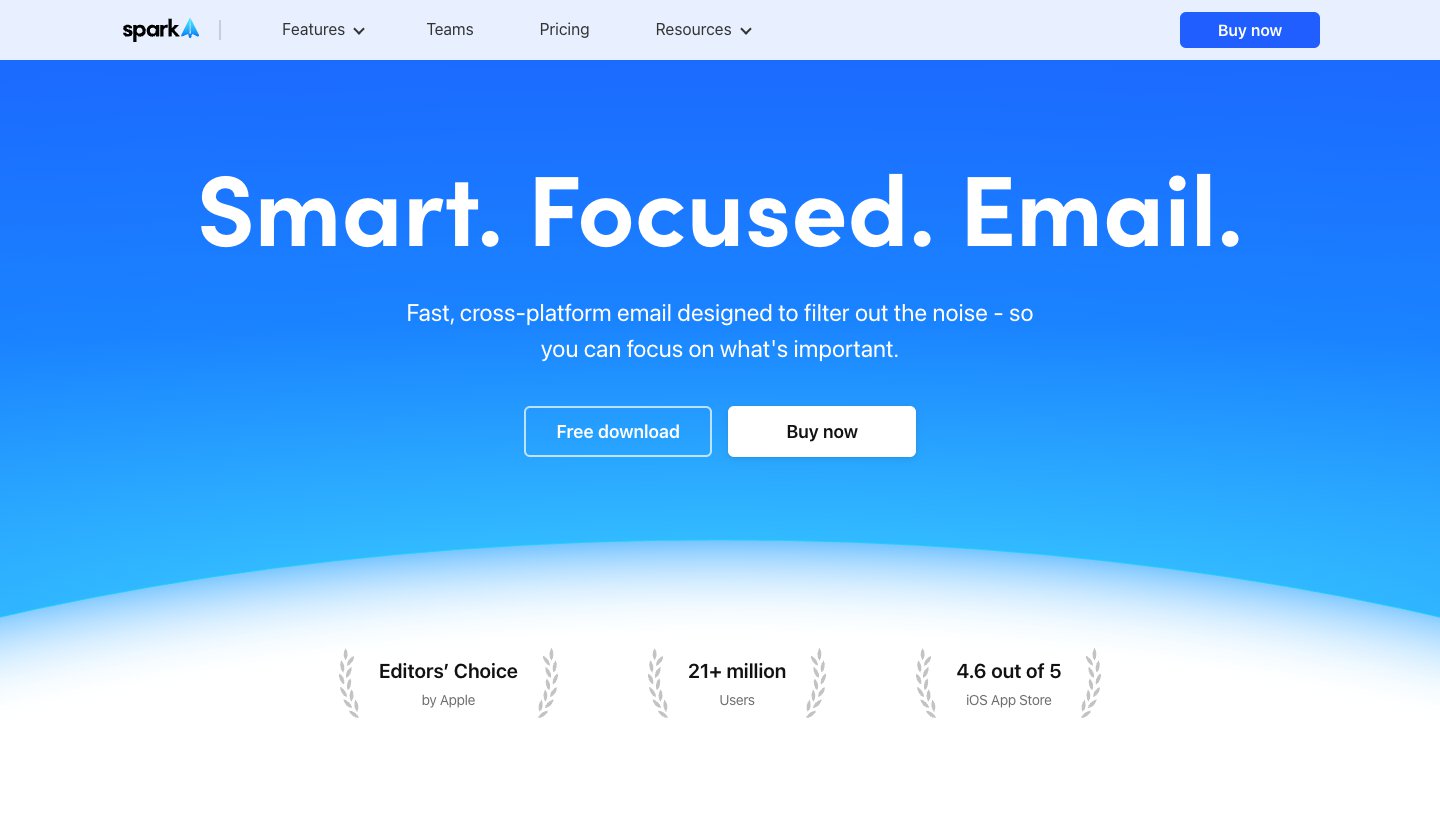
Spark, from Readdle, has a Windows app and a free plan that doesn't cap your accounts.
Who it's for: people who want the same free email app on Windows, Mac, iPhone and Android.
Price: free with unlimited accounts. Plus is $10 a month or $99 a year; Pro is $20 a month or $199 a year. See Spark's pricing.
Platforms: Windows, Mac, iPhone and Android.
Gmail support: Spark's help page says "Spark supports Gmail labels." You can add or remove them with Ctrl+K or the L key on Windows.
Standout: an inbox that groups mail by type, and real Gmail label support, on the free plan.
One real downside: paid AI allowances aren't published as numbers. Plus gets "Extended" credits and Pro "High", so you can't tell ahead of time how much you get.
Mailspring: best free open-source option with Gmail labels
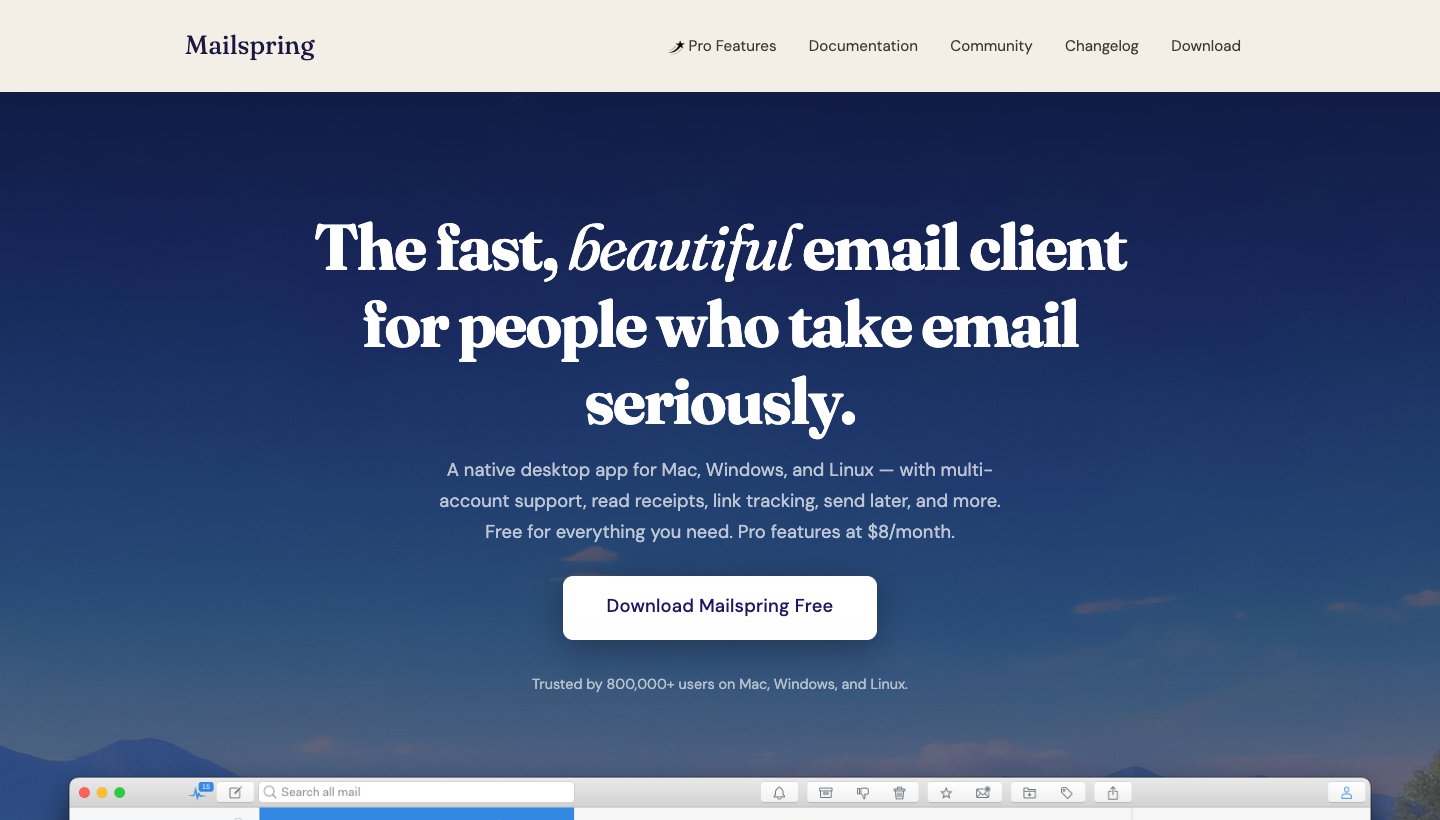
Mailspring is free, open source and looks newer than Thunderbird. It runs on Windows, Mac and Linux.
Who it's for: people who want a light, modern desktop app for Gmail and other accounts, free.
Price: free. Mailspring Pro is $8 a month for read receipts, link tracking, send later, snooze and reminders.
Platforms: Windows, Mac and Linux.
Gmail support: Mailspring's docs show how to add and remove Gmail labels from the toolbar. Multiple accounts in one app.
Standout: it's free, and it treats Gmail labels as labels rather than plain folders.
One real downside: desktop only. There's no phone app, so you'll need something else on mobile.
Option 4: Gmail in a dedicated wrapper
These apps show the real Gmail website inside their own window, like the Chrome install, with extras for people who juggle several Google accounts. Your labels, search and filters work exactly as they do in Gmail.
Kiwi for Gmail: best for several Google accounts
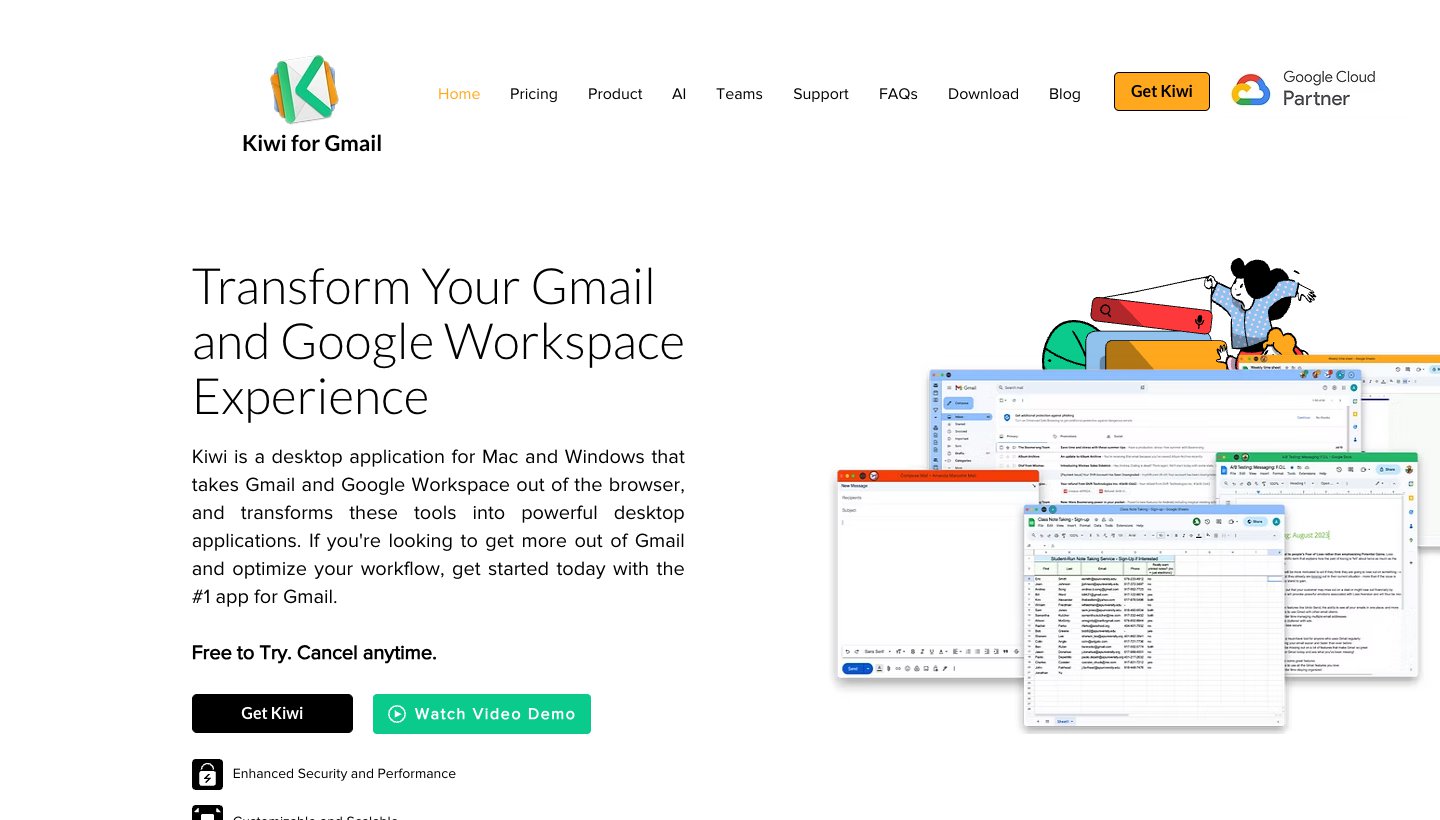
Who it's for: people who live in Gmail and Google Docs and want them out of the browser, across several Google accounts.
Price: Starter is $4.99 a month (or $4 a month billed yearly) for 1 account; Pro is $8.99 ($6 yearly) for 3 accounts; Power Pro is $12.99 ($8 yearly) for 9 accounts. Yearly plans have a 7-day trial. See Kiwi's pricing.
Platforms: Windows and Mac.
Standout: Gmail and Google Workspace apps in their own desktop windows, with a Do Not Disturb switch and a focus-filtered inbox on the Pro plan.
One real downside: Gmail and Google Workspace only, and no free plan. Kiwi's own footer notes it "is not sponsored by or affiliated with Google."
Shift: best for many web apps in one window
Who it's for: people who keep Gmail, Google Calendar, Slack and other web apps open all day and want them in one sidebar.
Price: free for 5 Spaces with 10 apps each. Advanced is $199.99 a year. See Shift's pricing.
Platforms: Windows and Mac.
Standout: switch between many Gmail accounts from a sidebar without signing in and out.
One real downside: it's a whole browser, not an email app, and the paid plan is expensive if all you want is Gmail.
Wavebox: best for keeping work and home accounts apart
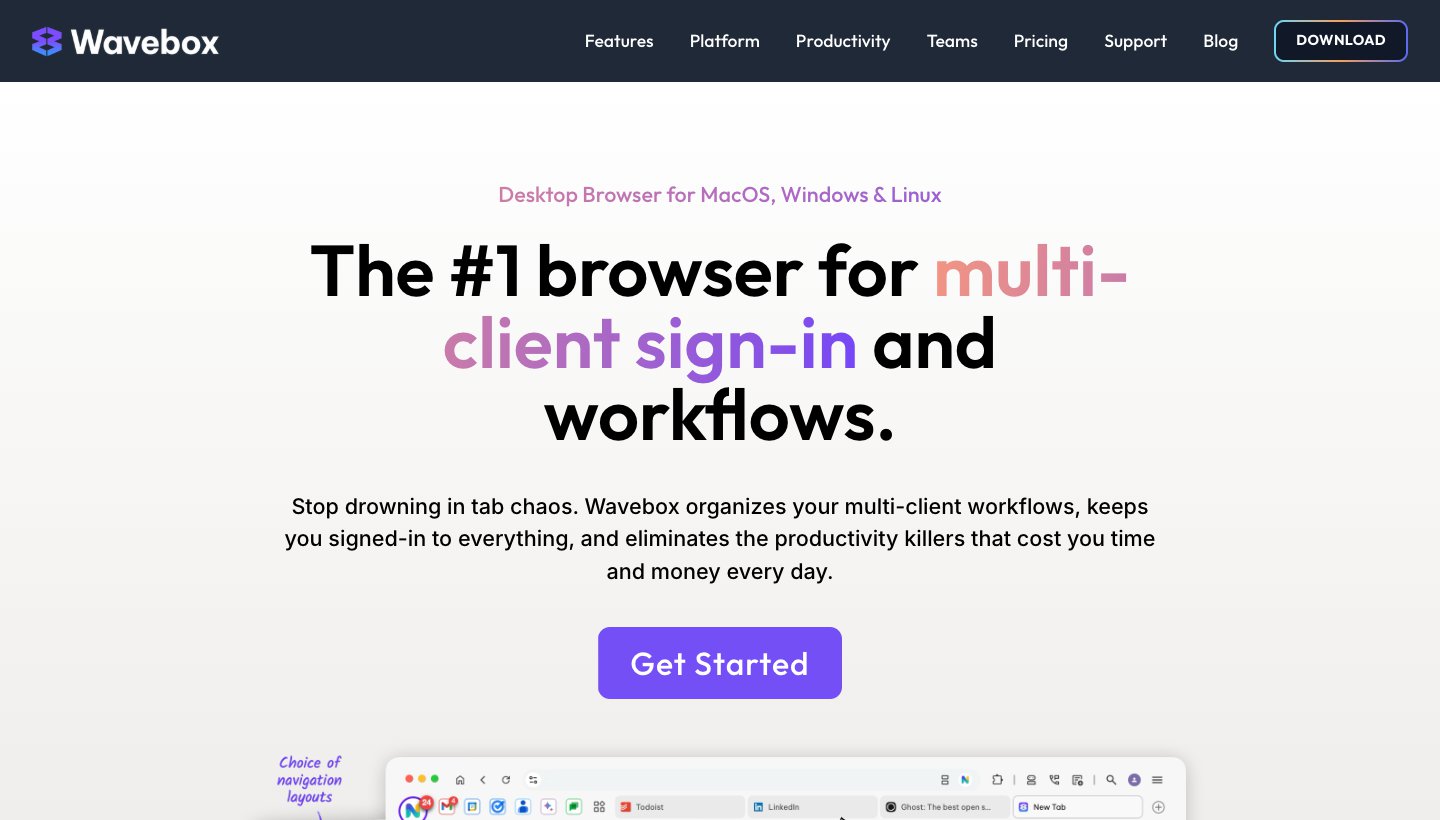
Who it's for: freelancers and consultants signed in to several Google accounts for different clients.
Price: free for 2 groups with 2 apps each, which its site says covers a work and a home Gmail. Pro is $8.33 a month billed yearly. The 7-day Pro trial needs no card. See Wavebox's pricing.
Platforms: Windows, Mac and Linux.
Standout: keeps each set of accounts separate, so you stay signed in to all of them at once.
One real downside: like Shift, it's a browser. It won't combine your accounts into one inbox.
Watch out for "Gmail apps" that aren't from Google
Search the Microsoft Store or the Chrome Web Store for "Gmail" and you'll find apps with Gmail's name in the title. None of these come from Google. We checked the publisher of each one that shows up in Google's top results on November 11, 2026:
Listing | Publisher | What it says about itself |
|---|---|---|
"Gmail App - Mail Application for Gmail™" (Chrome Web Store, 100,000 users) | Netvolk Online Limited | A Chrome extension that opens Gmail in its own window. It offers in-app purchases and handles "personally identifiable information." |
Mail (Microsoft Store) | eyacker.com | "The Mail app has advertisments on the top of the app." "Not associated with or sponsored by Google, Inc." |
Both may work fine. But each one sits between you and your Gmail account, and the Store one shows ads for something Chrome and Edge do for free. A Microsoft Store search for "gmail" also turns up mail apps from other publishers (Codaapp Studio, Wuxxu, MediaFinoLabs), and none from Google. Be just as wary of "Gmail for PC" downloads on sites like Softonic. Google doesn't make a Windows installer, so there's nothing official to download. If you want Gmail in a window, use Option 1.
Gmail changes in January 2027
If you use Gmail to collect mail from other accounts, plan ahead. Google's support page says that starting January 2027:
Gmailify and "Check mail from other accounts" (POP fetching) stop working in Gmail on the web.
"Send as" for non-Google addresses ends. You won't be able to send from a Hotmail or Yahoo address through Gmail on the web or in the Gmail apps. Gmail and Workspace aliases aren't affected.
Desktop apps keep working. Google says Outlook, Thunderbird and Apple Mail "can still access your Gmail account through IMAP or POP," and suggests "a dedicated mail app, a desktop mail client, or the Gmail mobile app" for third-party accounts.
So if your Gmail inbox has been pulling in a work or Yahoo account, an installed Gmail web app won't cover that after January. A desktop app from Option 2 or 3 will. Our guide to the best email app for multiple accounts covers that in more detail.
Which should you pick?
Install Gmail from Chrome or Edge if you like Gmail as it is and only want it in its own window. Free, and it's Google's own Gmail.
Use the new Outlook if you want Gmail and a Microsoft account in one free app and don't mind ads or Microsoft's cloud copy.
Choose Dove (ours) if Gmail is one of several busy inboxes and you want them sorted for you on Windows and your phone.
Choose Thunderbird for a free desktop app with mail stored on your PC.
Choose eM Client for an Outlook-style suite with Google Calendar, or to pay once.
Choose Mailbird for a Windows-first unified inbox.
Choose Spark for a free app with real Gmail labels on Windows and your phone.
Choose Mailspring for a free, modern desktop app that also runs on Linux.
Choose Kiwi, Shift or Wavebox if you want the real Gmail website and juggle several Google accounts.
FAQ
Is there a Gmail app for Windows 11?
No. Google makes Gmail apps for Android and iPhone only. On Windows 11, install Gmail as an app from Chrome (three-dot menu > Cast, save, and share > Install page as app) or Edge (three-dot menu > Apps > Install this site as an app). You can also add Gmail to the new Outlook, which comes with Windows 11.
Is there a Gmail app for Windows 10?
No, but the same Chrome and Edge steps work on Windows 10. The old Windows Mail app no longer sends or receives mail on any version of Windows, so don't use it for Gmail.
How do I download Gmail on my PC?
There's nothing to download from Google. Gmail runs in your browser, and Chrome or Edge can install it as an app in a few clicks. Skip "Gmail for PC" downloads on third-party sites and look-alike listings in the Microsoft Store; none of them come from Google.
How do I put Gmail on my desktop or taskbar?
Install it from Chrome or Edge (Option 1), then right-click its taskbar icon and choose Pin to taskbar. In Edge you can also go to `edge://apps`, open Gmail's Details and choose Create Desktop shortcut.
Can I use Gmail offline on Windows?
Yes, in Chrome. Turn on "Enable offline mail" in Gmail's offline settings. It works for one account at a time, not in Incognito, and only syncs while Chrome is open. For full offline access to all your mail, use a desktop app that stores mail locally, like Thunderbird or eM Client.
Can I run the Android Gmail app on Windows 11?
Not any more. Microsoft removed Windows Subsystem for Android and the Amazon Appstore from the Microsoft Store on March 5, 2025, so Android apps no longer install that way.
Which Windows app keeps my Gmail labels?
Gmail installed from Chrome or Edge, Kiwi, Shift and Wavebox show the real Gmail website, so labels work exactly as usual. Among email apps, Spark, Mailspring and Dove (ours) sync labels as labels, eM Client shows them as tags, and Thunderbird and Mailbird show them as folders.
Is the "Gmail app" in the Microsoft Store safe?
The ones that show up in search aren't from Google. The top "Mail" listing is from eyacker.com and shows ads. A Microsoft Store search for "gmail" turns up no listing from Google. If you want a desktop email app, pick one from a company you can check, like those above, or use the best email client for Windows guide.
More from Dove
Recent posts
November 11, 2026
Postbox Alternatives: What to Use Now That Postbox Is Gone
Postbox stopped being sold or developed in October 2024. Here's what to move to on Mac or Windows, which app keeps the Postbox features you used, and how to bring your mail and settings across.
November 11, 2026
Best Email Cleaner Apps in 2026: What They Cost, and What They Do With Your Mail
The best email cleaner apps for clearing a huge backlog, plus the free tools already in Gmail, iPhone and Outlook. We checked what each one costs, what it reads and how it makes money.
October 27, 2026
Mailbird Alternatives in 2026: 8 Email Clients, US Prices Checked
Mailbird 2 stops getting updates at the end of 2026, and its free plan covers one account. Here's what to switch to, from free Thunderbird to paid desktop and cross-platform apps, with every US price checked on October 27, 2026.