


Teach Dove lets you correct how Dove sorted an email. You can change how much attention the sender's mail gets, and Dove saves that as a rule for the sender, so their mail is sorted the same way from then on. You can also move the conversation to a different Area. Teach Dove is on iPhone, iPad, Android, Mac, Windows and the web.
Note: Teach Dove shows only when one email is selected, and only for emails Dove has already sorted. It never shows for drafts. If an Inbox email hasn't been sorted yet, you'll see Classify now in its place.
Correct How an Email Is Sorted
Open Dove.
In the email list, right-click the email you want to correct.
Select only that one email. If more than one email is selected, Teach Dove isn't in the menu.
Choose Teach Dove.
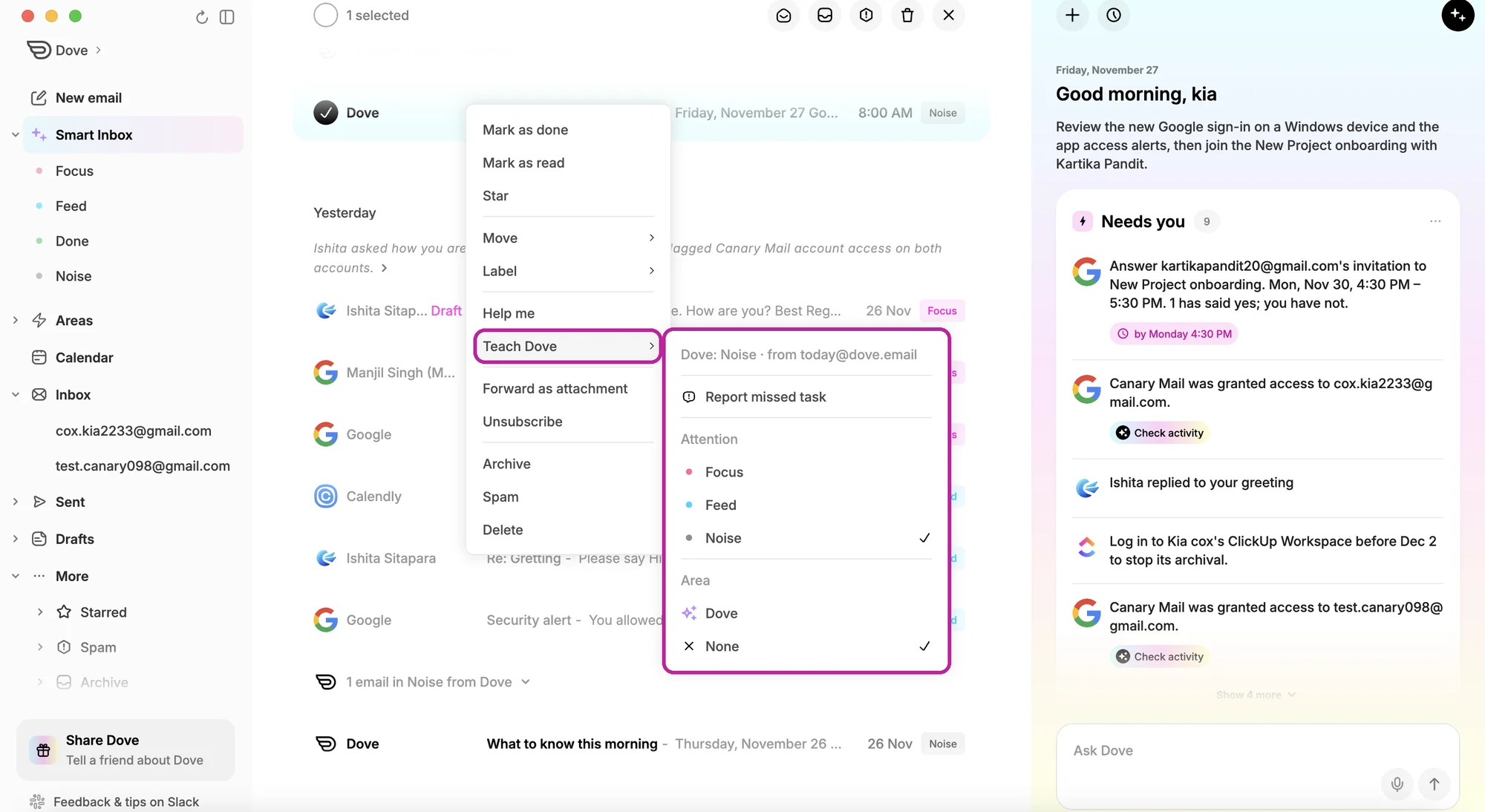
The top line shows how Dove sorted it now and who it's from, for example Dove: Feed· from {sender}.
Choose how the email should be sorted:
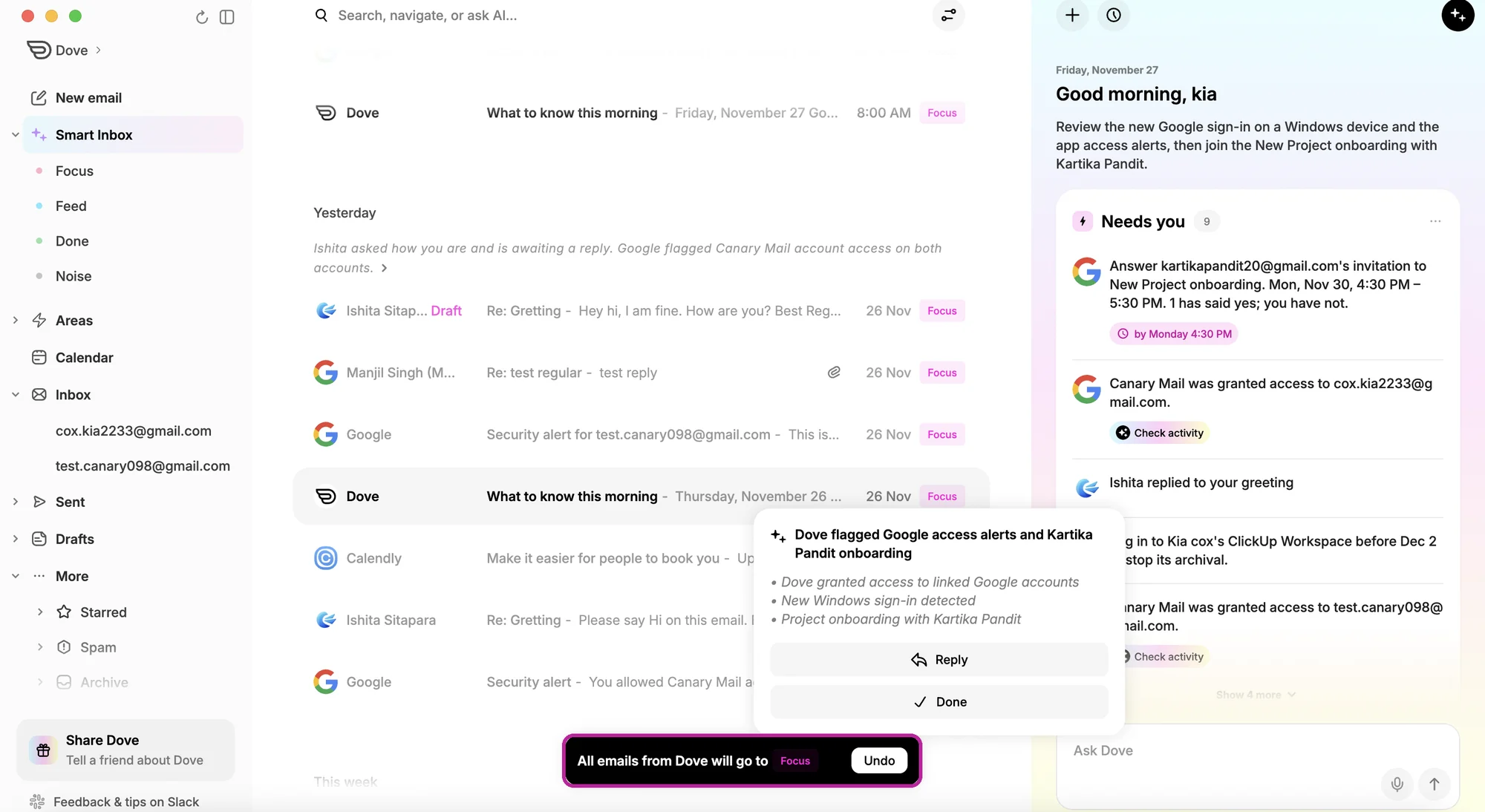
Under Attention, choose Focus, Feed or Noise. Dove shows All emails from {sender} will go to with the level you chose, and an Undo button.
Under Area, choose one of your Areas or None. Dove shows Moved to {Area} or Removed from its Area.
You can also open Teach Dove from Today: right-click an item (on iPad, long-press it) and the Teach Dove menu opens straight away. On some accounts, an open email shows a Focus, Feed or Noise badge next to its subject. Click it to open Teach Dove too.
Review or Change Your Rules
Open Dove.
Click Settings (the gear icon) in the sidebar.
Click Teach Dove.
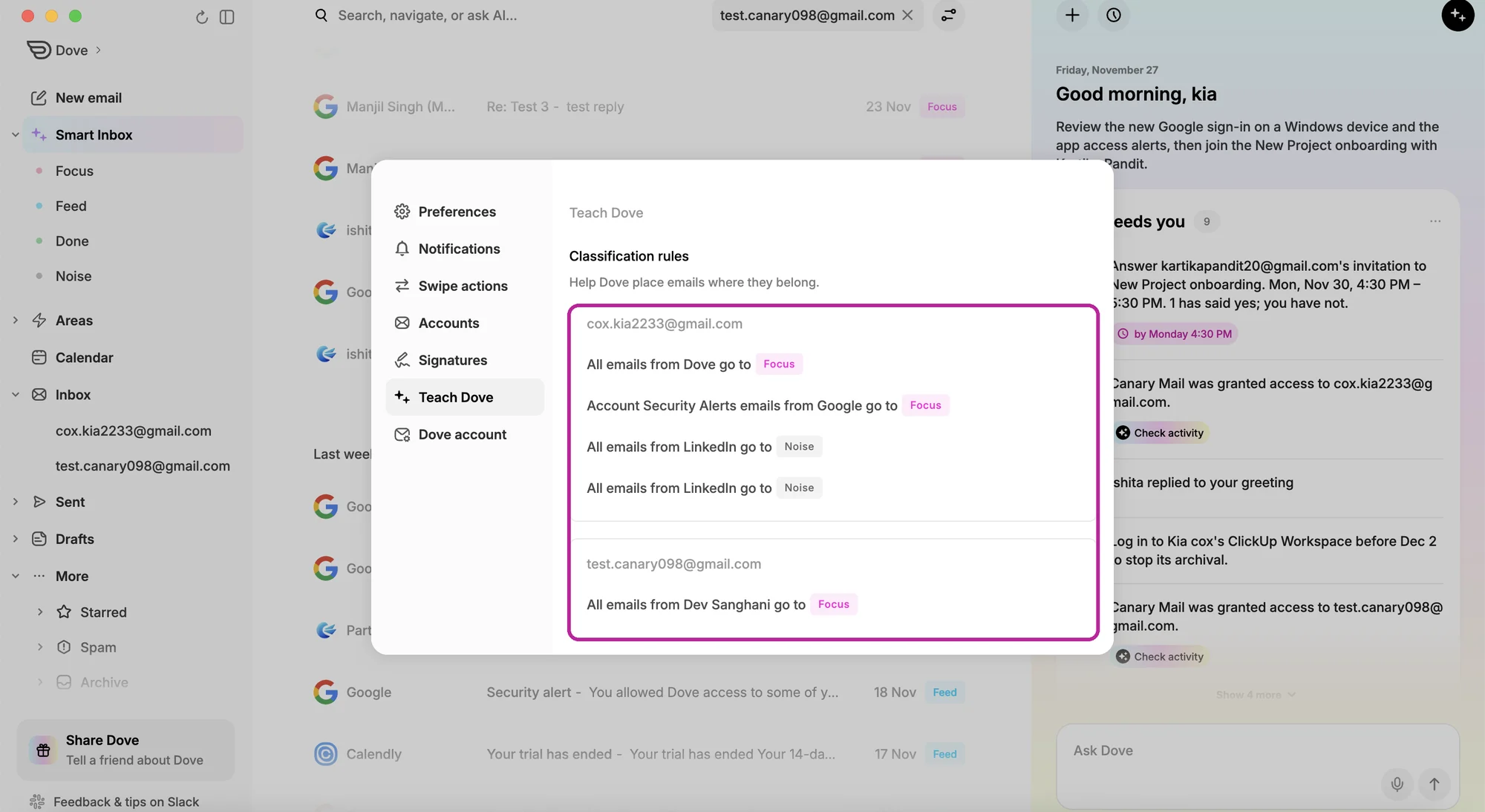
Your rules are listed under Classification rules, grouped by account.
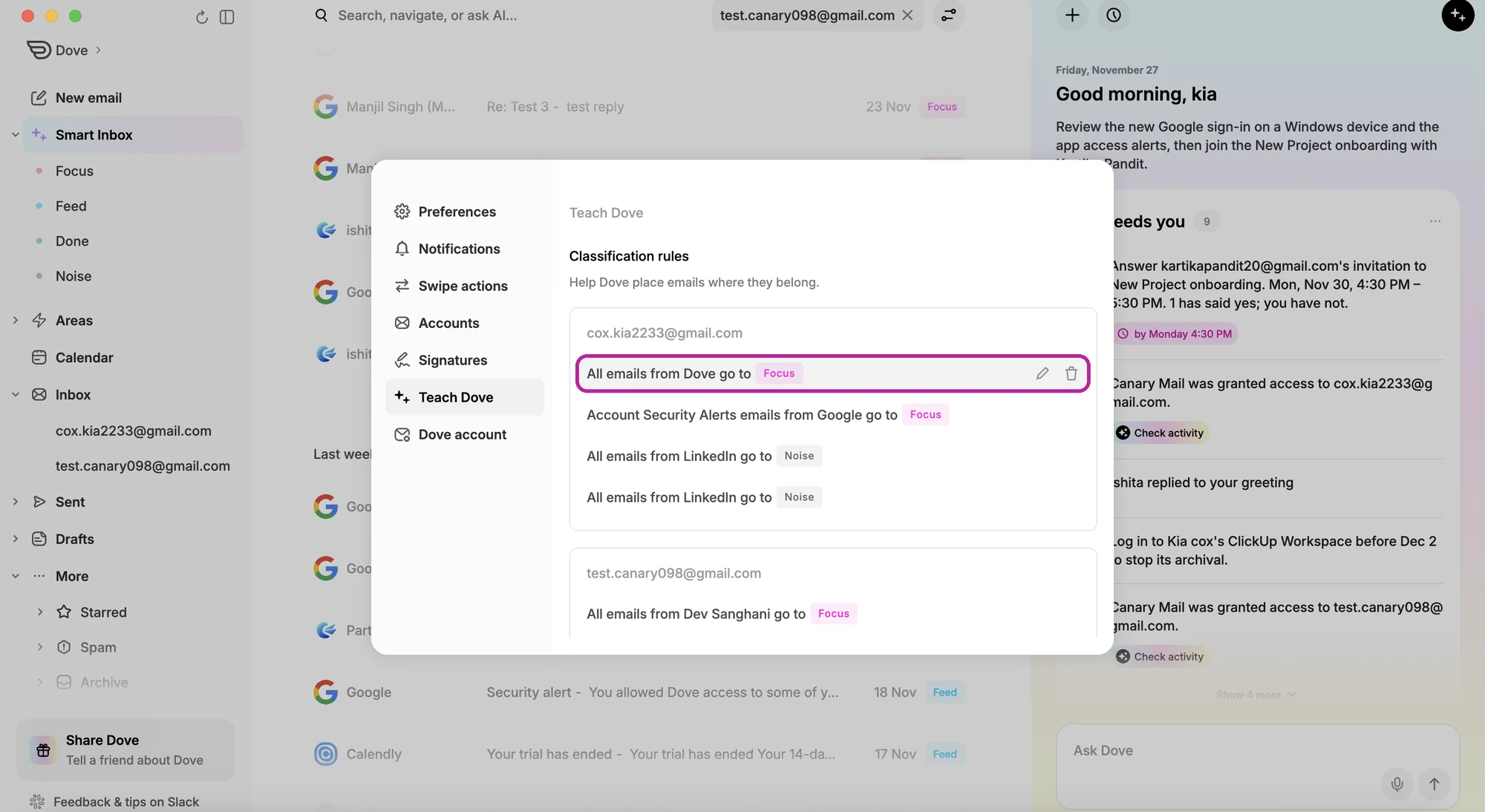
Hover over the rule you want to change.
On iPad, the icons are always shown, so you can skip this step.
Click the pencil to edit the rule, or the trash can to delete it.
Change Emails about, From or Go to.
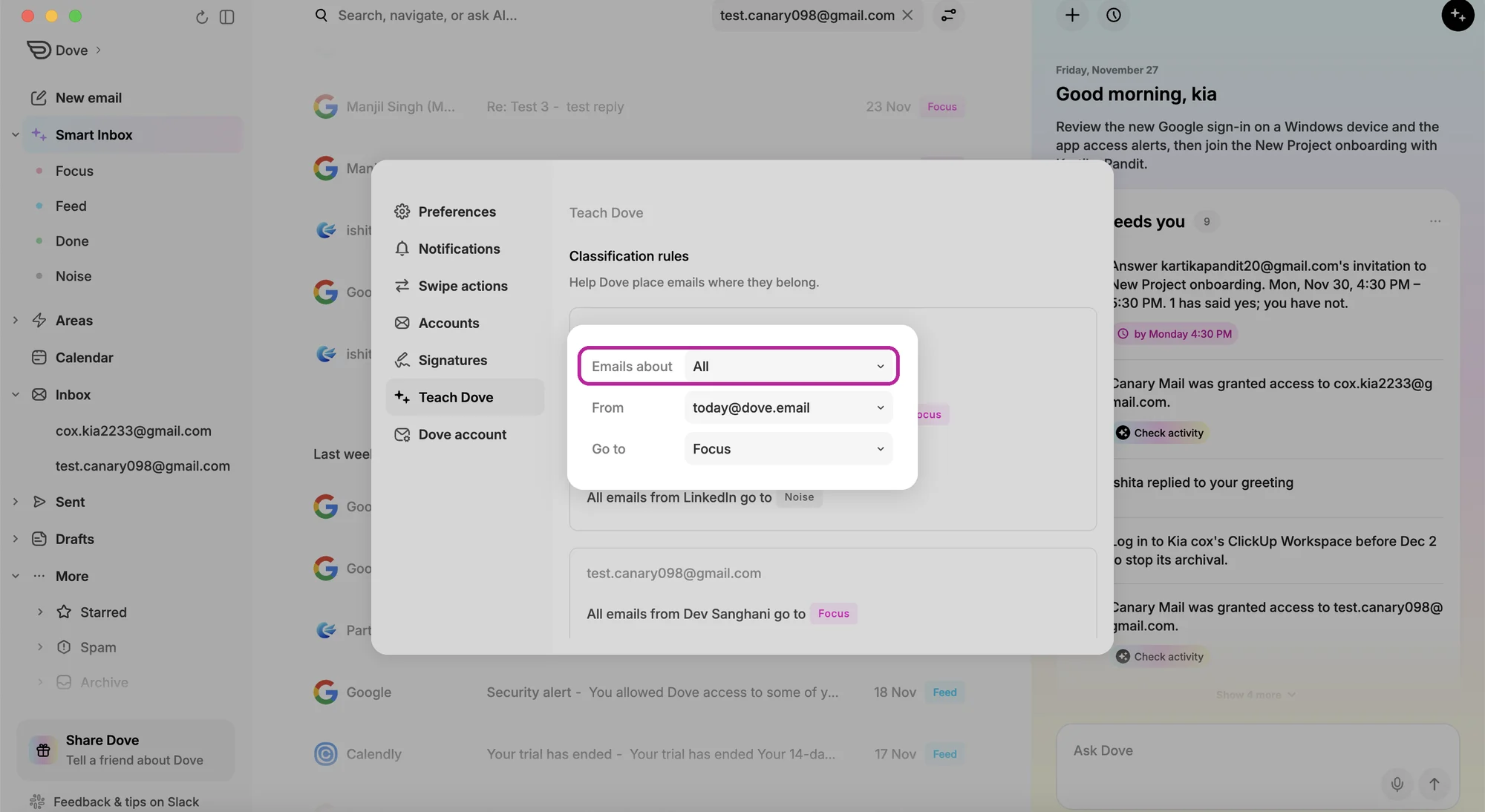
Click outside the editor to save your changes.
Note: Clicking the trash can deletes the rule right away. Dove doesn't ask you to confirm.
What You Can Choose
Attention: Focus, Feed or Noise. The level the email has now has a checkmark.
Area: your Areas, plus None. An Area choice applies to this conversation only. It doesn't create a rule for the sender.
Set by you and Let Dove decide: on some accounts, an Area you picked yourself shows Set by you and stays until you change it. Choose Let Dove decide to hand the choice back to Dove. Dove then shows Dove put it in {Area}, Dove found no Area for it or Dove will choose its Area shortly.
Not suspicious: shows on an email marked Suspicious. It removes the warning from that one email only.
Report missed task: also in Teach Dove for a single email, so you can tell Dove it missed a task in it.
What You Can Change in a Rule
Emails about: a topic, or All for every email from the sender.
From: the sender's address, or their whole company domain. The domain option doesn't show for personal email providers.
Go to: the level the emails go to.
Good to Know
A new rule also re-sorts the emails you already have from that sender. With Focus or Feed, their Today items move to that section shortly afterwards. With Noise, their Today items are hidden.
If you choose the level or Area the email already has, Dove shows Already in {name} and changes nothing.
You can also ask Dove in chat to create or delete a rule. Dove asks for your permission first.
Troubleshooting
I don't see Teach Dove. Select just one email. Teach Dove doesn't show for drafts or for emails Dove hasn't sorted yet. For an unsorted Inbox email, use Classify now.
I chose Needs you on a Suspicious email, but it still says Suspicious. Choosing a level doesn't remove the warning. Choose Not suspicious instead.
I want to undo a correction. Click or tap Undo on the message right away. Later, edit or delete the rule in Settings under Teach Dove.
Dove says Couldn't change the Area. The Area couldn't be changed for this email. Try again later.
More from Dove
Related articles

November 26, 2026
Customize Swipe Actions in Dove
Choose what happens when you swipe an email left or right in the email list, and try your choices on a sample email before you use them on real mail.

November 25, 2026
Unsubscribe from a Mailing List in Dove
Stop newsletters and other mailing-list emails from inside Dove, without having to find the unsubscribe link yourself. You can also move all the emails you already have from that sender to Trash.
November 25, 2026
Use Calendar in Dove
Connect your Google Calendar or Outlook Calendar to see your events next to your mail. You can also add and change events and answer invitations without leaving Dove.