

Unsubscribe stops newsletters and other mailing-list emails without you having to find the link in the email. Dove tells you if it worked and names the sender. Then it offers to move every email you already have from that sender to Trash. You can unsubscribe on iPhone, iPad, Android, Mac, Windows and the web.
Note: Unsubscribe only shows for emails that have an unsubscribe option. It never shows for drafts or scheduled emails. Sometimes it only shows once the email has finished opening.
Unsubscribe from an Email
Open Dove.
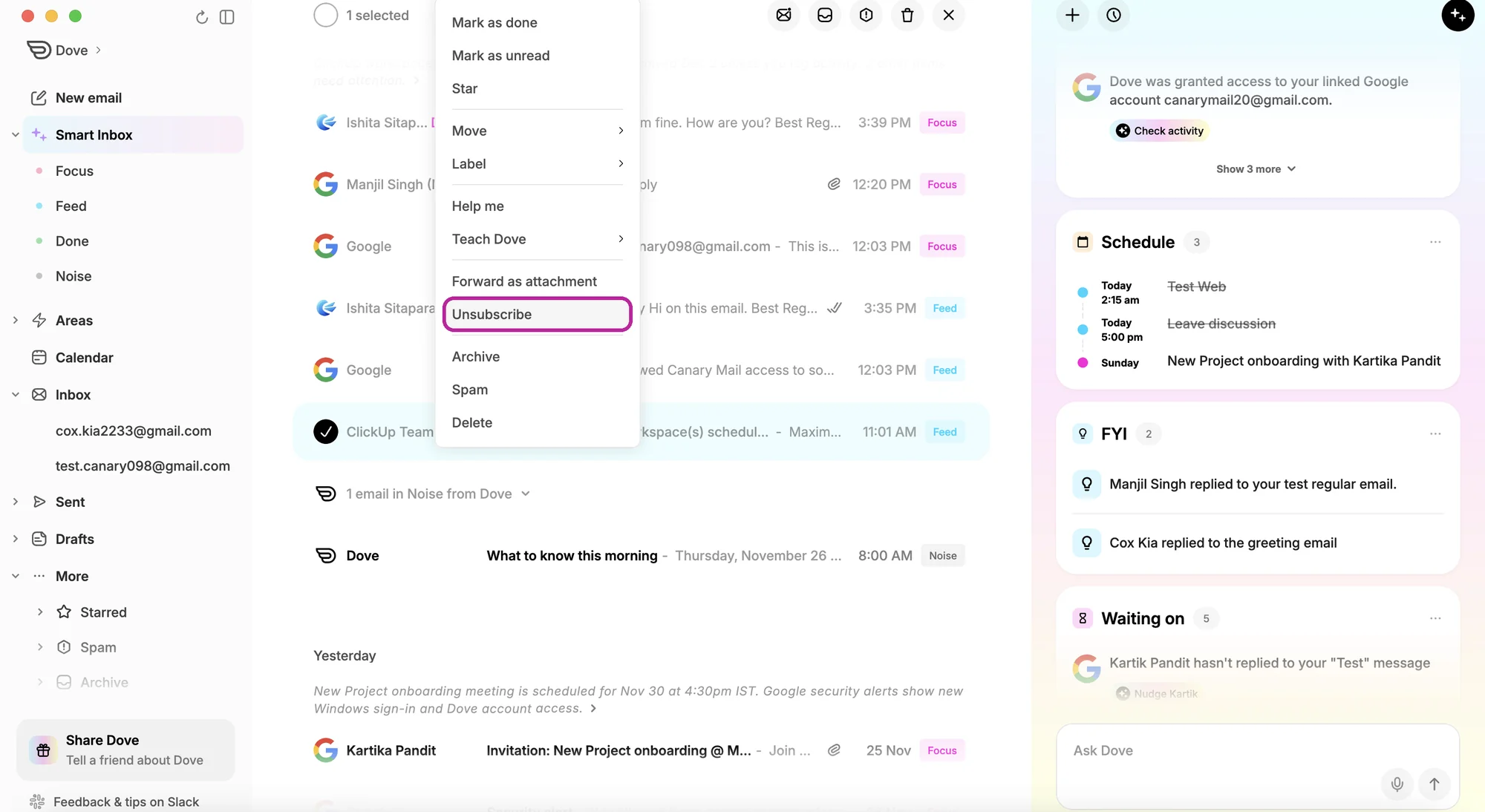
In the email list, right-click the email you want to unsubscribe from.
Select only that one email. If more than one email is selected, Unsubscribe isn't in the menu.
Choose Unsubscribe.
You can also open the email, click ··· (More actions) in the toolbar and choose Unsubscribe.
Wait while Unsubscribing… shows. Dove then shows the result.
Add an Unsubscribe Button to the Toolbar
At first, Unsubscribe is in the More actions menu. To unsubscribe in one click, add it to the toolbar.
Open Dove.
Open an email.
Click ··· (More actions) in the toolbar.
Click Edit.
Drag Unsubscribe from Hide up into Show.
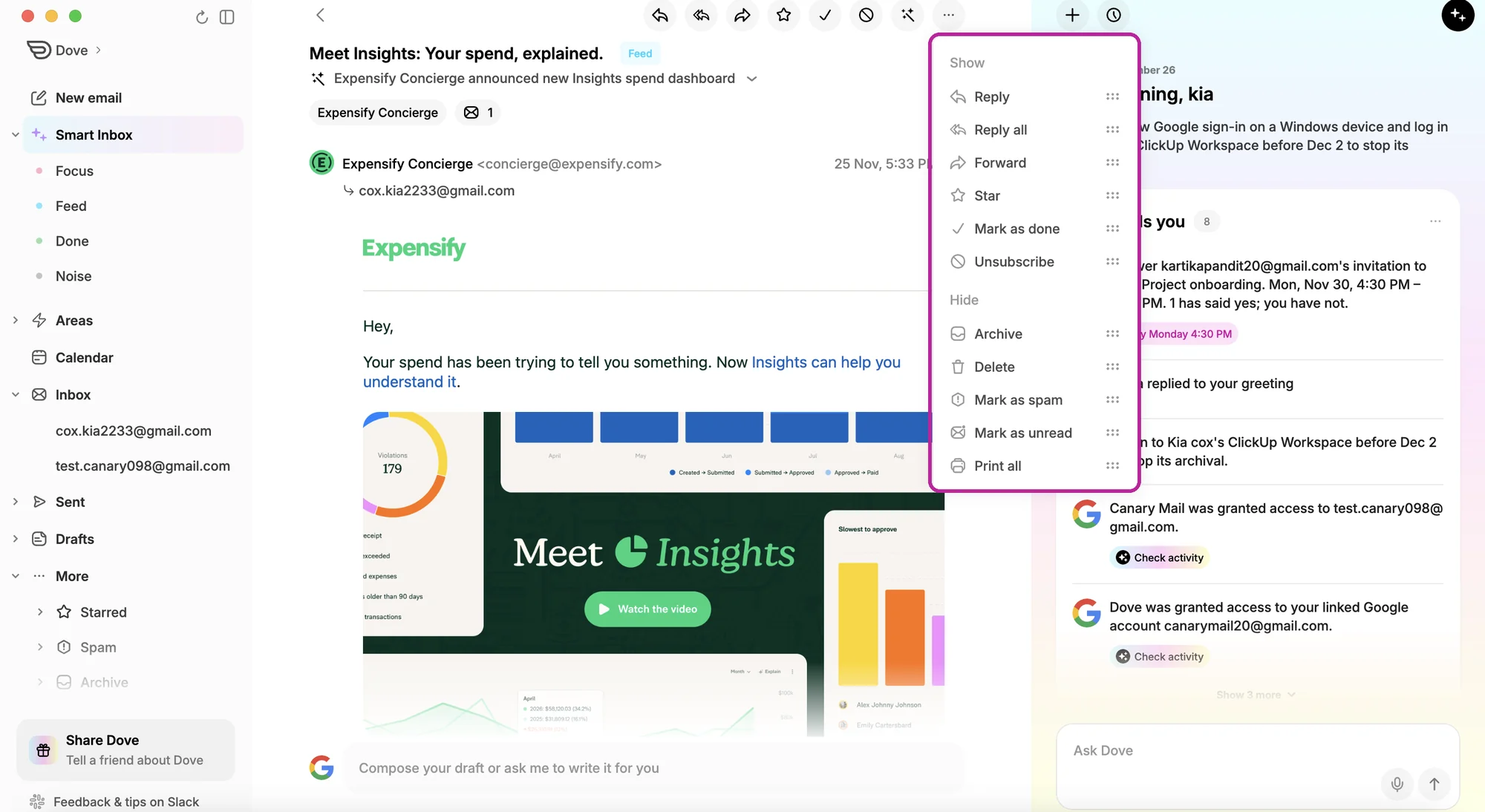
The Unsubscribe button now shows in the toolbar on emails that have an unsubscribe option. To remove it, drag it back down to Hide.
Note: Computers and phones each keep their own toolbar order. If you add the button on one, it won't show on the other.
What the Result Means
Unsubscribed from {sender}: You're unsubscribed.
Unsubscribe email sent to {sender}: Dove sent an unsubscribe email to the sender from your account.
{sender} needs a CAPTCHA — please unsubscribe manually: The sender's page wants you to finish unsubscribing yourself.
Couldn't unsubscribe from {sender} automatically: The sender didn't accept the request. Use the unsubscribe link in the email instead.
No unsubscribe link found: Dove couldn't find anything it can use to unsubscribe.
Delete All Emails from the Sender
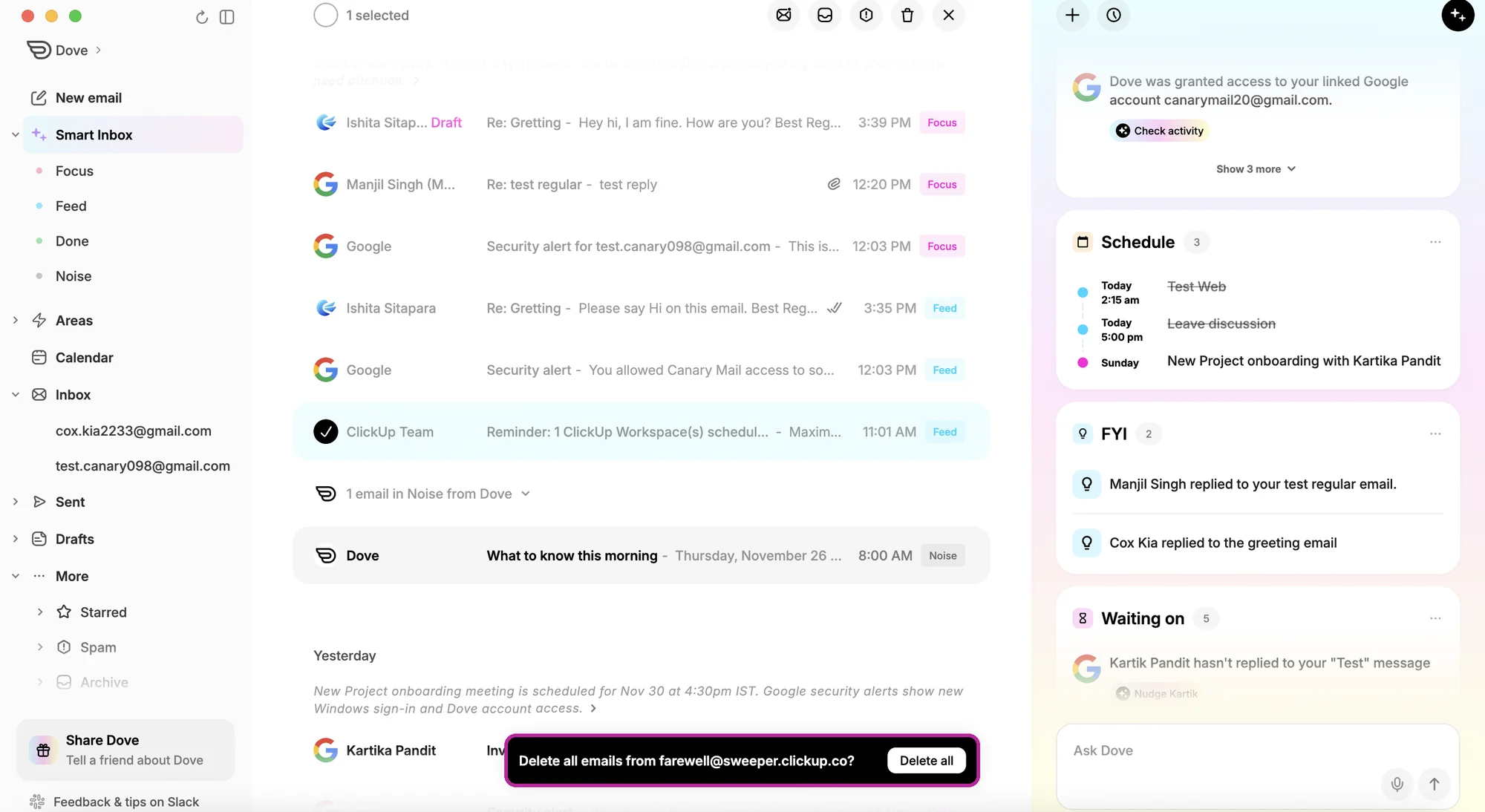
After you unsubscribe, Dove asks Delete all emails from {sender}? for a few seconds. Click or tap Delete all to move the emails you already have from that sender to Trash. When it's done, you'll see Moved N emails from {sender} to Trash.
Only emails from that exact address are moved. Emails from similar addresses aren't.
Only the account that got the email is included. Your other accounts aren't.
Emails in Spam and Trash stay where they are.
If the email you have open is moved, Dove goes back to the email list.
If the message says some emails couldn't be moved, unsubscribe again and click or tap Delete all again to move the rest.
Good to Know
Unsubscribe works with Gmail, Microsoft and IMAP accounts. You don't need to turn anything on.
Delete all doesn't delete emails permanently. It moves them to Trash.
Troubleshooting
I don't see Unsubscribe. The email may not have an unsubscribe option, it may be a draft or a scheduled email, or more than one email may be selected. Select just one email, or open it and wait for it to finish loading.
I still get emails after unsubscribing. The sender handles your request, and some senders take a few days to stop.
More from Dove
Related articles
November 26, 2026
Customize Swipe Actions in Dove
Choose what happens when you swipe an email left or right in the email list, and try your choices on a sample email before you use them on real mail.

November 26, 2026
Correct How Dove Sorts Mail with Teach Dove
Use Teach Dove to fix how Dove sorted an email, and save it as a rule so the sender's mail is sorted the same way from then on. You can also move a conversation to a different Area, and review or change your rules in Settings.
November 25, 2026
Use Calendar in Dove
Connect your Google Calendar or Outlook Calendar to see your events next to your mail. You can also add and change events and answer invitations without leaving Dove.