


Calendar shows your Google Calendar or Outlook Calendar inside Dove, next to your mail. You can look at your day or the days ahead, open an event to see its time, place, guests and notes, join its video call, and answer invitations. You can also add, edit and delete events and invite people.
Note: Calendar is a Dove Pro feature, and it works with Gmail and Outlook accounts. If you don't have Dove Pro, opening Calendar shows the option to get it. Calendar is still rolling out, so you might not see it yet.
Open Calendar and Connect Your Account
Open Dove.
In the sidebar, click Calendar (under Inbox).
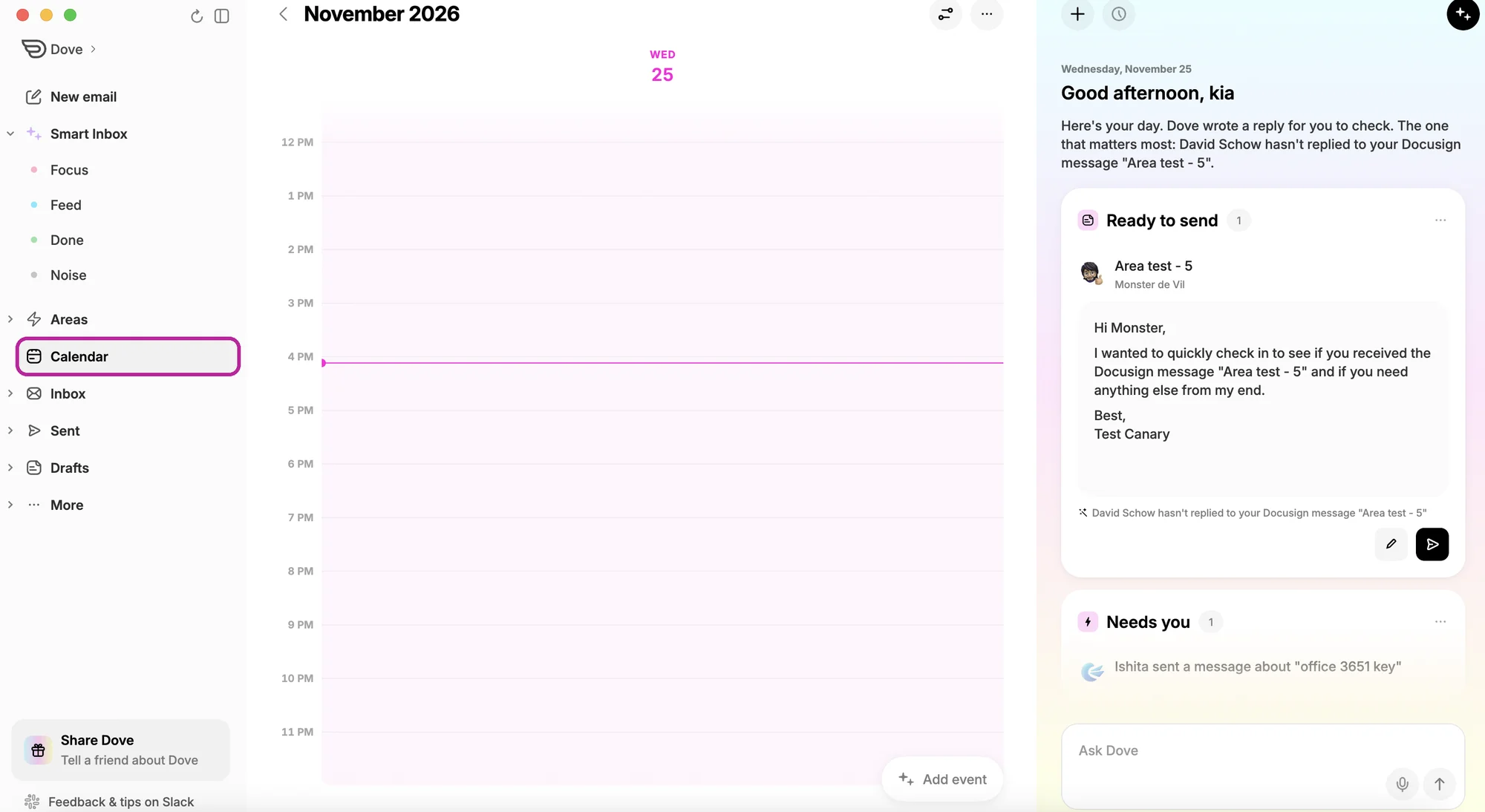
If the sidebar is collapsed, click the calendar button next to the filter at the top of the mail list.
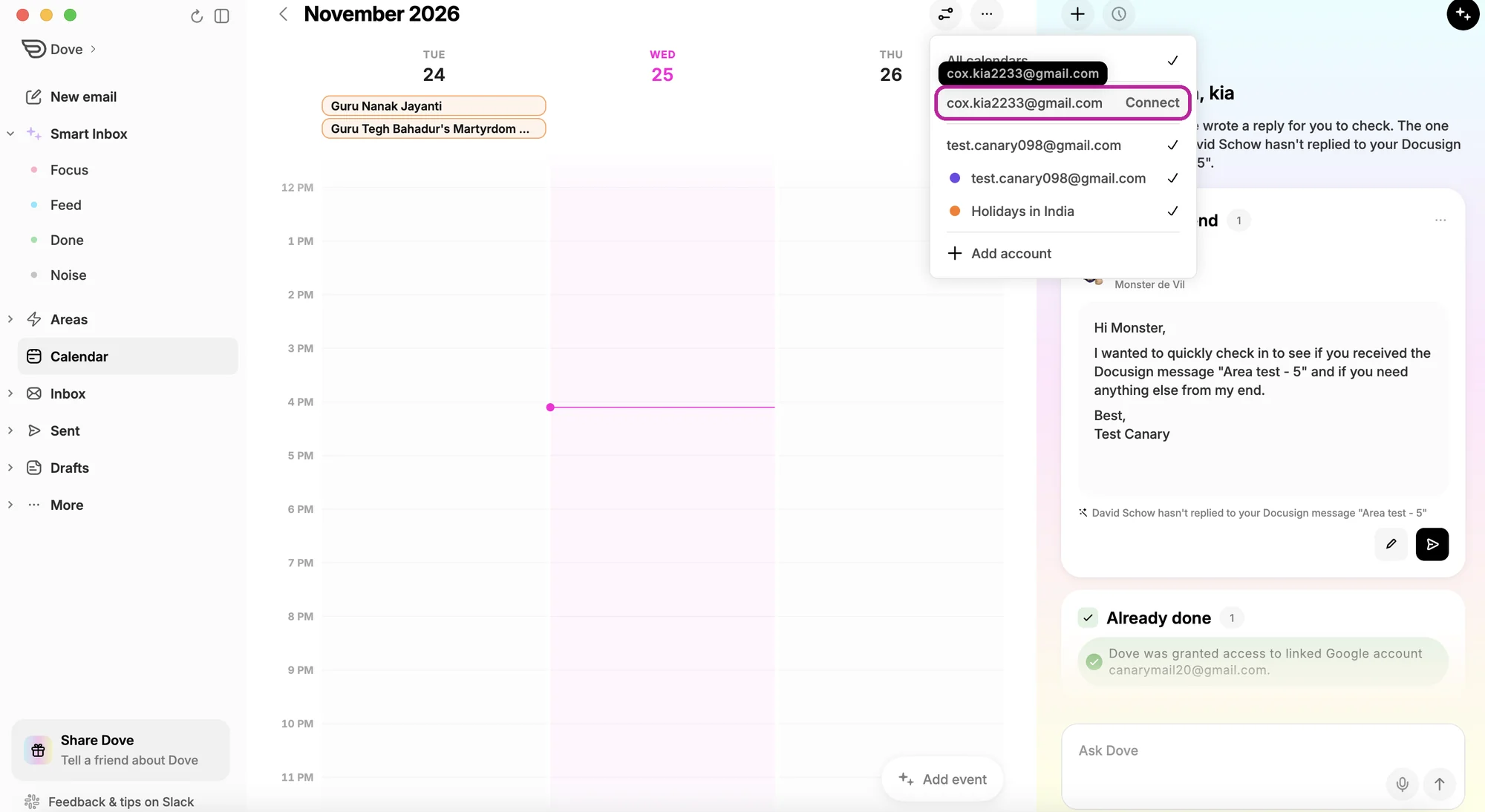
If you haven't connected a calendar yet, the list of calendars opens. Click Connect next to your Gmail or Outlook account.
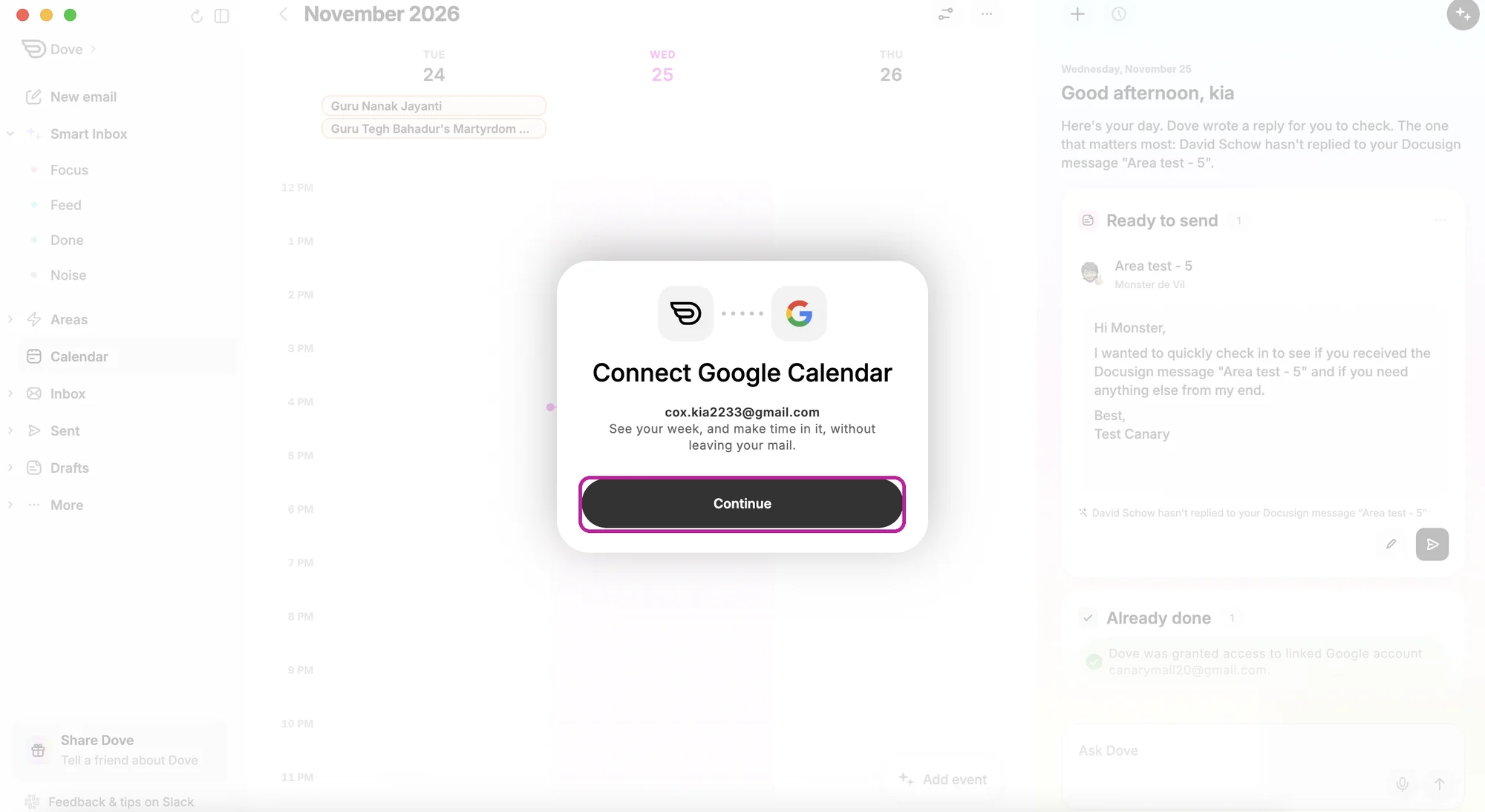
On the Connect Google Calendar or Connect Outlook Calendar card, click Continue.
Sign in and allow Dove to access your calendar.
You'll see Calendar connected, and your events show in place of the mail list.
Change the View
Open Dove.
In the sidebar, click Calendar.
Click the ··· (View) button at the top right.
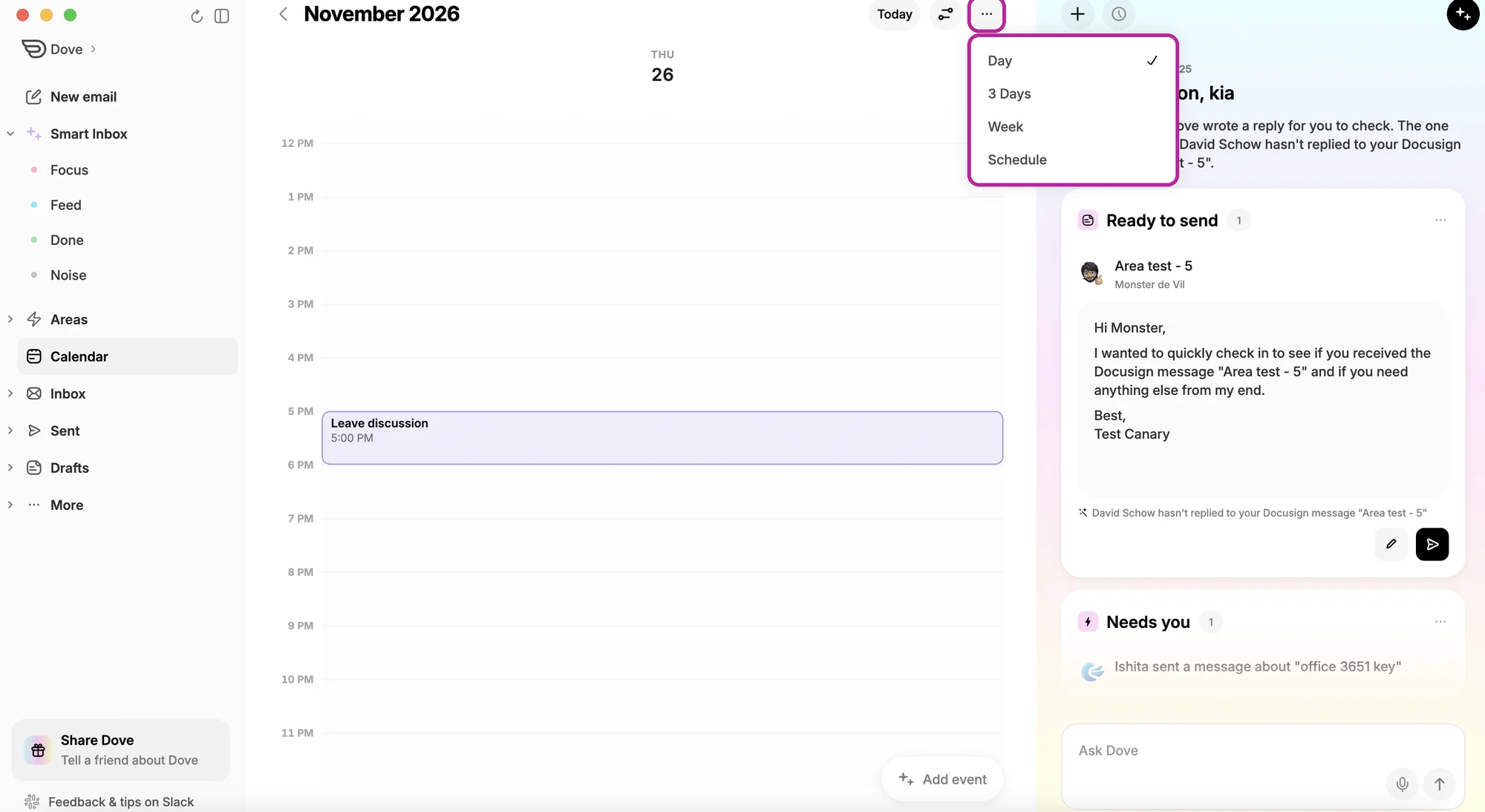
Choose Day, 3 Days, Week or Schedule.
To move between dates, press ← or →, or swipe sideways with two fingers.
To go back to today, click Today or press T.
Open, Add and Change Events
Open Dove.
In the sidebar, click Calendar.
Click an event to open its card.
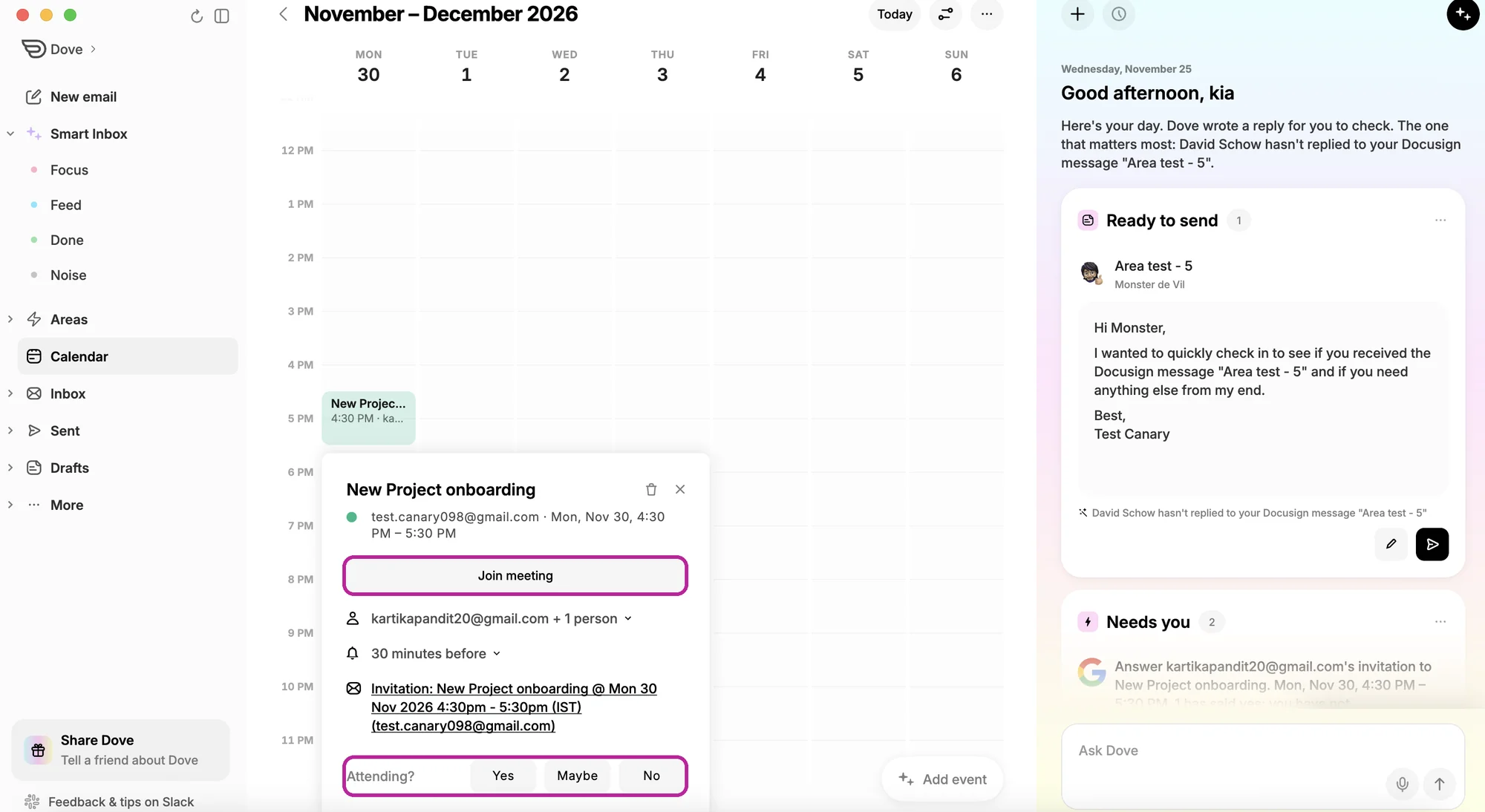
Click Join meeting to join its video call.
On an invitation, answer Attending? with Yes, Maybe or No.
To change the event, click Edit (the pencil). To delete it, click Delete (the bin).
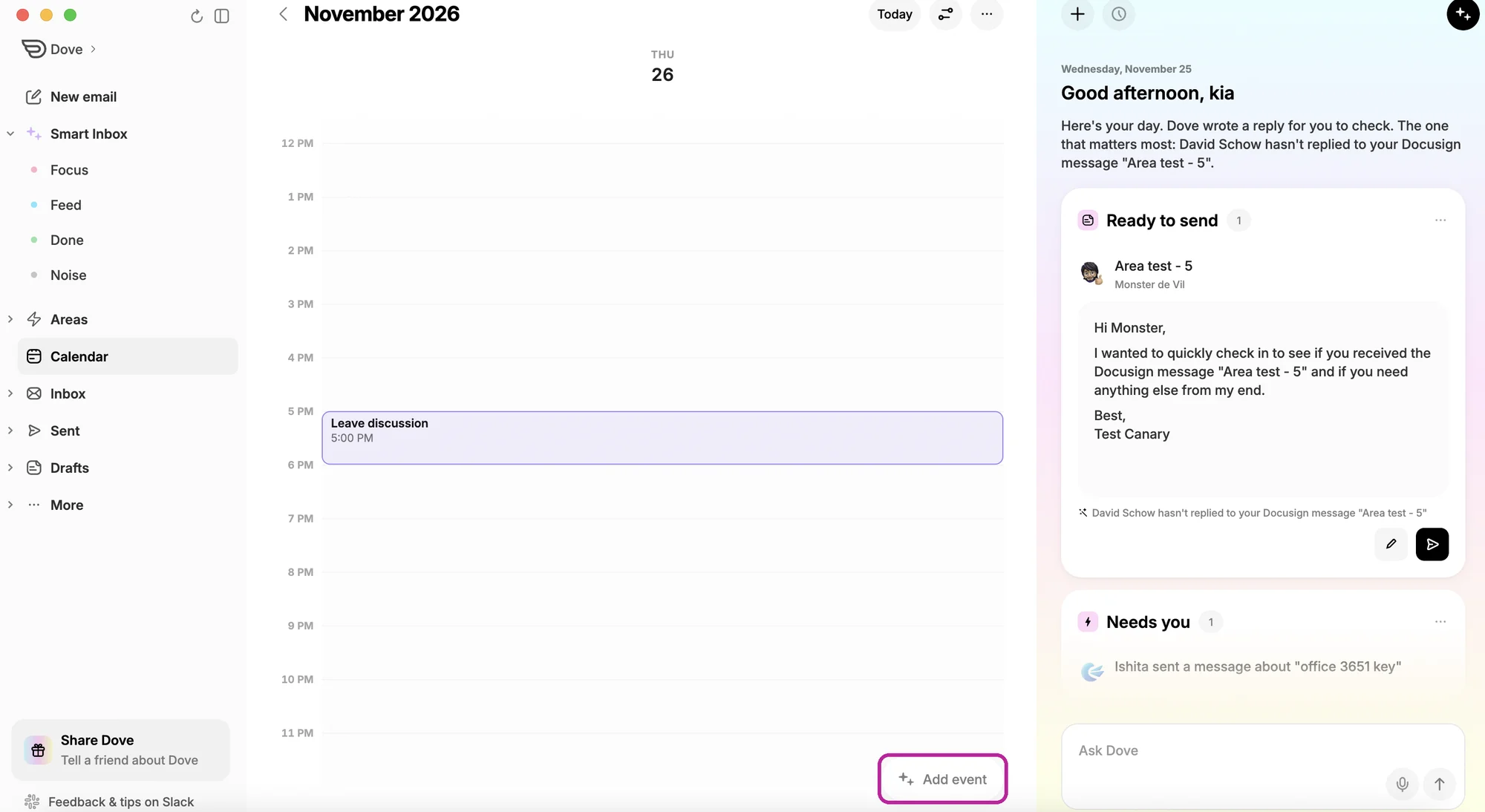
To add an event, double-click or drag on an empty time, or type a sentence into the Add event pill.
Choose When the Week Starts
Open Dove.
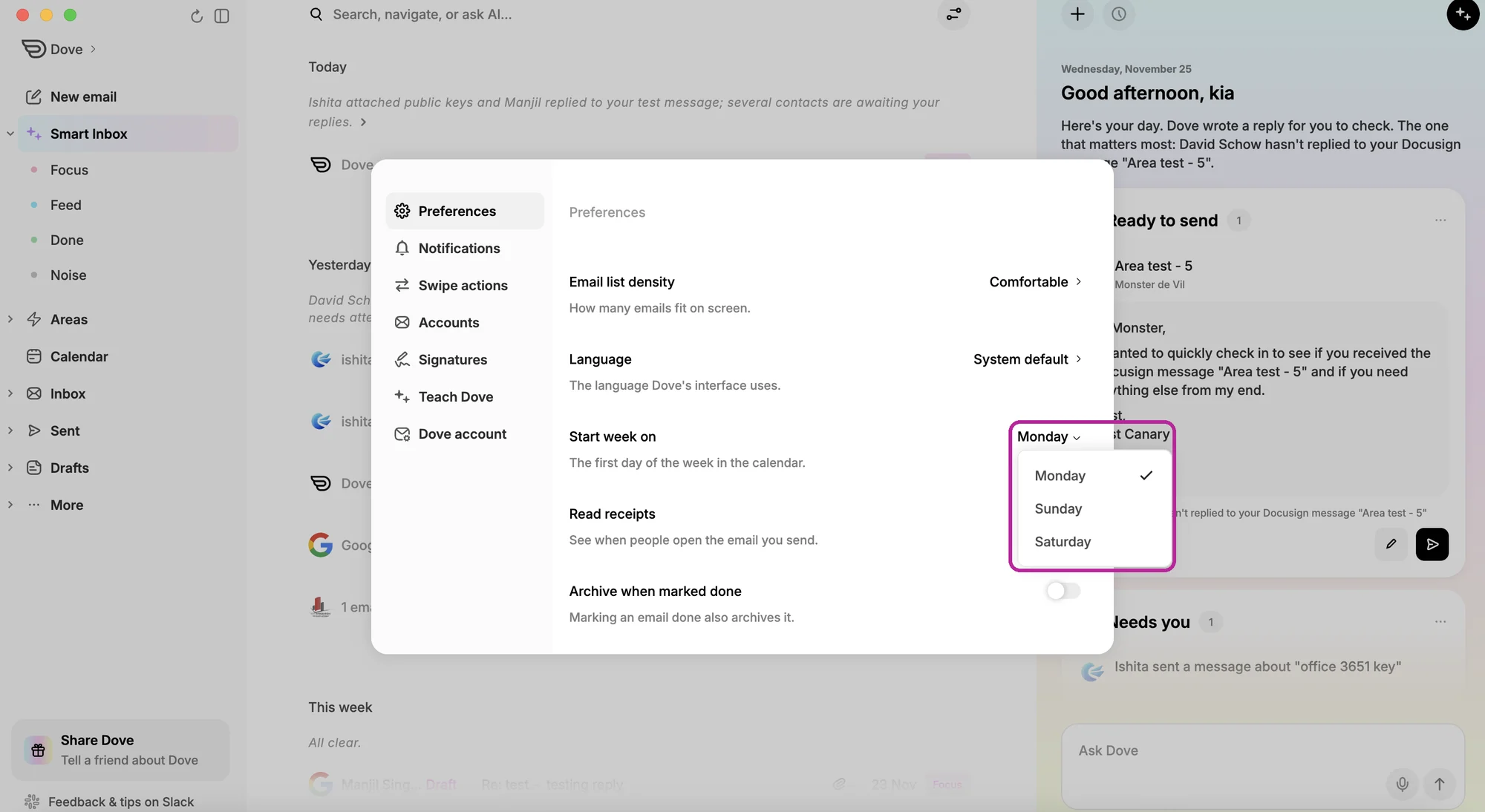
Click Dove at the top-left corner and select Settings from the dropdown menu.
Go to Preferences.
Under Start week on, choose Monday, Sunday or Saturday.
Choose Which Calendars to Show
Click or tap the filter button (Calendars) at the top of the calendar. From there you can:
Turn All calendars on or off.
Turn a whole account, or any one of its calendars, on or off.
Click Connect next to an account whose calendar isn't connected yet.
Add another account with Add account at the bottom.
Good to Know
Phones don't have a Week view. If you chose Week on a computer, your phone shows 3 Days.
When an event has guests, Dove asks Send the invitation? before it emails them. After it sends, you can undo for a few seconds.
On an invitation, the delete button reads Remove from calendar. It takes the event off your calendar.
The Video call option adds only Google Meet or Microsoft Teams links. To use another service, paste its link into Where or Notes.
Dove uses its own colours for your calendars, not the colours you chose in Google or Outlook.
You can answer invitations from an email or from Today even without Dove Pro.
Troubleshooting
I don't see Calendar. It's still rolling out, so your account may not have it yet. On a phone, look for the calendar button at the top of Inbox or Today. It isn't in the sidebar there.
My account says Mail only. Accounts added as Other email address can't show a calendar. Only Gmail and Outlook calendars are supported for now.
I see The calendar wasn't connected. The sign-in closed before calendar access was allowed. Open the calendars list, click Connect next to the account and try again.
More from Dove
Related articles

November 26, 2026
Customize Swipe Actions in Dove
Choose what happens when you swipe an email left or right in the email list, and try your choices on a sample email before you use them on real mail.

November 26, 2026
Correct How Dove Sorts Mail with Teach Dove
Use Teach Dove to fix how Dove sorted an email, and save it as a rule so the sender's mail is sorted the same way from then on. You can also move a conversation to a different Area, and review or change your rules in Settings.

November 25, 2026
Unsubscribe from a Mailing List in Dove
Stop newsletters and other mailing-list emails from inside Dove, without having to find the unsubscribe link yourself. You can also move all the emails you already have from that sender to Trash.