

Swipe actions let you deal with an email straight from the email list. You choose what swiping left does, and what swiping right does. Settings has a sample email you can swipe to try your choices first. Swiping the sample never changes any real mail. Swipe actions are on iPhone, iPad, Android, Mac, Windows and the web.
Choose Your Swipe Actions
Open Dove.
Click Dove at the top of the sidebar and choose Settings.
Click Swipe actions in the sidebar, just below Notifications.
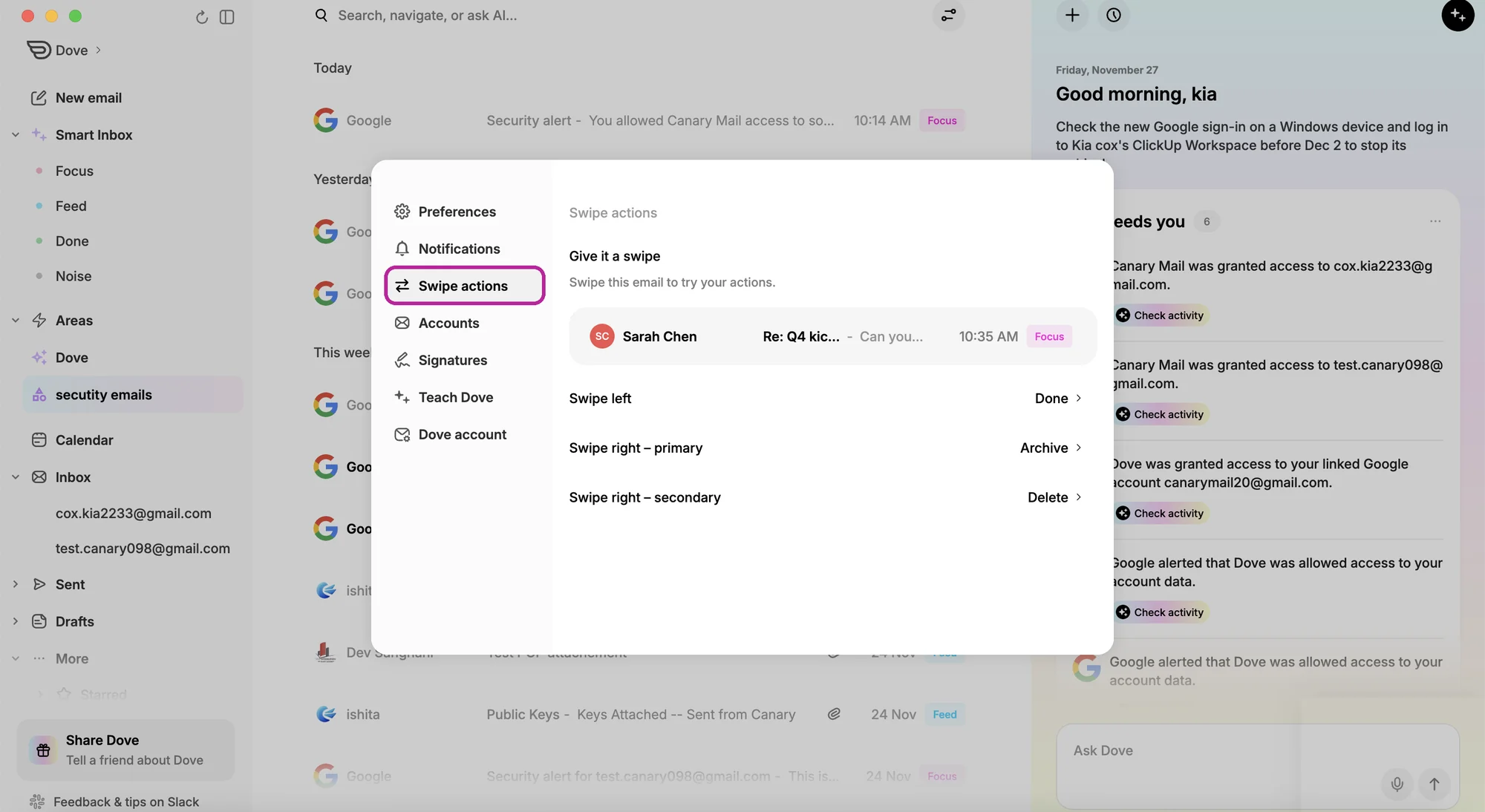
Click the dropdown next to Swipe left, Swipe right – primary or Swipe right – secondary, then choose an action.
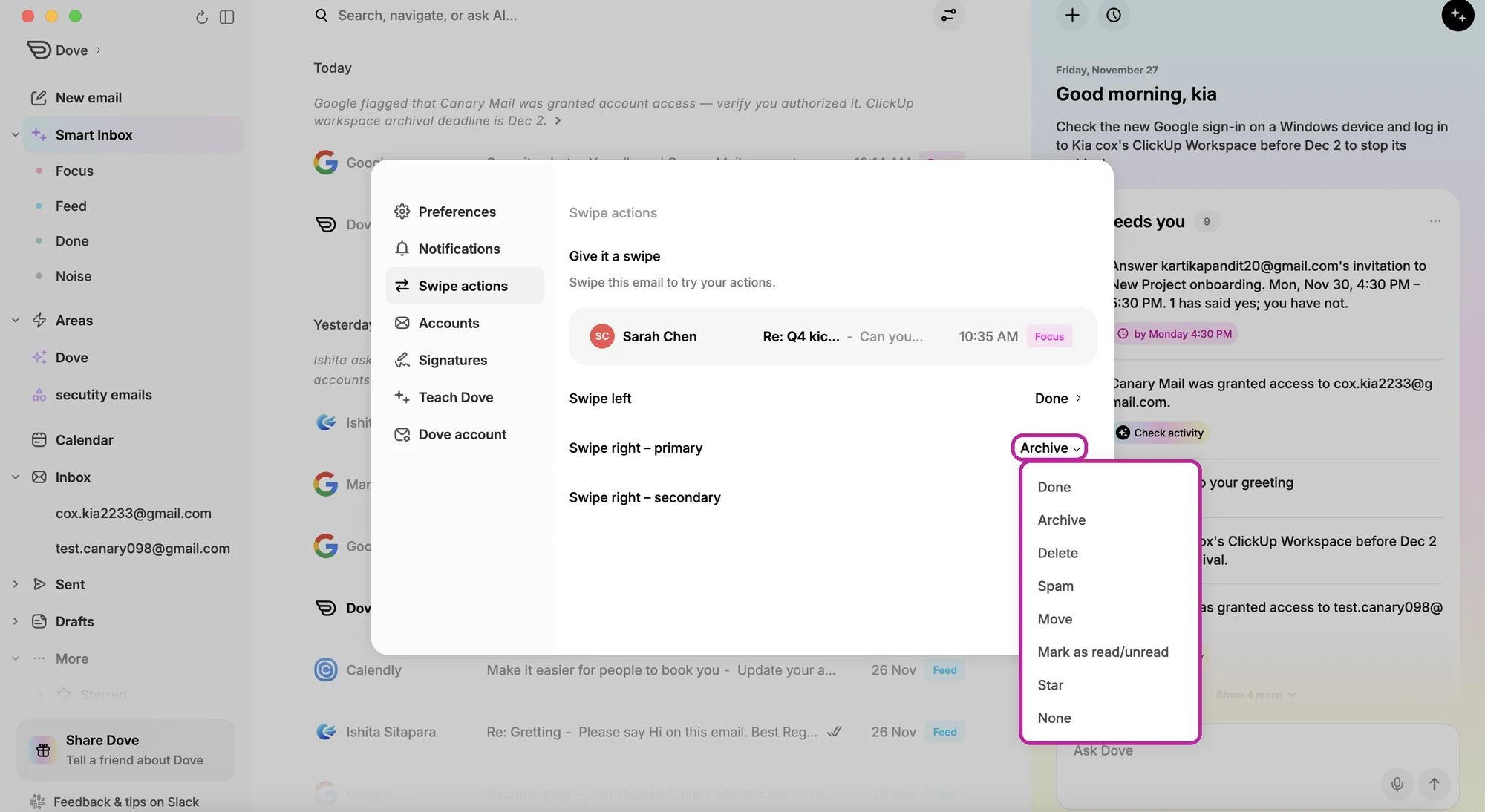
After you choose, the sample email opens briefly on that side so you can see your choice.
Under Give it a swipe, swipe the sample email to try your actions.
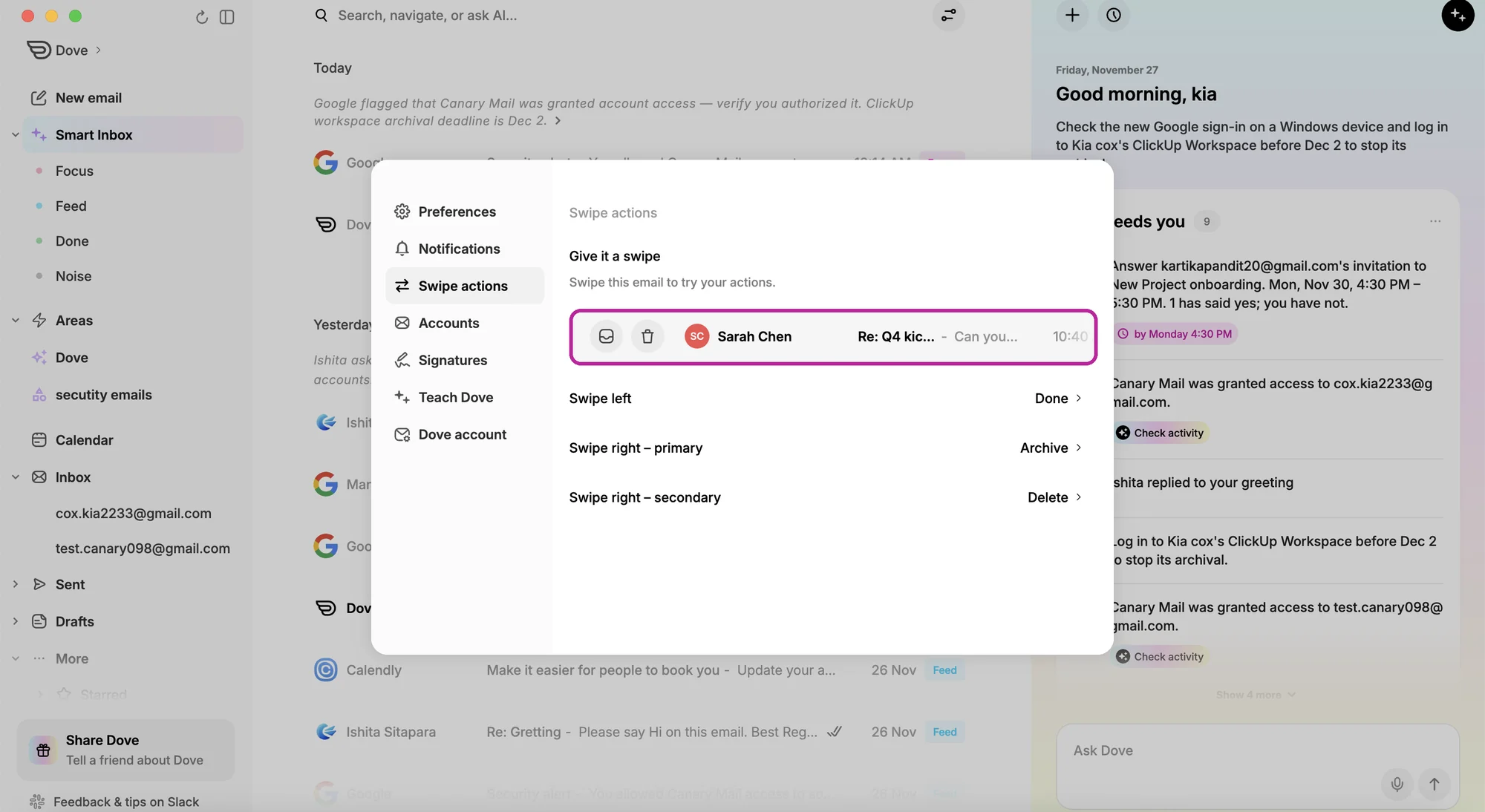
Use a two-finger swipe on a trackpad, click and drag with a mouse, or scroll sideways with a mouse wheel.
Your new swipe actions work in the email list right away. Your choices also sync to your other devices through your Dove Account.
The Three Swipes
Setting | What it does | Default |
|---|---|---|
Swipe left | The action for swiping an email to the left. | Done |
Swipe right – primary | The main action for swiping an email to the right. | Archive |
Swipe right – secondary | A second button that shows next to the primary one when you swipe right a little. | Delete |
Actions You Can Choose
Done: Marks the email done. Swiping it on an email that's already done marks it not done. If Archive when marked done is on, Done also archives the email.
Archive: Moves the email to your archive.
Delete: Deletes the email. In Trash or Drafts, it deletes the email permanently. In the Outbox, it cancels sending.
Spam: Marks the email as spam.
Move: Opens a list of folders to move the email to. If you close the list without picking a folder, nothing moves.
Mark as read/unread: On an email, the button says Mark as read or Mark as unread, depending on the email.
Star: Stars the email, or removes its star.
None: Swiping that way does nothing.
After Done, Archive, Delete, Mark as read/unread or Star, Dove shows a message with Undo in case you swiped by mistake.
Swipe an Email in the List
Long swipe: Swipe all the way to run the main action for that side.
Short swipe: Swipe a little to leave the email open on its buttons, then tap or click the one you want.
Close an open email: Tap the email. On a computer, move the pointer away from it.
On a computer: Use a two-finger swipe on a trackpad, click and drag with a mouse, or scroll sideways with a mouse wheel.
Good to Know
Setting Swipe right – primary to None turns swiping right off and hides Swipe right – secondary.
The two swipe-right buttons can't have the same action. If you pick the action the other one already has, the two swap.
Swipe left and swipe right can have the same action.
Spam isn't offered in your Junk folder, and Archive isn't offered in your Archive folder, because they would do nothing there. If that was your swipe-right primary action, the secondary one takes its place.
In Send Later, only Delete works. It cancels the scheduled send.
Swiping is off while you're selecting several emails.
Swipe actions work with every mail account. You don't need to turn anything on.
You can also ask Dove's assistant to change your swipe actions for you.
Troubleshooting
The sample email didn't do anything. That's expected. It's only a preview, and it never acts on real mail.
I don't see Swipe right – secondary. It's hidden while Swipe right – primary is set to None. Choose another action for the primary to bring it back.
My swipe does something different in some folders. In folders where an action would do nothing, such as Archive in your Archive folder, the other swipe-right button takes its place.
Swiping a Noise row doesn't use my settings. Swiping a Noise row always archives all its emails, or deletes them all when Delete all for Noise is on. You can't change this.
More from Dove
Related articles
November 26, 2026
Correct How Dove Sorts Mail with Teach Dove
Use Teach Dove to fix how Dove sorted an email, and save it as a rule so the sender's mail is sorted the same way from then on. You can also move a conversation to a different Area, and review or change your rules in Settings.
November 25, 2026
Unsubscribe from a Mailing List in Dove
Stop newsletters and other mailing-list emails from inside Dove, without having to find the unsubscribe link yourself. You can also move all the emails you already have from that sender to Trash.
November 25, 2026
Use Calendar in Dove
Connect your Google Calendar or Outlook Calendar to see your events next to your mail. You can also add and change events and answer invitations without leaving Dove.