


Areas are your own groups for mail, such as a project, a client or a part of your life. Dove sorts incoming mail from all your connected accounts into them, and the Today tasks from that mail go to the same Area. You'll find your Areas under Areas in the sidebar, just below the Smart Inbox.
Note: Areas are part of Dove Pro, and you can also use them during a trial. On the Basic plan, the sidebar shows a locked Smart Inbox card that lists Areas. Tap or click it to see how to get Dove Pro.
Open an Area
Open Dove.
In the sidebar, expand Areas below the Smart Inbox.
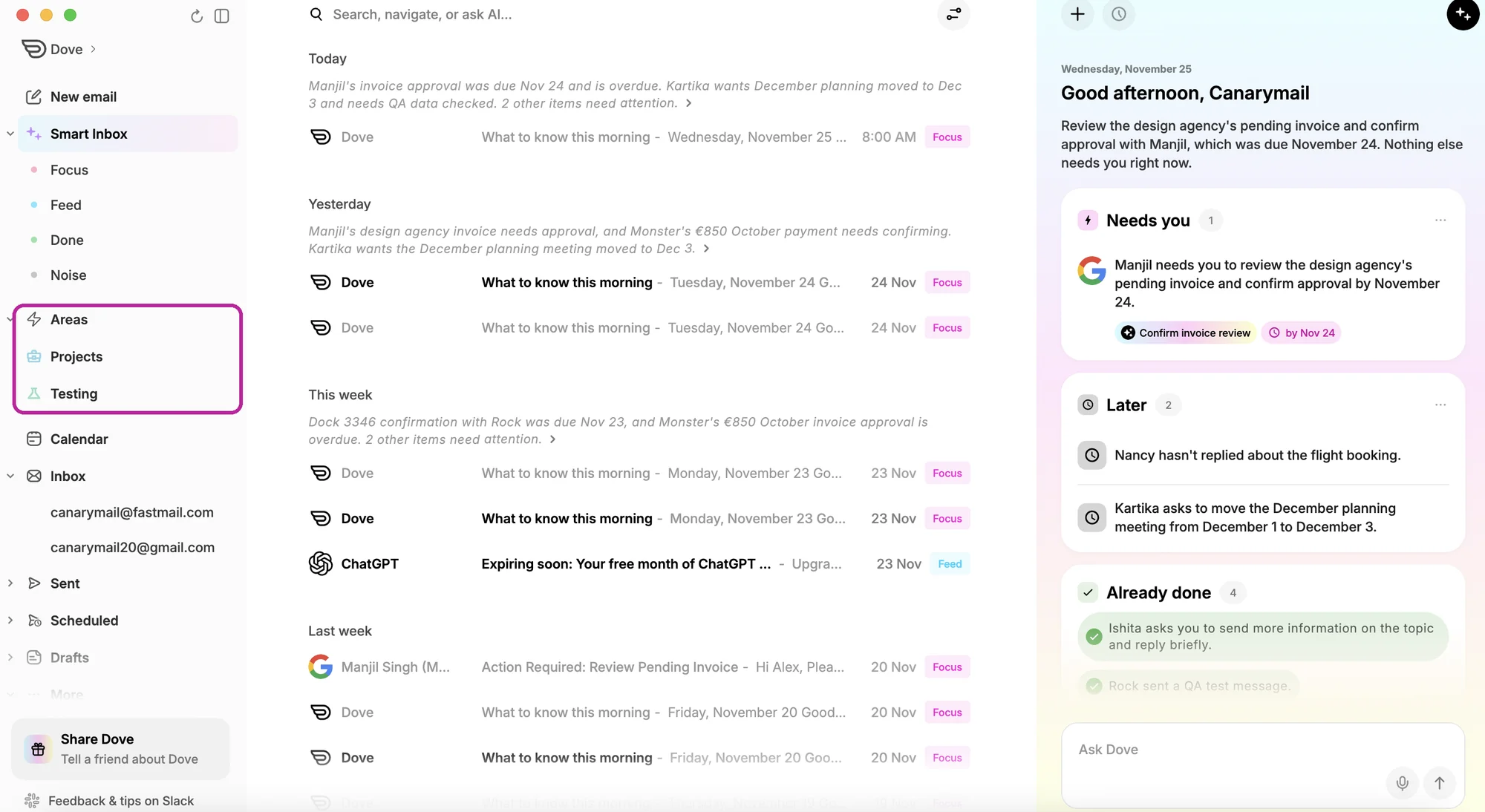
Click an Area.
You see only that Area's mail, and the Today task list next to it shows only that Area's tasks too.
Create or Edit an Area
Open Dove.
In the sidebar, hover over an Area's row and click the ⋯ button that appears.
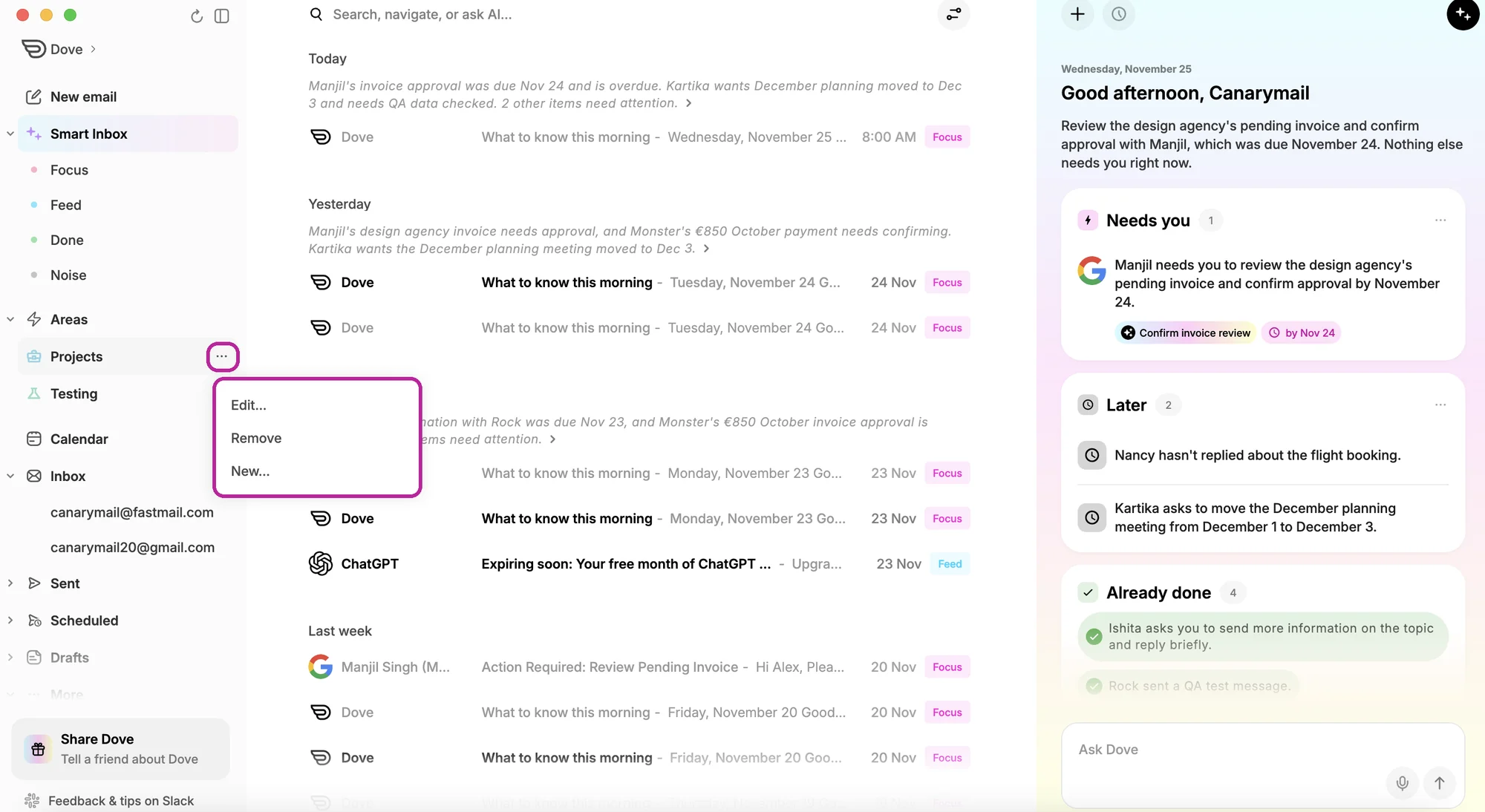
Choose Edit… to change that Area, or New… to create a new one.
Type the Area's name at the top. To change its icon, click the icon next to the name and pick a new one.
Under What belongs here, describe the mail for this Area in your own words. If you leave the box empty, you can click Or let Dove draft it from the name. instead.
Click Analyse. Dove fills in What Dove finds with sender, domain and subject rules, plus Match by meaning.
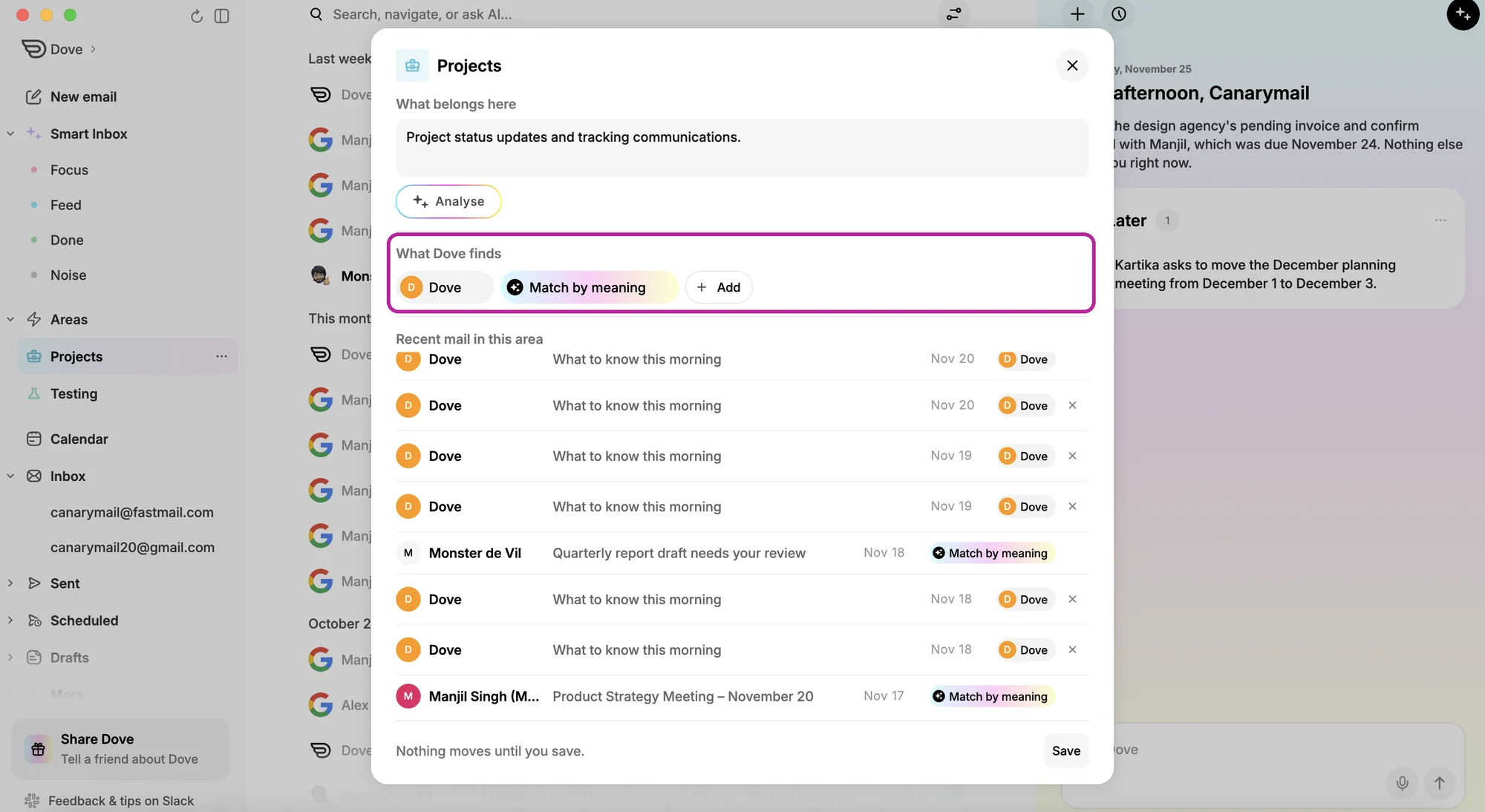
Change the rules if you need to:
Click a rule to edit it.
Click a rule's × to remove it. Click its + to add it back.
Click Add to add a rule, then choose Sender, Domain or Subject.
Under Recent mail in this area, click the × (Keep where it is) on any email you want to keep out of this Area.
Click Save. For a new Area, the button says Create.
Nothing moves until you save. Then Dove sorts matching mail into the Area and opens it.
Reorder Your Areas
Open Dove.
In the sidebar, drag an Area's row up or down. On iPad, press and hold the row first, then drag it.
Remove an Area
Open Dove.
In the sidebar, hover over an Area's row and click the ⋯ button that appears.
Choose Remove.
In the Remove {name}? dialog, click Remove.
Note: Some accounts see a simpler Area card. It only has the name, the icon, a description box and Save, and it shows the note Saving re-sorts matching mail. Fill in the name and description, then save.
Note: If you use a screen reader, each Area row offers Move up and Move down actions, which you can use instead of dragging.
How Dove Matches Mail
Sender, domain and subject rules always come first.
Match by meaning sorts the rest of your mail using your description. To have an Area use only its rules, click or tap the × on Match by meaning.
Each rule can belong to only one Area. If rules on two Areas match the same email, it goes to the Area that's higher in the list. This is why reordering your Areas can change where mail goes.
If you changed the rules yourself and then run Analyse or Reanalyse again, Dove asks first, because it will replace your changes with its own.
Limits
You can have from 1 to 5 Areas. New… is greyed out when you have 5, and Remove is greyed out when you have only one.
Names can be up to 32 characters, and each Area needs a different name. You can't use Other, because Dove uses it for mail that doesn't fit any Area.
Descriptions can be up to 240 characters.
Use Ask Dove
You can also ask Ask Dove to create, change or reset your Areas. It always checks with you first, by asking Update your Areas? or Reset your Areas?
Common Questions
Does removing an Area delete mail? No. The mail goes back to wherever it would go without that Area. A removed Area won't come back on its own.
Why isn't my older mail in my Areas? Dove never sorted mail that arrived before it started sorting. The mail list tells you this: Older mail was never sorted, so it isn't in your Areas.
One email is in the wrong Area. Use the Area menu in Teach Dove to move that email.
I see "Could not save Inbox area order." Your new order wasn't saved. Drag the row again.
More from Dove
Related articles

November 26, 2026
Customize Swipe Actions in Dove
Choose what happens when you swipe an email left or right in the email list, and try your choices on a sample email before you use them on real mail.

November 26, 2026
Correct How Dove Sorts Mail with Teach Dove
Use Teach Dove to fix how Dove sorted an email, and save it as a rule so the sender's mail is sorted the same way from then on. You can also move a conversation to a different Area, and review or change your rules in Settings.

November 25, 2026
Unsubscribe from a Mailing List in Dove
Stop newsletters and other mailing-list emails from inside Dove, without having to find the unsubscribe link yourself. You can also move all the emails you already have from that sender to Trash.