

Send Later lets you write an email now and have Dove send it at a time you choose. Dove sends it at that time even if the app is closed or your device is off. Scheduled emails wait in a Scheduled folder on every device you're signed in on. Send Later works on iPhone, iPad, Android, Mac, Windows and the web.
Note: Send Later needs Dove Pro or an active trial. If you don't have either, Dove shows the upgrade screen. You also need to be signed in to your Dove Account. Otherwise you'll see Sign in to your Dove Account to schedule emails. Send Later works with Gmail, Microsoft and other IMAP accounts, but not Proton (Scheduling isn't available for Proton accounts.).
Schedule an email
Open Dove.
Write a new email or a reply as usual.
Click the ⌄ on the right half of the send button.
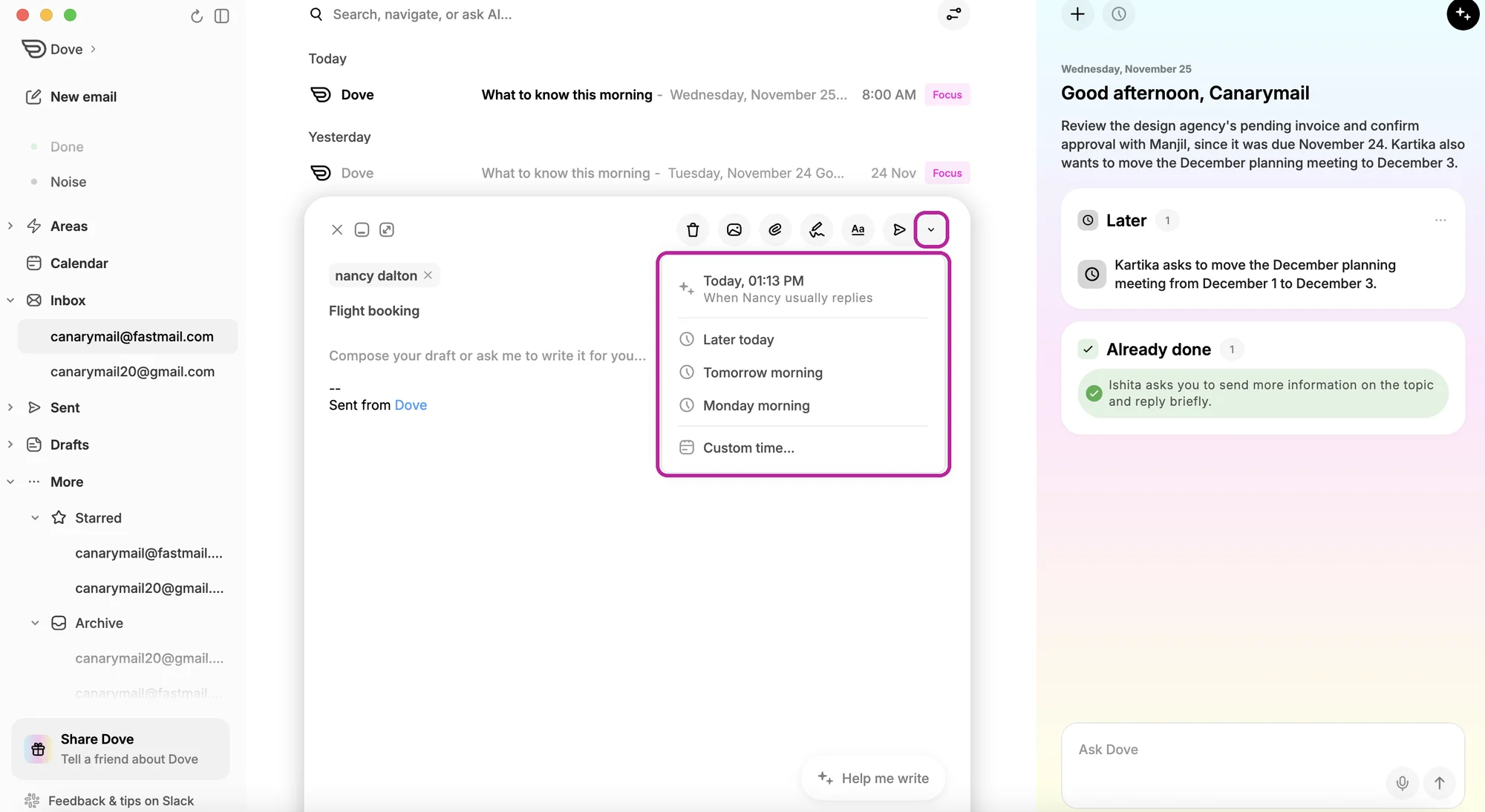
Choose when to send it:
Dove's suggested time, if there is one, for example "Tomorrow, 9:40 AM" with When Maria usually replies under it
Later today
Tomorrow morning
Monday morning
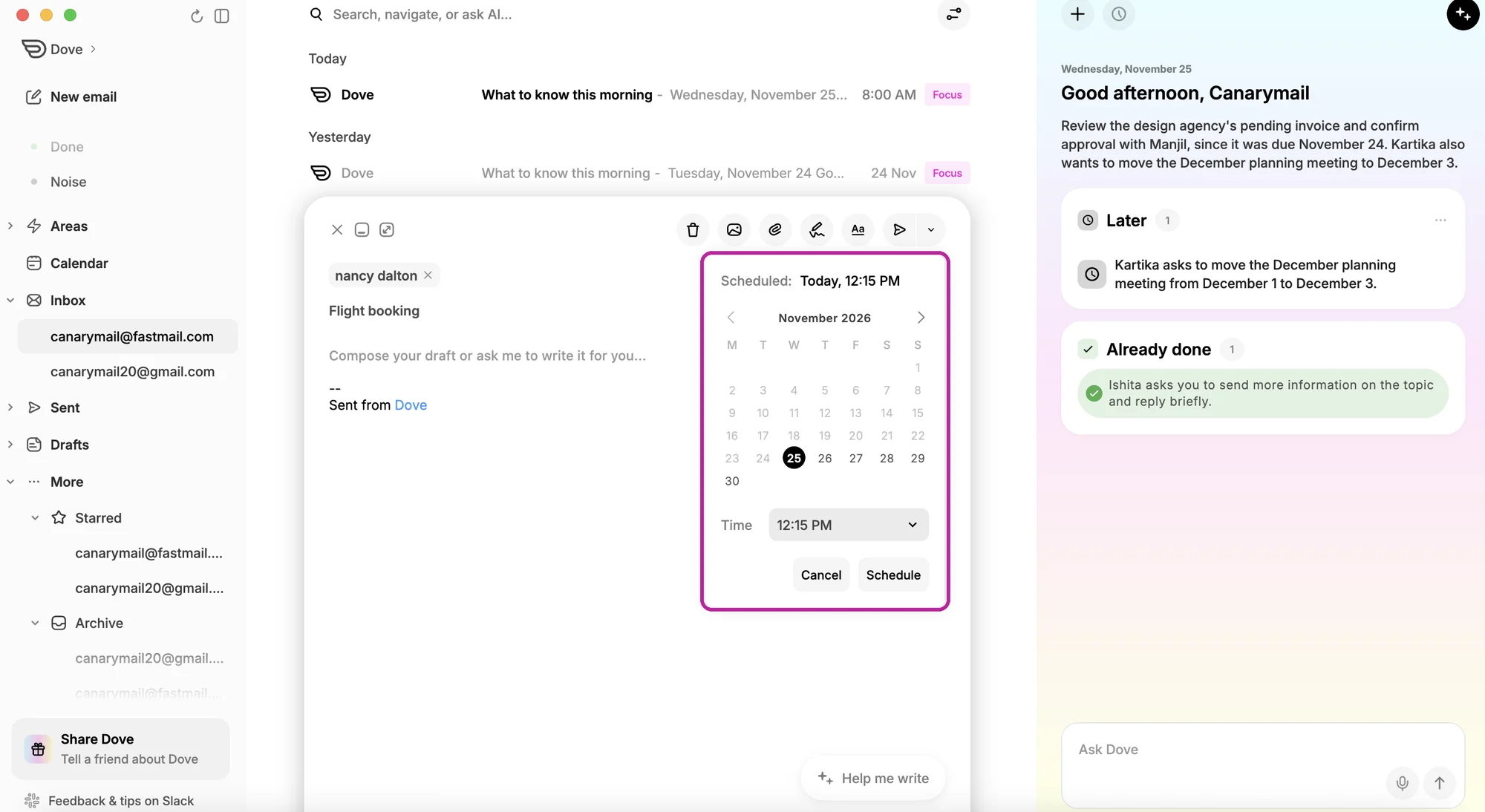
Custom time…, to pick your own date and time
If you chose Custom time…, pick a date and time, then click Schedule.
Tap the send button. It now shows the time you picked.
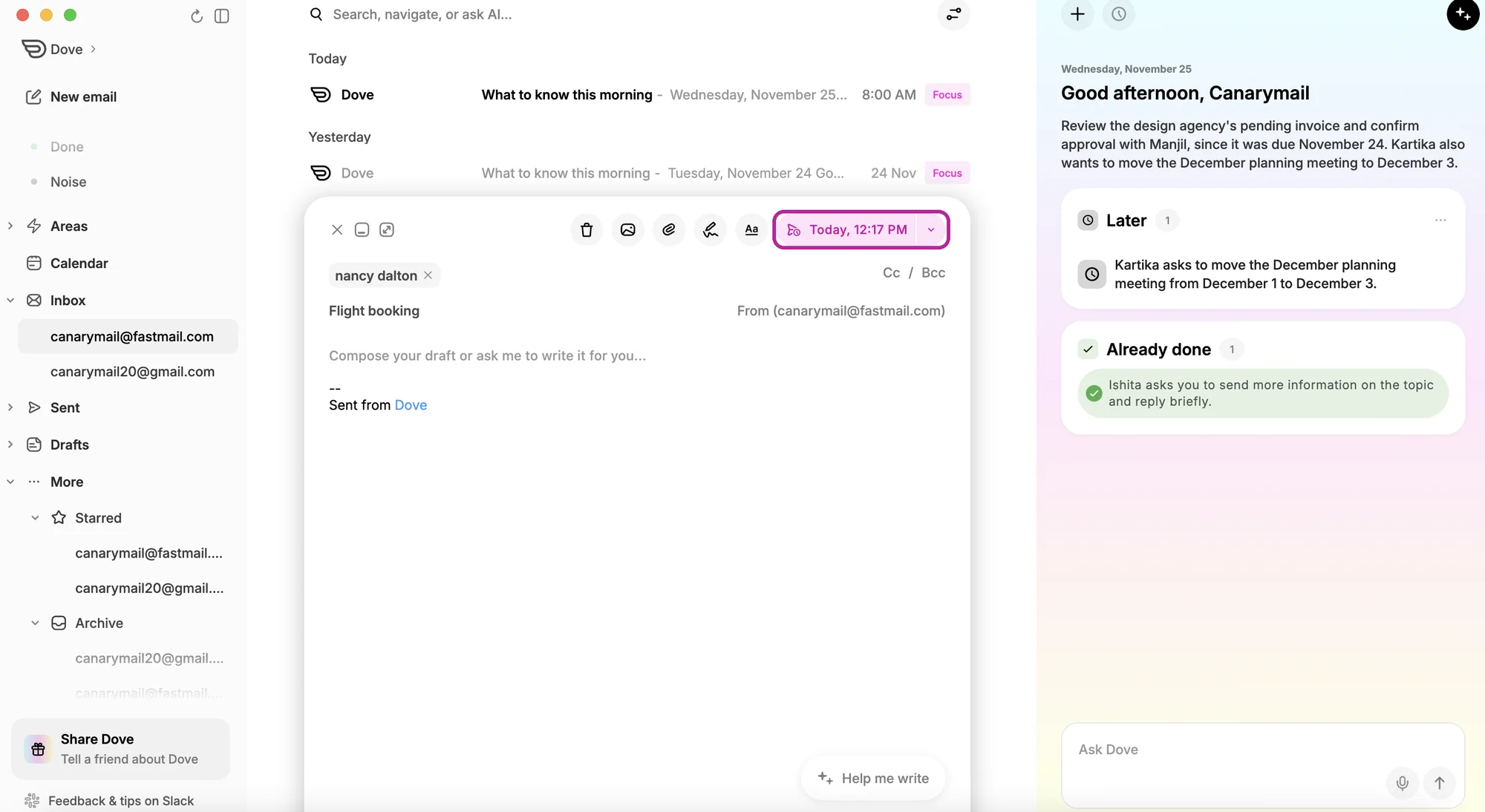
You'll see Scheduled for followed by the date and time, with an Undo option, and the email closes. The email now waits in the Scheduled folder.
Manage scheduled emails
Open Dove.
Click Scheduled in the sidebar, between Sent and Drafts.
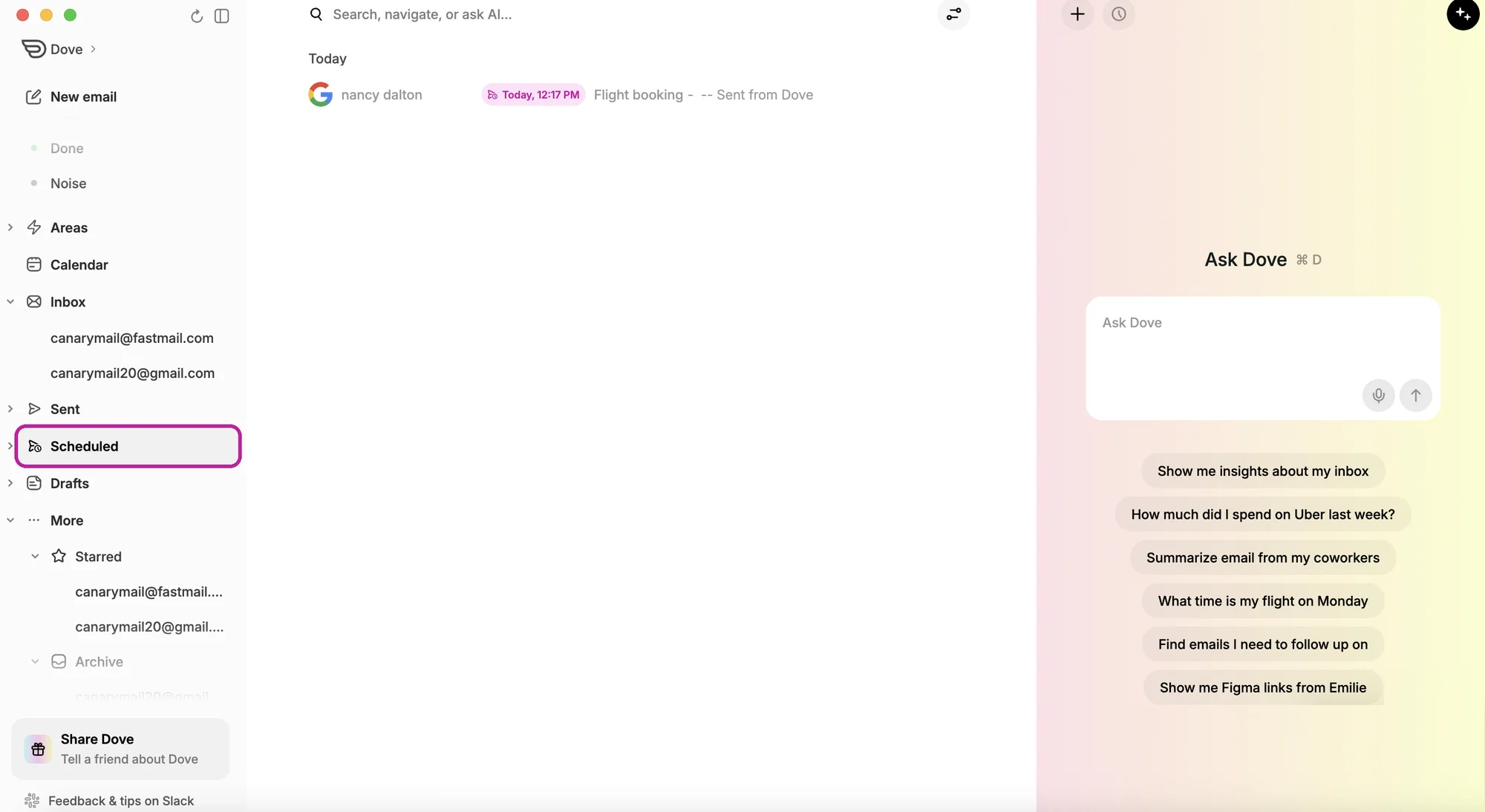
Right-click the email you want to change.
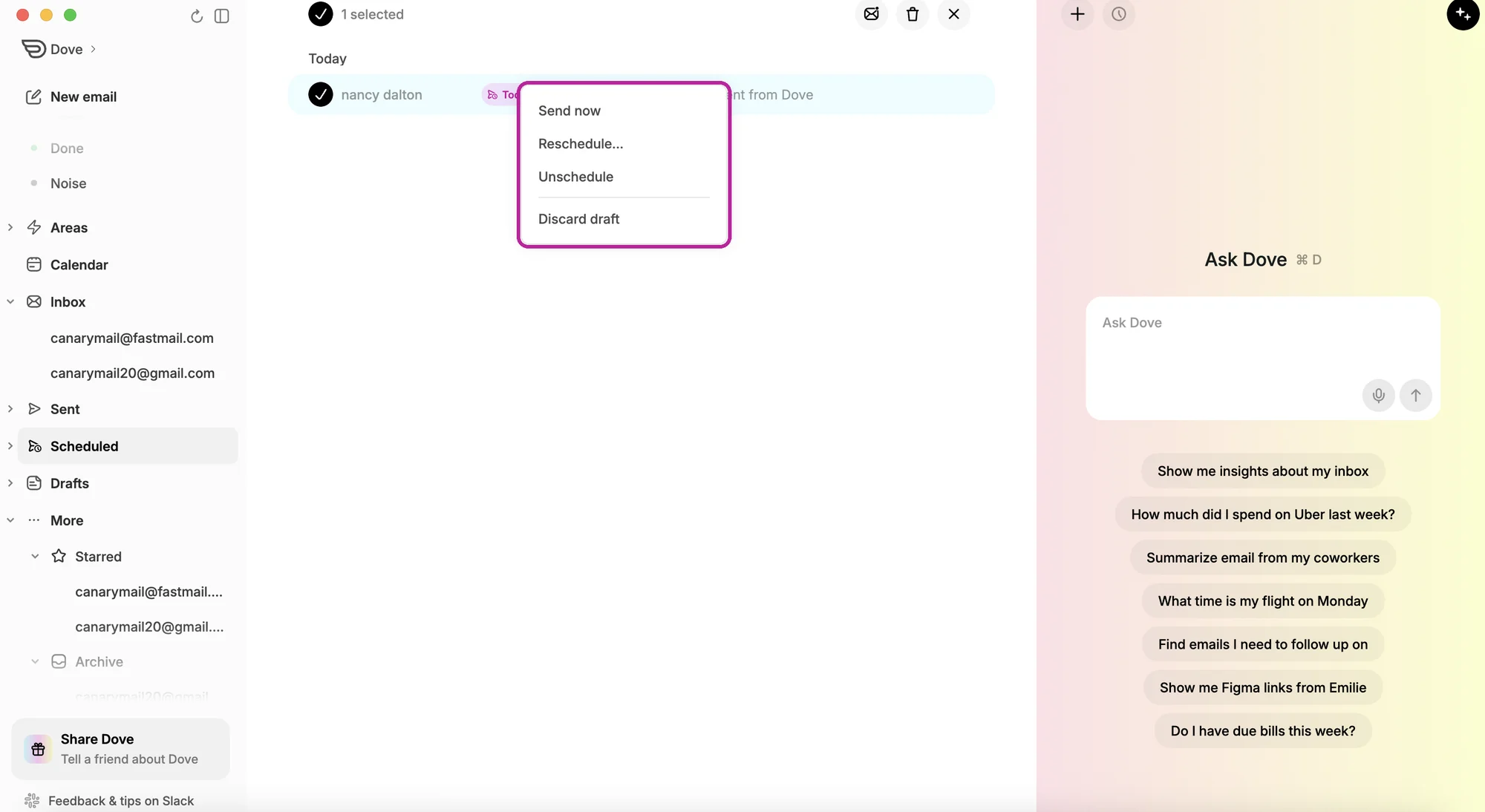
Choose an action:
Send now sends the email right away.
Reschedule… lets you pick a new time.
Unschedule cancels the scheduled send and moves the email to Drafts.
Discard draft cancels the scheduled send and deletes the email.
Note: Reschedule… only works when one email is selected. The Scheduled folder only shows while you have at least one email scheduled.
Edit a scheduled email
To change the text, recipients or time of a scheduled email, open it from the Scheduled folder and open its ⋯ menu. It has three options:
Edit opens the email so you can change it.
Send now sends it right away.
Discard schedule cancels the scheduled send and keeps the email as a draft.
While you're editing, the send button's menu offers Edit schedule, Discard schedule and Send now. To save your changes, press the send button and the email stays scheduled. If you close the email with unsaved changes, Dove asks whether to save or discard them.
About the suggested and preset times
All times use your device's local time.
Later today is 5:30 PM. Later in the day, it's about two hours from now. Late at night, it isn't shown.
Tomorrow morning is 8:00 AM tomorrow.
Monday morning is 8:00 AM next Monday. It isn't shown on Sundays, because it would be the same as Tomorrow morning.
Dove only suggests a time once the people you're writing to have emailed you often enough for Dove to learn when they usually reply.
You can also set the time in Help me write. Type something like "Send this tomorrow at 9 AM", then press the send button to schedule the email. Ask Dove can also schedule emails for you, change scheduled emails and list them.
Good to know
Picking a time doesn't schedule the email. You still have to press the send button. If you try to close the email first, Dove asks whether you want to go back and schedule it or save it as a draft.
Emails over 11 MB can't be scheduled. Send them right away instead.
Deleting an email in Scheduled unschedules it and moves it to Drafts. You can't archive, move or mark scheduled emails as spam.
If Dove couldn't send a scheduled email, it stays in Scheduled with a red Not sent badge, and you get a notification. You can edit it, send it now or unschedule it.
While an email is being sent, you can't change it. You'll see This email is being sent right now.
If you remove an account from Dove, that account's scheduled emails are cancelled.
Common questions
Does my device need to be on? No. Dove sends the email at the time you set, even if the app is closed or your device is off.
Can I change it from another device? Yes. The email shows up in Scheduled on every device you're signed in on, and your changes sync.
Why does the send button say Time passed? The time you picked went by before you pressed the send button. Choose a new time or choose Send now.
Why do I see "This account hasn't finished syncing to your Dove Account yet"? You just added this account. Wait a moment, then try again.
Where did the Scheduled folder go? It's hidden when you have no emails scheduled.
More from Dove
Related articles

November 26, 2026
Customize Swipe Actions in Dove
Choose what happens when you swipe an email left or right in the email list, and try your choices on a sample email before you use them on real mail.

November 26, 2026
Correct How Dove Sorts Mail with Teach Dove
Use Teach Dove to fix how Dove sorted an email, and save it as a rule so the sender's mail is sorted the same way from then on. You can also move a conversation to a different Area, and review or change your rules in Settings.
November 25, 2026
Unsubscribe from a Mailing List in Dove
Stop newsletters and other mailing-list emails from inside Dove, without having to find the unsubscribe link yourself. You can also move all the emails you already have from that sender to Trash.