

How to Set Out of Office in the Outlook App (iPhone, Android, Windows, Mac and Web)
To set out of office in the Outlook app on your phone, open Settings, tap your account, tap Automatic Replies and turn the switch on. Type your message, turn on Reply during a time period if you want it to stop by itself, and tap Save. The steps are the same on iPhone and Android.
One thing trips up a lot of people: automatic replies only work for Microsoft 365, Exchange and Outlook.com (including Hotmail and Live) accounts. If you added a Gmail, Yahoo, iCloud or other IMAP account to Outlook, the option won't be there. Set the reply in that provider's own settings instead. The steps for that are further down.
We checked every step below against Microsoft's own support pages on November 16, 2026. Menus move around, so if something doesn't match your screen, the section on missing options should help.
Which accounts can use automatic replies?
Outlook's automatic replies run on Microsoft's mail server, not in the app. That's why they keep working after you close Outlook or turn off your phone, and also why they only work for accounts on Microsoft's servers.
Account in Outlook | Automatic replies in Outlook? | What to do instead |
|---|---|---|
Microsoft 365 or Exchange (work or school) | Yes, on every version of Outlook | Nothing. Follow the steps below |
Outlook.com, Hotmail, Live | Yes | Nothing. Follow the steps below |
Gmail or Google Workspace | No | Turn on Gmail's vacation responder |
Yahoo Mail | No | Turn on Yahoo's vacation response |
iCloud Mail | No | Set an automatic reply in iCloud Mail on iCloud.com |
Other IMAP or POP accounts | No | Use your provider's auto-reply, or a rule in classic Outlook for Windows |
Microsoft says it plainly on its main out of office page: "Automatic replies are not supported for Gmail, Yahoo, or other POP or IMAP accounts." The mobile page lists the supported accounts as Microsoft 365, Exchange, Exchange (Hybrid) and Outlook.com.
How to set out of office in the Outlook app on iPhone and Android
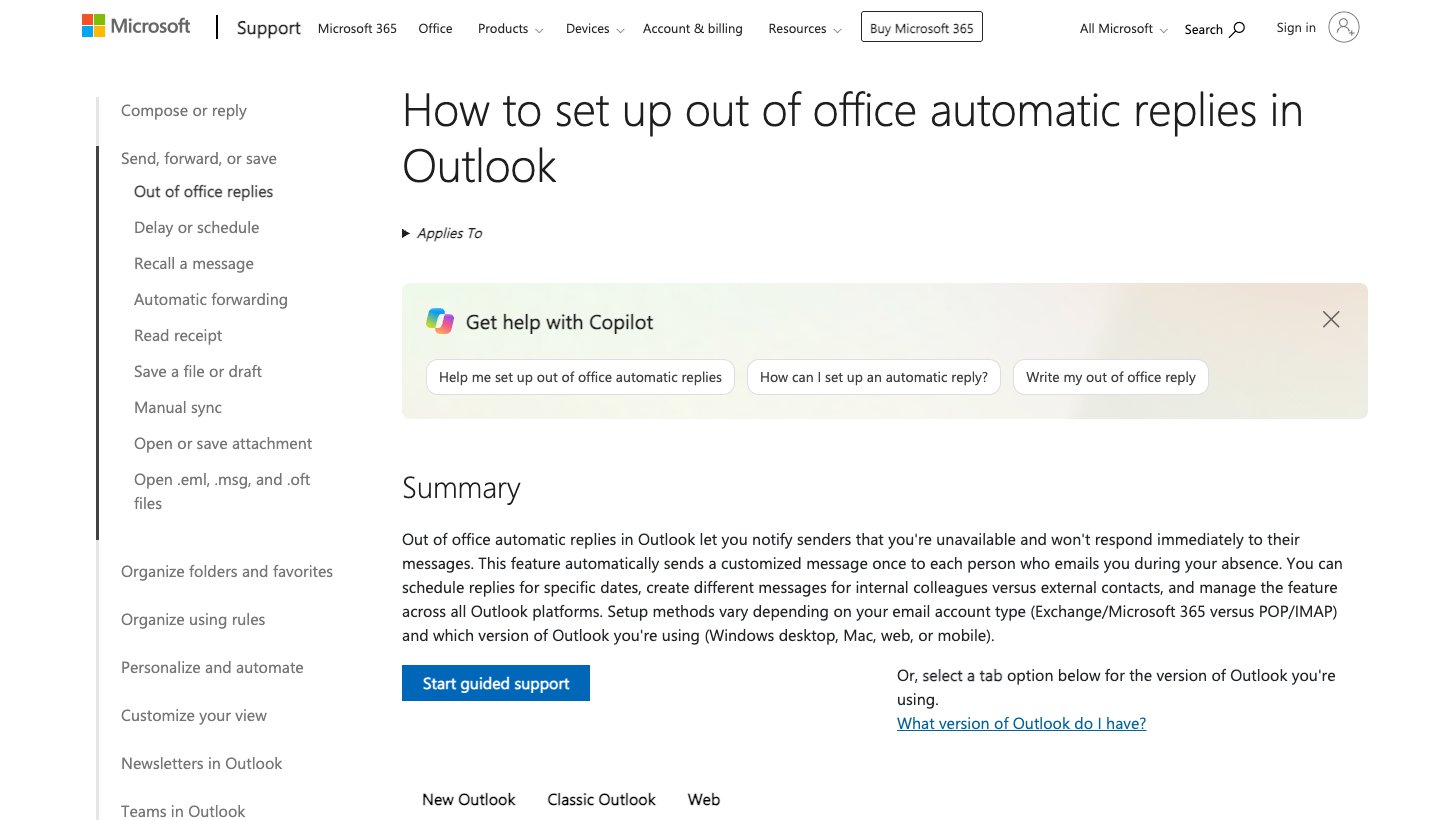
Open the Outlook app and tap your profile picture or the account icon at the top left.
Tap Settings (the gear).
Under your mail accounts, tap the account you want the reply on. If you have more than one work account, you set each one separately.
Tap Automatic Replies.
Turn the Automatic Replies switch on.
To have it end by itself, turn on Reply during a time period and set the start and end date and time. If you skip this, the reply stays on until you turn it off.
Choose who gets the reply: everyone, or only people in your organization. With work accounts you can write a different message for people outside your organization.
Type your message.
Tap Save.
Two extra switches sit on the same screen for work accounts, and most guides skip them:
Block my calendar adds an out of office event to your calendar for the time period. You give it a name, and colleagues see you as away.
Clear my calendar lets you pick meetings in that period to cancel (if you organized them) or decline (if you were invited).
To turn it off on your phone: go back to Settings, tap the account, tap Automatic Replies and turn the switch off. If you set a time period, it turns off by itself at the end time.
How to set out of office in new Outlook for Windows
Not sure which Outlook you have? New Outlook has a View tab with View settings; classic Outlook has a File tab with Automatic Replies on it. Microsoft's own note says that if the new Outlook steps don't work, use the classic ones.
On the View tab, select View settings.
Select Accounts, then Automatic Replies.
Turn the Automatic replies toggle on.
Select Send replies only during a time period and enter start and end times.
Type your message.
For work or school accounts, choose whether to Send replies outside your organization. You can also tick Send replies only to contacts.
Select Save.
Microsoft's advice here is worth following: if you send replies to everyone outside your organization, your reply goes to "every email you receive, including newsletters, advertisements, and potentially, junk email". Replying to contacts only keeps your away dates out of marketing databases.
How to set out of office in classic Outlook for Windows
Classic Outlook is the older desktop app with the File tab.
Select File. If you don't see an Automatic Replies button, your account type doesn't support it; skip to the rule method below.
Select Automatic Replies, then Send automatic replies.
Optionally tick the box to send only during a time range, and set the start and end time.
Type your message. Work and school accounts get two tabs, Inside My Organization and Outside My Organization, so you can write a short note for colleagues and a more formal one for customers.
Select OK.
While it's on, classic Outlook shows a message under the ribbon. Select Turn off there to stop it early.
How to set out of office in Outlook for Mac
In the navigation pane, select Mail.
Open the Tools menu and select Automatic Replies.
Pick the account from the drop-down and turn on Send Automatic Replies.
Type your reply under Message for inside your organization.
To schedule it, turn on the switch next to Send replies during a specific time period, tick Time Period and choose the dates and times.
For people outside your organization, tick Message for outside your organization, choose Send only to my contacts or Send to everyone, and type that message. This option only appears if your Exchange administrator allows it.
Close the Automatic Replies window. Your settings are saved.
To turn it off, go back to Tools, Automatic Replies and switch off Send Automatic Replies. Microsoft's Mac page also says Outlook for Mac "does not support automatic replies for Gmail, Yahoo!, or other POP or IMAP accounts".
How to set out of office in Outlook on the web and Outlook.com
This works from any browser, including on a computer that isn't yours. It's also the fix when the app on your phone won't cooperate.
Sign in at outlook.com (personal) or outlook.office.com (work or school).
Select Settings (the gear at the top), then Account, then Automatic replies.
Turn the Automatic replies toggle on.
Tick Send replies only during a time period and set the start and end.
Type your message in the box. You can format it like an email.
Optionally tick Send replies only to contacts.
Select Save.
When you set a time period on the web, Microsoft's Outlook on the web page lists three calendar options you can tick too:
Block my calendar for this period
Automatically decline new invitations for events that occur during this period
Decline and cancel my meetings during this period
The web is the only place Microsoft documents all three, so it's the best place to set up a long trip.
Set it once, see it everywhere
Because the reply lives on Microsoft's server, you only set it once. Turn it on in the iPhone app and it shows as on in Outlook for Windows, Mac and the web, and it keeps sending after you close every app.
If your workplace uses Microsoft Teams, it's linked too. Microsoft says that when you schedule out of office in Teams, automatic replies turn on in Outlook with the same dates and message, and changes made in Outlook show up in Teams.
Gmail, Yahoo or iCloud account in Outlook? Set the reply there
If the account you added to Outlook isn't a Microsoft one, set the auto-reply with your email provider. It then works no matter which app you read mail in.
Gmail. On a computer, open Gmail, click Settings, then See all settings. On the General tab, find Vacation responder, select Vacation responder on, fill in the dates, subject and message, and click Save Changes. Google says each person usually gets your reply only once, unless they write again more than four days later.
Yahoo Mail. On a computer, open Yahoo Mail, click the Settings icon, then More settings, then Vacation response. Turn on Enable vacation response, pick the dates, type your message and click Save (Yahoo's steps).
iCloud Mail. Apple's automatic reply is set in iCloud Mail on iCloud.com (Apple's guide).
Any other account, with classic Outlook for Windows. Microsoft's workaround is a rule. Write your away message and save it as an Outlook Template (.oft) with File, Save As. Then go to File, Manage Rules & Alerts, New Rule, start from Apply rule on messages I receive, and choose the action reply using a specific template. The catch: Outlook must stay open on that computer the whole time you're away, and Microsoft says the rule replies only once to each sender per Outlook session (Microsoft's rule steps). Your provider's own auto-reply is more reliable.
Can't find Automatic Replies? Common causes
The account isn't a Microsoft account. This is the most common reason. Check the account type: in classic Outlook, if File shows no Automatic Replies button, it's a POP or IMAP account. Use the provider's own auto-reply above.
You're on the wrong set of steps. New Outlook and classic Outlook for Windows have different menus. Microsoft's own note says that if the new Outlook steps don't work, you're probably on classic Outlook.
Your organization limits it. Some work accounts don't allow replies to people outside the company. On Mac, Microsoft says the outside option only appears if your Exchange administrator enables it. Ask your IT team.
You're in an older version of the phone app. Update Outlook from the App Store or Google Play and check again under Settings, your account, Automatic Replies.
It saves on your phone but turns itself off again. Microsoft lists this as a known issue for on-premises Exchange mailboxes: the setting looks saved in the mobile app but doesn't stick. The workaround is to set it in Outlook on the web.
It still won't save on your phone. Set it on the web instead. It's the same setting, so it will show as on in the app.
What to write in your out of office message
Keep it short. Say when you're back, and who to contact if it can't wait. Leave out where you are and why, especially in the reply to people outside your organization.
Simple, for everyone:
Thanks for your email. I'm out of the office until Monday, December 1, with limited access to email. I'll reply when I'm back. If it's urgent, please contact Jamie Lee at jamie@example.com.
For colleagues (inside your organization):
I'm off until Dec 1. For the Q4 report, ask Jamie. For anything else urgent, call or text me.
For customers (outside your organization):
Thank you for getting in touch. I'm away until December 1. For help before then, please email support@example.com and the team will get back to you.
Where Dove fits
Dove is our email app, made by the team behind Canary Mail. Dove doesn't have its own out of office setting, and it doesn't need one for this: the reply you set in Outlook runs on Microsoft's server, so it keeps working if you read your Microsoft 365 or Outlook.com mail in Dove. Gmail's vacation responder works the same way.
Where Dove can help is the inbox you come back to. It sorts mail into Focus, Feed and Noise, so the emails from people sit apart from the newsletters that piled up while you were away. If you're thinking about other apps, see our guide to Outlook alternatives, or, if you want to stay in Outlook, the AI email assistants for Outlook. For more ways to keep email under control, see our guide to the best email management software.
FAQ
How do I put an out of office on the Outlook app?
Open the Outlook app, tap Settings, tap your account, tap Automatic Replies and turn it on. Add your message, set Reply during a time period if you want an end date, and tap Save. It only works for Microsoft 365, Exchange and Outlook.com accounts.
Why can't I find my out of office settings in Outlook?
Usually because the account is Gmail, Yahoo, iCloud or another IMAP or POP account. Outlook only offers automatic replies for Microsoft 365, Exchange and Outlook.com accounts. Set the reply in your provider's own settings instead. If it is a Microsoft account, check you're following the steps for your version of Outlook, or set it on the web.
Can I set an out of office email from my phone?
Yes. In the Outlook app for iPhone or Android, go to Settings, your account, Automatic Replies. For a Gmail account, use the Gmail app or Gmail on the web, where the vacation responder is.
How do I turn off out of office in the Outlook app?
Go to Settings, tap the account, tap Automatic Replies and turn the switch off. If you set a time period, it turns off on its own at the end time. In classic Outlook for Windows, select Turn off in the bar under the ribbon.
Does out of office work if Outlook is closed?
Yes, for Microsoft 365, Exchange and Outlook.com accounts, because the reply runs on Microsoft's server. The only setup that needs Outlook left open is the rule-based workaround in classic Outlook for Windows.
Does everyone who emails me get the reply every time?
No. Microsoft says Outlook sends your reply once to each person who emails you while you're away. Gmail's vacation responder works similarly, but Google says someone gets it again if they write more than four days later.
Can I schedule out of office in Outlook in advance?
Yes. On every version, turn on the time period option (Reply during a time period on phones, Send replies only during a time period on Windows and the web) and pick the start and end. The reply turns on and off by itself.
More from Dove
Recent posts
November 16, 2026
How to Unsubscribe From Emails in Gmail, Including Mass Unsubscribe
Gmail's free Manage subscriptions page lets you unsubscribe from dozens of mailing lists in minutes. Here are the steps on every device, how to delete what's already there, and what to do when there's no Unsubscribe button.
November 16, 2026
The Best Email Management Software in 2026, for Your Inbox and Your Team's
Email management software for people who want their inbox under control, and for teams sharing one. We checked every price on the vendor's own site, started with what Gmail and Outlook already do for free, and gave every tool a real downside.
November 11, 2026
Postbox Alternatives: What to Use Now That Postbox Is Gone
Postbox stopped being sold or developed in October 2024. Here's what to move to on Mac or Windows, which app keeps the Postbox features you used, and how to bring your mail and settings across.