'/%3e%3c/g%3e%3c/svg%3e)

AI Email Assistant for Outlook in 2026: Copilot and the Add-ins Worth Adding
If you pay for Microsoft 365 Personal, Family or Premium, or your employer gives you a Copilot licence, you already have an AI email assistant in Outlook: Copilot. It drafts, summarizes and answers questions about your inbox in new Outlook for Windows, Outlook for Mac, Outlook on the web, and on iPhone and Android. Pay for an add-on only if you want something Copilot doesn't do. SaneBox, Fyxer and Inbox Zero sort mail as it arrives. MailMaestro is cheaper writing help. Lindy is an agent that also works across your other tools.
This page is about adding AI to the Outlook you already use. For the wider picture, including Gmail, see our guide to the best AI email assistants. If you'd rather replace Outlook entirely, that's a different choice, covered in the best AI email apps.
Disclosure: Dove is made by the team behind Canary Mail. It isn't an Outlook add-in, so it only appears in the last section, with the same fields and one real downside like everything else here.
Do you already have Copilot in Outlook?
That depends on the plan behind the account you sign in to Outlook with. Prices are in US dollars from Microsoft's own pages, checked on October 12, 2026.
Your plan | Copilot in Outlook? | Price |
|---|---|---|
Free Outlook.com, Hotmail or Live account | No | Free |
No: "AI features are not available in Microsoft 365 Basic" | — | |
Yes | $9.99 a month or $99.99 a year | |
Yes, for the subscription owner only | $12.99 a month or $129.99 a year | |
Yes, with higher usage | $19.99 a month or $199.99 a year | |
Work or school account, no Copilot licence | Copilot Chat only, with limited data | Included |
Yes, the full set | $21 per user a month paid yearly as an add-on ($18 promotional price shown on October 12); or $23.50 with Business Standard, $32 with Business Premium |
Microsoft's support pages add a few rules that decide whether it shows up:
Family plans share Office, not Copilot. Microsoft's sharing page says Copilot "is only available to the person who sets up the subscription." The other five people on the plan don't get it.
One subscription covers your other accounts. If you sign in to Outlook with the account that pays, Copilot also works on Outlook.com, Hotmail, Live and MSN addresses, and on Gmail, Yahoo and iCloud accounts added to Outlook on the same device. That doesn't apply in classic Outlook for Windows.
Connected Experiences must be on. If you've switched it off in Outlook's privacy settings, Copilot won't appear.
Work mailboxes must be on Exchange Online. Microsoft's Copilot in Outlook FAQ says it isn't supported on mailboxes hosted anywhere else, and only works on your primary mailbox. It also can't read S/MIME or Double Key Encryption messages.
A work account without the licence still gets Copilot Chat. Copilot Chat in Outlook can answer questions about your inbox, calendar and meetings without the paid add-on. The licence adds Teams chats and company data.
Personal, Family and Premium each come with a one-month free trial.
Which versions of Outlook get Copilot
Outlook version | Copilot | Turn it on or off |
|---|---|---|
New Outlook for Windows | Yes | Settings > Copilot |
Outlook on the web | Yes | Settings > Copilot |
Outlook for Mac | Yes | Quick Settings > Copilot (version 16.95.3 or later) |
Outlook for iPhone and Android | Yes | Quick Settings > Copilot (update the app first) |
Classic Outlook for Windows | Partly: drafting works with a work licence; Copilot on added accounts doesn't | No switch yet |
Classic Outlook is the odd one out. Microsoft still documents drafting with Copilot there, but its "Turn off Copilot" page says "there is currently no estimated date" for an on/off switch. On a personal plan, use new Outlook.
Still choosing an email client for Windows? See the best email client for Windows.
How to turn Copilot on or off in Outlook
These steps come from Microsoft's page Turn off Copilot in Microsoft 365 apps. The switch is called Turn on Copilot.
Outlook on the web or new Outlook for Windows: select the gear icon to open Settings, choose Copilot, change the Turn on Copilot switch, and save.
Outlook for Mac: update to version 16.95.3 or later from inside Outlook, then go to Quick Settings > Copilot.
Outlook for iPhone or Android: update Outlook from the App Store or Google Play, then go to Quick Settings > Copilot.
The setting follows your account: turn Copilot off on your Mac and it's off on your phone too. If Copilot doesn't appear at all, check that you're signed in with the account that pays and that Connected Experiences is on. At work, your IT admin assigns the licence.
To write with it in new Outlook, start a new email, select the Copilot icon in the toolbar, choose Draft, type what you want, and select Generate. You can change the length or tone, then choose Keep it and edit before sending (Microsoft's drafting steps).
What Copilot in Outlook does, and what it doesn't
Microsoft's AI email assistant page lists what you can ask Copilot: draft or reply to an email, rewrite one to sound more professional, summarize a thread, move all mail from someone into a folder, find a message, schedule a meeting, or set your out-of-office reply. It notes that "available features vary" between business plans and Personal or Family.
The case for it is simple. You may already pay for it, it covers every account you add to new Outlook, and Microsoft says Copilot "doesn't use your data to train its foundational AI models." On work accounts, Microsoft's FAQ also lists inbox prioritization, rules, coaching on your drafts and meeting prep.
On personal plans, Copilot is mostly a panel you prompt. We found nothing on Microsoft's pages about it sorting a personal inbox in the background or drafting replies before you ask.
The agentic features are for work. In April 2026, Microsoft announced that Copilot in Outlook "is now agentic": it prioritizes mail, surfaces what needs a reply, drafts follow-ups and sets up rules, and on the calendar it can answer invites, reschedule one-to-one conflicts and block focus time. These come through the Frontier programme, Microsoft's early-access scheme for work tenants. Premium advertises "agentic AI features", but we couldn't confirm that Personal, Family or Premium subscribers get these ones.
One real downside: you can't buy Copilot for Outlook on its own as a home user. It comes inside a paid Microsoft 365 plan, the Family plan gives it to one person, and the most useful inbox features are still work-account previews.
Outlook add-ins and assistants, compared
If your plan doesn't include Copilot, or you want the inbox sorted without asking, these five are worth a look. Some install as an add-in from Microsoft Marketplace and appear inside Outlook; others connect to your mailbox and work in the background, so their results show up in any version of Outlook. Prices are per person, from each vendor's own pricing page, checked on October 12, 2026.
Tool | How it works | Monthly | Annual (per month) | Outlook.com | Microsoft 365 work | Sends without approval? |
|---|---|---|---|---|---|---|
Built in | From $9.99 (Personal) | From $8.33 ($99.99 a year) | Yes, with a paid plan | Yes, with a licence | Not stated for email; agentic calendar actions at work | |
Add-in | $15 (free: 3 AI writes a week) | $12 | Not stated | Yes | Not stated; we found no send feature | |
Connects to mailbox | Pro $49 (free plan has no sorting or drafts) | Pro $37 | Not stated | Yes (Exchange Online only) | No | |
Connects to mailbox | Starter $20 | Starter $18 | Not stated | Yes | Only if you write a rule that sends | |
Connects to mailbox | Snack $3.49, Lunch $5.99 | Snack $2.42, Lunch $4.08 | Yes | Yes | No; it only moves mail | |
Agent (Slack, Chrome, iMessage) | Team $29.99 (free: $50 of credits for 7 days) | Not offered | Not stated | Yes | Asks first by default; can be set to send |
"Not stated" means the vendor's pages don't say whether a free Outlook.com address works. Try it during the trial before you pay.
MailMaestro: best for cheap writing help inside Outlook
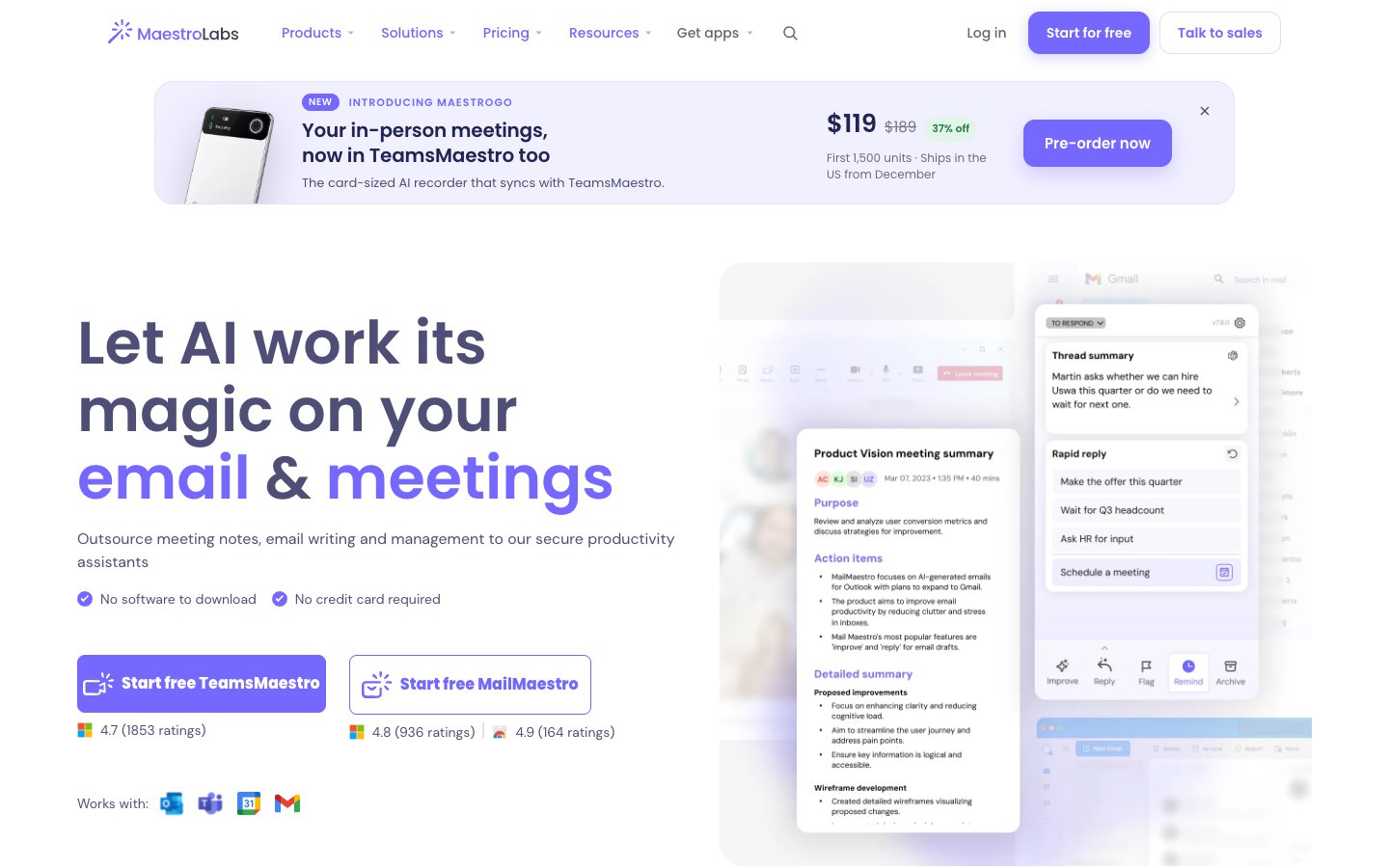
Yes, MailMaestro is available for Outlook. It's an add-in from Microsoft Marketplace that adds a panel for summarizing, composing, replying and improving drafts, plus automatic labels on paid plans.
Who it's for: Outlook users who mostly want help writing and reading long threads, for less than Copilot costs.
Price (checked October 12, 2026): free, with Compose, Reply and Improve limited to 3 a week. Professional is $15 a month or $12 a month billed yearly. The 14-day trial needs no card, and yearly plans can't be refunded. See MailMaestro's pricing.
Where it works: Outlook on the web, classic and new Outlook on Windows and Mac (its Marketplace listing says "Office 2016+"). On phones it's a beta that can reply but can't start a new email (MailMaestro's mobile tips). Also Gmail, through a Chrome extension.
Accounts: Outlook and Microsoft 365. Its pages don't say whether personal Outlook.com addresses work.
Acts on its own? It labels mail and reminds you about follow-ups. We found nothing saying it sends email for you.
AI and your data: it uses models from OpenAI, Anthropic and Google, and its security page says customer data is "never used to train AI models."
One real downside: it's a writing helper first. It doesn't triage your inbox for you, and the free tier, at 3 AI writes a week, is a demo rather than a plan.
Fyxer: best for sorting and pre-drafted replies on Microsoft 365
Fyxer connects to your mailbox, files new mail into five categories and writes reply drafts in your tone, ready in your Drafts folder. It also takes meeting notes. Our Fyxer AI review covers its new plans in detail.
Who it's for: professionals and teams on Microsoft 365 who want mail sorted and replies waiting for them.
Price (checked October 12, 2026): free, but the free plan doesn't sort mail or draft replies. Pro is $49 a month or $37 a month billed yearly; Team is $99 or $64. Sign-up starts a 14-day trial of the Team plan. See Fyxer's pricing.
Where it works: inside your mailbox, so folders and drafts appear in Outlook for Windows (Microsoft 365), Outlook on the web and new Outlook for Mac; Fyxer says older versions may not support categories. There's no Fyxer mobile app.
Accounts: cloud-hosted Microsoft 365 and Exchange Online. On-premises Exchange and hybrid setups aren't supported, and Fyxer doesn't say whether personal Outlook.com works.
Acts on its own? It moves mail into folders, but "Fyxer never sends emails on your behalf."
AI and your data: its privacy policy says it doesn't let third-party providers train on your mail, but "we use content to train and improve our own AI models", unless you opt out in the dashboard.
One real downside: at $49 a month for one person, it costs more than Microsoft 365 Premium with Copilot, and it trains its own models on your mail by default.
Inbox Zero: best for rules you write in plain English
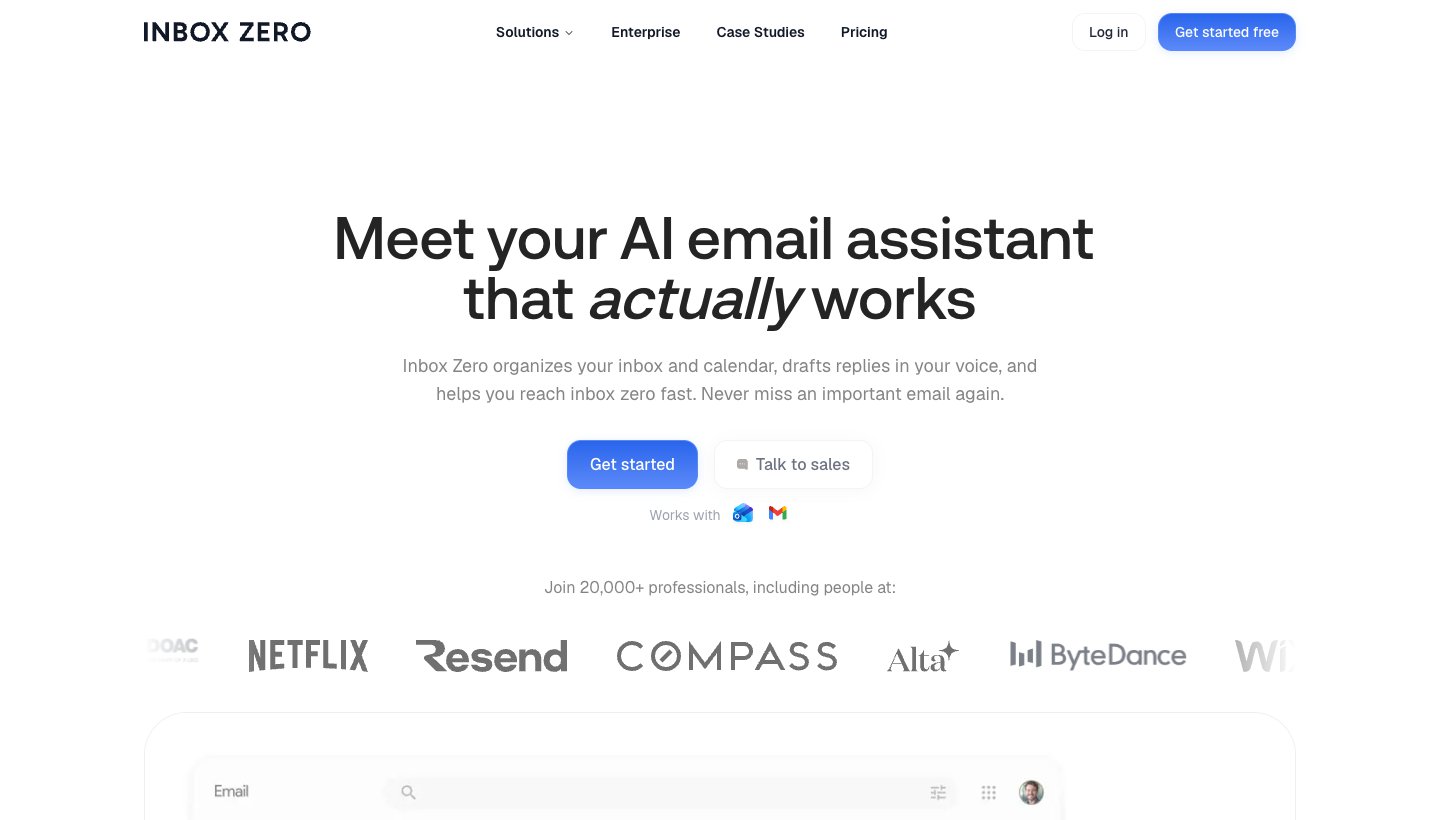
Inbox Zero is open source and runs in the background on your Outlook or Gmail account. You describe in plain English what should happen to which mail, and it labels, archives and drafts replies as mail arrives.
Who it's for: founders and small teams who like setting up rules and want them run by AI.
Price (checked October 12, 2026): Starter is $20 a month or $18 a month billed yearly; Plus $35 or $28; Professional $50 or $42. All plans have a 7-day trial; there's no free plan. See Inbox Zero's pricing.
Where it works: its Outlook page says it "works in the background" with "no browser extension required", so results show in Outlook on desktop, web and mobile. It also has iPhone and Android apps.
Accounts: "Outlook (Microsoft) accounts, including Microsoft 365." Personal Outlook.com isn't named.
Acts on its own? Yes, if you let it. Rules can reply, forward or send email. Automatic drafts wait for you.
AI and your data: its privacy policy says "We do not allow those providers to train their AI models using your data."
One real downside: it's only as good as your rules, and a badly worded send or forward rule will act on real mail.
SaneBox: best for moving clutter out of the inbox, cheaply
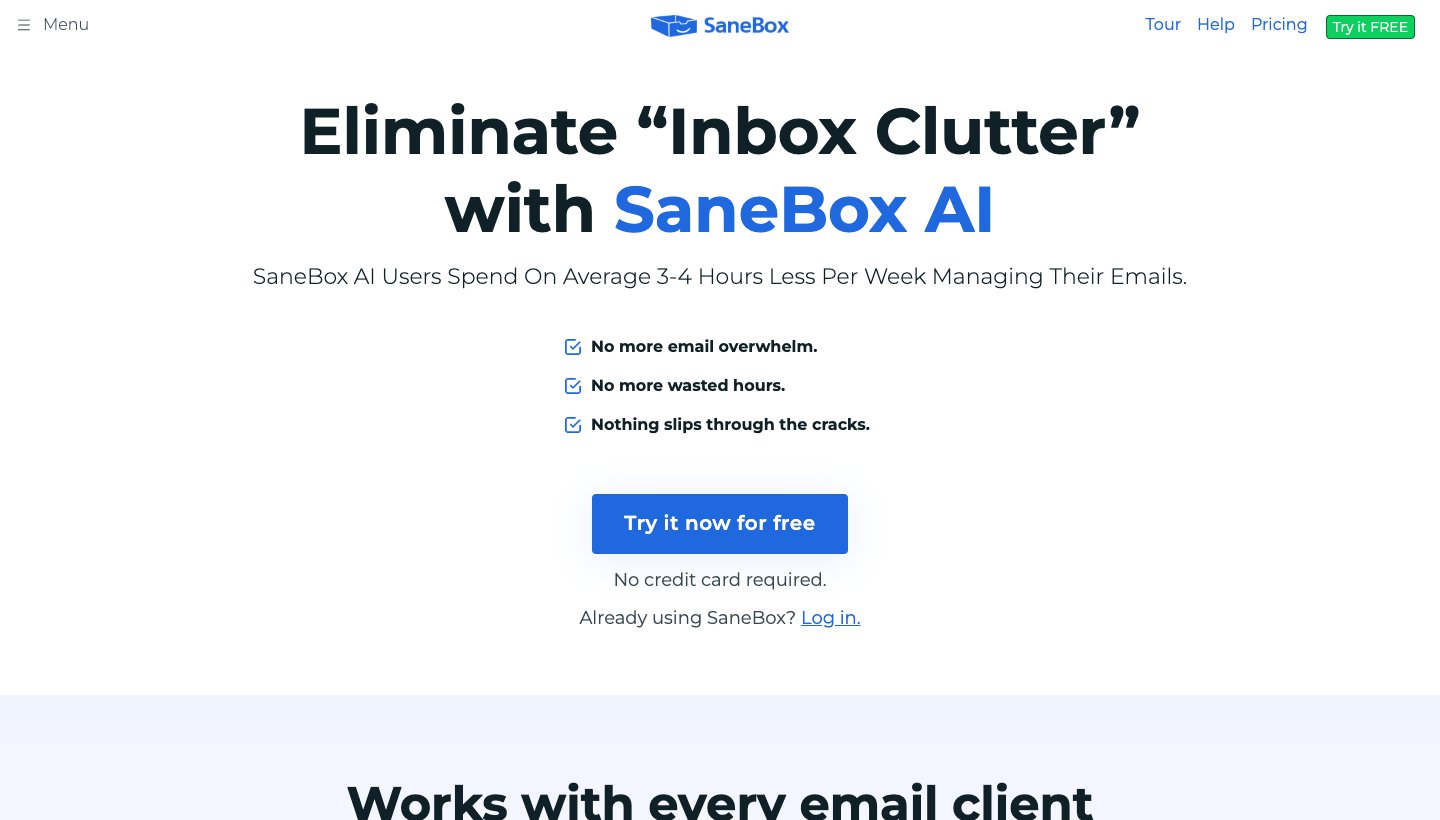
SaneBox isn't a writing tool. It watches what you open and reply to, then moves less important mail into folders such as SaneLater on the server, so the change shows up in every Outlook you use.
Who it's for: anyone, on almost any provider, who wants a quieter inbox and doesn't need drafts.
Price (checked October 12, 2026): Snack (1 account, 2 features) $3.49 a month or $2.42 billed yearly; Lunch (2 accounts) $5.99 or $4.08; Dinner (4 accounts, all features) $16.99 or $11.58. 7-day free trial. See SaneBox's pricing.
Where it works: every Outlook, desktop, web and phone, because it changes folders on the server.
Accounts: Outlook.com and Hotmail, Microsoft 365, Exchange and any IMAP account. Not POP.
Acts on its own? It moves mail, nothing more: "SaneBox doesn't send or receive your email."
AI and your data: it reads headers, not message bodies (SaneBox FAQ).
One real downside: it only sorts. No drafting, no summaries beyond its digest, and the cheap plans limit you to a few features.
Lindy: best if you want an agent beyond email
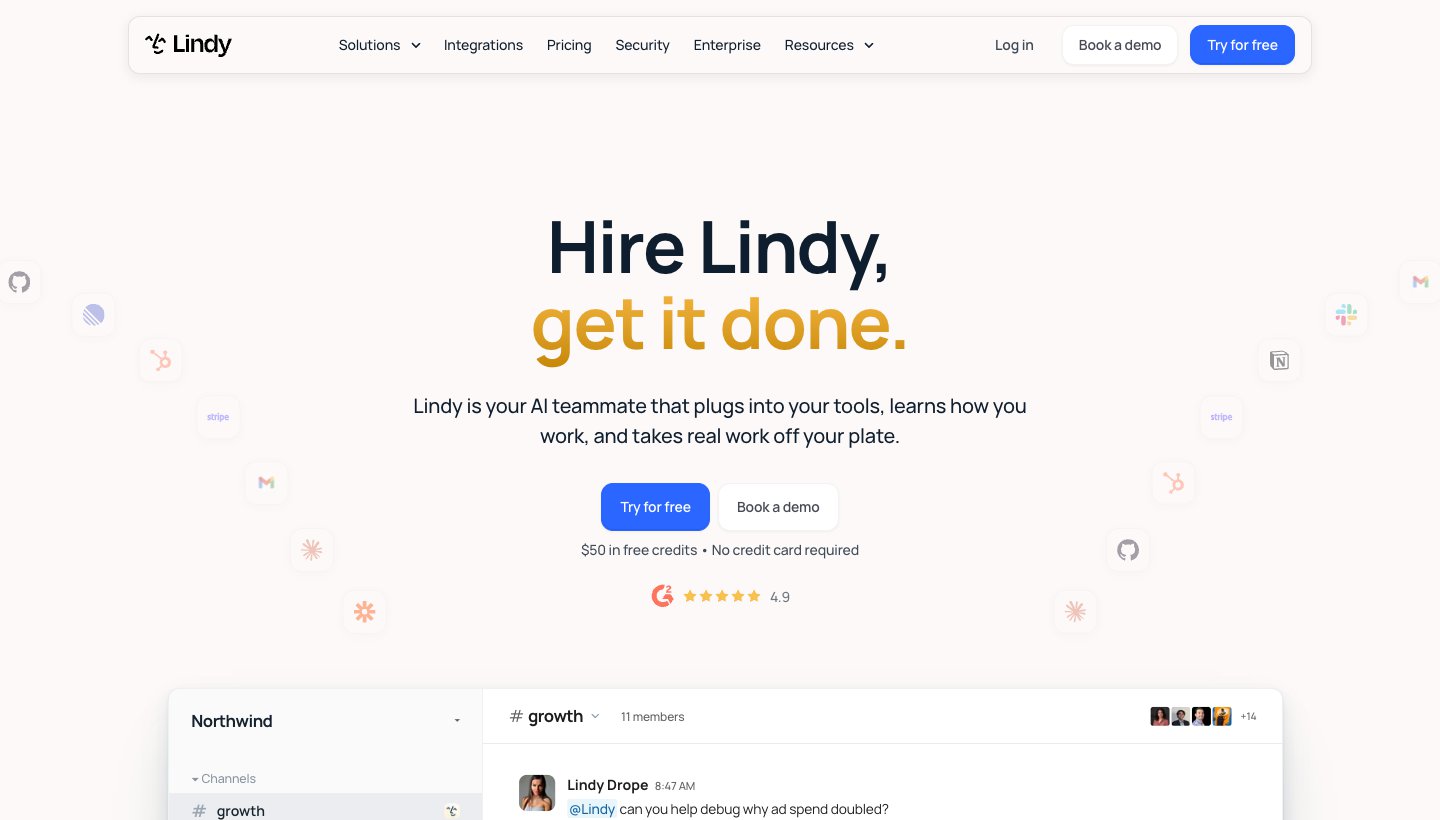
Lindy is a general AI assistant that lives in Slack, iMessage and a Chrome extension. Connected to Outlook, it drafts replies, schedules meetings and chases follow-ups, and it links to over 1,500 other tools.
Who it's for: teams that want one assistant across email, calendar and the rest of their work.
Price (checked October 12, 2026): free to start, with $50 of credits that last 7 days and no card. Team is $29.99 a month per active user with 3,000 credits; extra credits are $10 per 1,000. No yearly price is listed. See Lindy's pricing.
Accounts: "Gmail or Outlook." It doesn't say whether personal Outlook.com works.
Acts on its own? By default, "anything with outside impact waits for approval such as sending an email," but you can let it send routine follow-ups automatically.
AI and your data: Lindy says your data is "never used to train models." We couldn't open its privacy policy to check the detail.
One real downside: it's billed in credits, and big tasks use hundreds of them, so a month's cost is harder to predict than a flat fee.
Is there a ChatGPT for Outlook?
Sort of, but it works the other way round. We found no Outlook add-in made by OpenAI. Instead, ChatGPT has an Outlook Email app that you connect inside ChatGPT. OpenAI's help article says it can search your messages, look up people and manage contacts, and its example prompts include summarizing a sender's latest update or drafting a reply. You work in ChatGPT, not in Outlook. In company workspaces an admin may have to approve Microsoft permissions first, and with those switched on it can send plain-text email from shared or delegated mailboxes.
Inside Outlook itself, Copilot is Microsoft's answer, and MailMaestro's add-in uses models from OpenAI, Anthropic and Google. Marketplace add-ins with "ChatGPT" in the name come from other companies, so check who makes one before you give it your mailbox.
Or switch to an app built around AI
Sometimes the honest answer is that Outlook plus an add-on isn't the setup you want. Those are compared in our guide to the best AI email apps. One of them is ours.
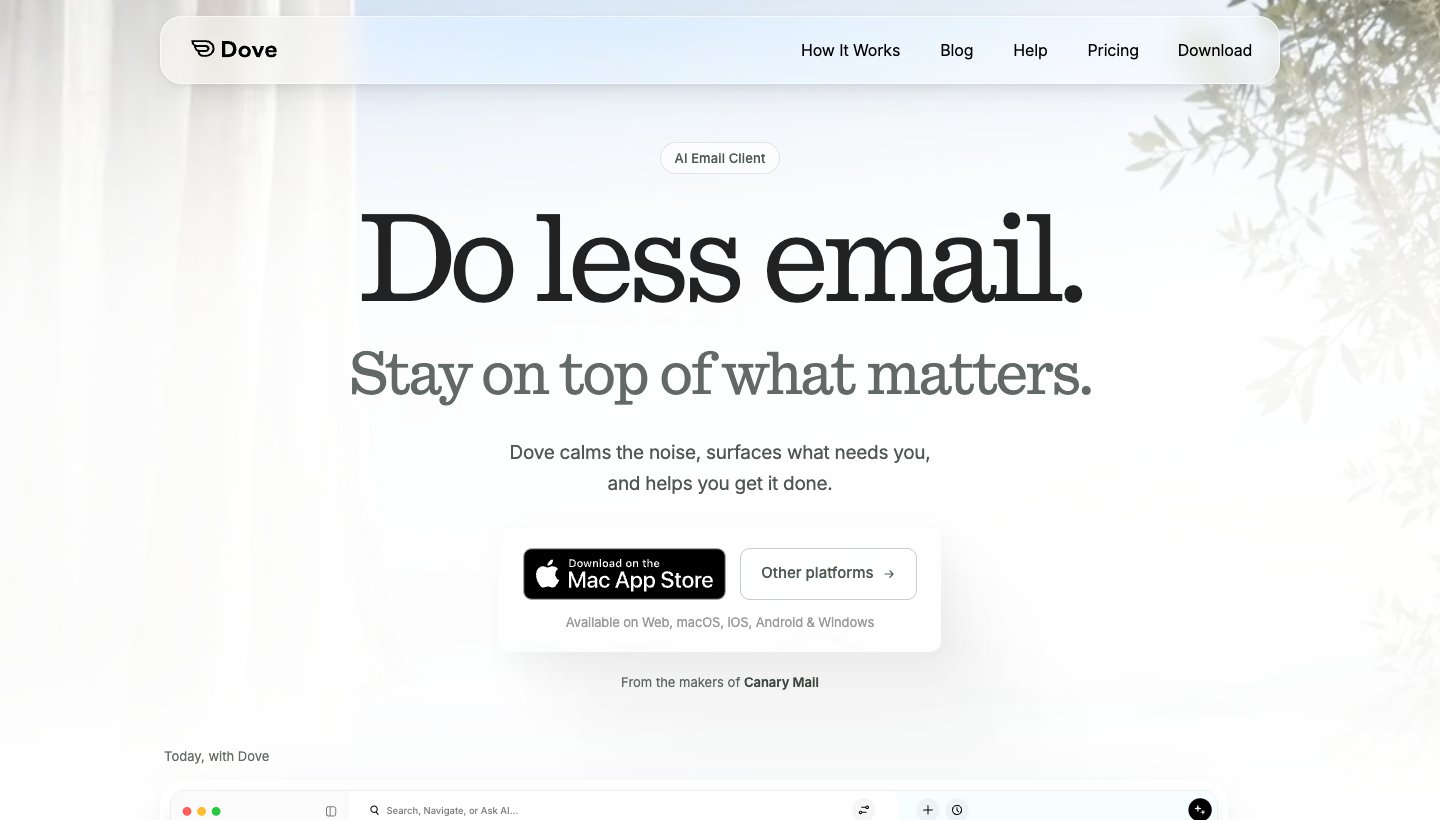
Dove is made by the team behind Canary Mail. It's an email app that works with Outlook.com and Microsoft 365 accounts (plus Gmail and IMAP), sorts new mail into Focus, Feed and Noise, drafts replies in your style and answers questions about your inbox.
Price (checked October 12, 2026): $20 a month or $200 a year. The free plan includes 10 AI actions a day, and the 7-day trial asks for a card. See Dove's pricing.
Platforms: Mac, Windows, iPhone, iPad, Android and web.
Privacy: email content is stored locally when possible.
One real downside: you leave Outlook. Your calendar, add-ins and Microsoft 365 workflows stay behind, and Dove is new, so its track record is short next to Outlook's.
If it's Outlook itself you're done with, our guide to Outlook alternatives compares the apps that read your Outlook.com or Microsoft 365 mail.
Which should you choose?
You pay for Microsoft 365 Personal, Family or Premium: turn on Copilot in new Outlook first. It costs nothing extra.
Your company has Copilot licences: use Copilot, and ask IT about the agentic features.
You want a quieter inbox for a few dollars: SaneBox.
You want writing help for less than Copilot: MailMaestro.
You want mail sorted and replies pre-drafted on Microsoft 365: Fyxer, if $37 to $49 a month is fine.
You like writing rules and want them automated: Inbox Zero.
You want an assistant across Slack, calendar and email: Lindy.
You use Gmail too: see our AI email assistant for Gmail guide.
FAQ
How do I enable AI in Outlook?
Sign in to Outlook with the account that has Microsoft 365 Personal, Family (owner only), Premium or a work Copilot licence. In new Outlook for Windows or on the web, open Settings > Copilot and switch on Turn on Copilot; on Mac, iPhone and Android it's under Quick Settings > Copilot. If Copilot still doesn't appear, check that Connected Experiences is on in Outlook's privacy settings.
Does Copilot work with a free Outlook.com account?
Only with a paid plan. Copilot works on Outlook.com, Hotmail and Live addresses when you're signed in with a Microsoft 365 Personal, Family or Premium account. Microsoft 365 Basic and free Outlook don't include AI features.
How do I get AI on my emails?
Start with what your plan already includes: Copilot in Outlook, or Gemini in Gmail. If that isn't enough, add a tool that does one job well (SaneBox for sorting, MailMaestro for writing), or switch to an email app with AI built in.
Is MailMaestro available for Outlook?
Yes. Install it from Microsoft Marketplace and it appears in Outlook on the web, and in classic and new Outlook on Windows and Mac. A mobile version is in beta. The free plan allows 3 AI writes a week; Professional is $15 a month, or $12 billed yearly.
Is there a free AI assistant for Outlook?
Partly. MailMaestro and Fyxer have free plans, but MailMaestro's allows 3 AI writes a week and Fyxer's doesn't sort mail or draft replies. At work, Copilot Chat in Outlook comes with your account even without the paid licence. Copilot on a personal account needs a paid Microsoft 365 plan, and that plan has a one-month free trial.
Can an AI assistant send Outlook emails for me?
Most won't. Fyxer and SaneBox say outright that they never send email, and we found nothing saying MailMaestro or Copilot on personal plans does. Inbox Zero will if you create a rule that sends or forwards, and Lindy can be set to send routine follow-ups automatically. Start with drafts you approve.
More from Dove
Recent posts
October 13, 2026
Outlook Alternatives in 2026: 9 Email Apps for Every Device
Microsoft isn't shutting Outlook down, but Windows Mail is gone and the old Outlook for Mac loses work accounts this month. Here's what's changing, and nine Outlook alternatives for Windows, Mac, iPhone and Android, with prices checked on October 13, 2026.
October 13, 2026
Gmail Alternatives in 2026: A New Provider, or Just a Better App
Leaving Google entirely means picking a new email provider. If you only dislike the Gmail app, you can keep your address and change the app instead. Both routes are covered below, with every price checked on October 13, 2026.
October 12, 2026
AI Email Assistant for Gmail in 2026: Gemini, Add-ons and What They Cost
Gmail already has a free AI assistant, at least in the US. Here's what Gemini does on each plan, how to switch it on or off, and when an add-on like Fyxer, Cora or Inbox Zero is worth paying for.