

How to Get to Inbox Zero in Gmail (and Stay There): Settings, Shortcuts and a Daily Routine
To get to inbox zero in Gmail, archive everything you've already dealt with, not delete it. Archived mail leaves your inbox but stays in All Mail, searchable forever. Clear your backlog in one go with a search and Gmail's "select all" link, then keep the inbox empty with one rule: every email you open gets archived, answered, snoozed, added to Tasks or deleted. Turn on keyboard shortcuts and the Send & Archive button, and it takes seconds per email.
Inbox zero doesn't mean an empty Gmail account. It means your inbox only holds email that still needs you. Everything else is filed, out of sight, and easy to find.
We checked every Gmail setting and step below against Google's help pages on November 19, 2026.
Step 1: Clear the backlog in minutes (archive, don't delete)
If you have thousands of emails in your inbox, don't try to read them. Archive them in bulk.
In the Gmail search box, type older_than:1m to find every email older than a month. (Use older_than:1y for a year, or older_than:7d for a week.) Archiving mail that's already out of your inbox changes nothing, so this only clears what's still in it.
Tick the select box at the top left of the list.
Gmail then shows a banner offering to select every conversation, not just the ones on this page (in your inbox it reads like "Select all 2,000 conversations in Inbox"). Click the link in it.
Click Archive.
Your inbox now holds only the last month. Do the same with category:promotions and category:social to clear the bulk mail from the last month too.
Why archive and not delete? Google's archive help page explains: "When you archive a message, it no longer appears in your inbox, but you can still find it under the "All mail" label." Deleted mail goes to Trash and is permanently deleted after 30 days. You'll want that old contract or receipt one day. And if someone replies to an archived email, Google says "it returns to your inbox", so you won't miss anything new.
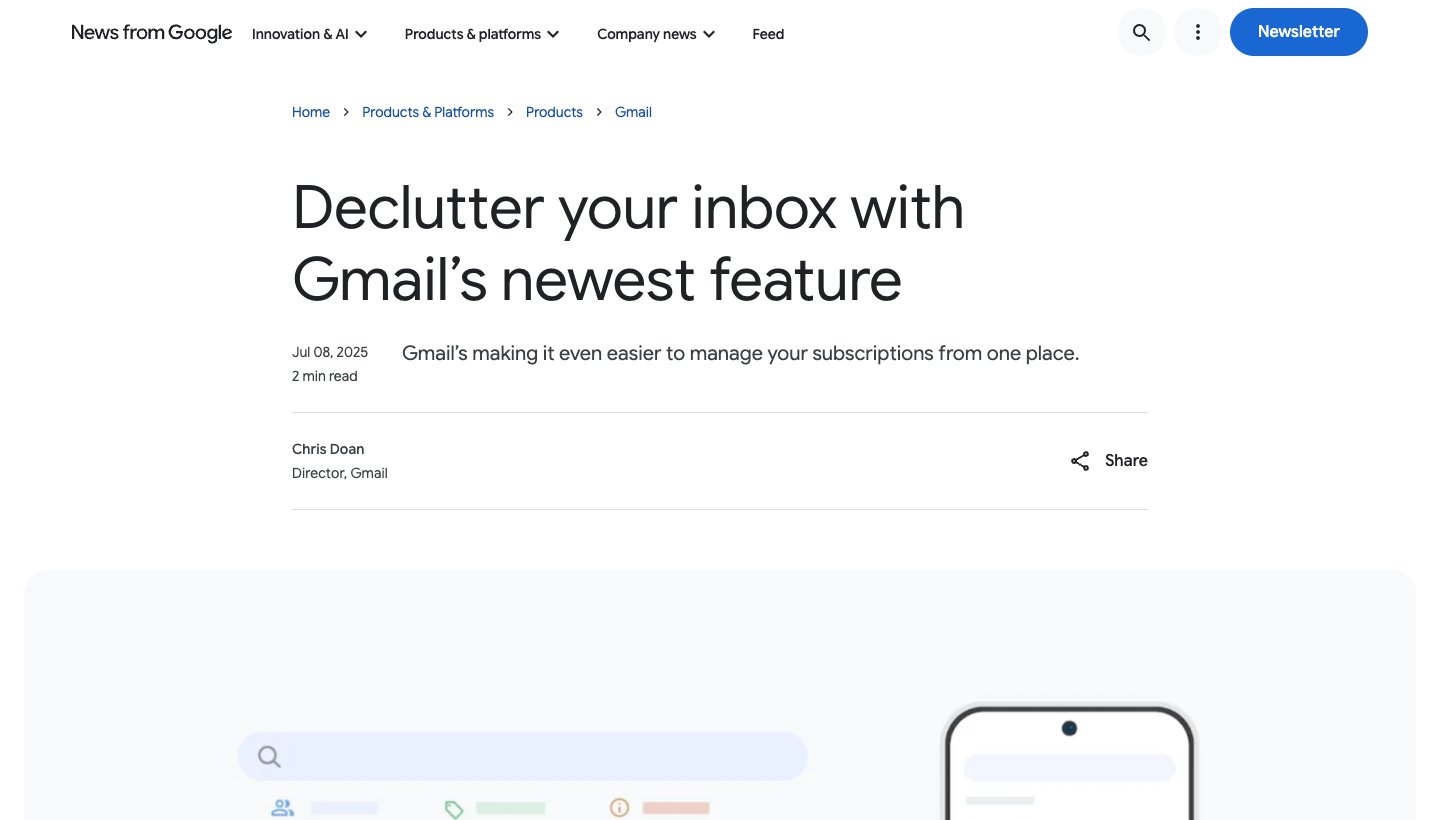
Then stop the flow. Unsubscribe from the mail you never read: in Gmail on the web, click More, then Manage subscriptions, and unsubscribe from the senders at the top of the list. Our guide shows how to unsubscribe from emails in Gmail in more detail.
Step 2: Set up Gmail for inbox zero
These settings make each email one keystroke or one swipe.
Turn on keyboard shortcuts
On a computer, click Settings, then See all settings. Scroll to Keyboard shortcuts, select Keyboard shortcuts on and click Save Changes (Google's shortcut list). The ones that matter for inbox zero:
Key | What it does |
|---|---|
e | Archive |
# | Delete |
] or [ | Archive and go to the previous or next conversation |
b | Snooze |
Shift + t | Add to Tasks |
x | Select a conversation |
z | Undo your last action |
m | Mute a conversation |
Turn on Send & Archive
This puts a button beside Send that sends your reply and archives the thread in one click. Click Settings, then See all settings, scroll to the Send and Archive section and select Show "Send & Archive" button in reply, then Save Changes. Google's inbox tips page covers it.
Set swipe actions on your phone
On iPhone and iPad, tap Menu, then Settings. Under Inbox, tap Inbox customizations, then Mail swipe actions, and set a swipe to Archive. On Android, Google's help gives Settings > General settings > Swipe actions, and says the Android settings menu is being redesigned from November 2026, so the path may differ on your phone (Google's swipe help).
Choose an inbox type
Gmail has six inbox types under Settings > Inbox type: Default, Important first, Unread first, Starred first, Priority Inbox and Multiple Inboxes (Google's inbox types). For inbox zero, two work best:
Default with category tabs. Keep Primary, Social and Promotions apart, and aim for zero in Primary. Archive the other tabs in bulk once a week.
Multiple Inboxes, for Google's own method below.
Turn on Nudges
On the General tab, next to Nudges, you can have Gmail suggest emails you forgot to reply to, and emails to follow up on (Google's Nudges page). It's a safety net when you archive fast.
Step 3: The daily routine (Google's own zero inbox method)
Google's Workspace learning center describes a "zero inbox method" built on three labels: Action, Follow-up and Later (Google's tips page). Here's how to set it up and use it.
Set it up once:
Create three labels: Action, Follow-up and Later.
Change your inbox type to Multiple Inboxes and add three sections with the searches label:action, label:follow-up and label:later.
Then, every day:
Google suggests setting aside 30 minutes in the morning to triage, and answering anything that takes less than 5 minutes straight away. For everything else, each email gets one of five decisions:
Answer it now if it's quick, using Send & Archive.
Label it Action if it needs real work, then archive it from the inbox. It stays in your Action section.
Label it Follow-up if you're waiting on someone.
Label it Later for reading you'll get to.
Archive or delete it if it needs nothing.
If you'd rather not use labels, Gmail's own tools do the same job: Snooze (b) brings an email back when you need it, and Add to Tasks (Shift + t) turns it into a to-do in Google Tasks with a link to the email (Google's Tasks help).
Keep it at zero with filters
For mail you want but never need to see at once, such as receipts or notifications, make a filter that skips the inbox. Search for the sender, click Show search options, click Create filter, and tick Skip the Inbox (Archive it). You can also add a label so it's easy to find. Google's filter steps cover creating the filter, and its inbox tips name the Skip the Inbox (Archive it) box.
What happened to Google Inbox?
Some people searching for "Google inbox zero" remember Inbox by Gmail, Google's separate email app that bundled and swept away mail. Google shut it down: in September 2018 it said it would "say goodbye to Inbox by Gmail at the end of March 2019" (Google's announcement). Google says it moved popular Inbox ideas into Gmail, naming snoozing, Smart Reply, Nudges and high-priority notifications. Everything above is how to get the same result in Gmail today.
Can AI help?
Gmail's AI Inbox pulls suggested to-dos and topics to catch up on from your Primary tab. Google says it's in beta and needs a paid Google AI plan or an eligible Workspace plan, in English, in the US (Google's Gemini features).
Email apps can do some of the sorting for you as well. Dove, our email app made by the team behind Canary Mail, sorts every new email into Focus, Feed and Noise, so mail from people is apart from newsletters before you start, and marking an email Done clears it from view. It works with Gmail and other accounts, and its sorting is on the paid plan ($20 a month or $200 a year). For more tools that help, see our guide to the best email management software and, for a big backlog, the best email cleaner apps.
FAQ
How do I get my Gmail inbox to zero?
Search older_than:1m, tick the select box, click the link to select every conversation, and click Archive. Then archive, answer, snooze or delete each new email as you read it, so nothing stays in the inbox once you've dealt with it.
Is inbox zero possible?
Yes, because inbox zero isn't about having no email. It means your inbox only holds what still needs you. Archiving keeps everything else searchable in All Mail.
Should I archive or delete emails for inbox zero?
Archive. Archived email stays in All Mail and comes back to your inbox if someone replies. Deleted email is permanently removed after 30 days in Trash.
How do I find archived emails in Gmail?
Click More, then All Mail, or search in:archive. Searching by sender or subject also finds archived mail.
Why is my Gmail inbox empty all of a sudden?
Common reasons: emails were archived (look in All Mail), a filter is skipping the inbox, you're looking at a category tab that has no new mail, or another device or app archived them. Check Settings > See all settings > Filters and Blocked Addresses for filters that skip the inbox.
What is inbox zero in email?
A way of handling email where you decide what to do with each message as you read it, and move it out of the inbox once decided. The inbox becomes a to-do list of what's left, not a storage folder.
What happened to Google Inbox?
Inbox by Gmail was Google's separate email app. Google closed it at the end of March 2019 and moved features such as snoozing, Smart Reply and Nudges into Gmail.
More from Dove
Recent posts
November 19, 2026
How to Schedule Send in the Outlook App (Phone, Windows, Mac and Web)
How to schedule an email to send later in Outlook on every device, checked against Microsoft's support pages in November 2026, plus which accounts can't do it and why the button goes missing.
November 19, 2026
Spark Mail Review (2026): Is the Free Email App Still Worth It?
Spark is one of the best free email apps for people with several accounts, but its AI and some of its best sorting tools are paid, and much of it runs through Spark's servers. Checked on Spark's own site on November 19, 2026.
November 19, 2026
How to Add or Change Your Signature in the Outlook App (Phone, Windows, Mac and Web)
Exact steps to add, change or remove your signature in Outlook on every device, checked against Microsoft's support pages in November 2026, plus why your phone and computer signatures don't match.