

How to Schedule Send in the Outlook App (Phone, Windows, Mac and Web)
To schedule an email in Outlook on a computer or the web, write your message, select the arrow next to Send, choose Schedule send, and pick a time or Custom time. The email waits in your Drafts folder and goes out at that time, even if Outlook is closed. In the Outlook phone app, Schedule send is a menu option while you write, for Microsoft accounts.
Two things trip most people up:
It doesn't work for every account. Microsoft says schedule send "is not available for IMAP or POP accounts", which includes Gmail, Yahoo and iCloud added to Outlook. It works for Microsoft 365, Exchange and Outlook.com accounts.
Classic Outlook for Windows works differently. It delays delivery from your computer, keeps the message in your Outbox, and Microsoft says "Outlook needs to be online and connected for this feature to work."
We checked every step below against Microsoft's own support pages on November 19, 2026.
Which accounts can schedule send?
Outlook | Microsoft 365, Exchange, Outlook.com | Gmail, Yahoo, iCloud and other IMAP or POP | Sends with Outlook closed? |
|---|---|---|---|
New Outlook for Windows, web, Outlook.com | Yes, Schedule send | No | Yes |
Outlook for Mac | Yes, Schedule send | No | Yes |
Outlook app on iPhone and Android | Yes (see below) | Not supported, a Microsoft forum moderator says | Yes, via Microsoft's server, the same moderator says |
Classic Outlook for Windows | Do not deliver before | A rule can delay all mail by up to 2 hours | No, Outlook needs to be online |
Scheduling in new Outlook, on the web and on Mac is held by Microsoft's mail server, which is why it sends while your computer is off. Microsoft's Mac page says so directly: "It will be sent even if Outlook is not open on your computer."
How to schedule send in the Outlook app on iPhone and Android
Microsoft's help pages don't give phone steps. Its Exchange documentation for Outlook for iOS and Android does mention Schedule Send, in a list of app features that aren't supported for company mailboxes on their own servers, which tells you the feature exists in the app. The steps below are the ones shown in user guides and videos, not by Microsoft, so the labels on your phone may differ slightly:
Open the Outlook app and tap New mail.
Add the recipient, subject and message.
Tap the menu next to the send button (the three dots, or a clock or arrow beside it, depending on your version).
Tap Schedule send and pick one of the suggested times, or choose your own date and time.
Confirm. The email waits and goes out at that time.
If you don't see Schedule send on your phone:
Check the account. On Microsoft's Q&A forum, a Microsoft moderator explained that the phone app sends scheduled mail from Microsoft's Exchange servers, so it "doesn't support third-party accounts such as Gmail".
Your company's mail server may not support it. Microsoft's documentation lists Schedule Send as unsupported for company Exchange mailboxes that are still on the company's own servers (on-premises).
On iPhone, it may be greyed out. Users on Microsoft's Q&A forum have reported the option missing or greyed out on some iPhones, with no fix from Microsoft; one moderator even said it wasn't available on iOS, while other users said it worked.
Use Outlook on the web instead. It's the same account, and the steps there are documented by Microsoft (below). Open outlook.com or outlook.office.com in your phone's browser if you need it right away.
Don't confuse it with the swipe called Schedule in the phone app's inbox. Microsoft's mobile help says that swipe is for "a later date/time" to bring a message back to your inbox, like snooze. It doesn't send anything.
How to schedule send in new Outlook for Windows and Outlook on the web
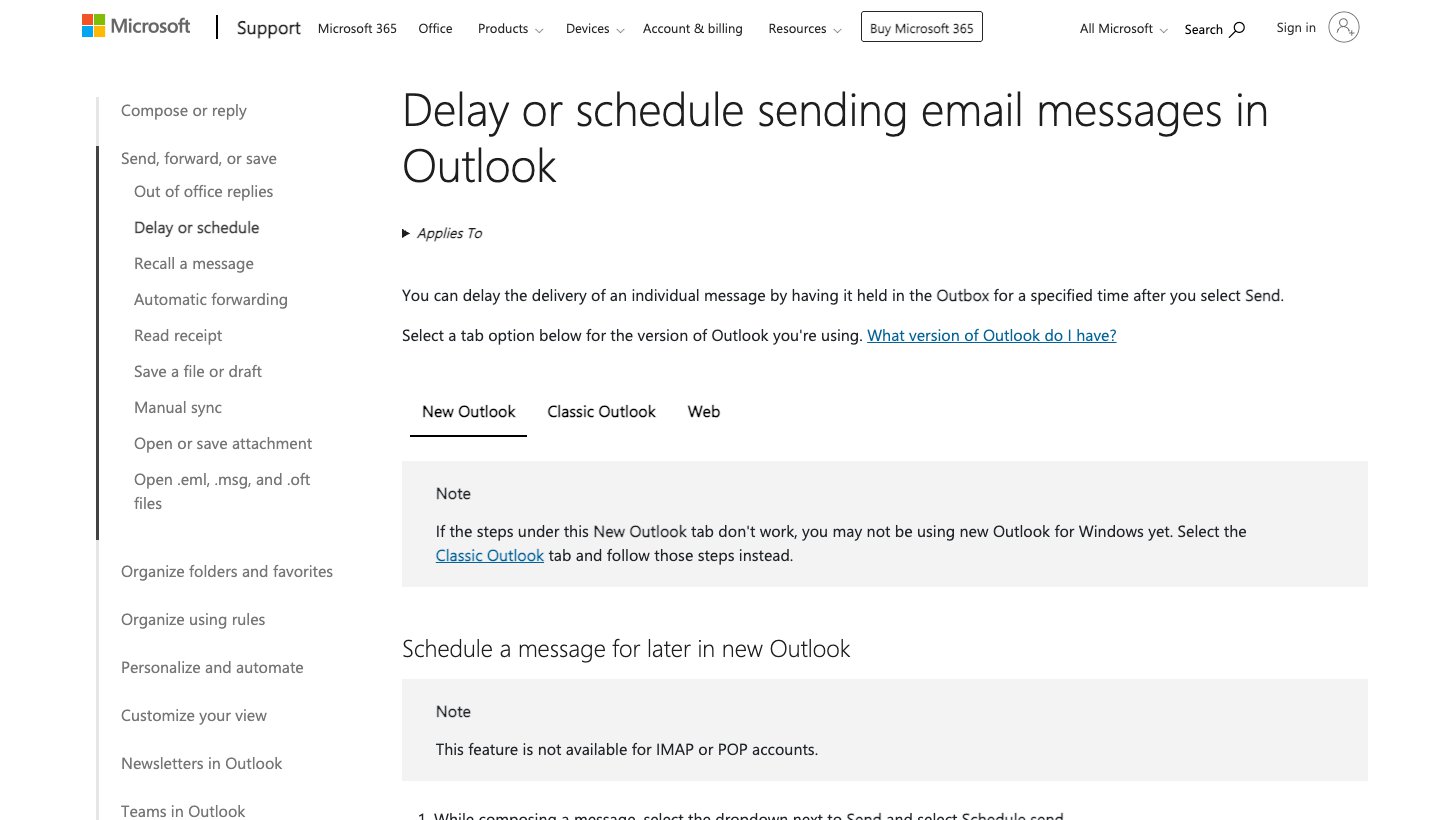
These steps are from Microsoft's page on delaying or scheduling email. They're the same in new Outlook for Windows, Outlook on the web and Outlook.com.
Write your email.
Select the dropdown arrow next to Send.
Select Schedule send.
Select one of the default options, then Send. Or choose a custom time, set the date and time, and select Send.
The email stays in your Drafts folder until it goes out.
To cancel or change it: open the email in Drafts and select Cancel send. You can then edit it and schedule it again, or send it straight away.
How to schedule send in Outlook for Mac
From Microsoft's Mac schedule send page:
Write your email and add at least one recipient on the To line.
Click the dropdown arrow on Send and choose Schedule send.
Enter the date and time, and click OK.
The email waits in Drafts. Microsoft says this needs "an Exchange account such as Outlook.com hosted on Microsoft 365", so it isn't available for Gmail, Yahoo or iCloud accounts. Older versions of Outlook for Mac call it Send Later.
To cancel it: open the email in Drafts, click Cancel Send, then Yes. The email stays open so you can send it or schedule it again.
How to delay sending in classic Outlook for Windows
Classic Outlook, the older app with the File tab, delays delivery instead.
While writing your email, select the Message Options arrow in the Tags group on the ribbon. (With the simplified ribbon, go to the Options tab and select More commands.)
Under Delivery options, tick Do not deliver before and choose the date and time.
Select Close.
When your email is ready, select Send.
The email waits in your Outbox, not Drafts. The big difference from new Outlook: Microsoft says "Outlook needs to be online and connected for this feature to work." Its troubleshooting article adds that if Outlook is in Cached Exchange Mode and isn't running at the scheduled time, the email "may not be delivered at the scheduled time", because it waits on your computer, not on the server. If you need it to go out while your PC is off, schedule it from Outlook on the web.
To cancel or change it: open the email in the Outbox, clear Do not deliver before (or change the time), select Close, then Send.
Delay every email by a few minutes
Classic Outlook can hold all your outgoing mail for a set time, which gives you a window to fix mistakes. Go to File > Manage Rules & Alerts > New Rule, start from a blank rule for messages you send, apply it to all messages, and choose defer delivery by a number of minutes. You can set 1 to 120 minutes (Microsoft's steps).
Microsoft notes it's a client-side rule that "will process only when Outlook is running". New Outlook and Outlook on the web don't support it; use Undo send there instead.
Undo send: a short delay on every email
If you just want a few seconds to catch a mistake, use Undo send rather than scheduling.
Outlook.com and Outlook on the web: go to Settings > Mail > Compose (called Compose and reply in older versions) and set the Undo send time. Microsoft says you can delay sending "for up to 30 seconds."
Outlook for Mac: Outlook > Settings > Composing, where you can set a delay of up to 120 seconds (Microsoft's Mac page).
Schedule send not showing? Common causes
It's a Gmail, Yahoo, iCloud or other IMAP account. Schedule send isn't available for these in Outlook. Schedule the email in that provider's own app instead; Gmail, for example, has its own schedule send.
You're in classic Outlook. Look for Do not deliver before under the Message Options arrow, not a Schedule send button.
Your company's mail is on its own Exchange server. Schedule send in the phone app isn't supported for on-premises mailboxes, according to Microsoft's documentation. Ask your IT team.
The scheduled email didn't go out from classic Outlook. Outlook was probably closed at the scheduled time. Use the web for the next one.
Scheduling email in other apps
Most email apps now have a schedule send of their own, and some work with accounts Outlook can't schedule for. Dove, our email app made by the team behind Canary Mail, calls it Send Later. It works with Gmail, Outlook, iCloud, Yahoo and IMAP accounts, sends from Dove's servers so your device can be off, and suggests a time when the person usually replies. It's part of Dove Pro ($20 a month or $200 a year). If you're thinking about other apps, see our guides to Outlook alternatives and AI email assistants for Outlook. For more Outlook how-tos, see how to set out of office and how to add a signature in the Outlook app, and for keeping email under control in general, our guide to the best email management software.
FAQ
Can I schedule an email in the Outlook app?
Yes, for Microsoft 365, Exchange and Outlook.com accounts. On a computer or the web, select the arrow next to Send and choose Schedule send. In the phone app, it's in the menu next to the send button while you write.
Why is there no schedule send option in Outlook?
Usually because the account is Gmail, Yahoo, iCloud or another IMAP or POP account, which Outlook can't schedule for. In classic Outlook for Windows, the option is Do not deliver before, under the Message Options arrow.
Can I schedule send on the Outlook app on iPhone?
It's in the app for Microsoft accounts, though Microsoft doesn't publish phone steps, and some iPhone users report the option missing or greyed out. If you don't see it, check the account type, or schedule the email from Outlook on the web in your phone's browser.
Does a scheduled email send if my computer is off?
In new Outlook, on the web and on Mac, yes: Microsoft's server sends it, and a Microsoft forum moderator says the phone app works the same way. In classic Outlook for Windows, a delayed email may not send on time if Outlook isn't running, so leave it open or schedule from the web.
How do I cancel a scheduled email in Outlook?
In new Outlook, on the web and on Mac, open it from Drafts and select Cancel send. In classic Outlook, open it from the Outbox, clear Do not deliver before, then close and send it.
How can I set a 2-minute delay for every email in Outlook?
In classic Outlook for Windows, create a rule that applies to all messages you send and choose defer delivery by a number of minutes, set to 2. Outlook has to stay open. On Outlook.com, use Undo send instead, which Microsoft says can hold an email for up to 30 seconds.
Where do scheduled emails go in Outlook?
In new Outlook, on the web and on Mac, they wait in Drafts. In classic Outlook for Windows, they wait in the Outbox.
More from Dove
Recent posts
November 19, 2026
How to Get to Inbox Zero in Gmail (and Stay There): Settings, Shortcuts and a Daily Routine
Inbox zero in Gmail means your inbox only holds what still needs you. Here's how to clear years of mail safely, which Gmail settings help, and the daily routine Google itself suggests. Checked against Google's help pages in November 2026.
November 19, 2026
Spark Mail Review (2026): Is the Free Email App Still Worth It?
Spark is one of the best free email apps for people with several accounts, but its AI and some of its best sorting tools are paid, and much of it runs through Spark's servers. Checked on Spark's own site on November 19, 2026.
November 19, 2026
How to Add or Change Your Signature in the Outlook App (Phone, Windows, Mac and Web)
Exact steps to add, change or remove your signature in Outlook on every device, checked against Microsoft's support pages in November 2026, plus why your phone and computer signatures don't match.