

How to Add or Change Your Signature in the Outlook App (Phone, Windows, Mac and Web)
To add a signature in the Outlook app on your phone, open Settings, tap Signature under Mail, delete the default "Get Outlook for iOS" (or "Get Outlook for Android") line and type your own. If you have more than one email account, turn on Per Account Signature to give each one its own. The steps are the same on iPhone, iPad and Android.
One thing catches a lot of people out: the signature you set on your phone is set in the phone app's own settings, and Microsoft's help for the app doesn't say it picks up your computer's signature. People on Microsoft's own Q&A forum report that it doesn't, so plan to set it once on your phone and once on your computer.
We checked every step below against Microsoft's own support pages on November 19, 2026.
How to add a signature in the Outlook app on iPhone, iPad and Android
Open the Outlook app and tap your profile picture or the account icon at the top left.
Tap Settings (the gear).
Under Mail, tap Signature.
Delete the default "Get Outlook for iOS" or "Get Outlook for Android" text.
Type or paste your signature.
If you have several accounts, turn on Per Account Signature and enter a signature for each account.
Go back to save it.
These steps come from Microsoft's page for Outlook for iOS and Android: "Open Settings. Under Mail, tap Signature. Enter your signature or switch the toggle to enable Per Account Signature."
To remove the "Get Outlook" line without adding a signature, follow the same steps and simply delete the text. Microsoft's accessibility guide says: "If you don't want to have any signature at the end of your email messages, simply delete the signature text." On some work phones your IT team may have turned the default line off already.
Can you add a logo or links on your phone?
Microsoft's mobile help doesn't say. The signature box takes plain text reliably. People who paste a formatted signature from a computer report mixed results, especially with images. If you need a logo and formatted links, set your signature up on Outlook for Windows, Mac or the web, where Microsoft documents images and links.
How to add a signature in new Outlook for Windows
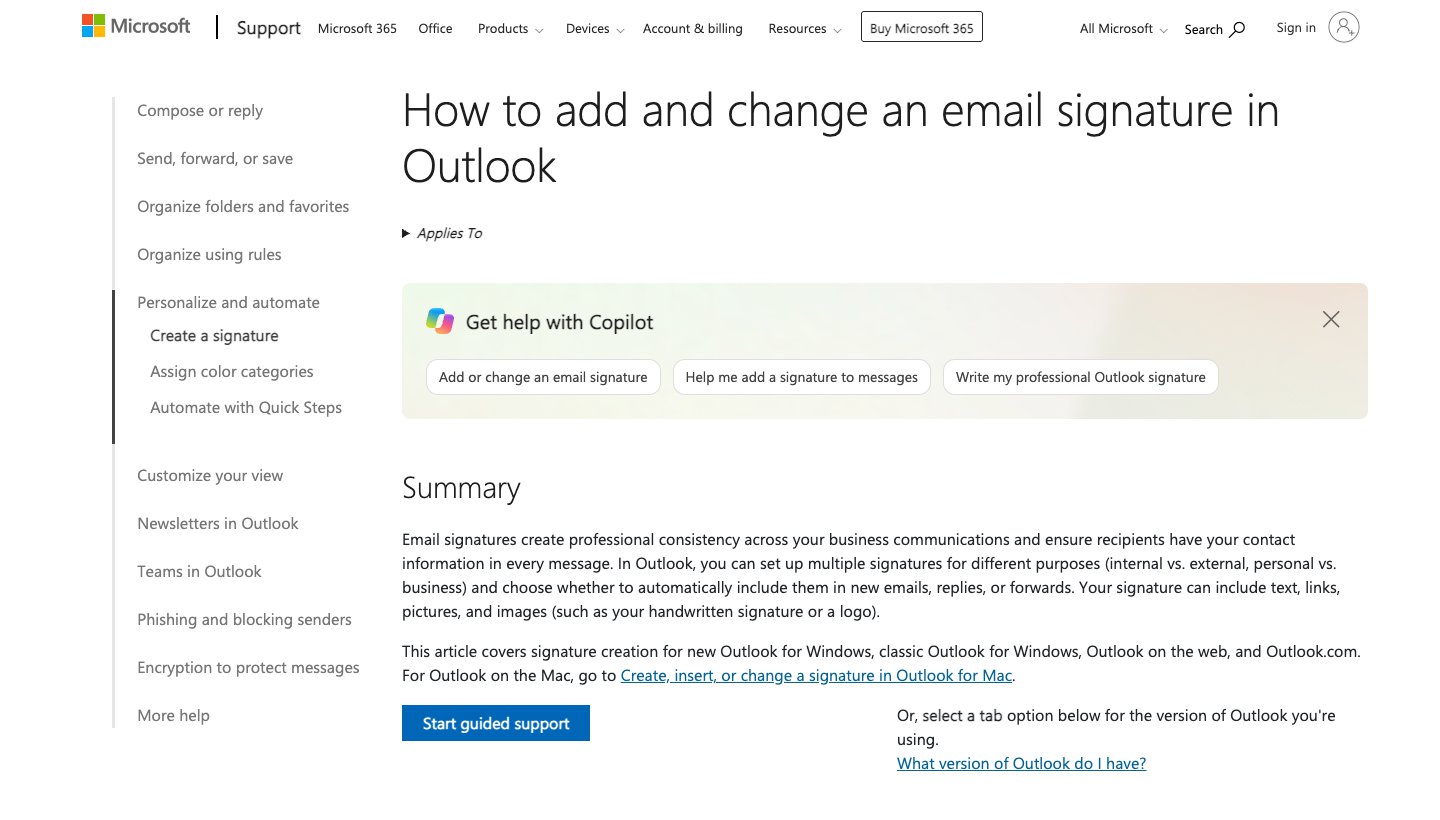
New Outlook is the version with the View tab and a Settings gear at the top. These steps are from Microsoft's signature help page.
Select Settings.
Select Accounts > Signatures.
If you have more than one account, pick the account for this signature.
Select Add signature and give it a name.
Type your signature in the box below the name, and format it with the font, color and style you want.
Use the checkboxes at the bottom to add it to new messages, and to replies and forwards. Or leave them blank and add it by hand when you write.
Select Save.
To add a saved signature to one email: in a new message, go to the Message tab and select Signature in the Insert group, then pick one.
To change it: go to Settings > Accounts > Signatures, select Edit signature next to it, make your changes and select Save.
How to add a signature in Outlook on the web and Outlook.com
The steps are the same as new Outlook for Windows. Microsoft says so itself.
Sign in at outlook.com (personal) or outlook.office.com (work or school).
Select Settings at the top of the page.
Select Accounts > Signatures.
Select Add signature, name it, type and format your signature.
Choose whether to add it to new messages and to replies and forwards.
Select Save.
To change it, use the Edit signature button next to it in the same place.
How to add a signature in classic Outlook for Windows
Classic Outlook is the older desktop app with the File tab.
Open a new email. On the Message menu, select Signature > Signatures. (Or go to File > Options > Mail > Signatures.)
In the E-mail account drop-down, choose the account. Each account can have its own signature.
Under Select signature to edit, choose New and type a name.
Under Edit signature, write your signature. The small toolbar adds links, images and font changes.
Under Choose default signature, pick it for New messages and for Replies/forwards.
Select Save, then OK.
A few things Microsoft points out:
The email you have open won't get the new signature. Classic Outlook doesn't add it to the message you started from, so insert it by hand there.
For tables, bullets or borders, make your signature in Word and paste it into the Edit signature box.
To add a logo, use the Image button in the toolbar.
To attach your contact card, select Business Card in the same box and pick a contact. (Microsoft's business card steps)
To change a signature later, go back to File > Options > Mail > Signatures, select it, edit it, then Save and OK. To remove one, select it and choose Delete.
How to add a signature in Outlook for Mac
These steps are for the current Outlook for Mac, from Microsoft's Mac signature page.
Open the Outlook menu and select Settings.
Select Mail, then Signatures.
Rename the "Untitled" signature, or use the add button to start a new one, and type your signature. The More items button (…) adds a picture, a link or a table.
Under Set default signature, choose each account and pick a signature For new messages and For replies or forwards. Each account needs its own default.
Why your Outlook signatures don't match on every device
Microsoft added roaming signatures so a signature is stored in your mailbox instead of on one computer. Its roaming signatures page, which is about Outlook for Windows, explains the limits:
You need a recent version. "This feature is available for Outlook build 2303 or higher."
Only some accounts roam. It's for "mailboxes on Microsoft 365 or Outlook.com". Exchange servers your company runs itself, "third-party email services" and POP or IMAP accounts (such as Gmail or Yahoo added to Outlook) "will not be able to roam their signatures at this time."
Only your default signatures move. Outlook copies the signatures set as default for new messages or replies and forwards; others stay on that computer under "Signatures on this device".
Phones aren't mentioned. The page doesn't say the iPhone and Android apps use roaming signatures, and the app has its own signature setting. Users on Microsoft's Q&A forum report the phone app doesn't pick up the desktop signature.
Microsoft's own classic Outlook tab still says that if you use both Outlook and Outlook on the web with a personal Microsoft account, "you need to create a signature in both products." If your signature doesn't appear on one of them, that's the fix: create it there too.
Signature not showing? Common fixes
It's missing from replies on your phone. Microsoft's mobile help doesn't cover this. On Microsoft's Q&A forum, the most-voted user answer says the signature appears once you open the quick reply in a full window, though others say that doesn't work for them on iPhone.
It's missing from replies on a computer. The signature has a separate setting for replies and forwards. Check the Replies/forwards default in classic Outlook, For replies or forwards on Mac, or the replies and forwards checkbox in new Outlook and on the web.
It's on your computer but not your phone, or the other way round. They're separate (see above). Add it in the Outlook app's settings too.
You changed it, but the old one still appears. Check you edited the signature that's set as the default for that account. In classic Outlook, the email you already had open keeps the old one.
Images don't show. Microsoft fixed a known issue from May 2026 where images in signatures weren't displayed in classic Outlook. Update Outlook if you still see it.
On a Mac, edits won't save. Microsoft lists this as a known issue in the new settings pane, last updated in July 2026.
Tables gained borders. A classic Outlook update (version 2512) added borders to signature tables; Microsoft has a fix page.
What to put in an email signature
Keep it to three or four lines. Most people need:
Your name
Your job title and company
One phone number
One link, to your website or booking page
Skip quotes, long legal text if you don't need it, and big images: on a phone, a short text signature reads better than a logo that may not load.
Example:
Jamie Lee Account Manager, Example Co. +1 555 010 0199 · example.com
Using Outlook with other email apps
If you read your Outlook mail in another app, the signature lives in that app, not in Outlook. Dove, our email app made by the team behind Canary Mail, is one example: it copies your Gmail signatures in automatically, but Microsoft gives apps no way to read your Outlook signature, so you add it once in Dove's settings. Our guides to Outlook alternatives and AI email assistants for Outlook cover other apps, and this is how to set out of office in the Outlook app. For more ways to keep email under control, see our guide to the best email management software.
Another Outlook setting worth knowing: how to schedule send in the Outlook app on your phone, Windows, Mac and the web.
FAQ
How do I add a signature to the Outlook app on my phone?
Open Settings, tap Signature under Mail, delete the "Get Outlook for iOS" or "Get Outlook for Android" text and type your own. For different signatures per account, turn on Per Account Signature.
How do I change my signature in the Outlook app?
Go back to Settings > Signature on your phone and edit the text. On a computer, go to Settings > Accounts > Signatures in new Outlook or on the web and select Edit signature, or File > Options > Mail > Signatures in classic Outlook.
Why doesn't my signature show up in the Outlook app?
Usually because the phone app has its own signature setting, and users report it doesn't pick up the one from your computer. Add it in the app's settings. On a computer, check that the signature is set as the default for the account you're sending from, for both new messages and replies.
How do I make my Outlook mobile signature the same as desktop?
Copy the text into the app's Signature setting yourself. Microsoft's roaming signatures page is about Outlook for Windows and doesn't mention the phone apps, and users report the app doesn't pick up the desktop signature or its images.
How do I get rid of "Get Outlook for iOS" or "Get Outlook for Android"?
Open Settings > Signature in the app and delete the text. Leave it blank for no signature, or type your own.
Why doesn't new Outlook have the option to add a signature?
It does, under Settings > Accounts > Signatures. If you don't see that, you may be in classic Outlook, which keeps signatures under File > Options > Mail > Signatures.
Can I have a different signature for each email account?
Yes. On your phone, turn on Per Account Signature. On a computer, choose the account before you add the signature, and set a default for each account.
More from Dove
Recent posts
November 19, 2026
How to Get to Inbox Zero in Gmail (and Stay There): Settings, Shortcuts and a Daily Routine
Inbox zero in Gmail means your inbox only holds what still needs you. Here's how to clear years of mail safely, which Gmail settings help, and the daily routine Google itself suggests. Checked against Google's help pages in November 2026.

November 19, 2026
How to Schedule Send in the Outlook App (Phone, Windows, Mac and Web)
How to schedule an email to send later in Outlook on every device, checked against Microsoft's support pages in November 2026, plus which accounts can't do it and why the button goes missing.
November 19, 2026
Spark Mail Review (2026): Is the Free Email App Still Worth It?
Spark is one of the best free email apps for people with several accounts, but its AI and some of its best sorting tools are paid, and much of it runs through Spark's servers. Checked on Spark's own site on November 19, 2026.